Free Transform Selections
Start by making a selection. Once Free Transform is active, Resprite shows handles around the selected area for moving, scaling, rotating, and skewing.
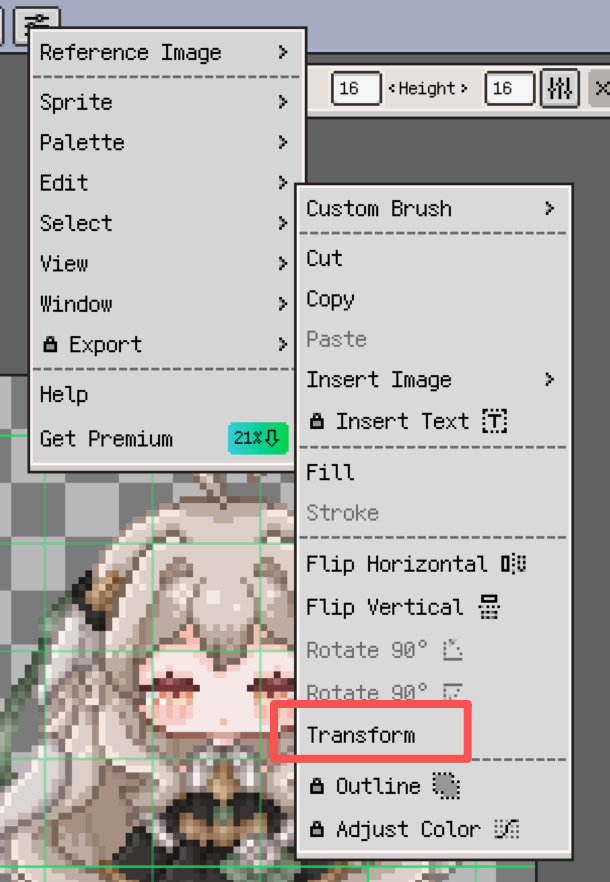
Enter Free Transform
There are two common ways to enter Free Transform:
- Open it from the Edit menu
- Start dragging inside an existing selection
Move and Nudge
Drag inside the selection to move it freely.
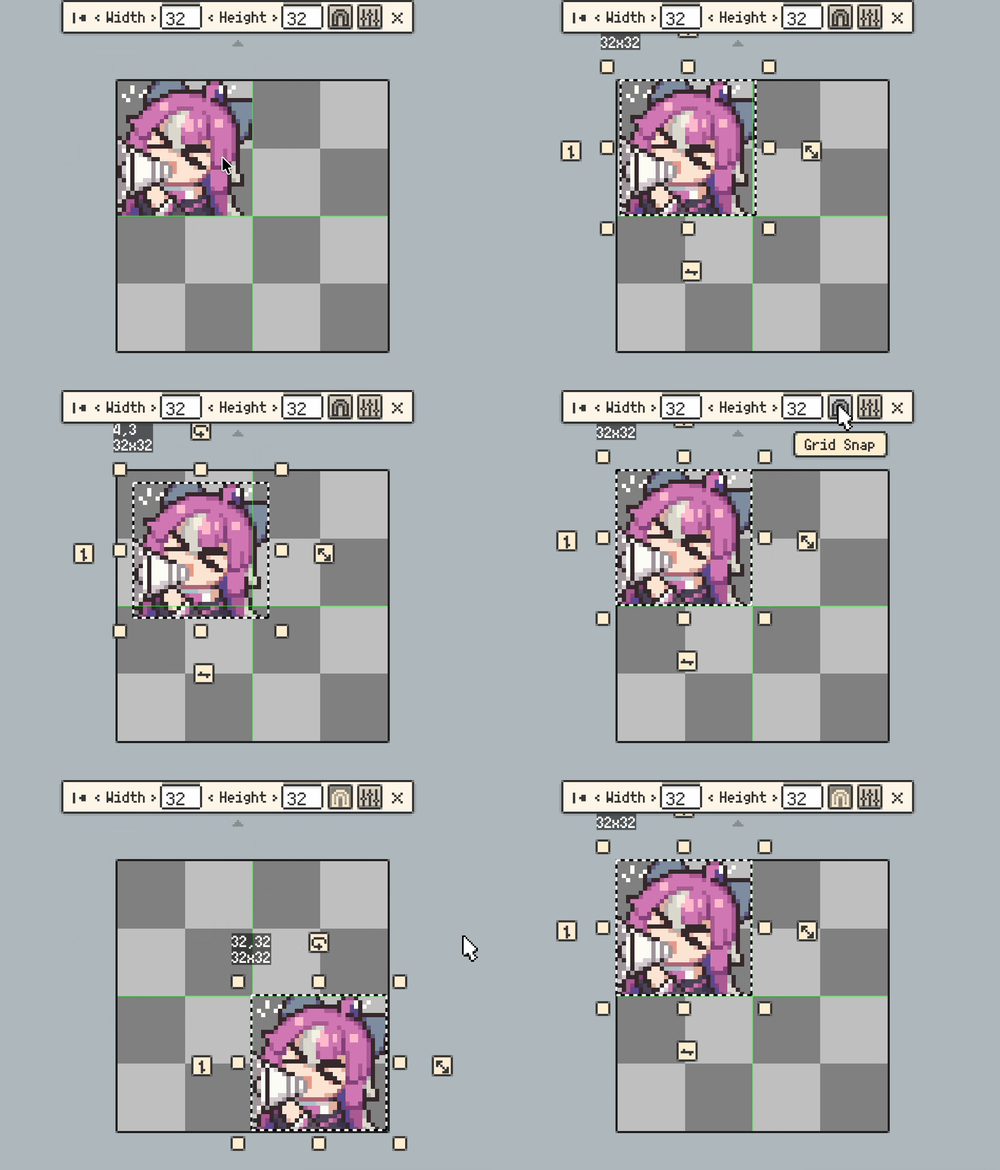
For more precise control, use the directional buttons  to nudge the selection. On desktop, you can also use the arrow keys.
When grid snapping is enabled, both the directional buttons and the arrow keys move by the current grid step instead of a single pixel. That makes it much easier to keep things aligned on both regular grids and isometric grids.
If grid snapping is not currently enabled, desktop still lets you hold Shift while using the arrow keys to move by grid units.
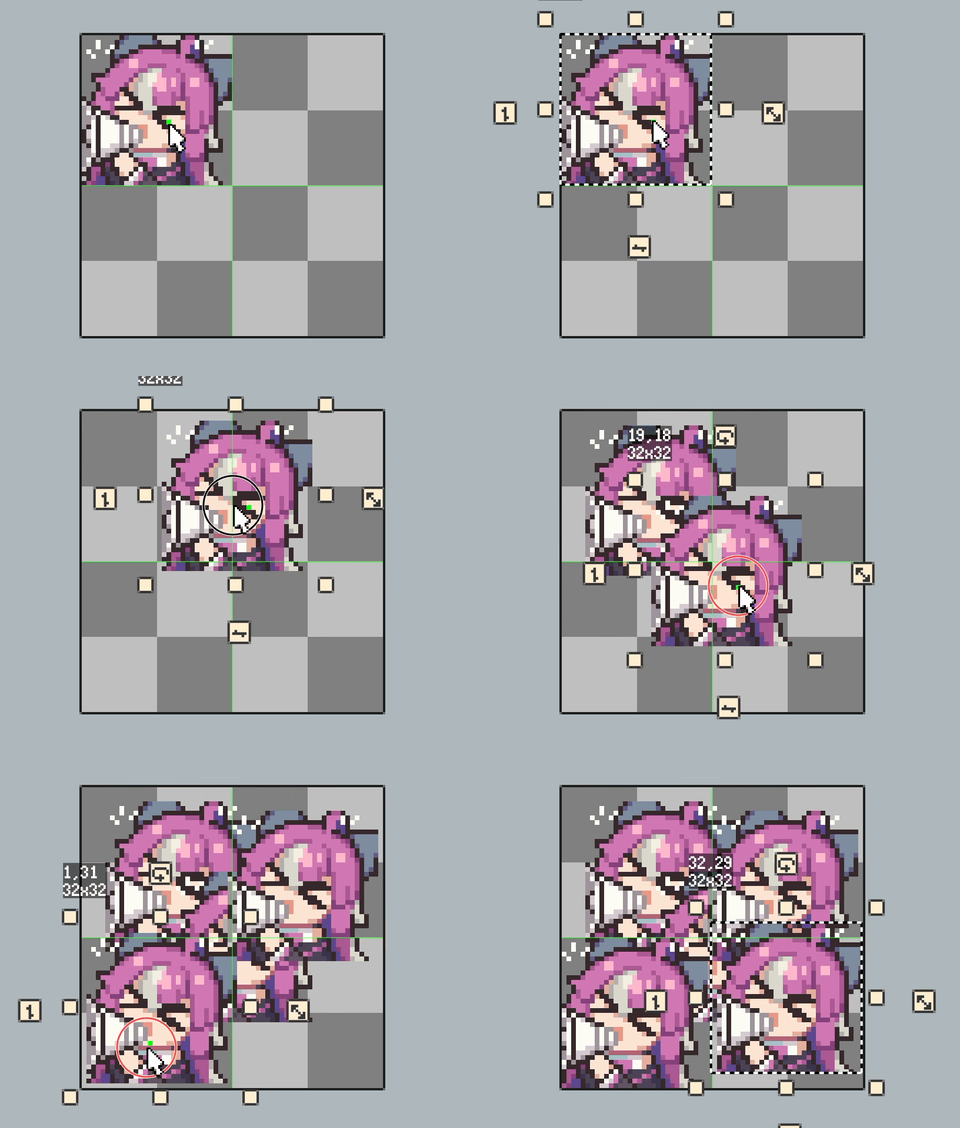
On desktop, you can also hold Ctrl / Cmd and then begin dragging to duplicate the current selection contents while moving the copy.
Scale with Aspect Ratio Control
Drag any edge or corner handle to resize the selection. If you keep the opposite side steady, scaling stays anchored around that point.
Hold Shift while dragging a corner to keep the original aspect ratio. This is useful when you want to enlarge sprites or props without distorting them.
If integer-scale snapping is enabled, it becomes much easier to land on clean 2x, 3x, and other whole-number scale steps.
Rotate, Flip, and Rotate by 90°
Use the rotation handle  to rotate freely. The current angle is shown near the handle so it is easier to line things up against guides or existing artwork.
Free Transform also supports these direct actions:
- Flip horizontally
- Flip vertically
- Rotate 90° clockwise
- Rotate 90° counterclockwise
These commands are handy when you need quick directional changes without manually dragging the rotation handle every time.

Skew
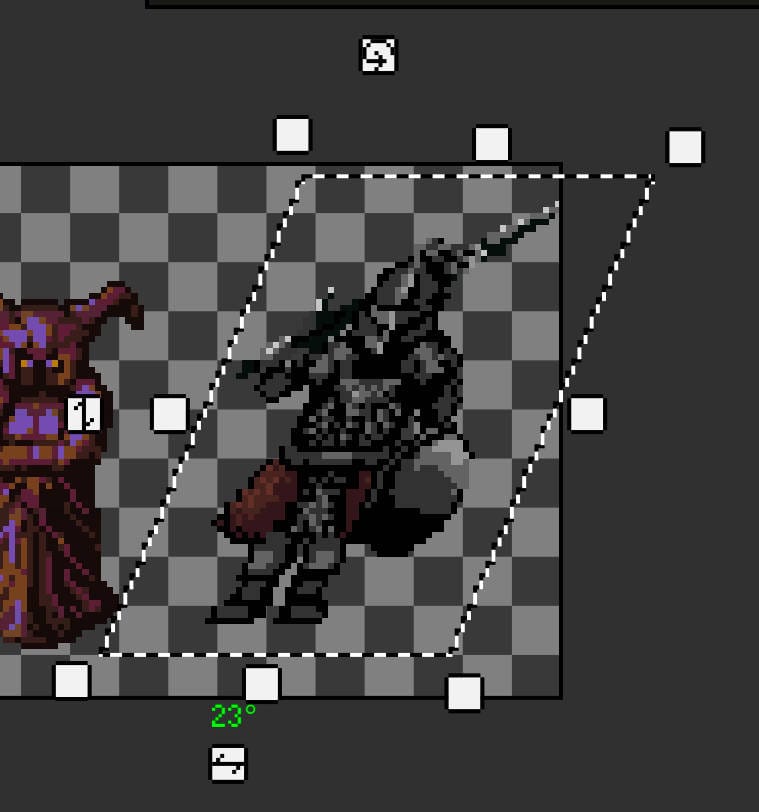
Use the skew handles  to shear the selection horizontally or vertically. This is especially useful for isometric walls, slanted structures, and light perspective-style adjustments.
For isometric-looking work, starting around 26° or 27° is usually a good place to begin fine-tuning.
Handle Size and Snapping Preferences
If you often work on a tablet or prefer easier touch targets at high zoom levels, you can enable larger transform handles in settings.
Integer-scale snapping can also be turned on or off depending on how you work: leave it on for cleaner pixel scaling, or disable it when you want completely free resizing.