Symmetry Tool
Show the Symmetry Tool
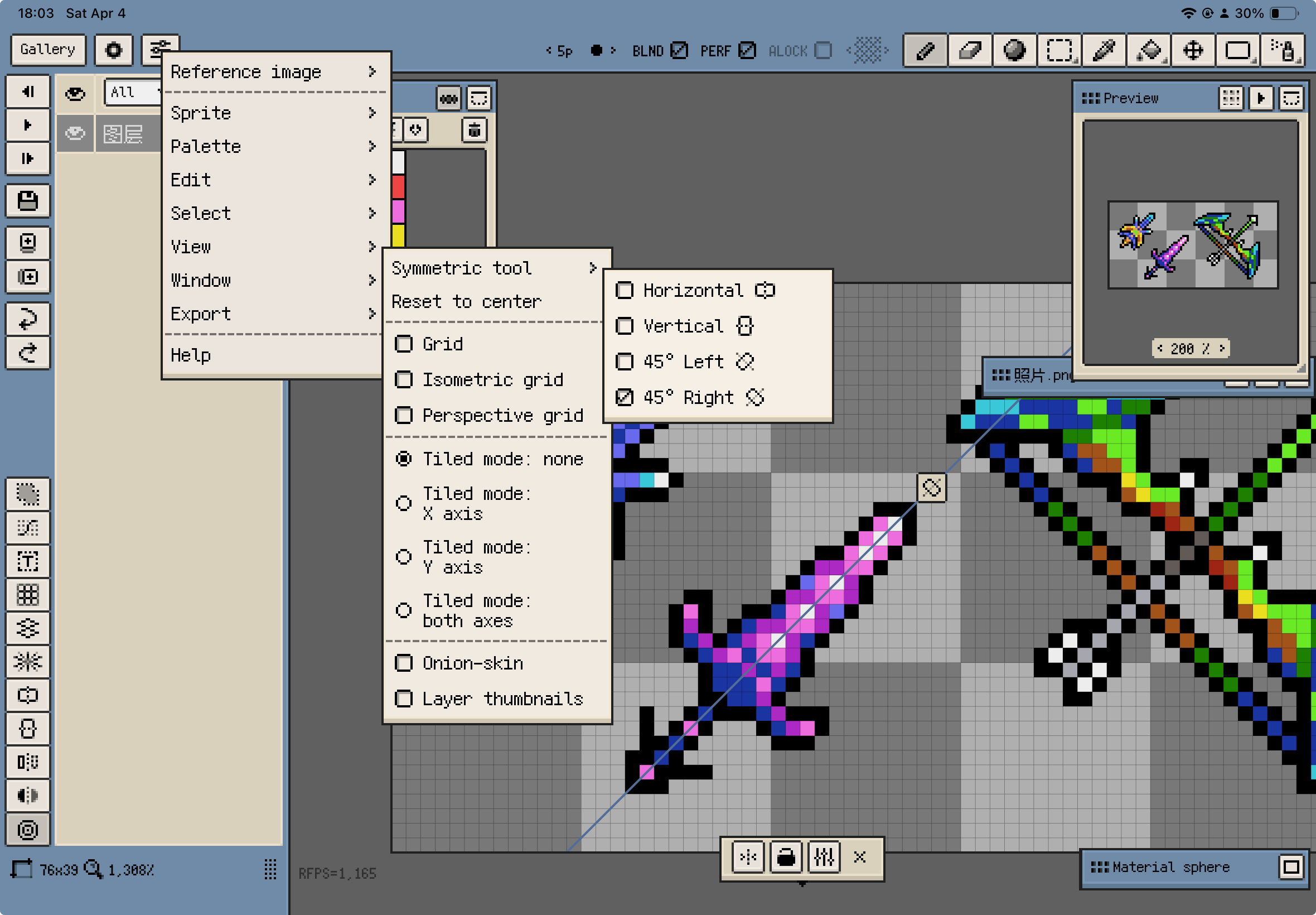
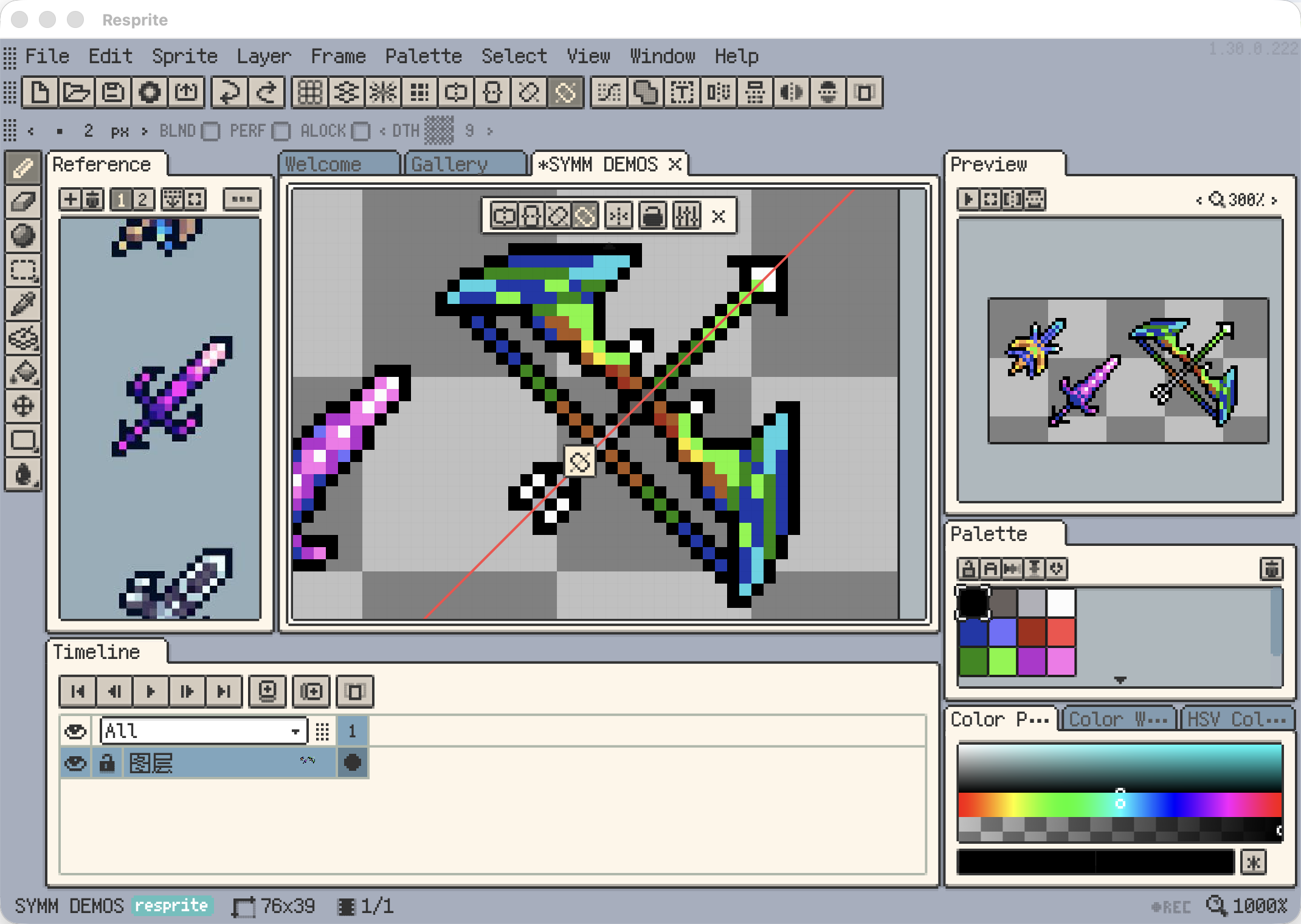
You can open the Symmetry Tool from the View menu or from the Symmetry Tool panel.
The current version supports four directions:
- Horizontal
- Vertical
- Left 45°
- Right 45°
Once shown, the matching handles and symmetry guides appear around the canvas or directly inside it.
The two screenshots below show the current Symmetry Tool panel on iOS and desktop.
Visible does not mean active mirroring
The Symmetry Tool has two layers of state:
- Show / Hide: whether that direction's symmetry guide and handles are visible on the canvas.
- Enable / Disable: whether strokes are actually mirrored along that direction while drawing.
In practice, you can show a direction first, then click its handle to quickly decide whether it should participate in mirrored drawing.
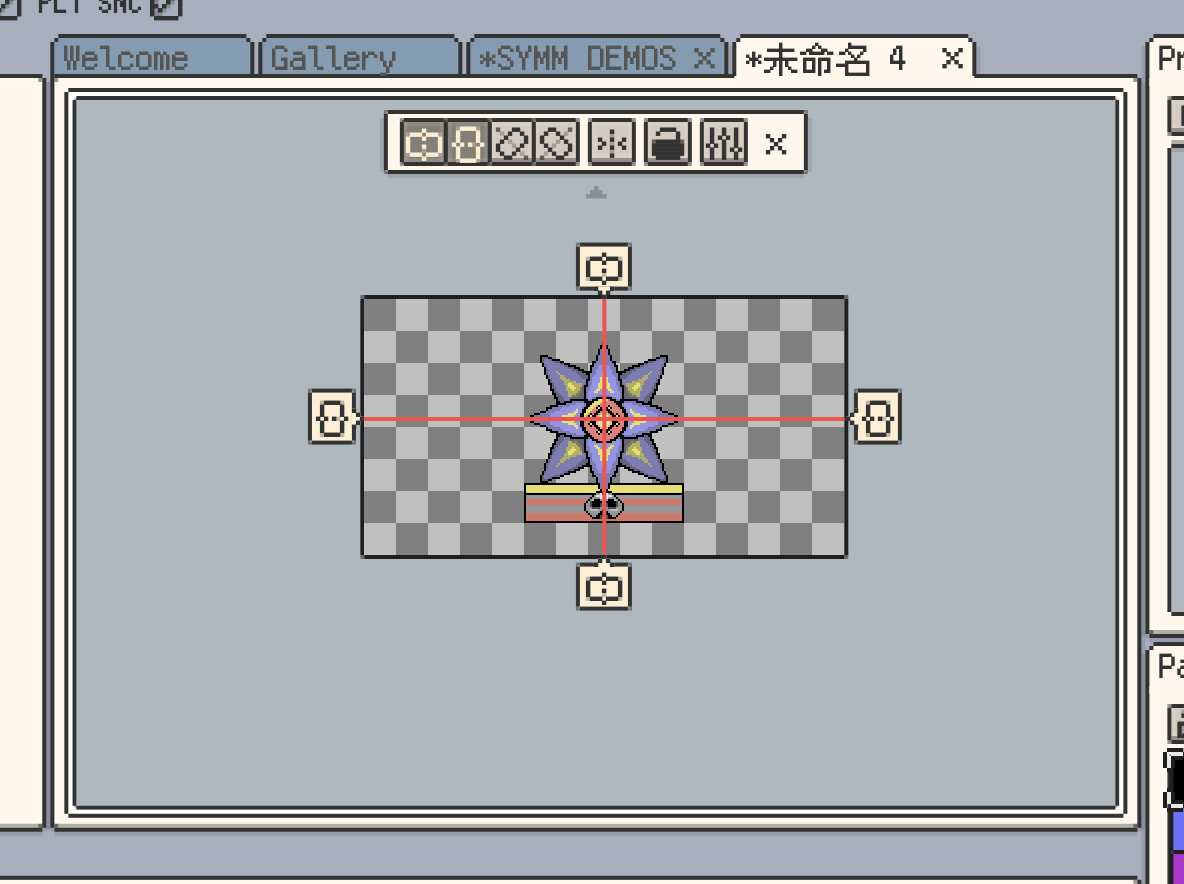
Handles and on-canvas interaction
Once the Symmetry Tool is visible, you can work with its handles directly on the canvas.
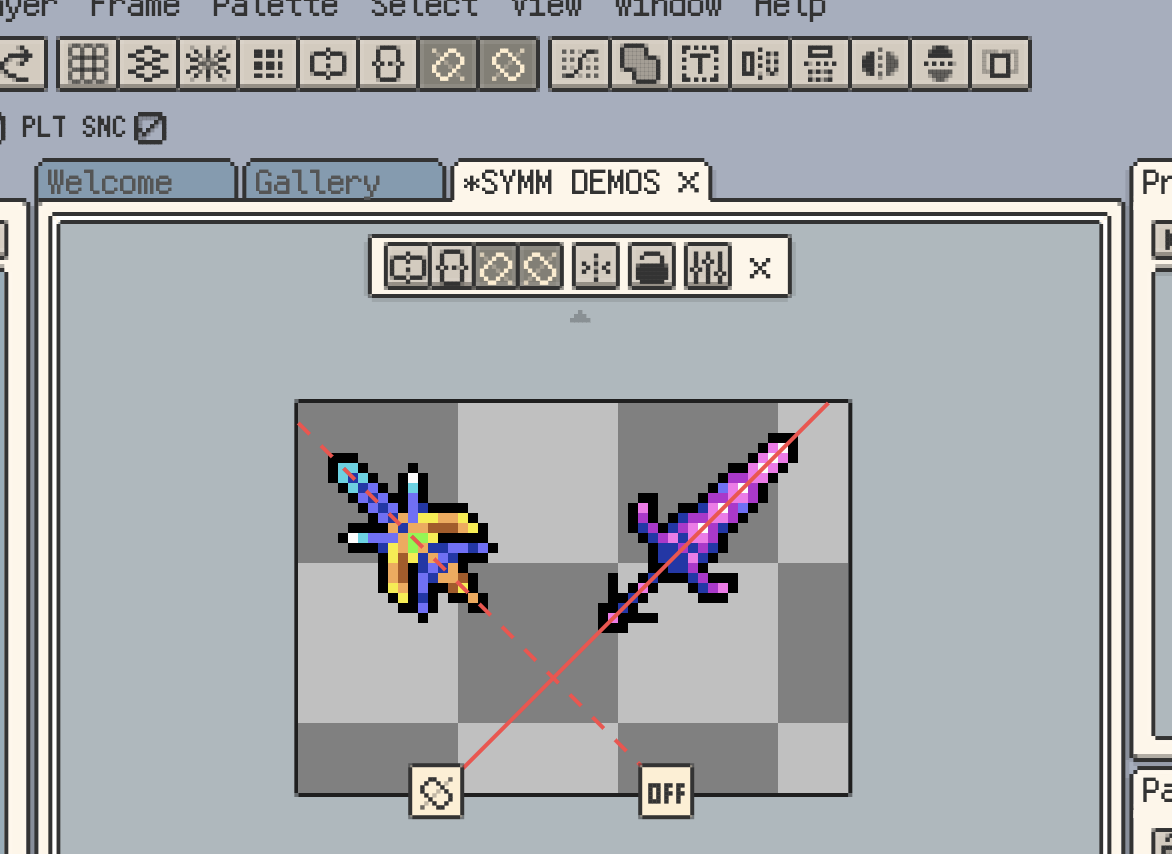
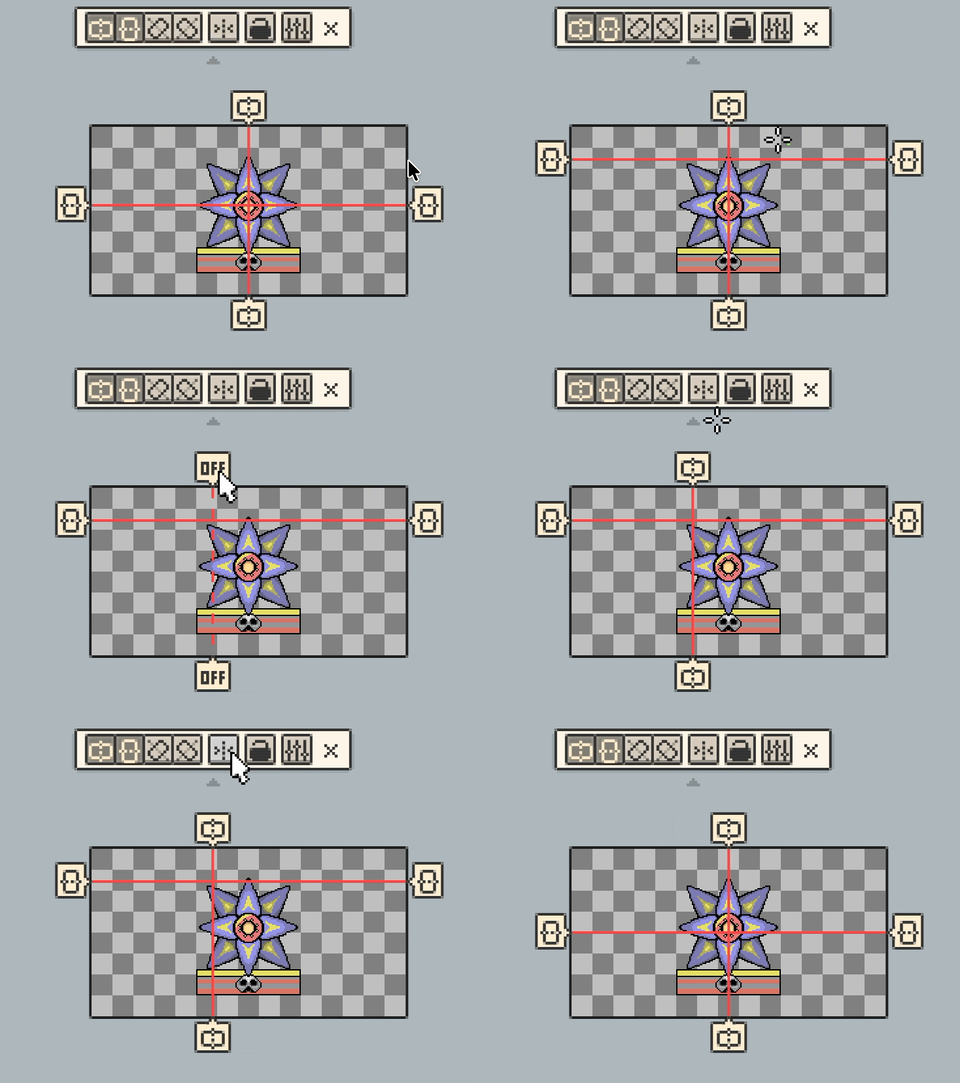
- Click a handle to enable or disable mirrored drawing for that direction.
- Drag a handle to reposition the symmetry line.
- After locking the tool, the handles remain visible but can no longer be dragged.
- When a handle is offscreen (iOS R60+, Desktop & Android v1.32.1+), an edge indicator shows its direction and axis type. Drag the indicator to bring a horizontal, vertical, or 45-degree symmetry axis back into view.
Horizontal and vertical directions place handles along the canvas edges, while the 45-degree tools place their handles inside the canvas.
The next two screenshots show the horizontal / vertical handles and the 45-degree handles on the canvas.
The GIF below shows how to click a handle to toggle it and drag it to reposition it.
Symmetry-Aware Selections
On iOS R60+ and desktop or Android v1.32.1+, the selected pixel content also follows enabled symmetry axes. Symmetric branches remain linked during later moves, rotations, scaling, and flips, so they do not need to be adjusted separately.
Common controls in the Symmetry Tool panel
Besides working directly with the handles, the Symmetry Tool panel gives you a few common controls:
- Reset to Center to quickly move the visible symmetry tools back to the middle. On iOS R60+ and desktop or Android v1.32.1+, it uses the center of the visible area when the canvas center is offscreen.
- Lock / Unlock to prevent accidental handle movement.
- Settings to jump into Assistive Grid related settings.
- Close to hide all visible symmetry tools at once.
If you switch directions frequently, the panel is usually faster than relying only on the handles.
Adjust the symmetry line color
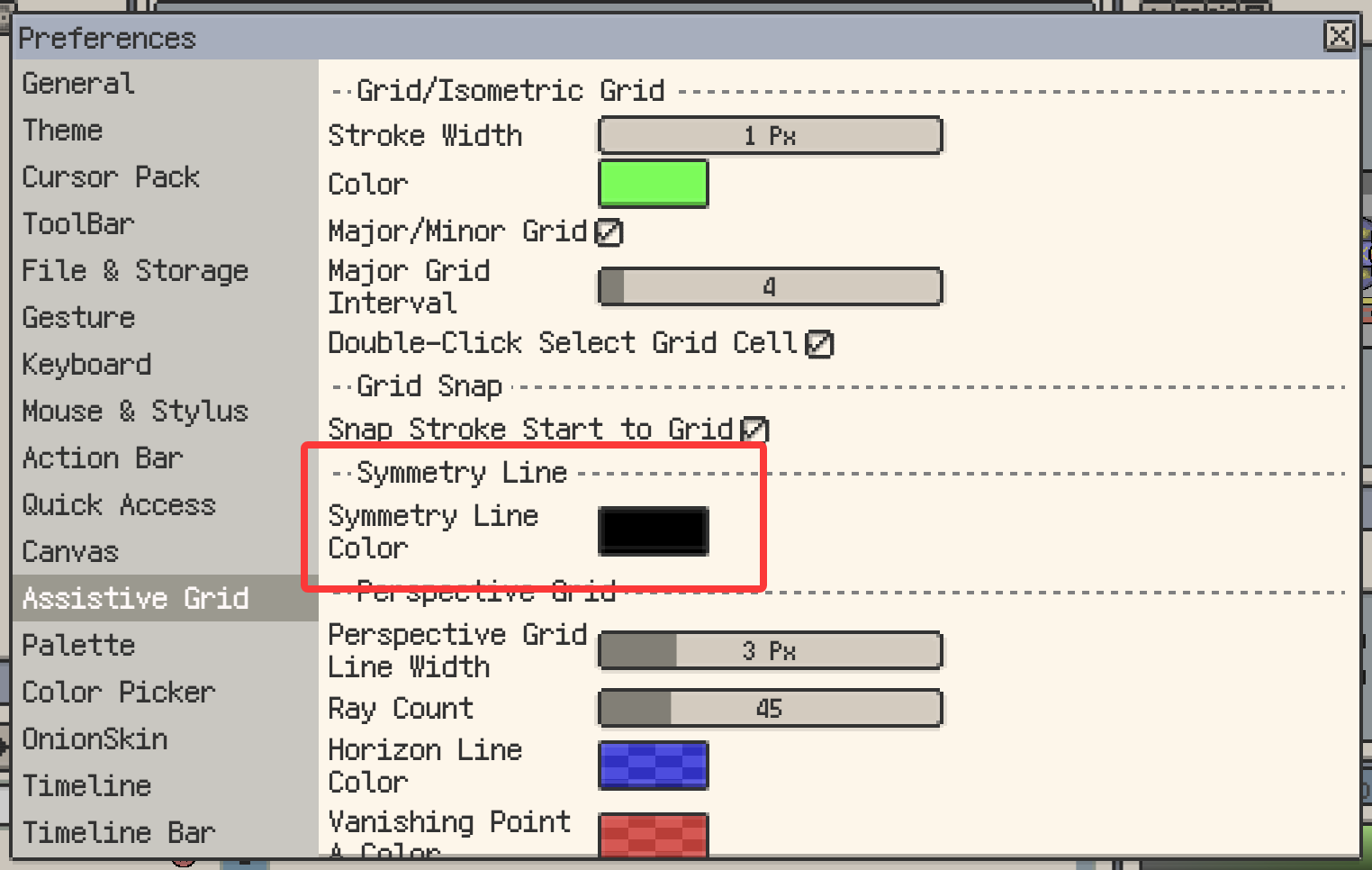
The symmetry line color can be adjusted in the Assistive Grid related settings.
- This is useful when you want to rebalance contrast for dark themes, light themes, or high-contrast setups.
- If you use grid lines, perspective guides, and symmetry guides together, giving them more distinct colors makes the canvas easier to read.
When the Symmetry Tool is most useful
The Symmetry Tool is especially useful for:
- symmetric faces, masks, badges, and emblem-like designs
- front-facing buildings or object studies
- trying quick ideas with 45-degree symmetry
- blocking in structure first, then turning the tool off for asymmetrical detail work
Continue with: