Dithering
The value of dithering is not just “making the image busier.” It is a way to suggest more depth while staying inside a limited palette.
In Resprite, dithering mainly falls into two workflows:
- Pattern dithering: adds texture patterns to tools such as Pencil, Eraser, Shape, Fill, and Shading
- Gradient matrix dithering: gives the Gradient tool a more pixel-art-friendly stepped transition
Pattern dithering across multiple tools
Pattern dithering is mainly used with:
- Pencil
- Eraser
- Shape tools
- Fill tools
- Shading tools
Each of these tools can enable dithering from its own options bar and choose a pattern there.
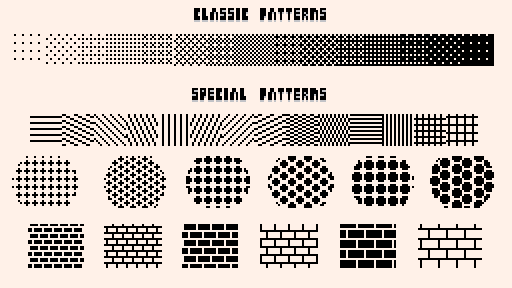
Resprite's pattern library is not limited to simple dot-density presets. It also includes patterns better suited for lines, grids, isometric textures, and chunkier surface structure.
If you already know you want a grainy, grid-like, or slanted texture, browsing patterns is often faster than trial-and-error with extra colors.
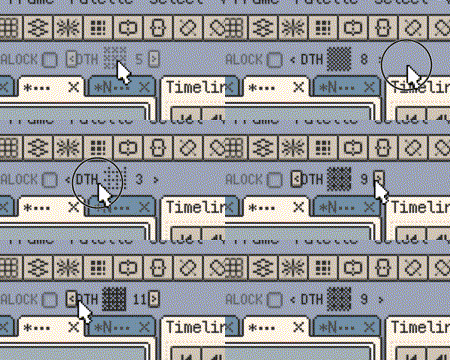
The GIF below shows the current pattern-dithering control, including the toggle, pattern number, and preview.
How to enable pattern dithering
In tools that support pattern dithering, the options bar includes a dithering control.
- Click the control to turn dithering on or off
- Drag or slide the control to switch pattern numbers
- Pattern preview shows the currently selected texture directly

Each supported tool remembers its own last-used pattern and toggle state.
In practice, that means Pencil, Eraser, Shape, Fill, and Shading can each keep their own preferred dithering setup instead of constantly overwriting one another.
Gradient dithering is a separate workflow
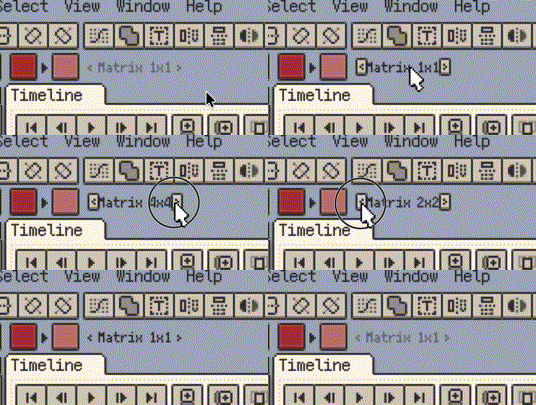
The Gradient tool also supports dithering, but it does not use the same pattern library shown above. Instead, it uses a separate matrix-based stepped transition.
- Pattern dithering is better for texture, grain, and material surfaces
- Gradient matrix dithering is better when you want gradients to feel more like pixel art instead of smooth RGB blending
If you are working on skies, glow, volume shading, or any transition where the pixels themselves should stay readable, gradient dithering is often the better fit.
The GIF below shows the gradient matrix dithering control and matrix-size switching.
Common uses
1. Add middle steps without adding new colors
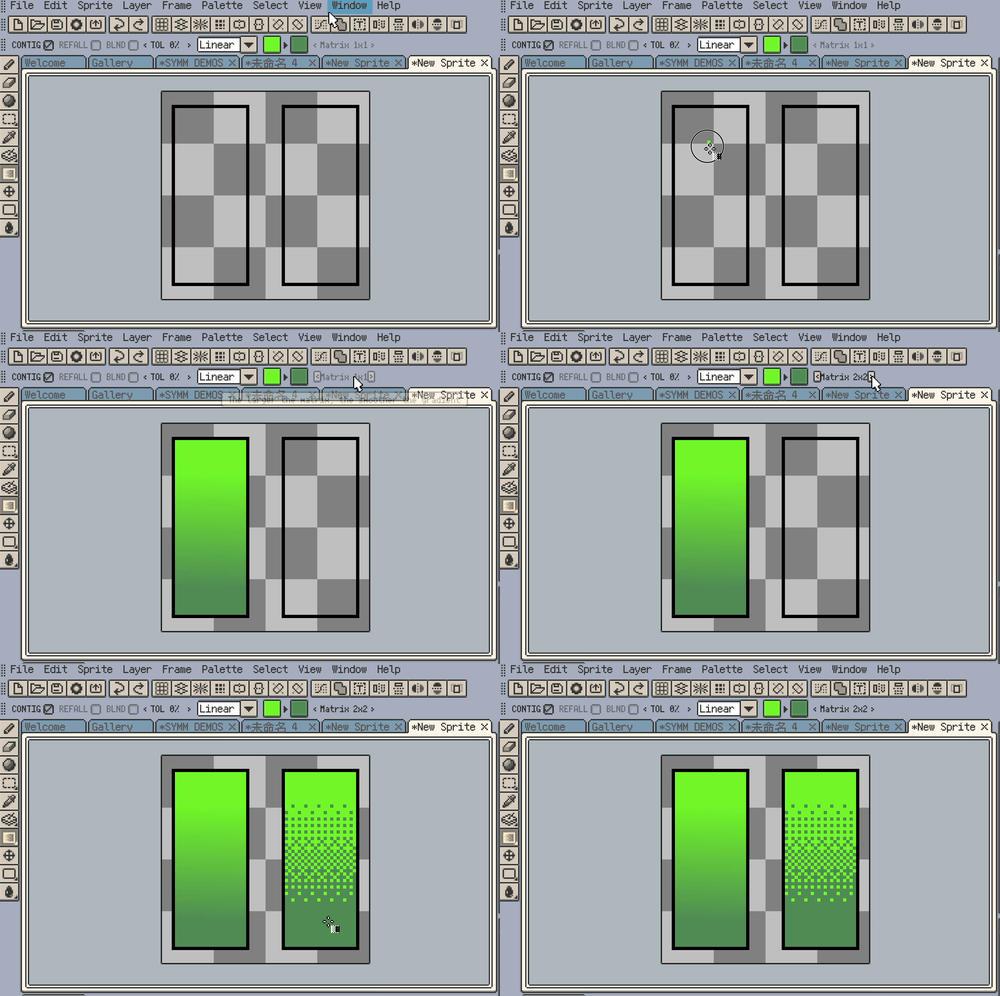
If you want to keep the palette small but avoid abrupt tonal jumps, dithering is often the most direct solution.
- A light dither layer between two colors can imply an intermediate step
- Repeating it in highlights or shadows keeps the image more visibly pixel-based
- This works especially well for indexed-style, handheld-inspired, or tightly palette-constrained art
The comparison GIF below shows the difference between solid fill and dithered fill.
2. Add structured texture to surfaces
Dithering is not only for middle tones. It is also useful for organizing surface texture.
- Metal, cloth, brick, roof tiles, and ground grain all benefit from patterned structure
- Linear and grid patterns are useful for repeated textures
- Chunkier or dotted patterns work well for rough grain, retro screen feel, or visible noise
3. Make gradients feel more like pixel art
Smooth gradients can easily feel too soft.
Gradient matrix dithering breaks that softness into more readable pixel steps, which usually keeps the overall style more coherent.
Example: using dithering with Fill
The Fill tool is one of the quickest places to see dithering in action.
If the colors are already chosen and you only need a more pixel-art-like transition, Fill is often the fastest place to start.
After that, you can switch back to Pencil or Shading for local cleanup and shaping.
When dithering is especially useful
Dithering is especially useful when:
- you want to control palette size without introducing many extra colors
- you want visible pixel grain instead of smooth blending
- you want both tonal separation and material texture in the same area
- you want gradients to keep a stronger pixel-art rhythm