Insert Text and Fonts
Use Insert Text to compose lettering and place it on the canvas as a pixel image. Choose the font workflow that matches your content:
| Font type | How you enter content | Useful for |
|---|---|---|
| Resprite Font | Select bitmap glyphs from a character grid, keeping their original pixels and colors | Pixel lettering, icons, emoji, and HUD elements |
| Vector font | Type into a text field and adjust size, color, and layout | Titles, labels, and multiline text |
After inserting, position and transform the image with Free Transform. To change the wording or font later, compose and insert the text again.
Open the text window
Select an editable drawing layer and the intended frame, then open Edit ▸ Insert Text. Use a normal drawing layer for the inserted image; see Tilemaps and Tilesets for tilemap workflows.
The window contains the font list, content controls, and preview. On narrow iOS layouts, the font list moves above the content controls.
Manage fonts
Choose a font from the list to show its character grid or text input controls. Imported fonts are stored in the app's font library and can be reused in other documents.
Import fonts
Use the + button in the font controls and select a supported file.
| Platform | Resprite Font files | Vector font files |
|---|---|---|
| iOS | .resfont, .resprite-font | .ttf, .ttc, .otf, .otc |
| Desktop / Android | .resfont, .resprite-font | .ttf, .otf |
Both Resprite Font extensions are import-compatible. Exported packs use .resfont.
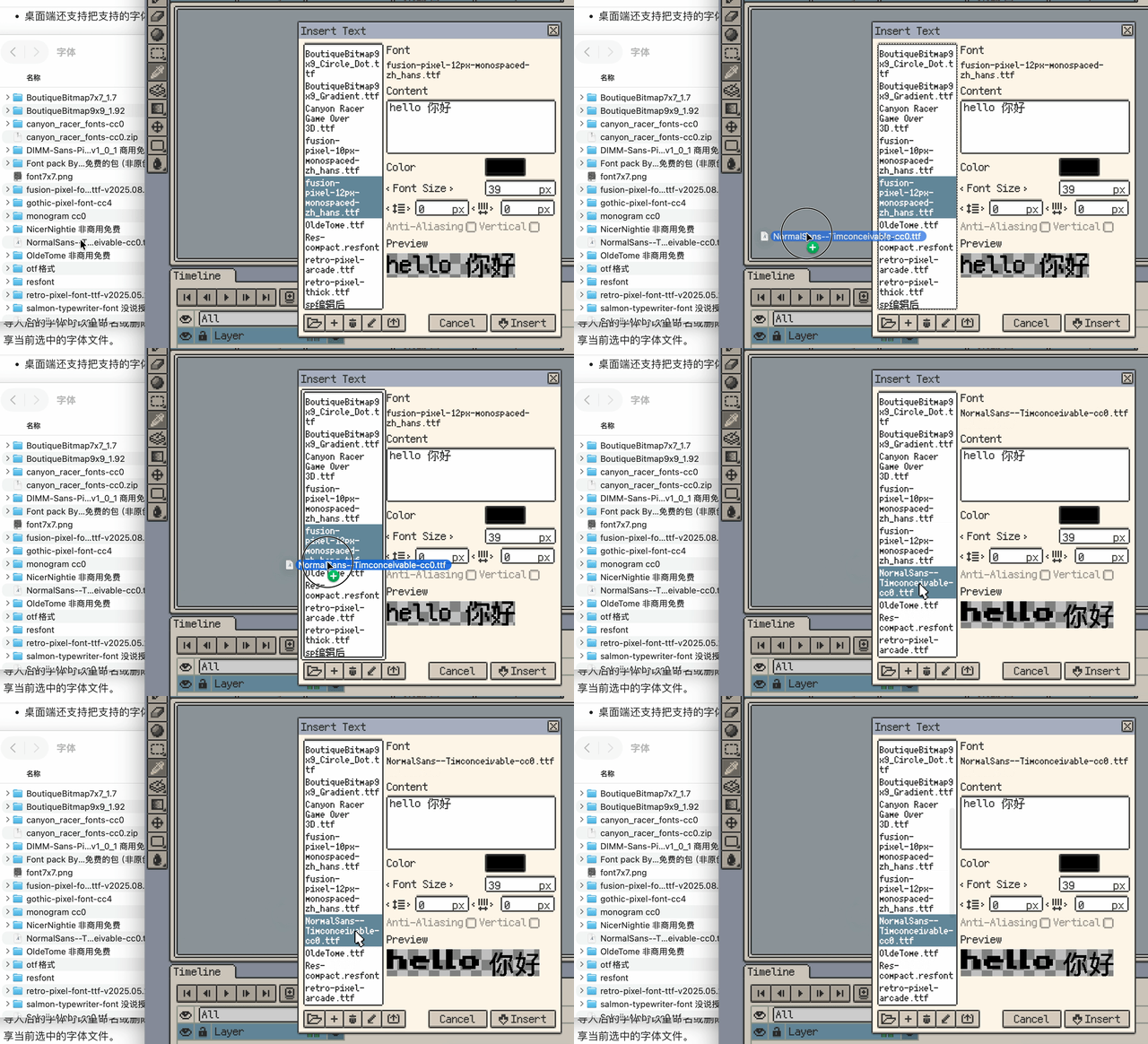
On iOS, you can also open supported font files from the Files app with Resprite. On desktop, you can drag supported font files into the text window.
Organise and export fonts
Select a font, then use the font controls to rename, delete, or export / share it. On iOS, sharing opens the system share sheet; on desktop and Android, use the export control. Desktop also provides a button to open the font folder.
To move a font to another device, export or share its file, then import it on the destination device. The Fonts collection provides downloadable Resprite Font packs.
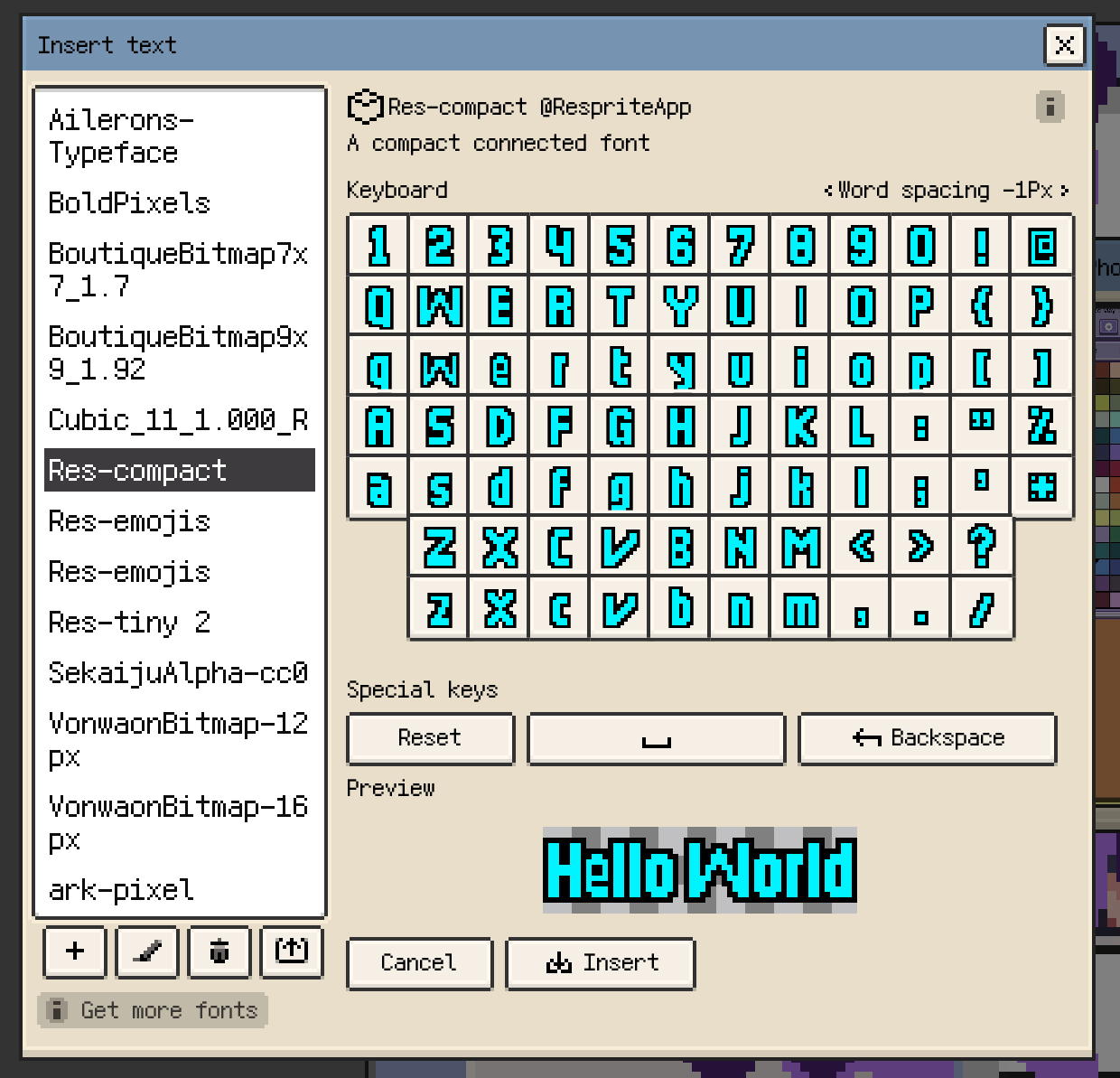
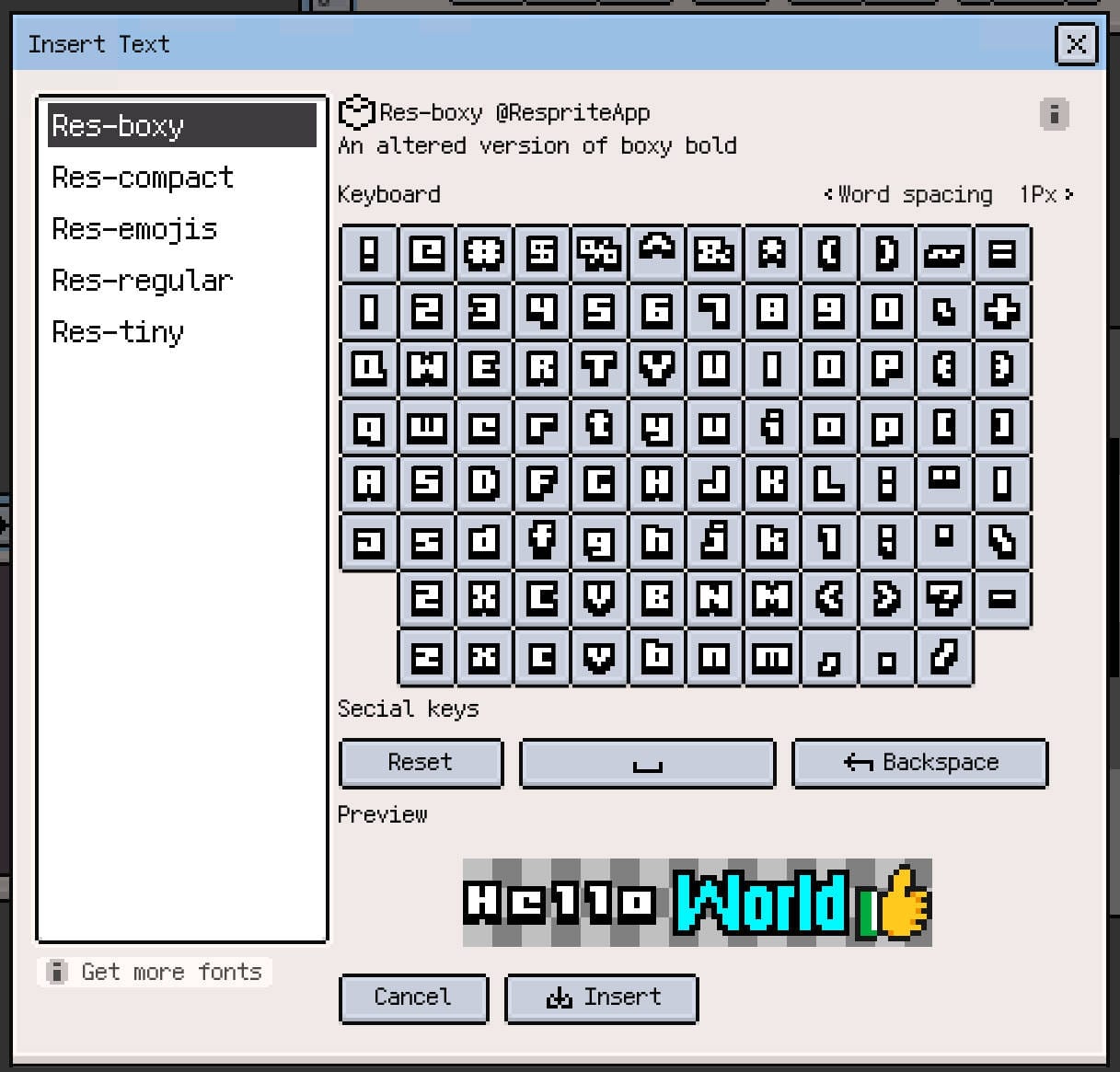
Insert text with a Resprite Font
- Select a Resprite Font to display its character grid.
- Set Word spacing before selecting glyphs. This spacing is recorded with each glyph you add; changing it affects subsequent input.
- Click or tap glyphs to build the content. Use Space, Backspace, and Reset as needed.
- Check the preview, then press Insert and position the resulting image on the canvas.
To combine lettering and icons, switch to another Resprite Font and continue selecting glyphs. The characters already entered keep their font and spacing.

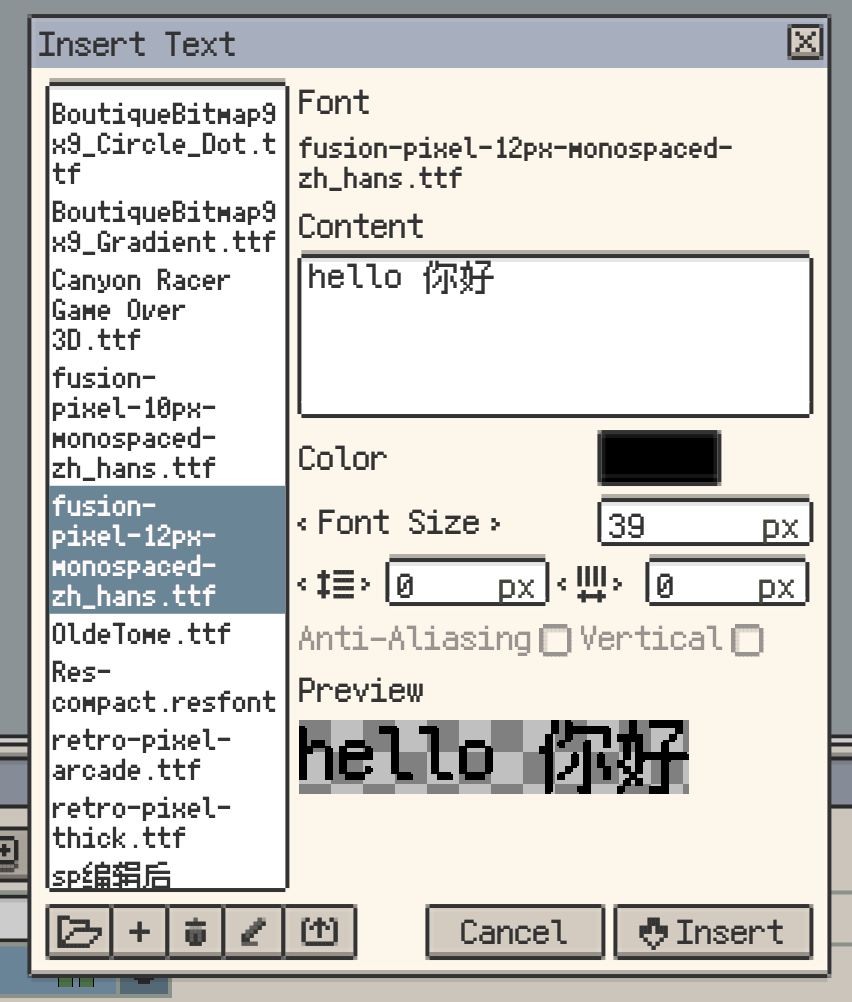
Insert text with a vector font
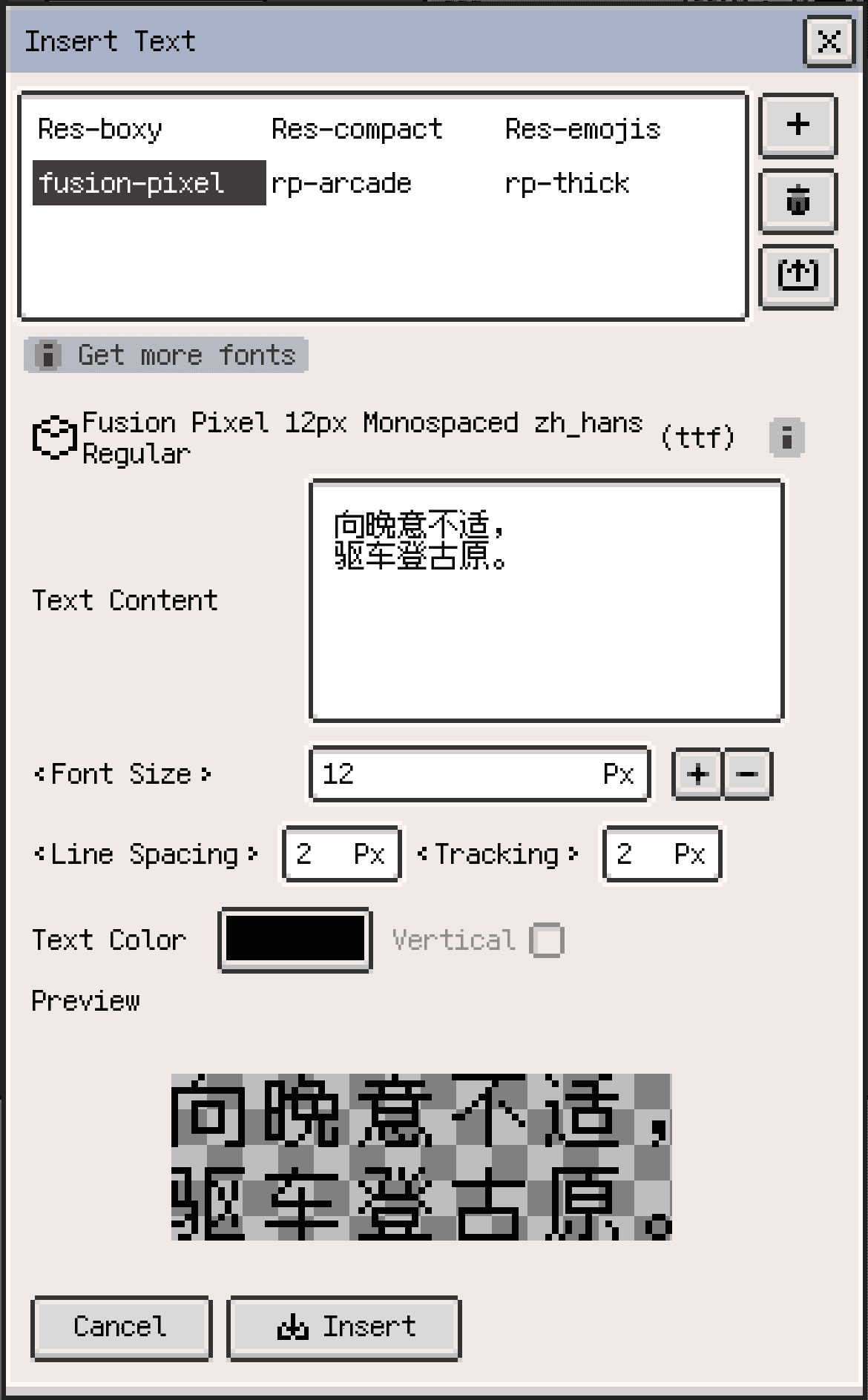
- Choose a vector font and type into the text field. Use line breaks for multiple lines.
- Adjust font size, color, line spacing, and character spacing while checking the preview.
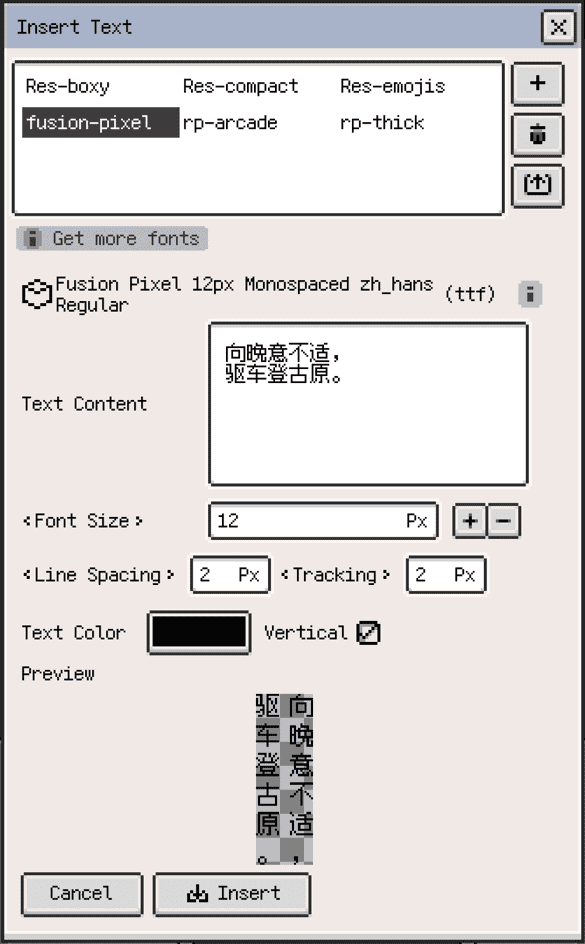
- Enable vertical layout when needed. Desktop and Android also provide an Anti-Aliasing toggle to control edge smoothing.
- Press Insert, then position the image and confirm the transform.
Check spacing and glyph appearance at the intended canvas size, especially for small labels. The preview lets you compare the layout before inserting.
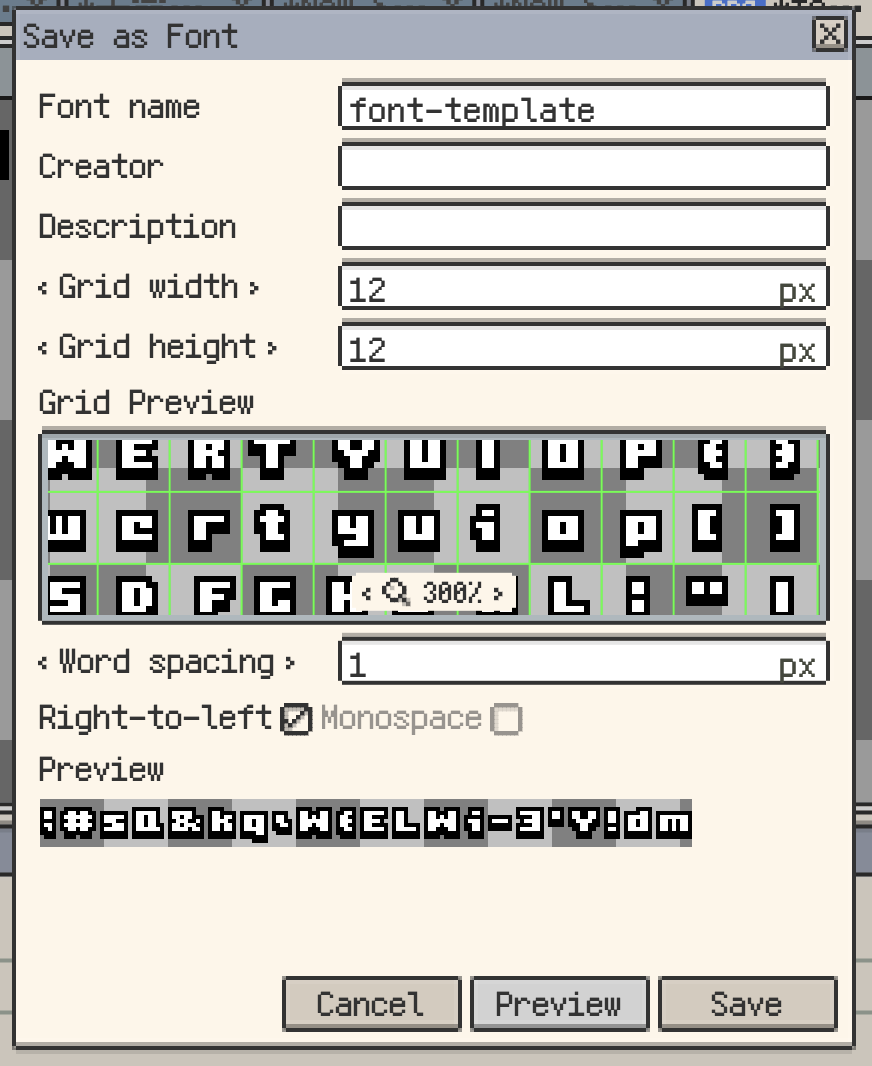
Create a custom Resprite Font
Create a reusable font from your own pixel letters or icons:
- Arrange the glyphs on a transparent sprite, with one glyph per equal-sized grid cell. Use a canvas size that is a multiple of the grid dimensions.
- Select the source frame. Font creation uses that frame's composited image.
- On iOS, open Export ▸ Save as Font. On desktop and Android, open File ▸ Save as Font.
- Enter a font name and set the character grid width and height to match your artwork. Set default spacing and, if needed, monospace character width. Add creator and description details.
- Use Preview to check the glyphs and spacing, then Save to add the font to the app's font list.
Empty grid cells are skipped. A font can contain up to 256 non-empty glyphs. Keep each glyph inside its cell so it is not split into neighbouring characters.
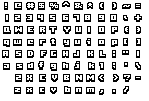
Open Insert Text to use the saved font. To create a file for sharing or transferring to another device, select it in the font list and use export / share.