Reference Images
Import and manage reference images
Use the add entry in the Reference panel to bring external images into the current project as references.
- On mobile, you can add images from Files, Photos, or the clipboard.
- On desktop, you can import directly from local files and also paste from the clipboard.
- A single project can keep multiple reference images.
- Deleting a reference removes it from the current project.
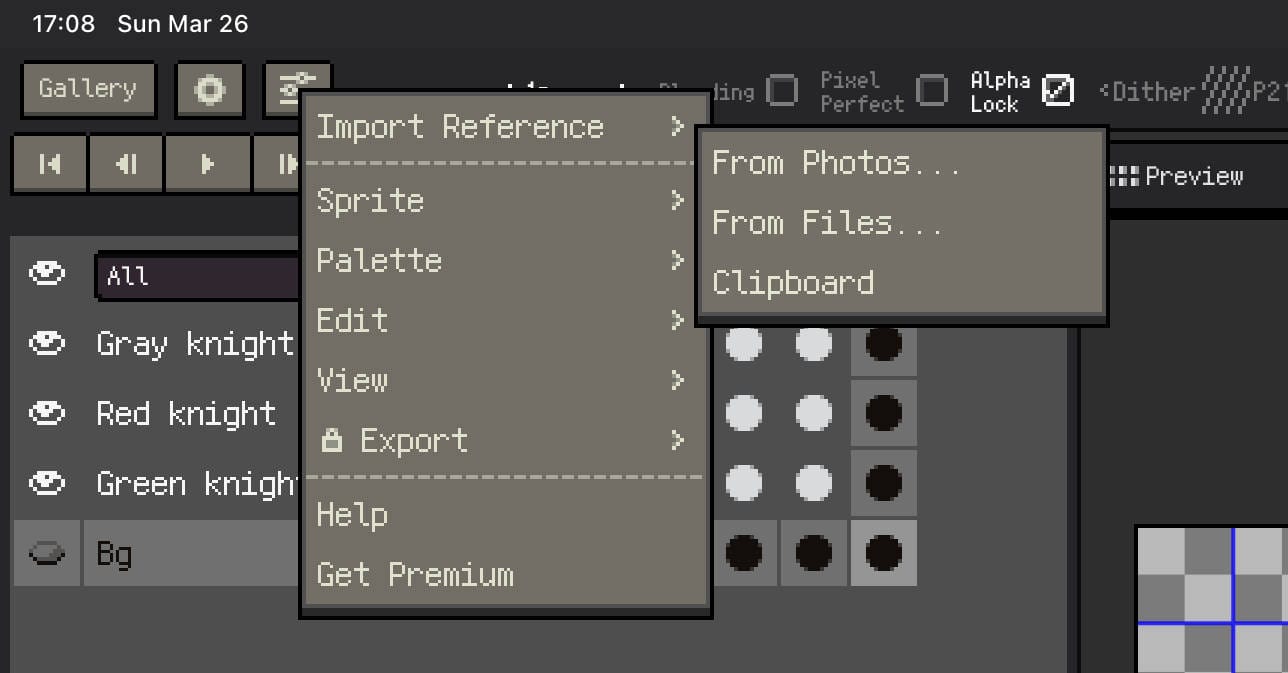
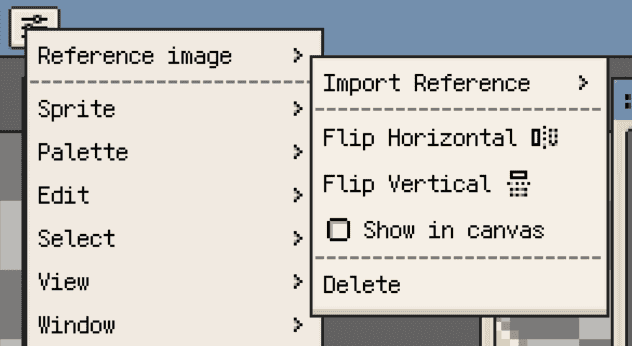
The two screenshots below show the current Reference panel on iOS and desktop.
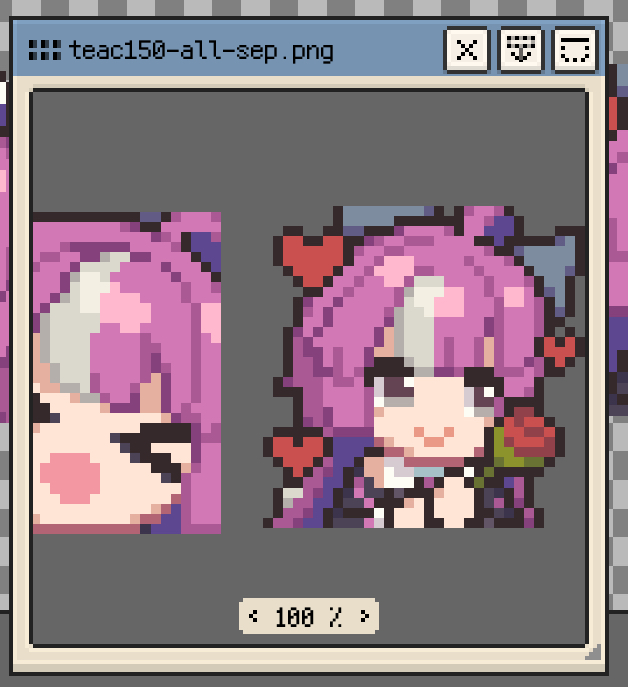
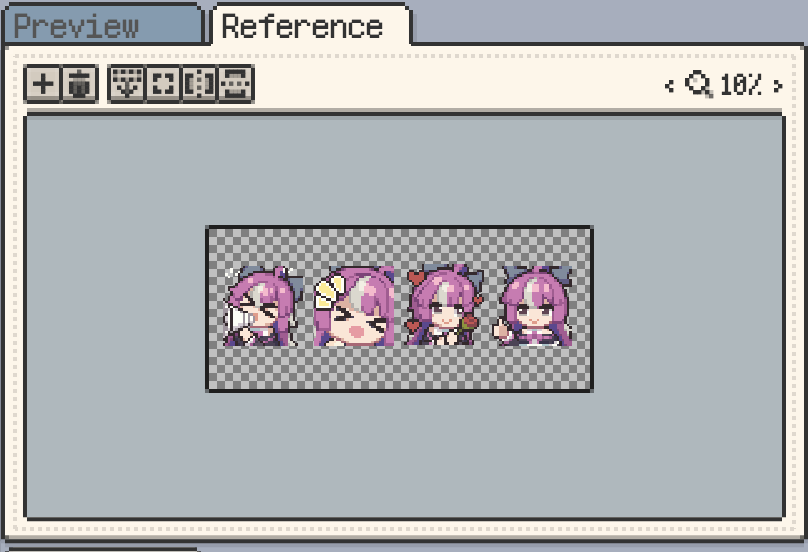
On desktop, if a project already has several reference images, you can switch between them directly in the Reference panel.
On desktop and Android v1.31.0+, several reference images can also be shown together in a split view. Use vertical or horizontal splits when you need to compare model sheets, color references, and detail crops at the same time. On v1.31.1+, the split view mode is kept as a global preference, so new files, document switches, and app restarts keep your last No Split, Vertical Split, or Horizontal Split choice.
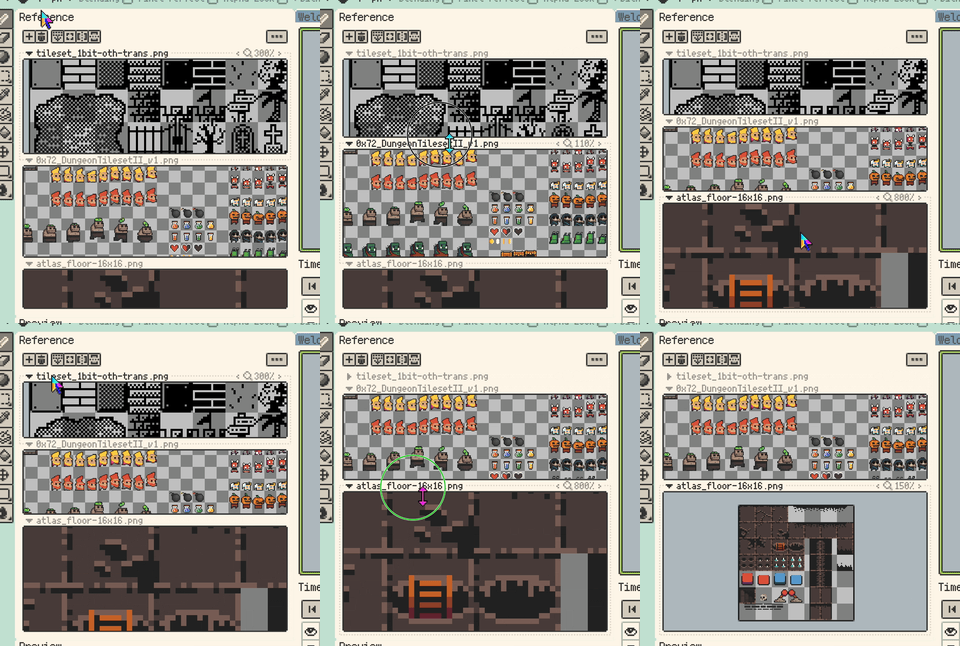
Viewing references in the panel
By default, a reference image opens inside the Reference panel, which works well when you want to compare while drawing.
- Drag the image to move your view.
- Use the zoom control to adjust the display scale.
- Use Fit Center to quickly return the image to a practical view.
- Horizontal and vertical flipping are supported.
- On iOS R58+, and on desktop and Android v1.31.0+, zooming and panning keep part of the image visible, reducing cases where the view drifts away from the reference.
- On mobile, you can long-press the reference to pick a colour quickly.
On iOS, double-tapping the image in the Reference panel cycles through common zoom levels.
Show in Canvas
If you want to use the reference as an overlay directly on top of your artwork, switch it to Show In Canvas.
- This is useful for tracing, checking proportions, or comparing details while you paint.
- In this mode, you can still scale, move, flip, and rotate the reference.
- Both platforms support Fit Center so you can quickly return to a usable placement.
The next two screenshots show the control UI after switching to Show In Canvas on iOS and desktop.
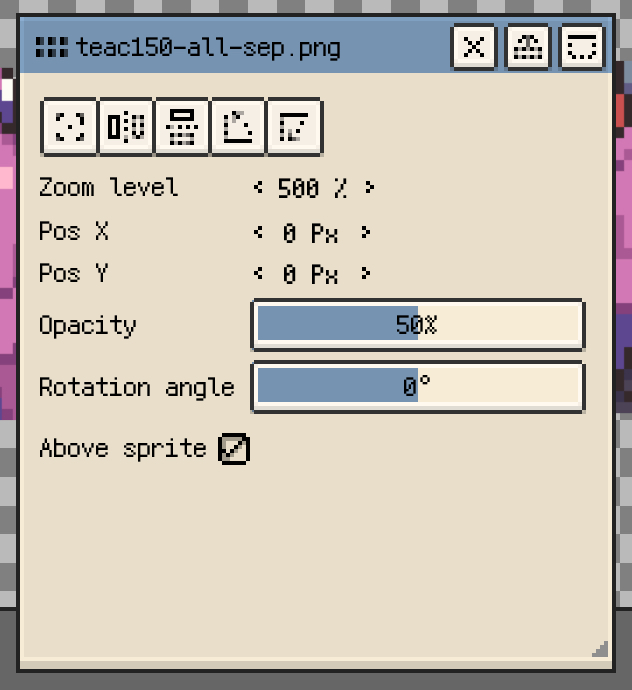
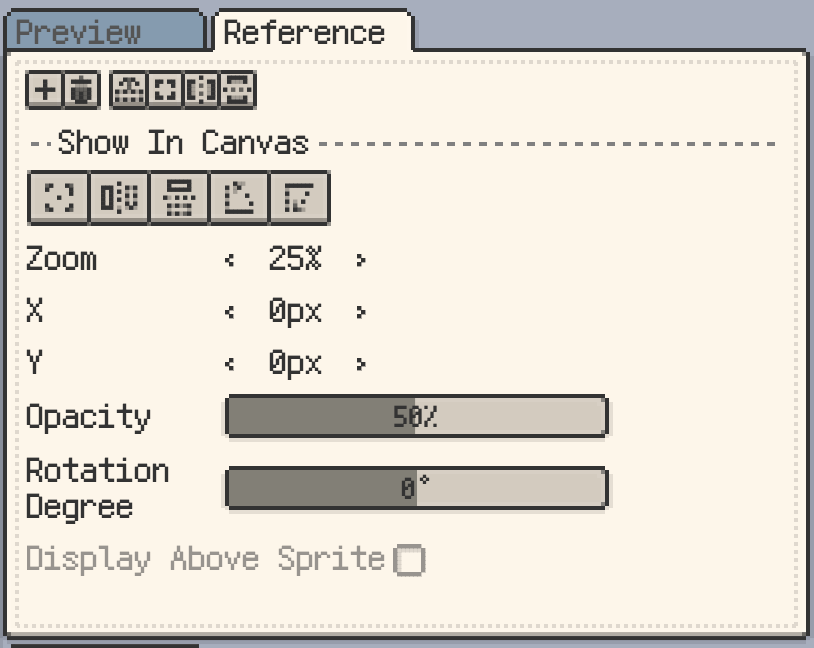
Common controls in Show In Canvas include:
- Fit Center to quickly reset the placement against the current canvas.
- Zoom and position for fine size and
X / Yadjustments. - Flip and rotate for mirror checks and orientation changes.
- Opacity so the reference can sit behind your drawing more comfortably.
- Display Above Sprite when you need the reference to stay on top of the artwork.
If you prefer starting by dropping an image straight into the panel, desktop also supports drag and drop.

Paste from the clipboard
After copying an image in another app, you can paste the clipboard contents into the current project as a reference.
With Apple Handoff enabled, you can copy an image on a Mac and paste it into Resprite on iOS.
Copy Reference Images Across Files (macOS / Windows v1.32.1+)
After selecting a reference image, use a shortcut, the Edit menu, or a Reference menu to copy the image to the system clipboard. You can then paste it into another Resprite file, onto a canvas, or into another app. Only the image itself is copied; when it is added again as a reference, it uses the default display settings.
Picking colours from a reference
Reference images are also a direct colour source.
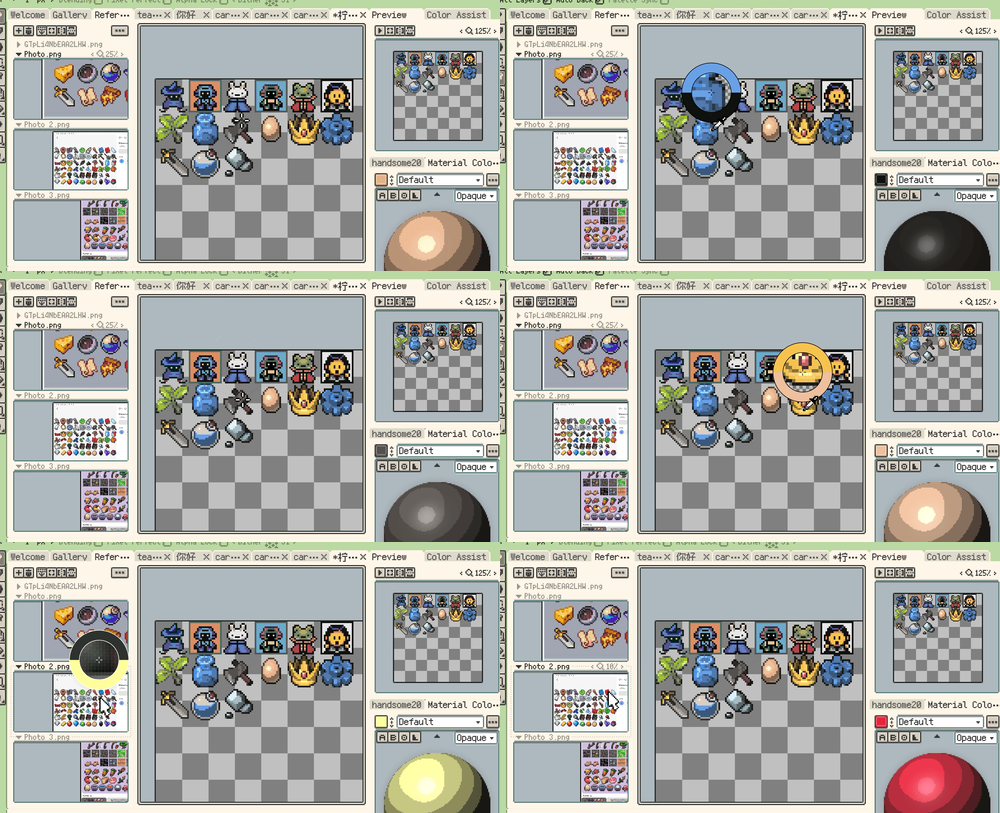
- With the Eyedropper tool selected, drag over the reference image to sample colours.
- On mobile, long-pressing a reference can also trigger quick colour picking.
- On desktop, you can also pick colours from a reference with the right mouse button.
Once colour picking is active, drag gestures prioritise sampling instead of moving the reference, which helps avoid accidental shifts.
On desktop and Android v1.31.1+, the eyedropper loupe is also shown while picking from reference images by default, making individual pixels easier to confirm before you release.
Saved with the project
Reference images are stored together with the current project.
- When you share or back up the project, the linked reference images are included as well.
- When you reopen the project, their display state, position, and related settings are restored.
Continue with: