Floating Windows
Arrange floating windows
All Resprite panels can float so tools remain close to the canvas. Drag a window by its title bar to reposition it.
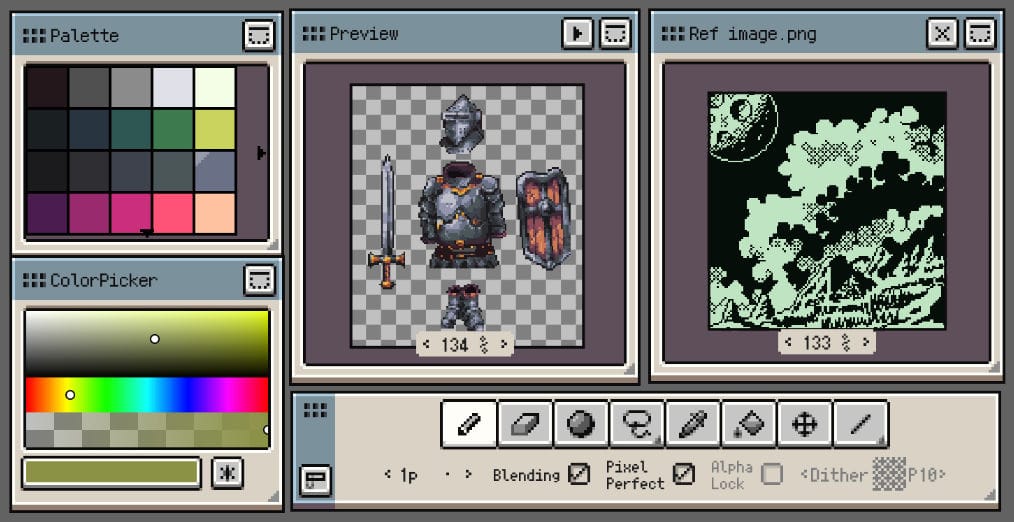
- Move: drag the title bar to any location.
- Minimise: tap the minimise button
 in the top-right corner.
 - Close: disable the window from Preferences or tap the close button if available.
- Snap to corners: drag towards a corner until a highlight appears, then release to lock it there.
- Resize: drag the handle in the bottom-right corner
 .
.
Floating Top Bars (Desktop & Android v1.32.1+)
The Action Bar, Tool Bar, and Tool Options Bar can also be pulled away from their fixed positions and placed anywhere inside the window.
- Switch each bar between horizontal and vertical layouts to fit the canvas and surrounding panels.
- Nearby top bars snap together, making it easier to form a compact tool group.
- Small-screen phones retain the fixed top-bar layout so floating controls do not consume too much canvas space.
On iOS R56+, floating windows can also magnetically snap to each other. Snapped windows can form parent-child following relationships, and their snapping state is saved with workspace layouts.
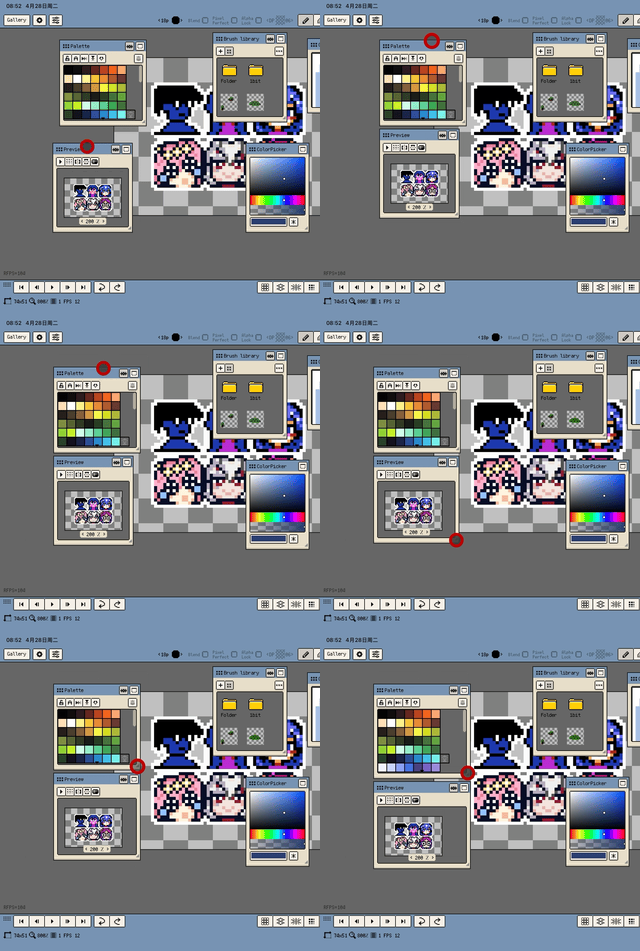
On Desktop and Android v1.30.2+, split-layout dividers snap to nearby gaps while dragging. This helps align neighbouring panels without requiring pixel-perfect manual placement.
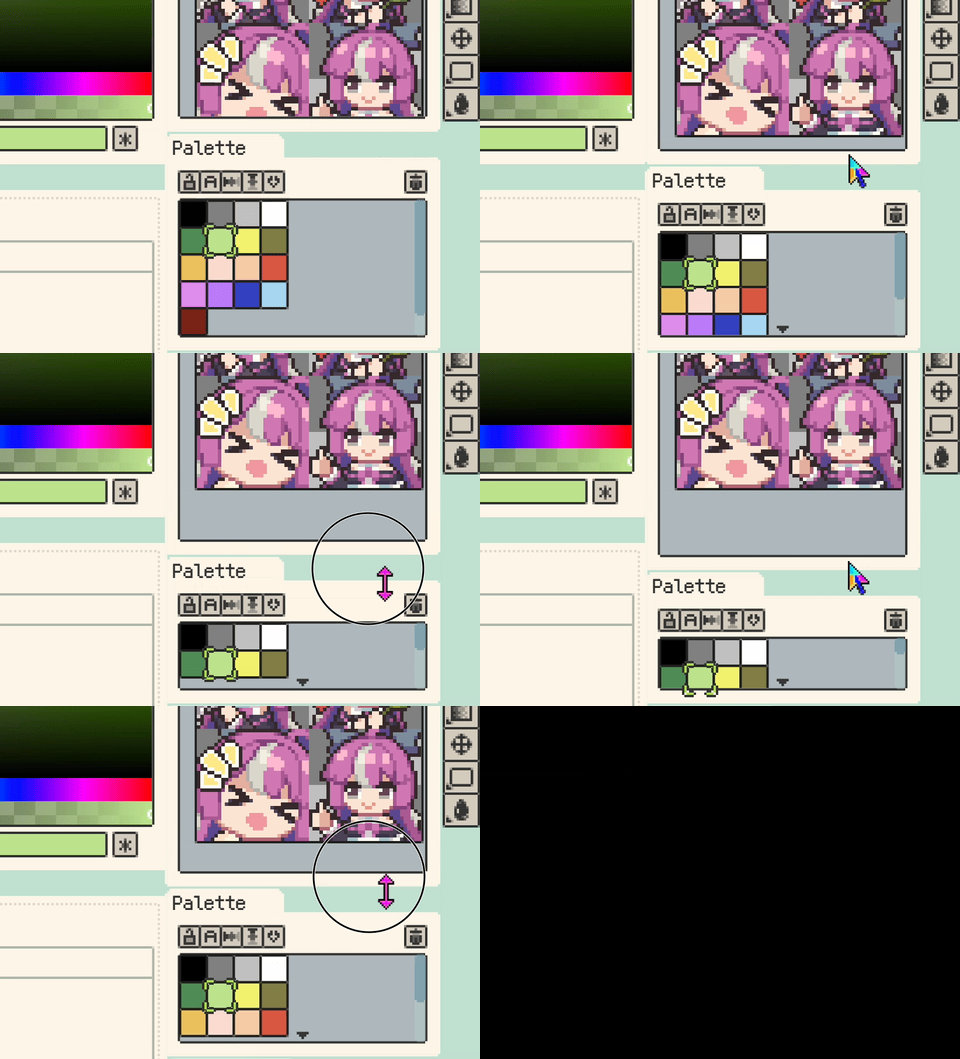
On iOS R56+, when a floating window is close to the right edge of the app window, its resize marker can switch to the bottom-left corner. Both bottom corners can resize the window, making edge-aligned panels easier to expand inward.
Window Menu Controls
The Menu ▸ Window provides centralized control over panel visibility and layout:
- Workspace Layout / Lock Layout: Save or load workspace layouts, and fix the position of floating windows to prevent accidental movement. On Desktop and Android v1.30.2+, layout lock can also be assigned a keyboard shortcut.
- Timeline: Toggle the timeline panel visibility.
- Timeline Position: Choose where to dock the timeline panel (Bottom, Left, Right).
Workspace Layouts
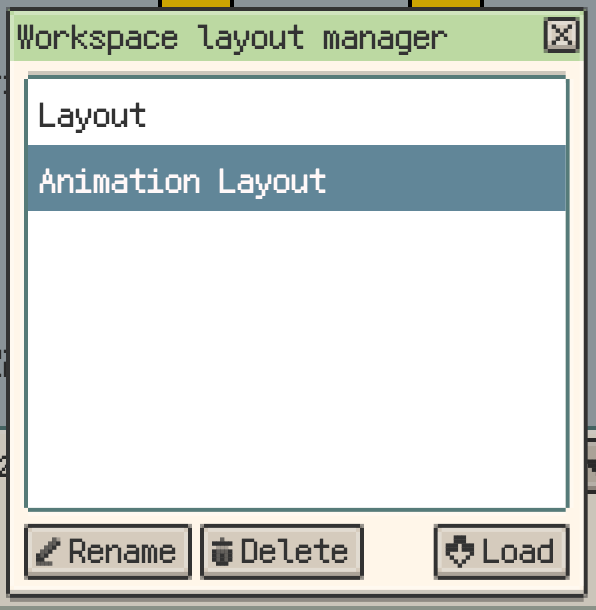
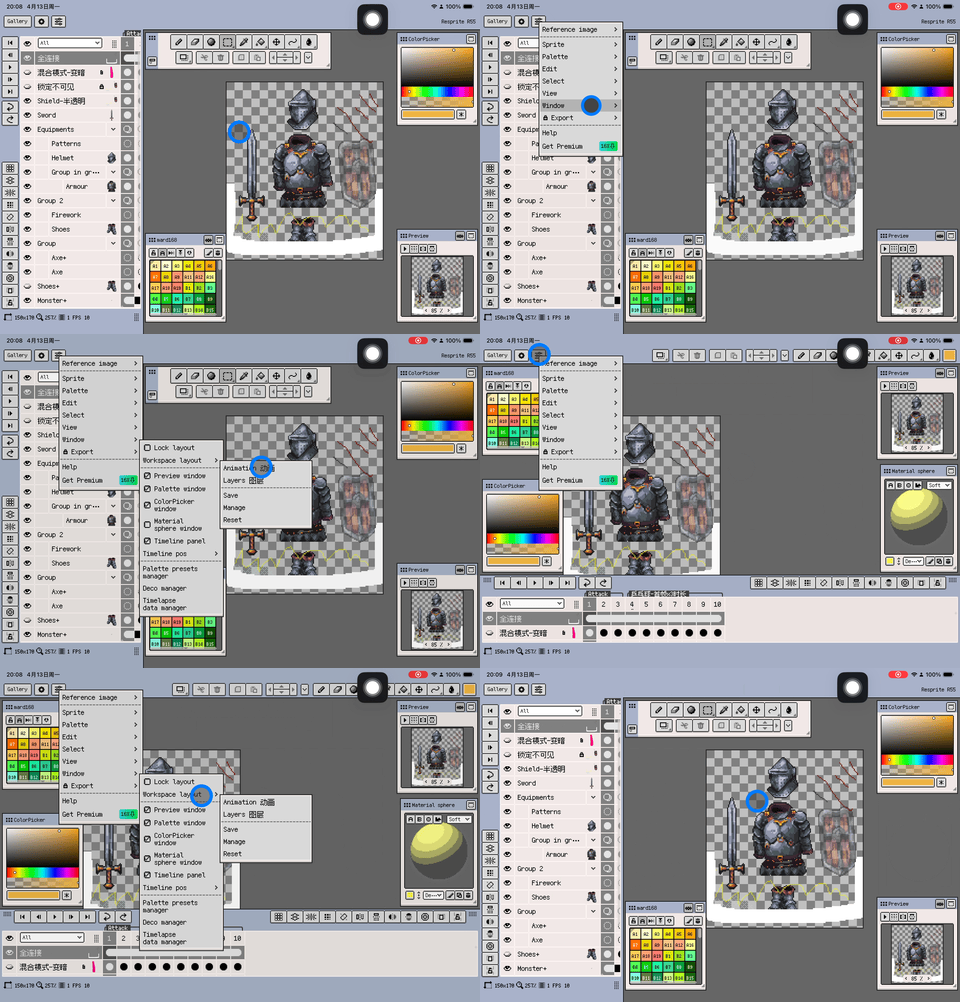
On desktop and Android v1.31.0+, workspace layout management uses a dedicated manager window. Use it to save, load, rename, delete, or reset layouts, while the Window menu remains focused on quick loading and opening the manager.
If you often lock the layout after arranging panels, check Preferences ▸ Window for the option to prevent panel resizing while the layout is locked. It is off by default, so existing resize behavior stays unchanged until you enable it.
iOS R55+
On iOS, Menu ▸ Window ▸ Layout can now keep multiple named workspace layouts instead of relying on a single arrangement.
- Save different setups for drawing, palette work, animation, or review.
- Load another saved layout when you switch tasks.
- Use Lock Layout after loading a setup if you want to prevent accidental movement.
Manage Open Files from Canvas Tabs (v1.30.0+)
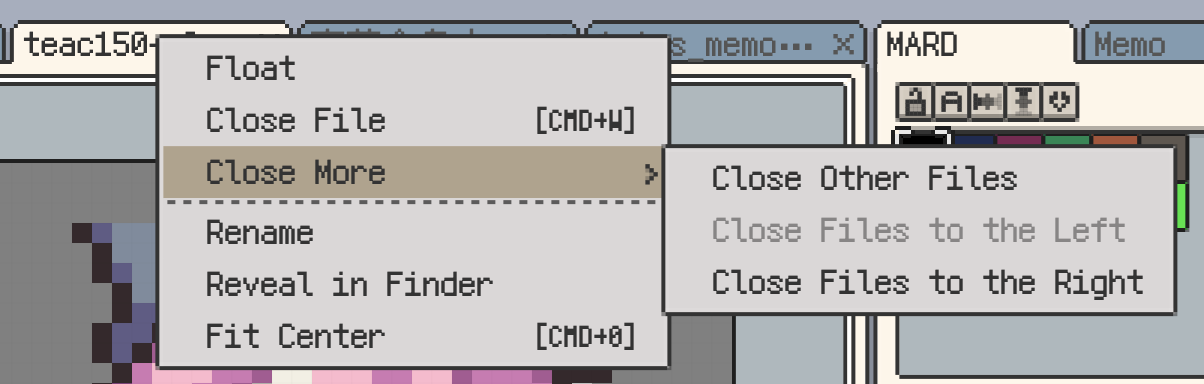
On desktop, right-click a canvas tab to access Close More, which groups the extra close actions in one place:
- Close Others
- Close Left
- Close Right
When multiple files are closed at once, Resprite now follows one consistent save confirmation flow.
Choose which windows stay visible
In Preferences ▸ Window, you can also toggle panels to reclaim screen space:
- Timeline: helpful when you work with a single frame or layer.
- Colour Picker: optional if you rely on palette swatches or quick colour selectors.
- Preview: hide when you do not need a live zoomed-out reference.