Gestures & Input
Use gestures to navigate without leaving the drawing tool, and assign temporary actions to your pen or mouse buttons. Open Preferences and choose the gesture, Apple Pencil, or mouse and stylus settings for your input device.
Common gestures
On iPhone, iPad, and Android touch devices:
- Two-finger drag / pinch: pan and zoom the canvas.
- Two-finger rotation: enable Preferences ▸ Canvas ▸ Support canvas rotation first. See Canvas for rotation and resetting the angle.
- Two-finger tap: undo. This is enabled by default and can be turned off in gesture settings.
- Three-finger tap: redo. This is also enabled by default and can be turned off.
Undo and Redo buttons remain available in the toolbar or action bar.
Touch gestures and one-finger mode
Long-press actions
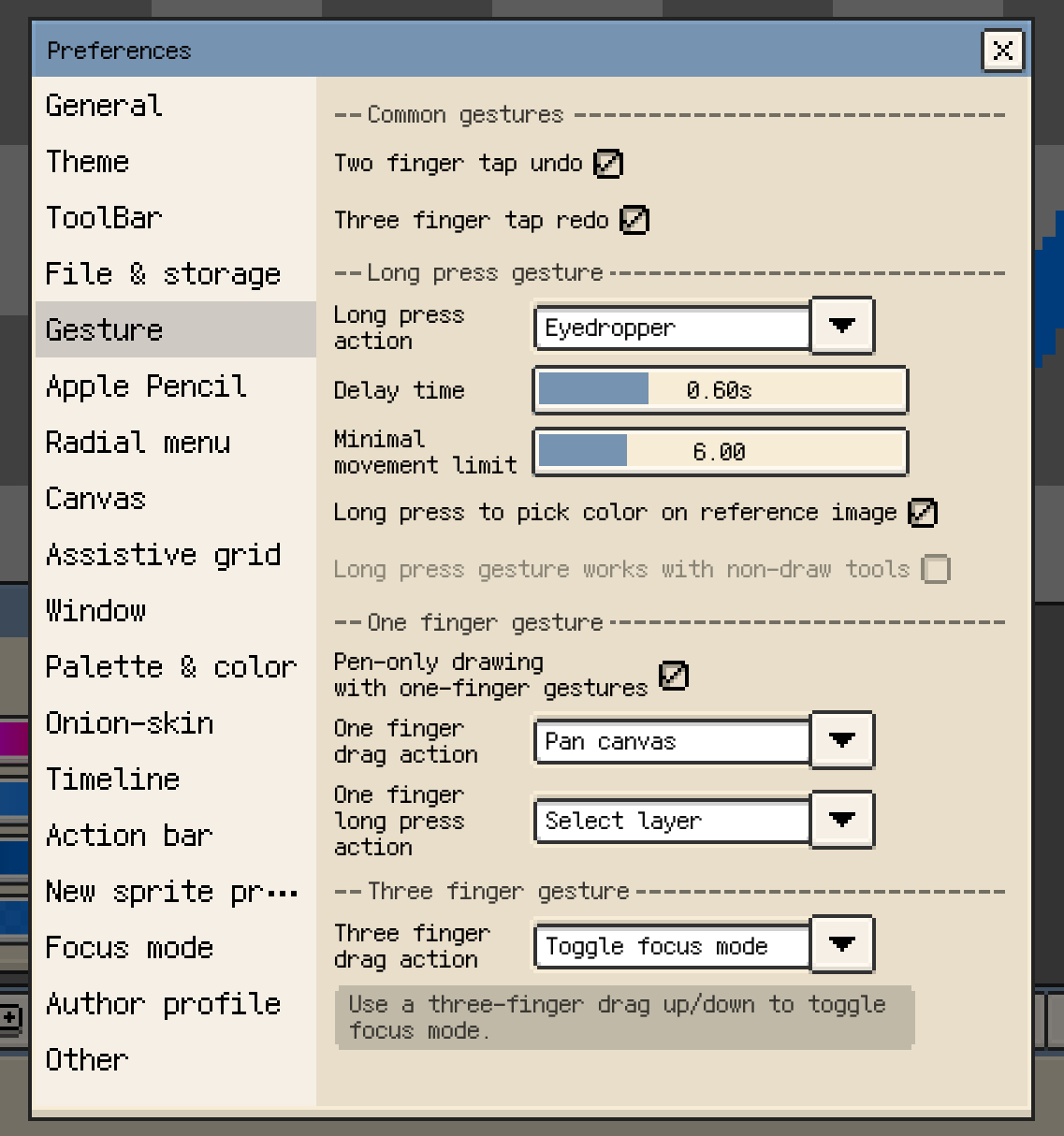
Canvas long press defaults to colour picking. In the gesture settings, you can change it to fill, eraser, select layer, or no action. Adjust the delay and movement threshold if it triggers too easily or feels slow to activate.
On iOS, separate options control reference-image long-press picking and whether long press responds while a non-drawing tool is selected. Reference-image picking is described in Reference Images.
Draw with the pen and navigate with a finger
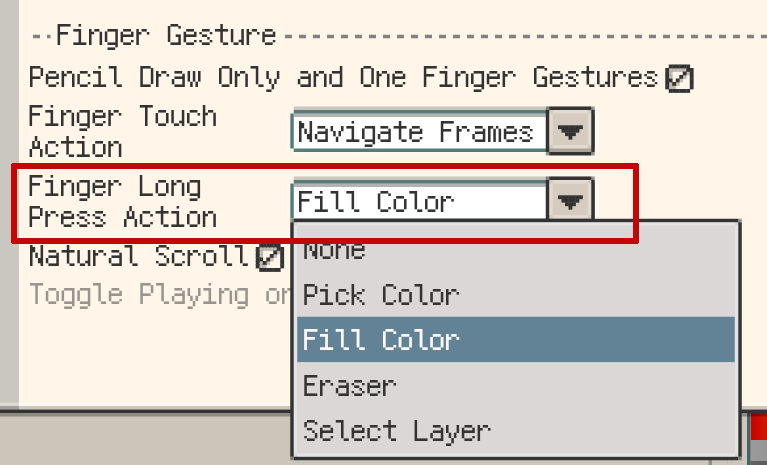
On iPad and Android devices used with a stylus, enable Pencil Draw Only to keep drawing with the pen while assigning a different action to one finger:
- Single-finger drag: choose no action, frame navigation, canvas pan, or colour picking.
- Finger long press: choose a temporary colour pick, fill, eraser, or layer-selection action.
- Frame navigation: use natural scrolling and double-tap playback options when configuring this mode.
A finger held within the movement threshold triggers the long-press action; moving beyond the threshold continues the configured drag action. With Eraser assigned, the erase result updates during the gesture and the previous tool returns when you release.
These one-finger settings are not shown on iPhone. On iOS, you can also assign frame navigation or Focus Mode to three-finger dragging.
Apple Pencil and iPad input
In the Apple Pencil settings, assign actions to the inputs supported by your pencil:
- Double tap and squeeze: choose a tool switch or action, such as eraser, eyedropper, previous tool, pencil, bucket, pen/eraser toggle, or Undo. Available inputs depend on the Apple Pencil model.
- Low tilt: choose an action and the tilt threshold that activates it.
- High pressure: choose an action and the pressure threshold that activates it.
These actions let you switch tools temporarily or trigger frequently used commands while keeping the pen near the canvas.

Mouse and stylus input on desktop and Android
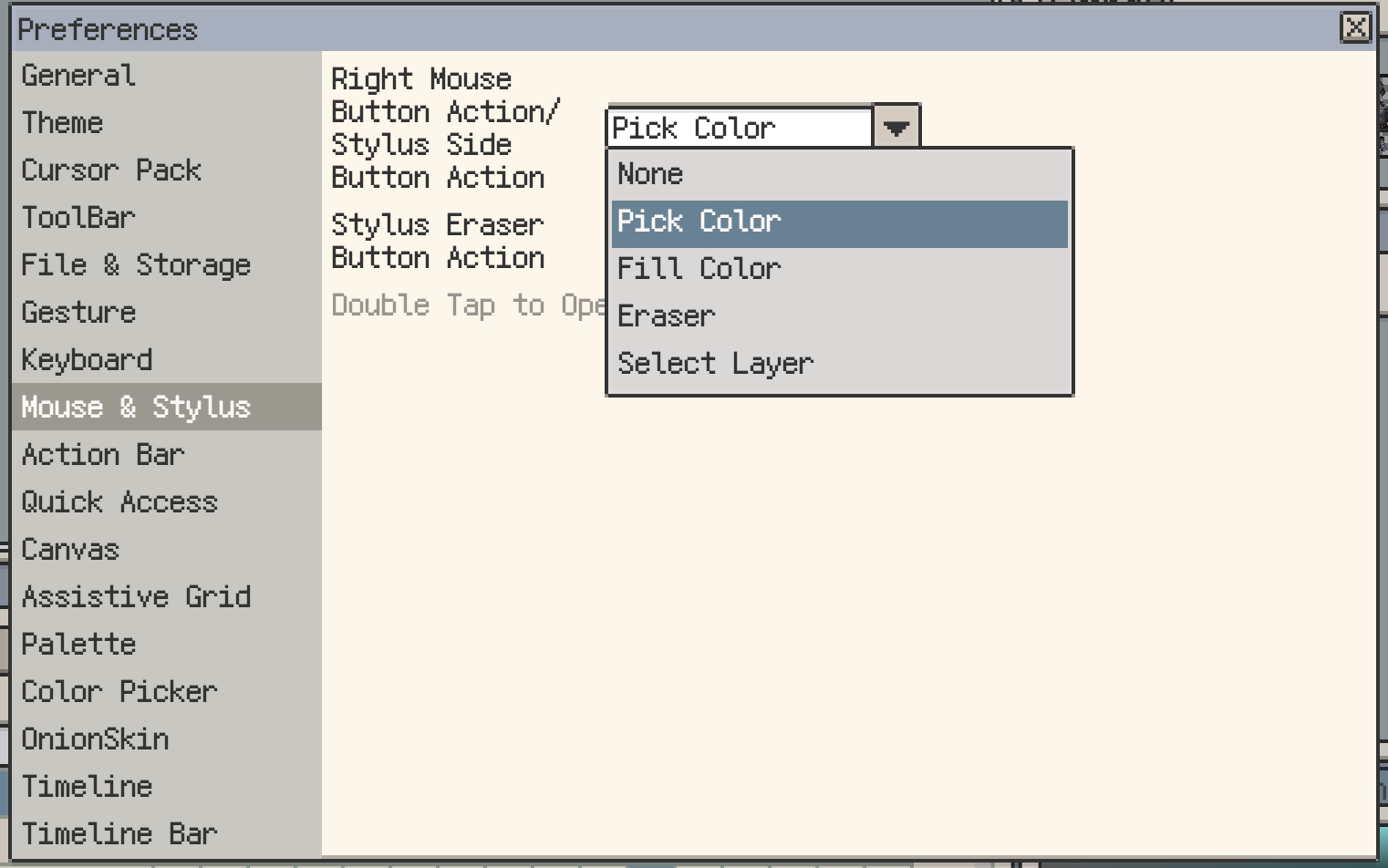
Open Preferences ▸ Mouse & Stylus to configure button actions:
- Right mouse button / stylus side button: assign colour picking, fill, eraser, select layer, or no action.
- Stylus eraser button: configure it separately on desktop.
- Windows Ink enhancement: enable it on Windows when needed for stylus side-button compatibility.
- Double-tap to open menus: enable it for desktop pen-tablet workflows.
On Android, side-button support also depends on the device's system and driver.
Pressure and brush size
With a pressure-sensitive pen, enable pressure sensitivity and set both the brush-size range and the input-pressure range. This determines how light and firm strokes map to brush sizes.
- iPad: use the Apple Pencil settings.
- Desktop and Android: use Preferences ▸ Mouse & Stylus. Pressure sensitivity is off by default; it controls the round and square brush sizes of Pencil, Eraser, Shading, Blur, and Jumble.
The pen and its driver must supply pressure data. A high-pressure shortcut and pressure-based brush sizing serve different purposes; choose the settings for the behaviour you want.