Preview
Use the Preview window to inspect the whole sprite while you work on details in the main canvas. Pan and zoom it independently to check composition, animation timing, and tile seams.
Navigation
Drag the preview image to move it. Use the zoom controls to switch between a close view and the whole composition:
- iOS: use the zoom slider, or double-tap the image to cycle through preset zoom levels. The image recenters when the cycle returns to its starting level.
- Desktop and Android: use the window's zoom controls. Choose Fit to View to fit and center the image; a mouse wheel or a pinch gesture also adjusts the zoom.
For detailed steps, see zooming and centering reference images or previews.
Playback and mirror controls are in the Preview window's action bar. On iOS, the title-bar toggle shows or hides that bar, and Resprite remembers its visibility.
Animation playback
Use the play button  in the action bar to start or stop preview playback. Playback follows the sprite's frame durations and playback range, so you can check motion while keeping the main canvas available for editing.
For frame timing, clips, and playback settings, see Timeline Overview.
Tiled Mode
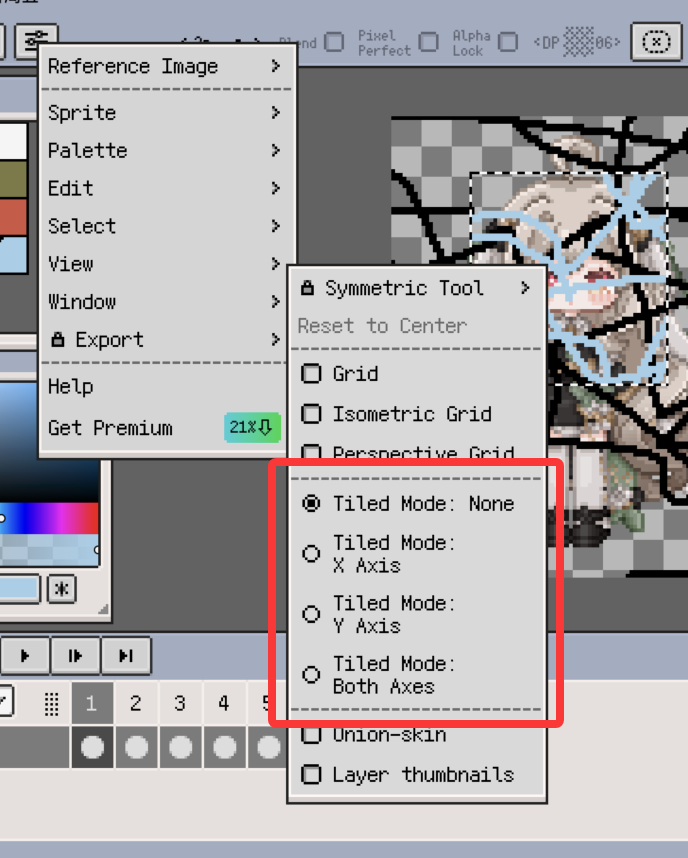
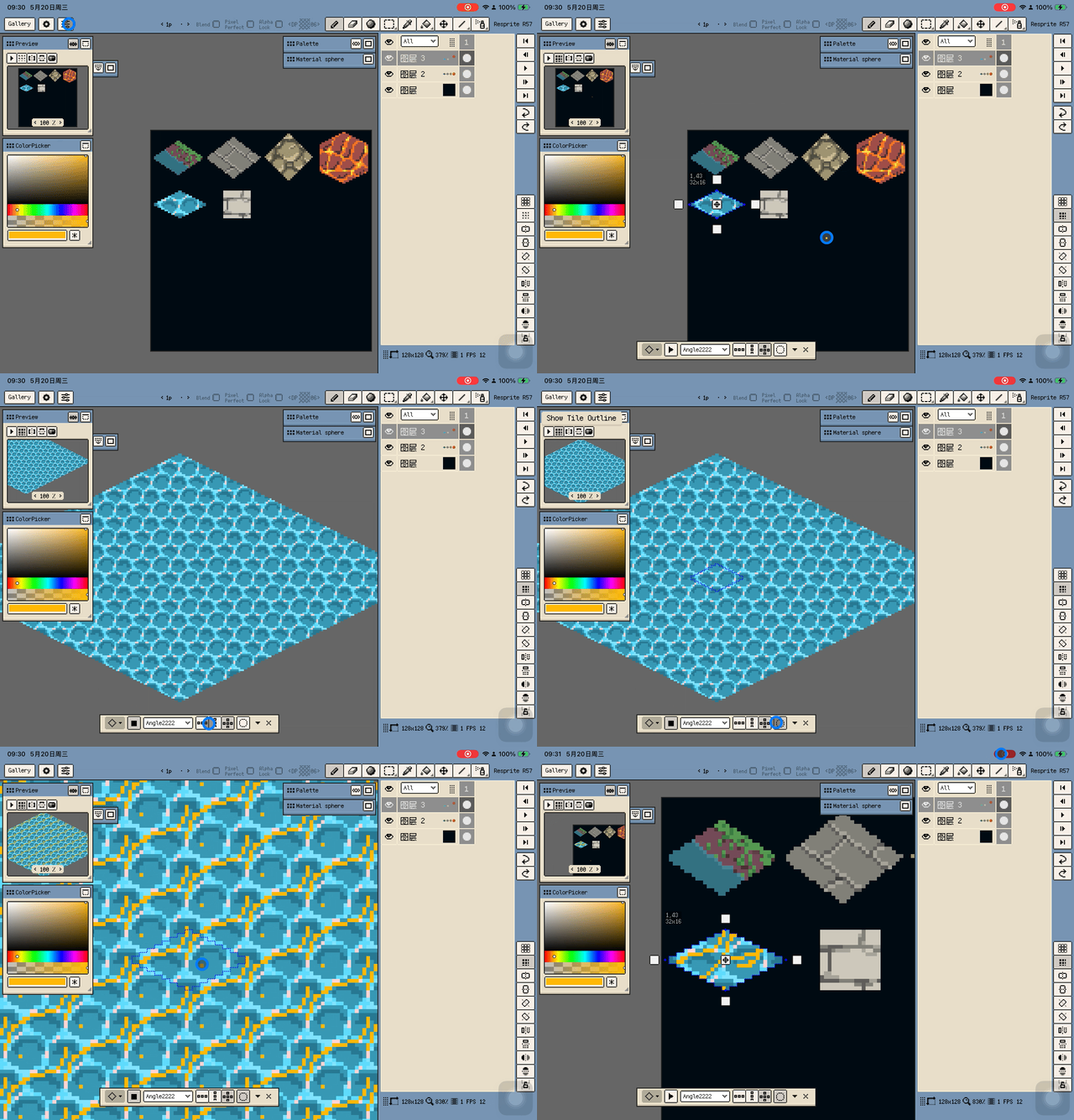
Tiled Mode repeats the artwork so you can check whether edges join cleanly. The Preview window follows the document's Tile Profile and uses the same display range as the main canvas and brush preview.
- iOS: use the tiled-preview button in the Preview action bar to turn repetition on or off.
- Desktop and Android: use View ▸ Tiled Mode and the Tile Profile controls to configure repetition.
Set the repeat display range in Preferences ▸ Canvas. For the range options and isometric diamond or hexagonal profiles, see Canvas.
Grayscale Preview
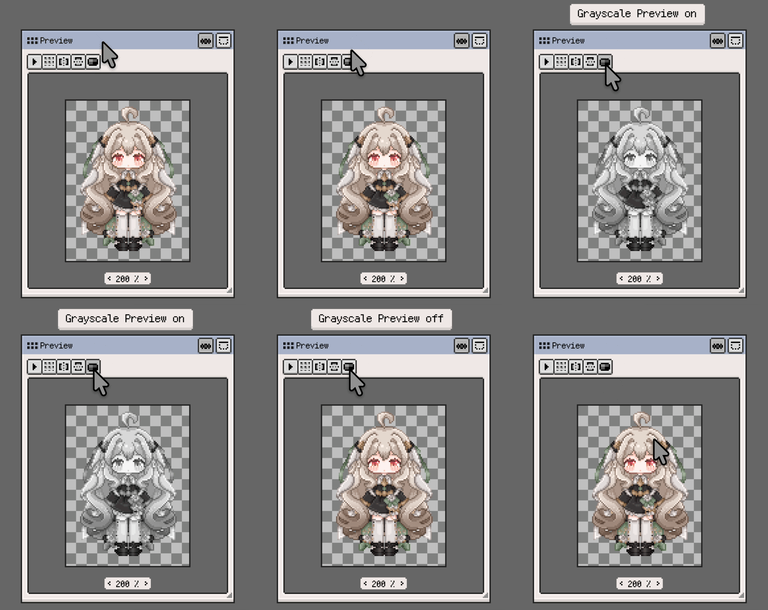
Use Grayscale Preview to judge silhouettes, value contrast, and shading. It switches the main canvas and Preview window to grayscale together, while keeping the sprite's colours and exported image unchanged.
- iOS and Android: use the grayscale button in the Preview action bar.
- Desktop: choose View ▸ Grayscale Preview.
Turn it off to return to the normal colour display.
Brush preview
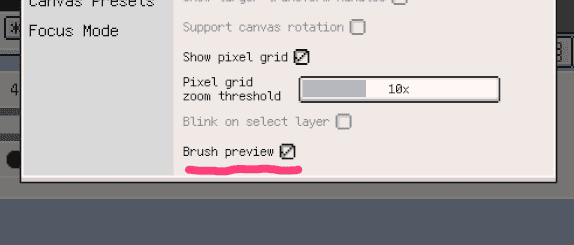
Enable brush preview in Preferences ▸ Canvas to see the brush position and shape in the Preview window as you move over the main canvas. This helps place strokes accurately while judging their position in the whole composition.
Mirror preview
Use the Horizontal Flip and Vertical Flip buttons in the action bar to inspect the artwork from another orientation. The selected buttons show which flips are active. Use them again to restore the original view.
Mirroring affects only the Preview window; it keeps the main canvas and sprite pixels unchanged.