Frames
Each frame is a column in the timeline and contains the artwork from all layers at that point in the animation. Set frame duration to control timing, and group frames into clips for separate playback ranges.
Frame headers and frame menus
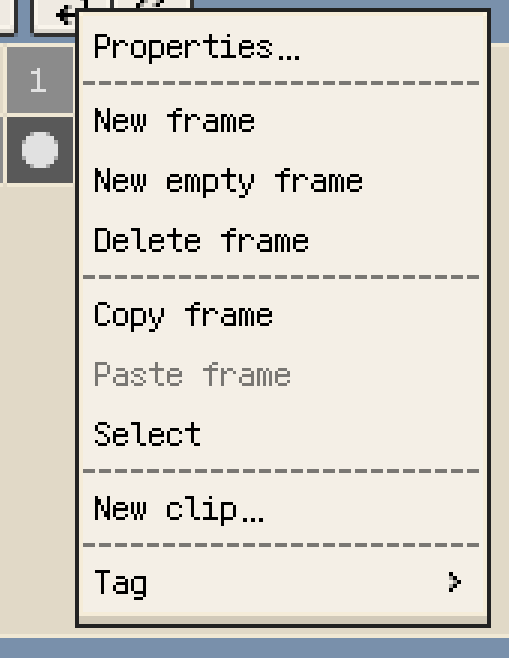
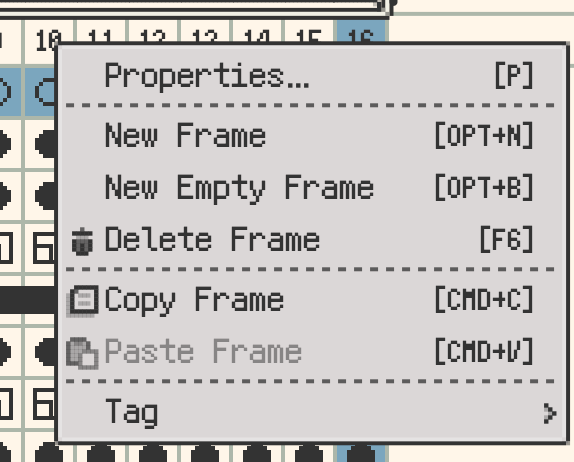
Select a frame by clicking or tapping its header. Duration dots or bars show longer holds, and colour tags help mark key poses or timing changes. Use the timeline menu controls to open the frame menu.
- Frame Properties: set duration for the current frame or selected frame range.
- New Frame: duplicate the current frame and insert the result on its right.
- New Empty Frame: insert a blank frame on the right.
- Delete Frame: remove the target frame or range; the artwork keeps at least one frame.
- Copy Frame / Paste Frame: transfer complete frames, including their layer content.
- Tag: apply a colour mark to the frame header.
Reordering and multi-select
Frames are selected as a continuous range. On mobile, choose Select from the frame menu, then tap the other end of the range. On desktop, drag across frame headers or use Shift to extend the selection.
To reorder, drag the selected frame headers to the insertion point:
- iOS and Android: long-press a frame header, then drag horizontally.
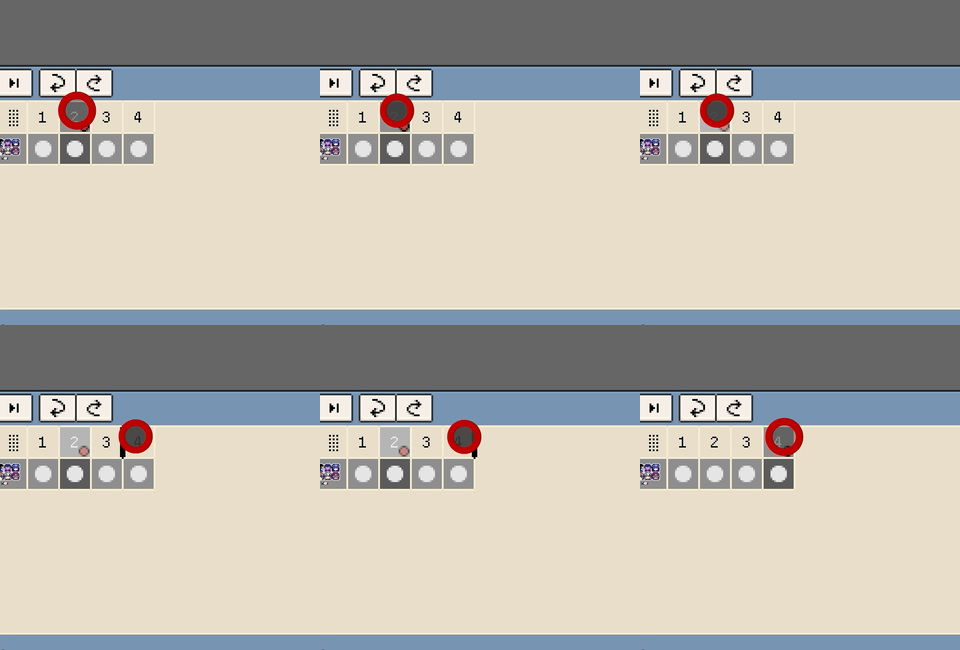
- Desktop: drag from the border of the selected frame-header range with Shift released. Dragging inside the range changes the selection instead.
A selected range moves together. See reordering layers and frames for the gesture details. On desktop and Android with a keyboard, copy, cut, paste, delete, and select-all commands can also act on timeline frames.
Frame properties and duration
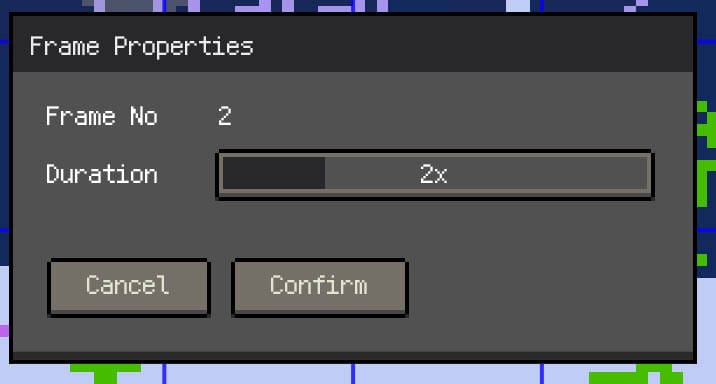
Open Frame Properties to set how long a frame is displayed. With a frame range selected, the same duration applies to the whole range.
Duration is a multiplier of the artwork's base frame interval. At 10 FPS, 1× is 100 ms and 2× is 200 ms. Use the slider or switch to numeric editing to enter a multiplier or milliseconds; the two values stay in sync. New frames inherit the previous frame's duration by default.
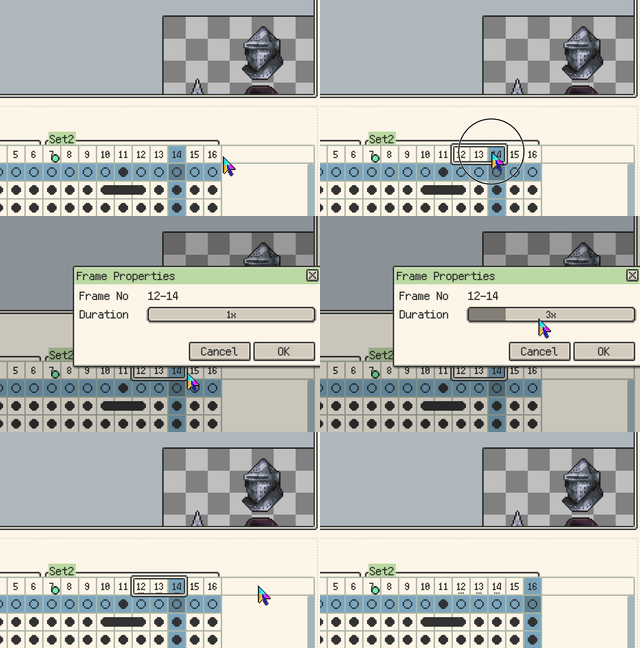
Dots and bars on frame headers summarise duration, so you can compare timing without opening each frame's properties.

GIF export uses frame timing. For sprite sheets, enable Duration as repeat on iOS or Repeat Frames by Duration on desktop and Android to represent longer holds with repeated frames. See Export Artwork.
Animation clips
A clip is a named range of consecutive frames with its own start, end, and playback direction. A document can contain several non-overlapping clips, with unassigned frames between them.
- Select a frame outside an existing clip, or select the consecutive frame range you want to use.
- Choose New Clip in the frame menu. A selected frame range fills in the initial start and end values.
- Set the name, direction, start frame, and end frame in Clip Properties.
Select a clip in the strip to work with it. On mobile, double-tap the strip to open its menu; on desktop, right-click it. Desktop double-click opens properties unless Double Tap to Open Menu is enabled. On iOS, the frame menu also provides properties and deletion for the clip containing that frame.
Playback modes and clip properties
Choose a direction in Clip Properties:
- Forward: first frame to last frame.
- Backward: last frame to first frame.
- Ping-pong: alternate forward and backward playback.
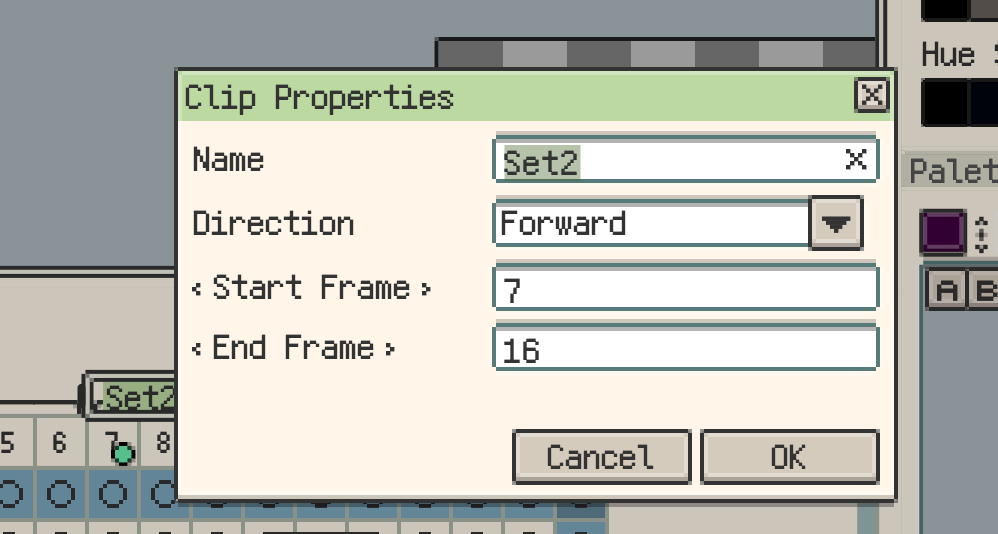
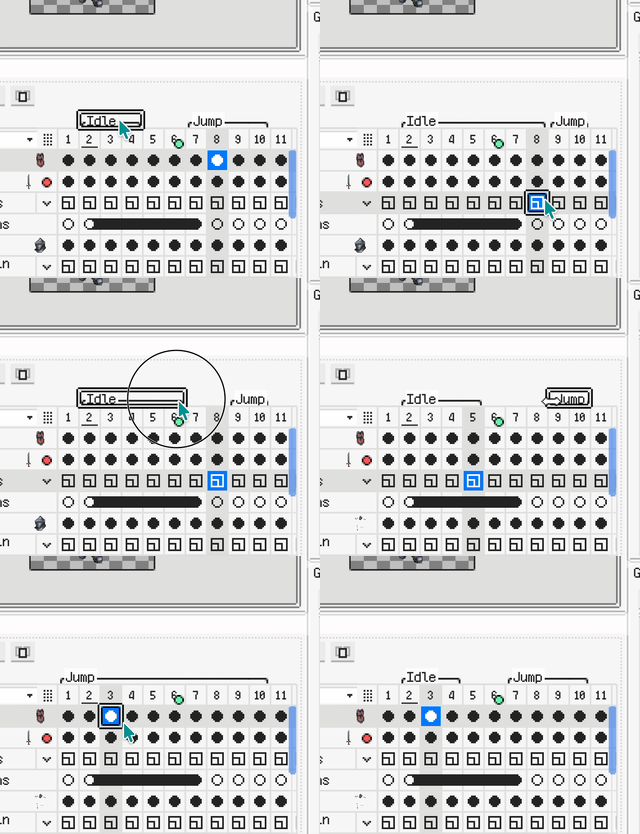
Drag the selected clip's left or right edge to change its range, or enter the start and end frames in its properties. Resprite prevents overlapping clip ranges. Loop count, continuous playback across clips, and the frame to return to after stopping are timeline playback settings.
Continue reading: