Layers
Use layers to separate characters, backgrounds, shadows, and effects. Groups organise related layers, while opacity, blend modes, styles, and clipping masks control how their contents combine.
Basic Interactions in the Layer Header
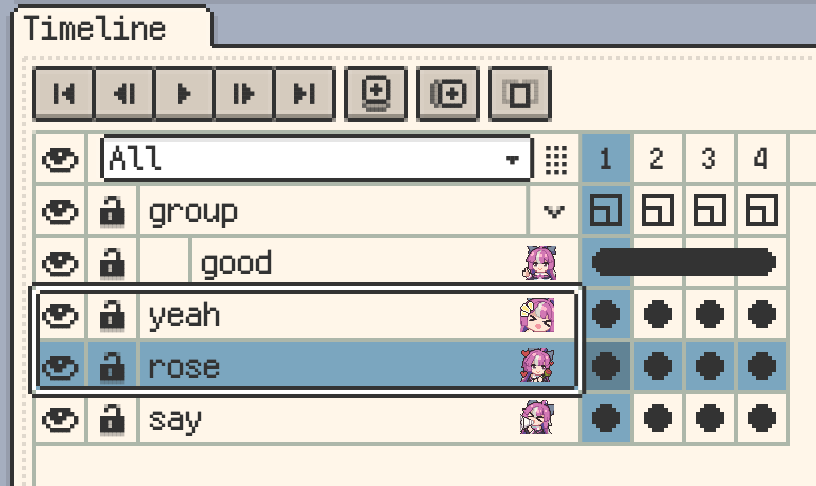
Select a layer by its name. The eye controls visibility, the lock protects editing, and a group's expand/collapse control shows or folds its children. Colour tags and thumbnails help identify content; the status icon brings together indicators such as blend mode, clipping, and layer styles.

Opening the Layer Menu
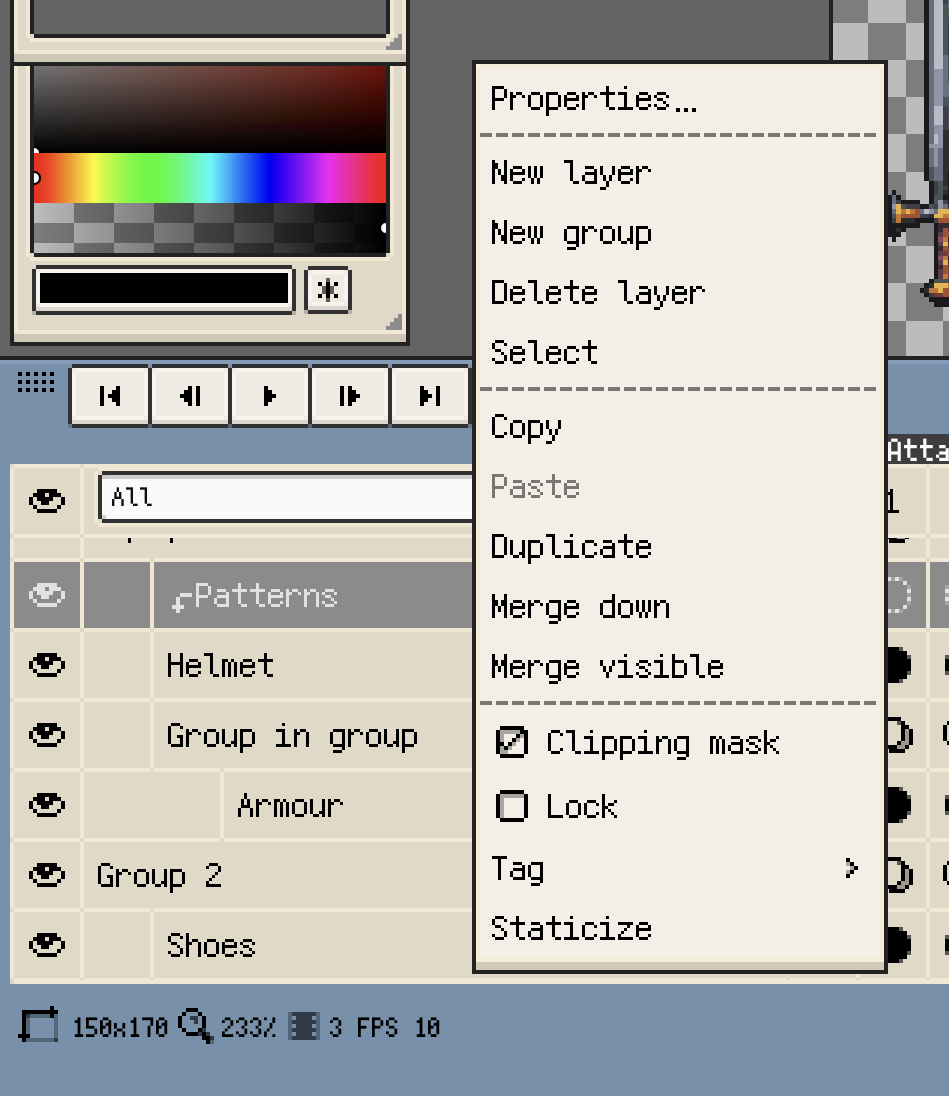
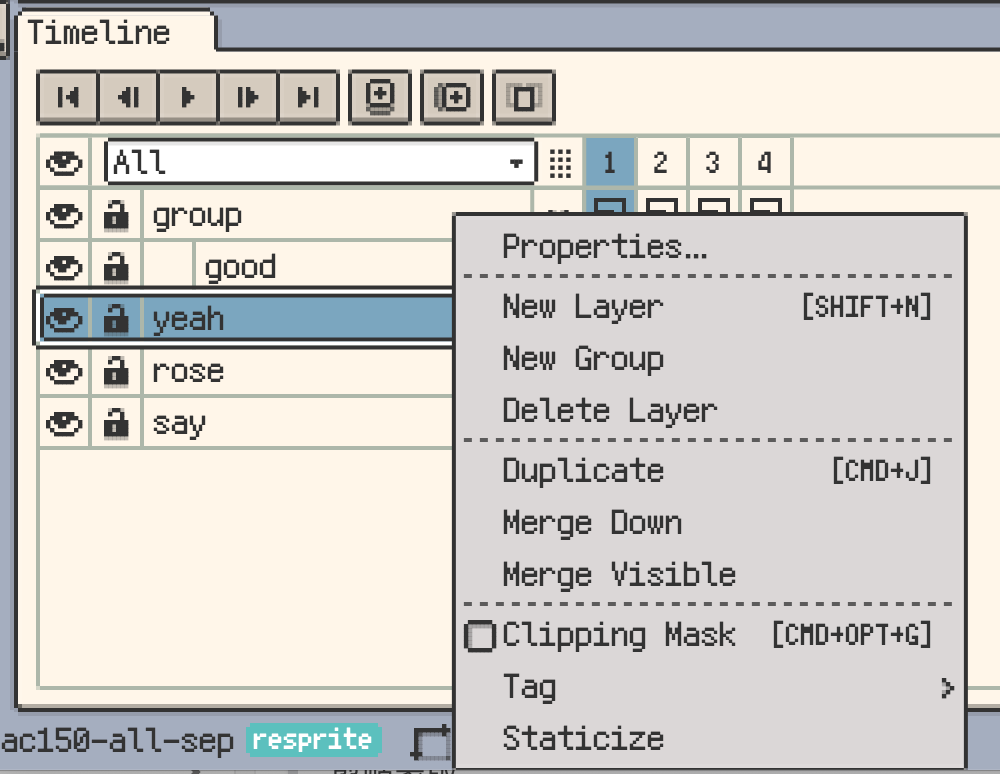
Open the selected layer's menu using the timeline menu controls. Common commands include:
- Properties: change the name, opacity, blend mode, or clipping state.
- New Layer / New Group: add content or a container for related layers.
- Copy / Duplicate / Delete: transfer, duplicate, or remove layers or groups.
- Merge Down / Merge Visible / Flatten Group: combine content into pixels.
- Tag: add a colour mark.
- Staticize / Unstaticize: switch inheritance across the layer's later frames.
- Clipping Mask / Layer Styles: control how the layer is displayed.
Commands are available according to layer type, selection, and editability.
Layer Properties
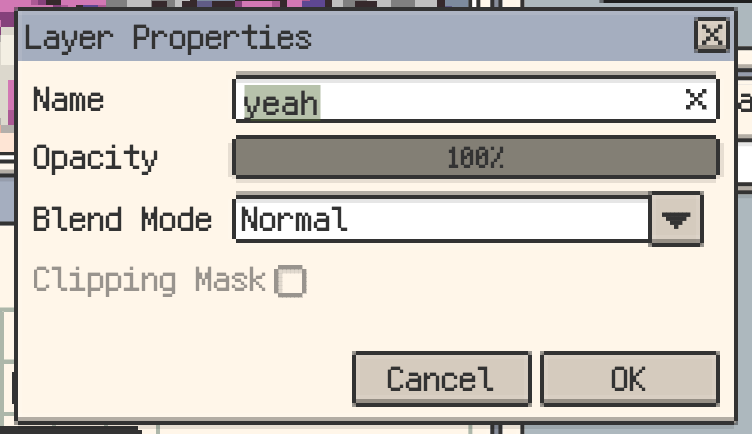
Set the layer name, opacity, and blend mode in Layer Properties. Clipping Mask can be switched here or from the layer menu. On iOS, group properties also offer No splitting when exporting layers, which keeps that group together during layered export.
Layer Styles
Use live styles on a regular drawing layer to keep effects editable as the artwork changes:
- Stroke: adds an outline around the visible layer content.
- Shadow: adds a hard-edged pixel shadow with adjustable offset, size, and colour. When Stroke is enabled, the shadow uses the resulting outlined shape.
Rasterize the style when you want to convert the result to ordinary pixel content.
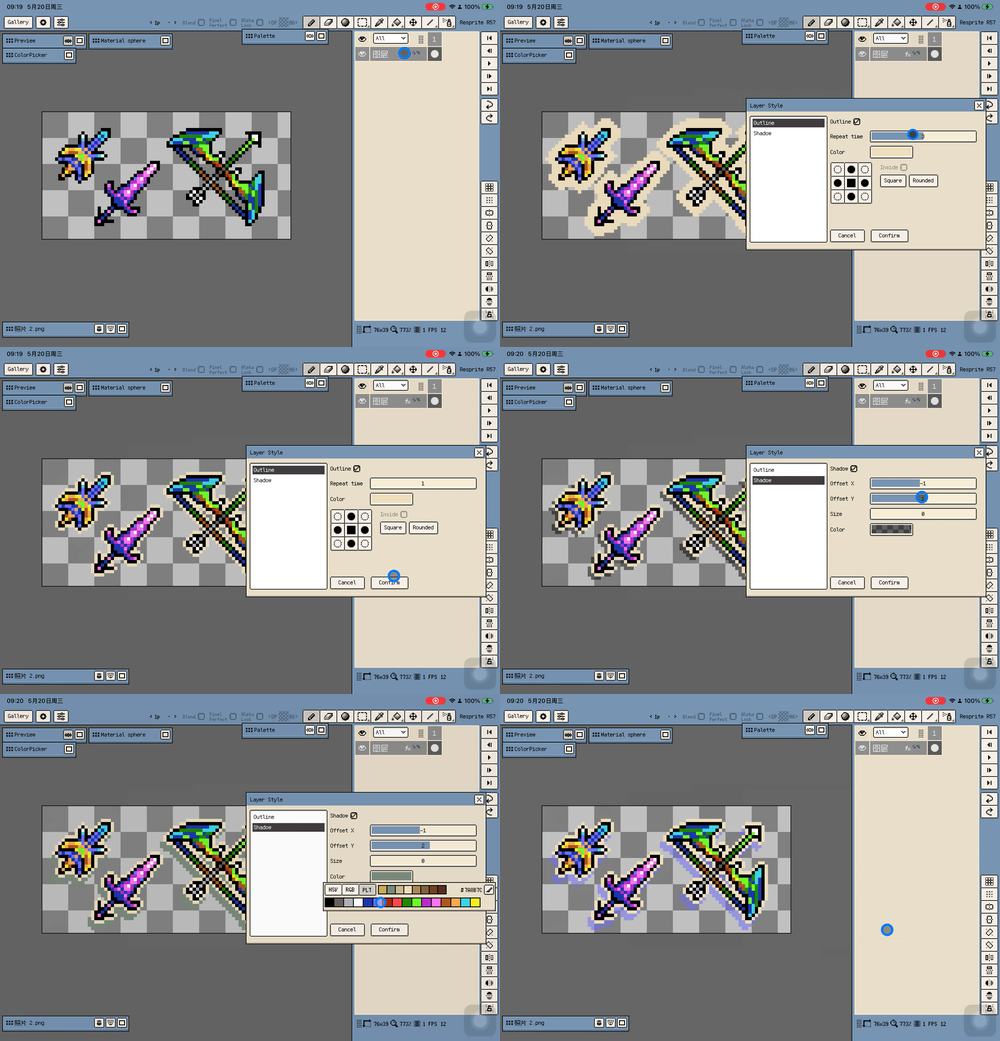
Reordering, Grouping, and Multi-Selection
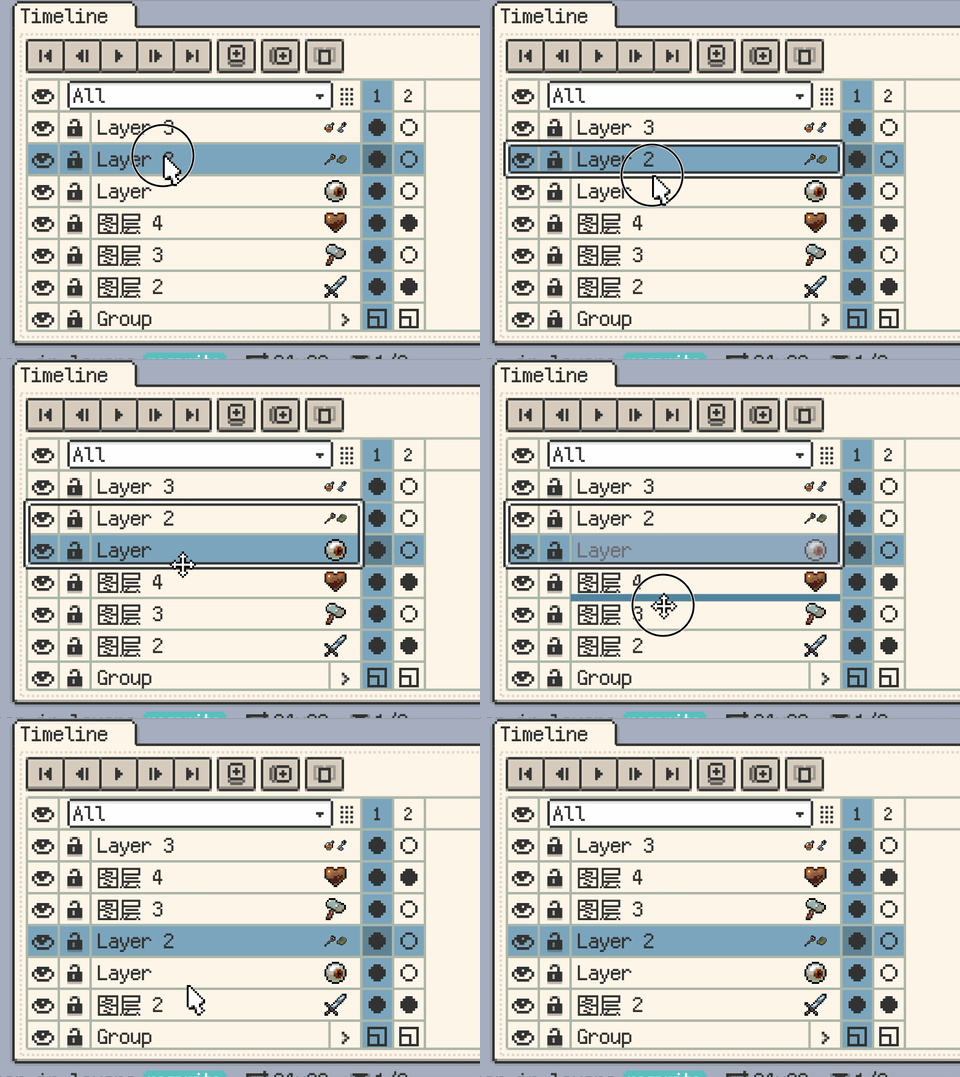
Reordering Layers
- iOS and Android: long-press a layer name, then drag vertically. The eye icon has its own long-press action.
- Desktop: select the layer and drag from the border of the selected header range with Shift released. Dragging inside the range changes the selection.
Release at the top or bottom edge of the target row to reorder.
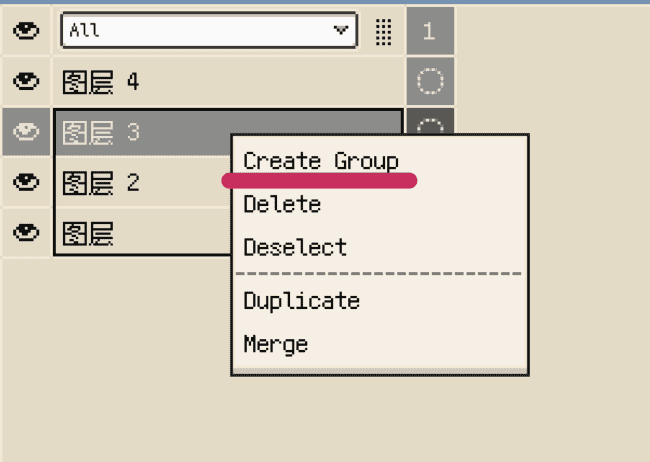
Quick Grouping
The drop indicator determines the result:
- At a row's top or bottom edge: reorder layers.
- Inside an existing group: move layers into it.
- In the middle of a regular layer's row: create a group containing that layer and the moved layers.
Multi-Selecting Layers
Layer multi-selection is a continuous range, including all layers between its endpoints. On mobile, choose Select in the first layer's menu, then tap the other endpoint. On desktop, drag across the headers or Shift-click to extend the range; a normal click resets it to a single layer.
Move the range with the reordering gesture above. See reordering layers and frames for the full workflow.
Visibility and Locking
Visibility
- Click a layer's eye to show or hide it. Hiding a group also hides its children.
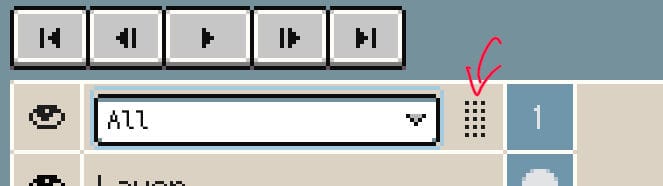
- Use the global eye at the top of the timeline to control visibility. With multiple layers selected, it affects the selected layers, treating a selected group as a whole; unselected layers keep their state.
- Long-press a layer's eye to solo the layer or group. Repeat to restore the previous visibility state.
Locking Layers
Click the lock to prevent edits. A locked group also protects its children. Hidden and locked are different states: unlocked hidden content still participates when explicitly targeted by a timeline batch edit.
Expanding and Collapsing Groups
Collapse a group to hide its rows in the timeline without hiding its artwork. Expand it when you need to work with individual child layers.
Adjusting the Name Column Width
Use the divider at the right of the name column to make room for names, tags, thumbnails, and status icons. See timeline layout.
Blend Modes
Blend modes apply to regular layers and groups, changing how their content combines with layers below. For example, use Multiply for shadows, Screen for highlights, and Overlay for colour treatment. Choose the mode and opacity in Layer Properties.
Clipping Masks
A clipping mask limits a layer's visible content to the transparency of a base layer below it. Consecutive clipping layers share the base beneath the entire run; each clipping layer does not use the adjacent clipping layer as a new base. Keep the base visible and place clipping layers above it at the same level in the hierarchy. Groups can participate too.
Use clipping to keep colours, textures, or highlights inside an existing shape. Enable it in the layer menu or properties.

Merging down, merging visible content, or flattening a group bakes clipping, blend modes, and opacity relationships into pixels. Finish adjusting those relationships before merging.
Staticise and Unstaticise
Staticize sets the second frame through the last frame of the layer to inheritance, allowing them to reuse the first frame's artwork. Unstaticize converts inherited cels into independent content. These commands act across the layer, rather than only after the currently selected frame.
For shared-pixel editing and individual inherited-cel offsets, see Cells.
Continue reading: