Cells
A cel is the content at one layer/frame intersection in the timeline. A solid cel holds its own artwork; an inherited cel reuses the preceding source cel. Use independent cels for different drawings and inheritance when several frames should share the same image.
Open the cell menu
Select the target cel or cell range, then open its menu using the timeline menu controls.
- Copy Cell / Paste Cell: copy at the source and paste at the explicitly selected destination. Multiple cels retain their arrangement across frames and layers.
- Delete Cell: clear the cel content without removing the frame or layer.
- Inheritance: switch between shared source artwork and independent content.
- Cell Properties: inspect the source and edit available position or opacity values. On locked layers, properties are read-only.
To copy into the next frame, select that destination before pasting. Canvas pixels, entire frames, and whole layers use different copy operations; see copying and pasting content.
Moving and pasting cells
The Move Tool repositions artwork on the canvas. Moving cels in the timeline changes where their content sits among frames and layers:
- Desktop: select a cell range, release Shift, then drag its border to the destination.
- Android: long-press a cel and drag to the destination; an existing cell selection moves as a range.
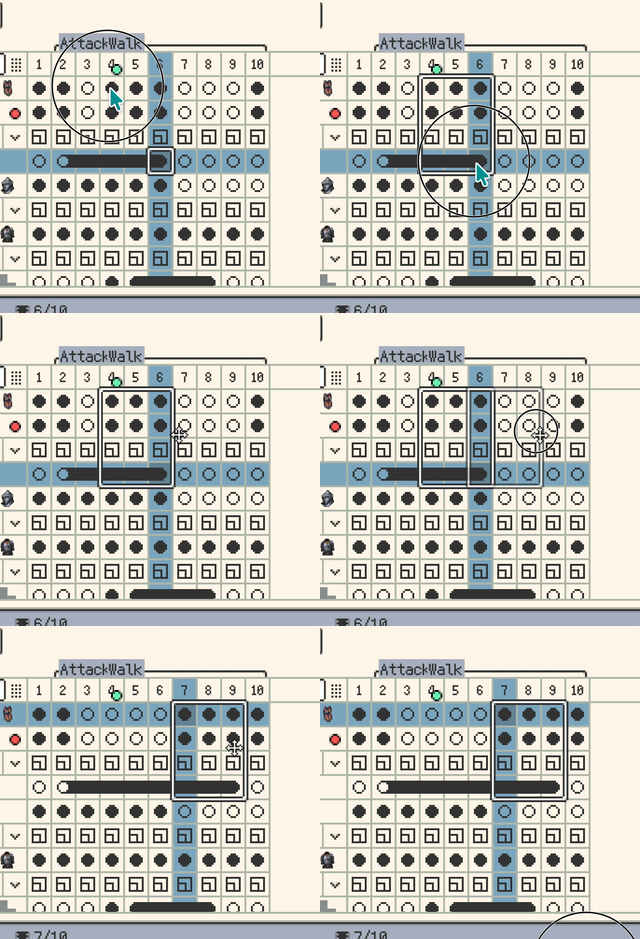
You can also copy timeline cels in one project and paste at a target cel in another. If the pasted range extends beyond the destination timeline, it can append frames or drawing layers. This does not clone source layer names, groups, or properties; use layer copy and paste when you need the whole layer, and check that the target layer type matches the content.

For pasting the same canvas pixels into multiple cels, see batch editing.
Inherited Cell Position and Animation
Painting on an inherited cel changes its shared source image. To edit the pixels independently, turn inheritance off first; the displayed content and position are preserved.
Local position offsets
Inherited cels on regular drawing layers can share pixels while keeping independent position offsets:
- Enable Local Offset in the Move Tool to move an inherited cel without moving its shared source. With it off, moving an inherited cel moves the shared source.
- Enable Move Following to apply the same movement to the current inherited cel and the following continuous inherited cels, stopping before the next solid cel.
- Use Cell Properties to inspect, edit, or reset an offset. The Cell menu also supports resetting positions individually or in a selected range.
Each offset is relative to the source cel; offsets are not added up through the inherited chain.
Position and opacity keys
An inherited drawing cel can have a Position Key, an Opacity Key, or both. Set its values in Cell Properties and mark the corresponding key, or use the key commands in the Cell menu.
Position and opacity keys are independent. Opacity can follow the source or use an independent value, allowing one shared drawing to move or fade across frames.
Generate in-between values
- Set the keys at the beginning and end of the range within one inheritance chain. Its source cel can serve as the starting key when included.
- Explicitly select the timeline cell range, including both endpoints and the inherited cels between them.
- Choose Position Tween or Opacity Tween from the Cell menu. Select Hold, Linear, Ease In, Ease Out, or Ease In Out. Position tweening offers straight paths and curved paths; a curved path requires at least three valid position keys.
The command writes intermediate values using the frame durations. Changing keys or timing later does not recalculate those values automatically; run the tween again to update the result. A multi-layer cell selection is processed separately for each eligible drawing layer. Tilemap cells do not support these position/opacity keys or tweens.
Hidden and locked content
Unlocked cels on hidden layers can still be deleted, cut, pasted, moved, flipped, switched in or out of inheritance, or have their position offsets reset from the timeline. Locked content remains protected. See layer visibility and locking.
Continue reading: