Share Resprite Projects
Resprite supports a broad set of export formats for handoff, review, and publishing. Open a sprite and navigate to Menu ▸ Export to access the options below. For palette-specific formats, visit the palette guide.
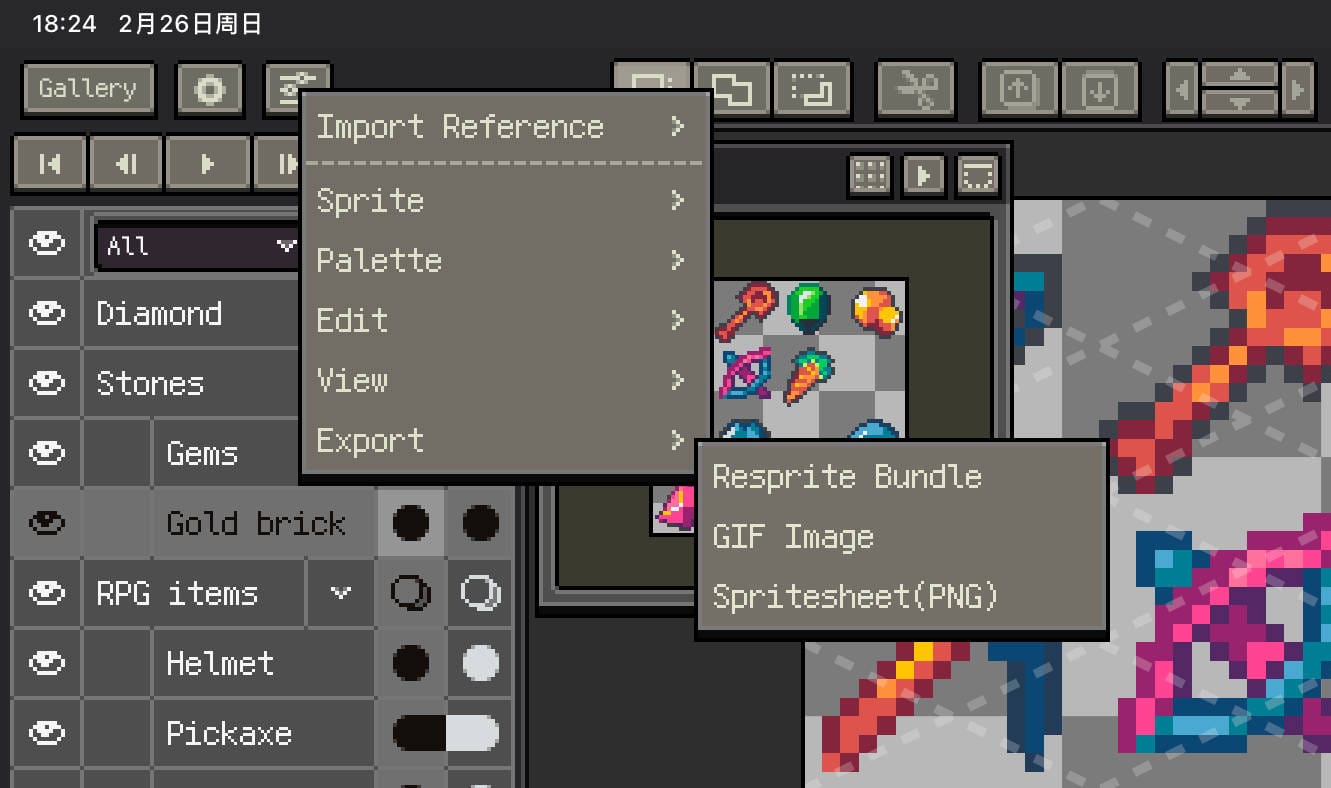
Resprite Bundle (.resprite)
The Resprite bundle preserves frames, layers, palettes, and metadata. Use Menu ▸ Export ▸ Resprite Bundle to create a .resprite file and distribute it via AirDrop, cloud storage, or the Files app.
GIF Animation / APNG Animation
Generate animations for previews or social media through Menu ▸ Export ▸ GIF image / APNG image.
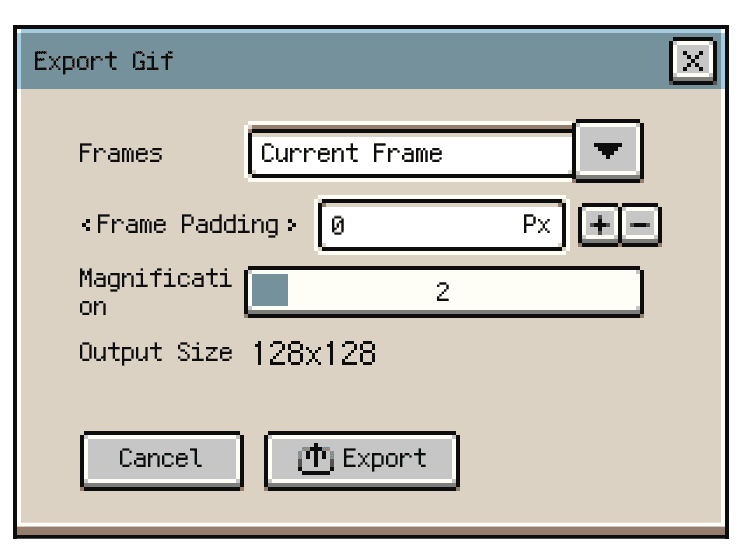

Key parameters:
- Frames – pick a specific range or render the entire timeline.
- Frame padding – add transparent or coloured padding around each frame.
- Magnification – scale the output resolution while preserving pixel ratios.
- Output size – monitor the final export dimensions before rendering.
On iPad mini 6 hardware we validated exports up to 5000 × 5000 pixels (after magnification) and 150 frames, resulting in ~50 MB GIFs. Larger exports take longer to encode and can require additional memory overhead.
Sprite Sheet (PNG)
Use Menu ▸ Export ▸ Sprite sheet to arrange frames in a grid for engines and middleware.
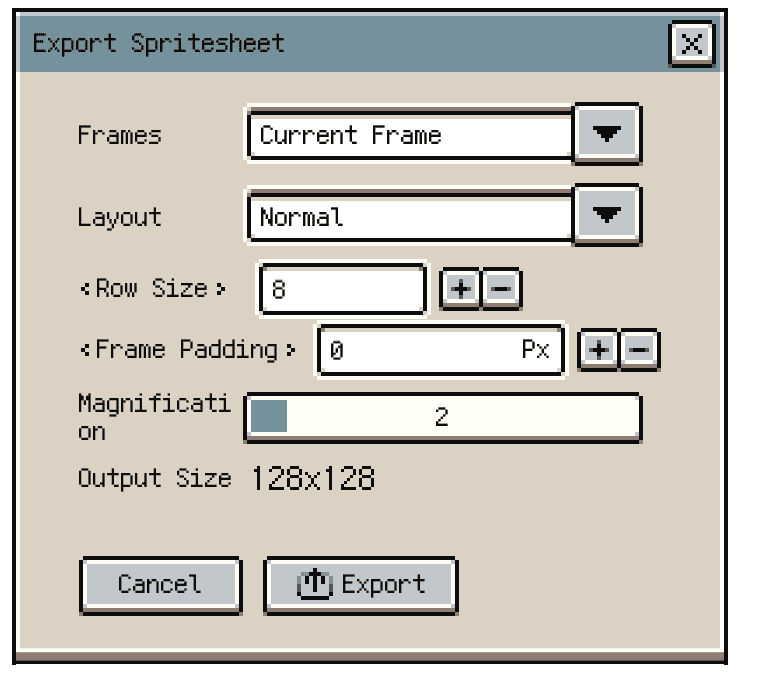
Configure the frame range, layout orientation, row count, padding, magnification, and preview sizing. Sprite sheets export as lossless PNG files.
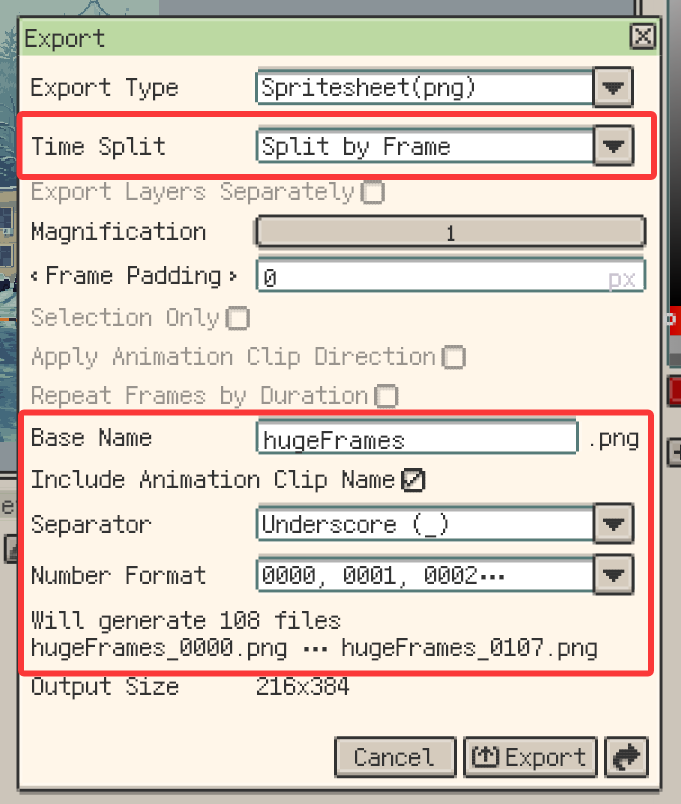
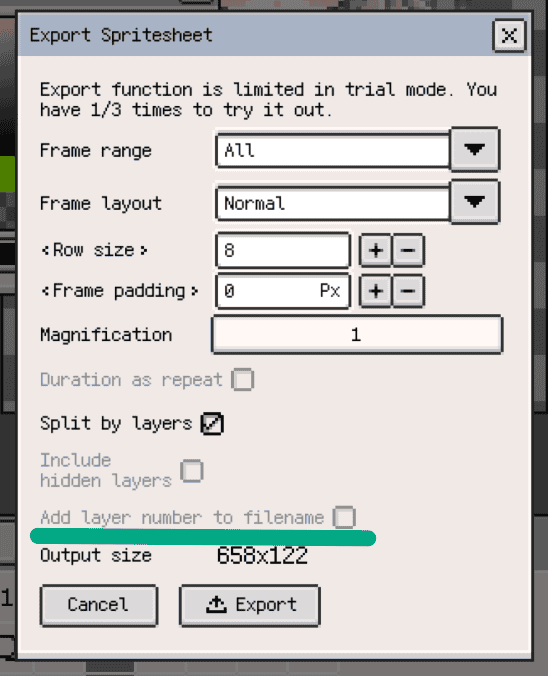
On iOS R60+ and desktop or Android v1.32.1+, a Sprite Sheet export can also split into multiple files by frame, animation clip, or layer, with separate naming options. The conditions can be combined. iOS can package multi-file output as a ZIP, while desktop exports can write directly to a selected folder.
Faster Repeat Exports on Desktop (v1.30.0+)
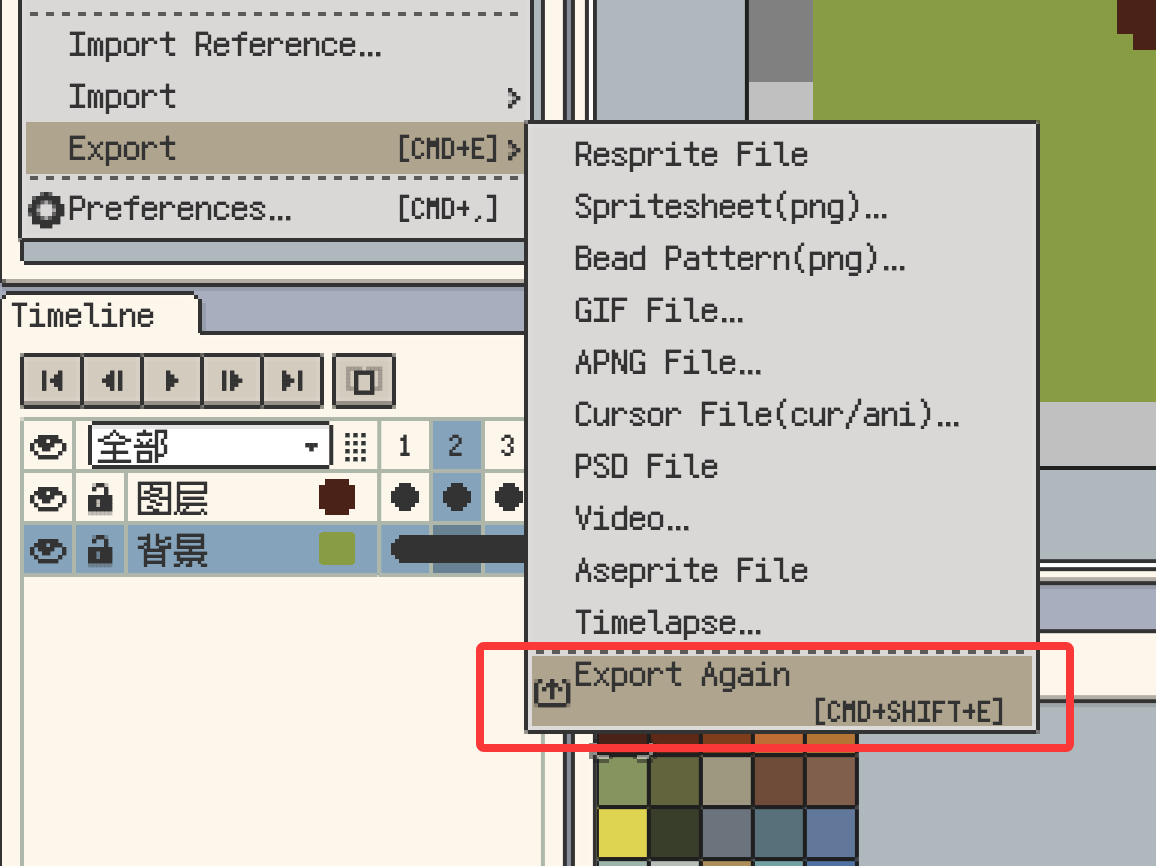
Use Export Again to rerun the most recent export with the same destination and settings. It is especially helpful when you are iterating on a deliverable and need to compare several exported revisions in a row.
Share with Accompanying Text
When sharing to other apps, add a caption or notes that travel alongside the exported image.
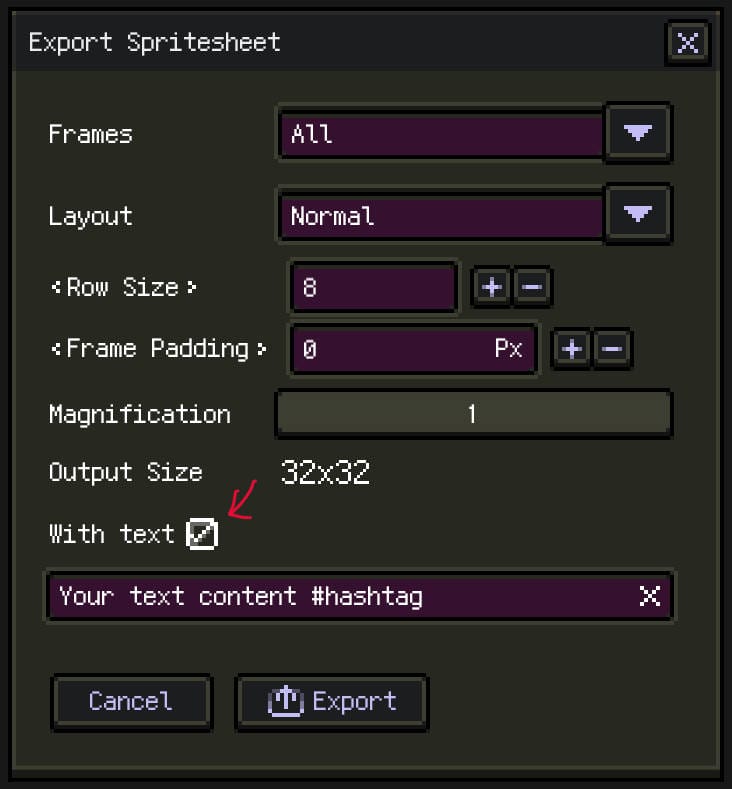
Platforms such as X (Twitter) prefill their composer with this text, saving you time.
Tiled Maps and Tilesets
Documents with tilemap layers can be exported as Tiled maps. The result is usually a .zip package containing .tmx maps, .tsx tilesets, and PNG image resources. If one document contains tilemap layers with different grid types, layout parameters, or tile sizes, export splits them into multiple .tmx files.
Single tilesets can also be exported or saved depending on the target workflow. Use .tsx for Tiled toolchains, and prefer .restile or the tileset library when reusing tilesets inside Resprite. For details, see Tiled Map Compatibility.
Aseprite (.aseprite)
Resprite can export .aseprite files for teams that rely on the Aseprite pipeline.
Not every Resprite feature maps directly to the Aseprite format (for example, clipping masks or Deco modules). Review the Aseprite compatibility guide before handing off complex files.
Photoshop PSD (.psd)
Use Menu ▸ File(DA) ▸ Export ▸ Photoshop (PSD) to hand off layered documents to Photoshop or other apps that read .psd files. The exporter preserves layer hierarchies, including groups and clipping masks, and retains each layer's blend mode, visibility toggle, and opacity.
PSD exports always capture the current frame. To deliver multi-frame timelines, export each frame individually or consider the GIF and sprite sheet pipelines.
Cursor Packs (.cur, .ani) on Desktop
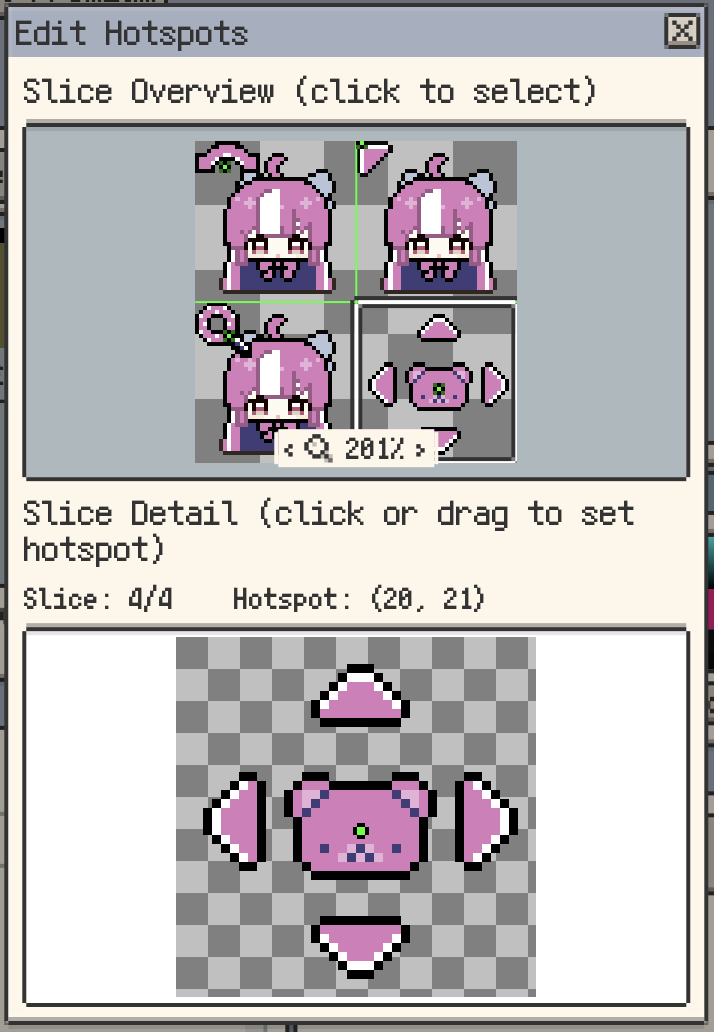
Desktop builds can export Windows cursor packs. The hotspot workflow was refined in v1.30.0 so the main preview stays view-only while hotspot editing happens in a dedicated window, making slice alignment easier to review.
Bead Pattern
Convert artwork into a beading reference via Export ▸ Bead pattern.
For the complete workflow, see Create Bead Patterns.
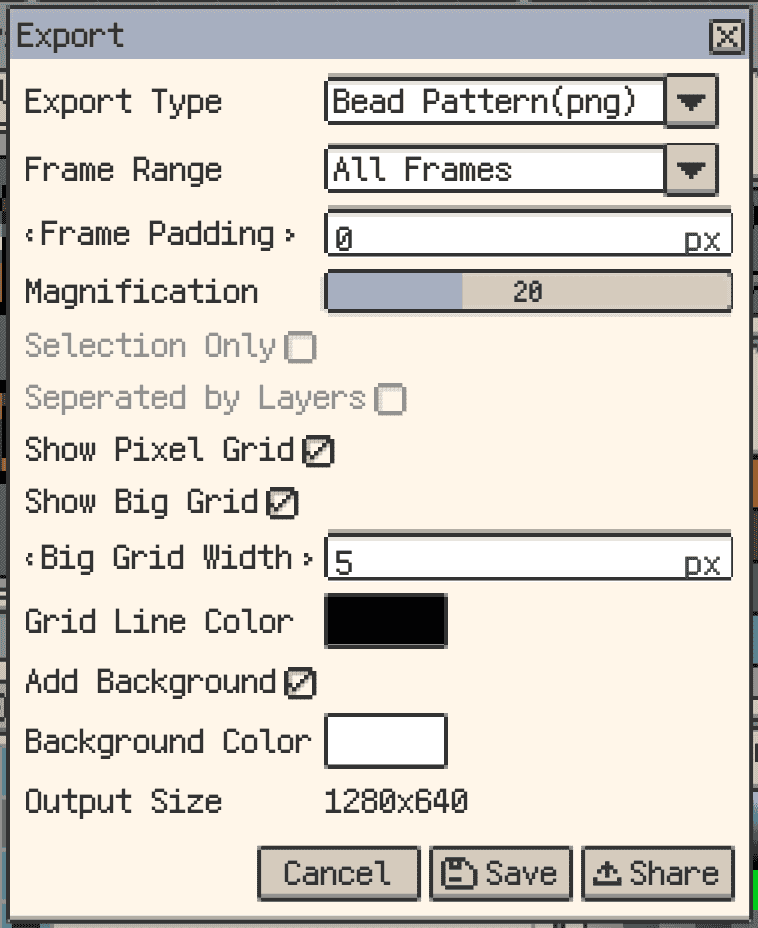
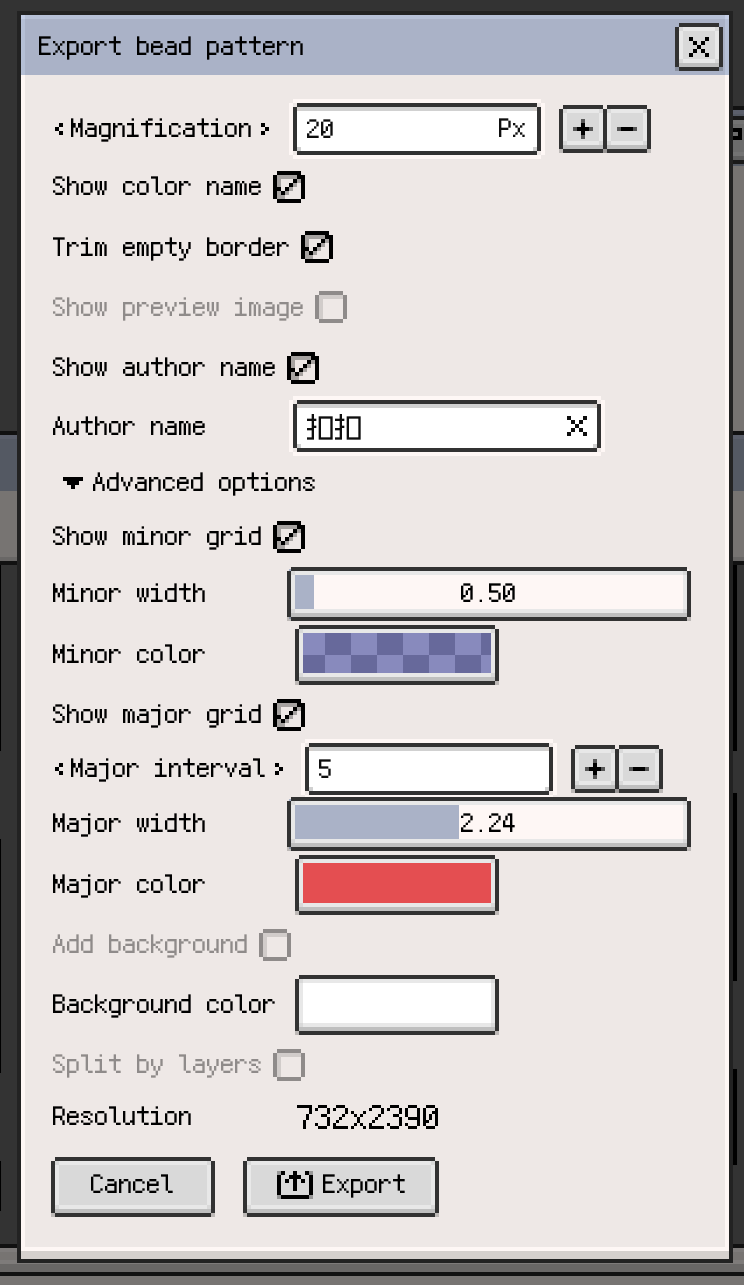
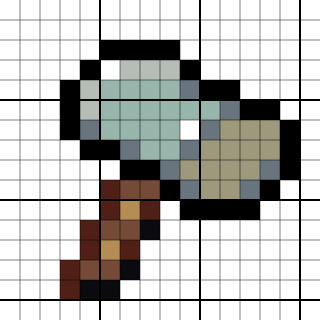
The output includes both fine and coarse grid overlays to align beads accurately. In recent builds, you can also enable Show color names to print palette names directly in the main grid, and the exported reference includes usage counts for clearer assembly planning.
R54 also expands the advanced options so you can set minor and major grid colours and line widths separately. The dialog now remembers the last-used configuration, the default magnification is 30 px, and Preview Image starts disabled unless you turn it on.
On iOS R58+, the estimated resolution shown in the dialog caps large-palette legend estimates, preventing multi-frame files or large palettes from making the displayed output size excessively high.
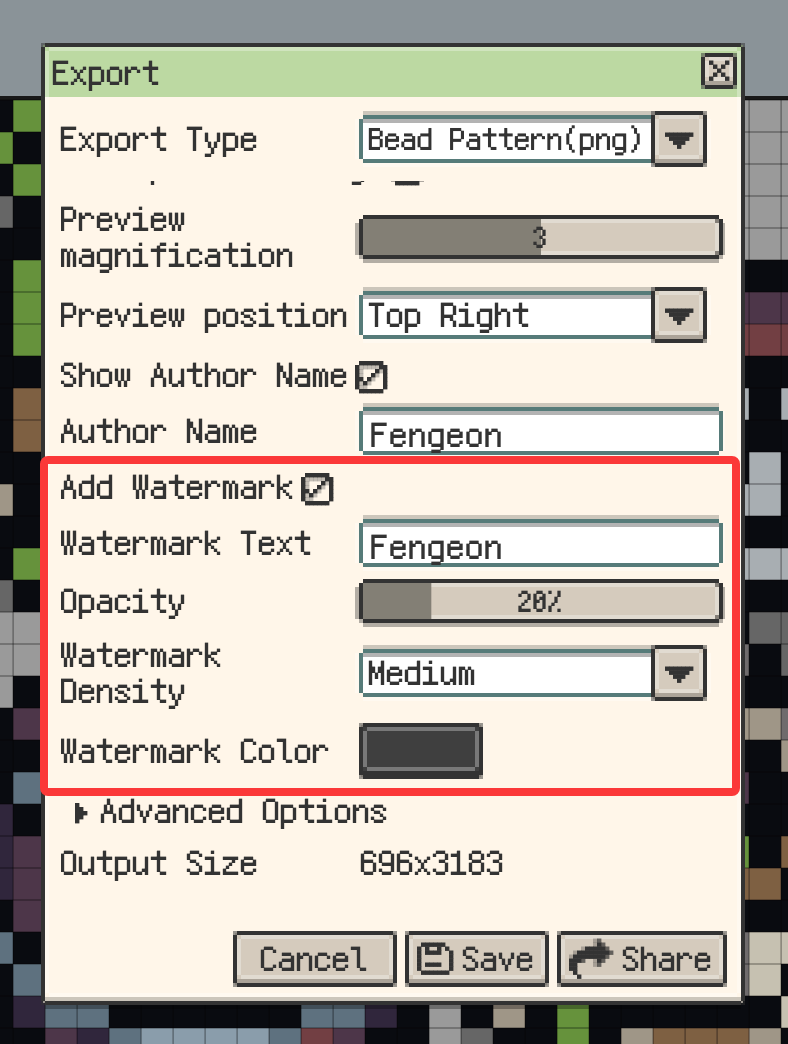
On iOS R60+ and desktop or Android v1.32.1+, you can also add a custom diagonal watermark and adjust its text, opacity, density, and color. The watermark is clipped to the bead grid. See Create Bead Patterns for the complete workflow.
PNG DPI Option (v1.30.0+)
If your downstream workflow depends on PNG DPI information, enable Settings ▸ Enable PNG High DPI before exporting PNG-based assets. This is useful for pipelines that read DPI metadata when placing images into layouts or documents.
Export Layers
When exporting layers as individual files, you can choose to remove the layer number from the filename.
Video
Export high-quality videos for timelapses or client reviews.
- Loop Count: Set the loop count to control how many times the animation repeats.
- Duration: The video duration is displayed to help you estimate the final length.
- iOS exports use H.264 encoding in an
.mp4container. - Desktop & Android builds allow you to choose an encoder at export time.
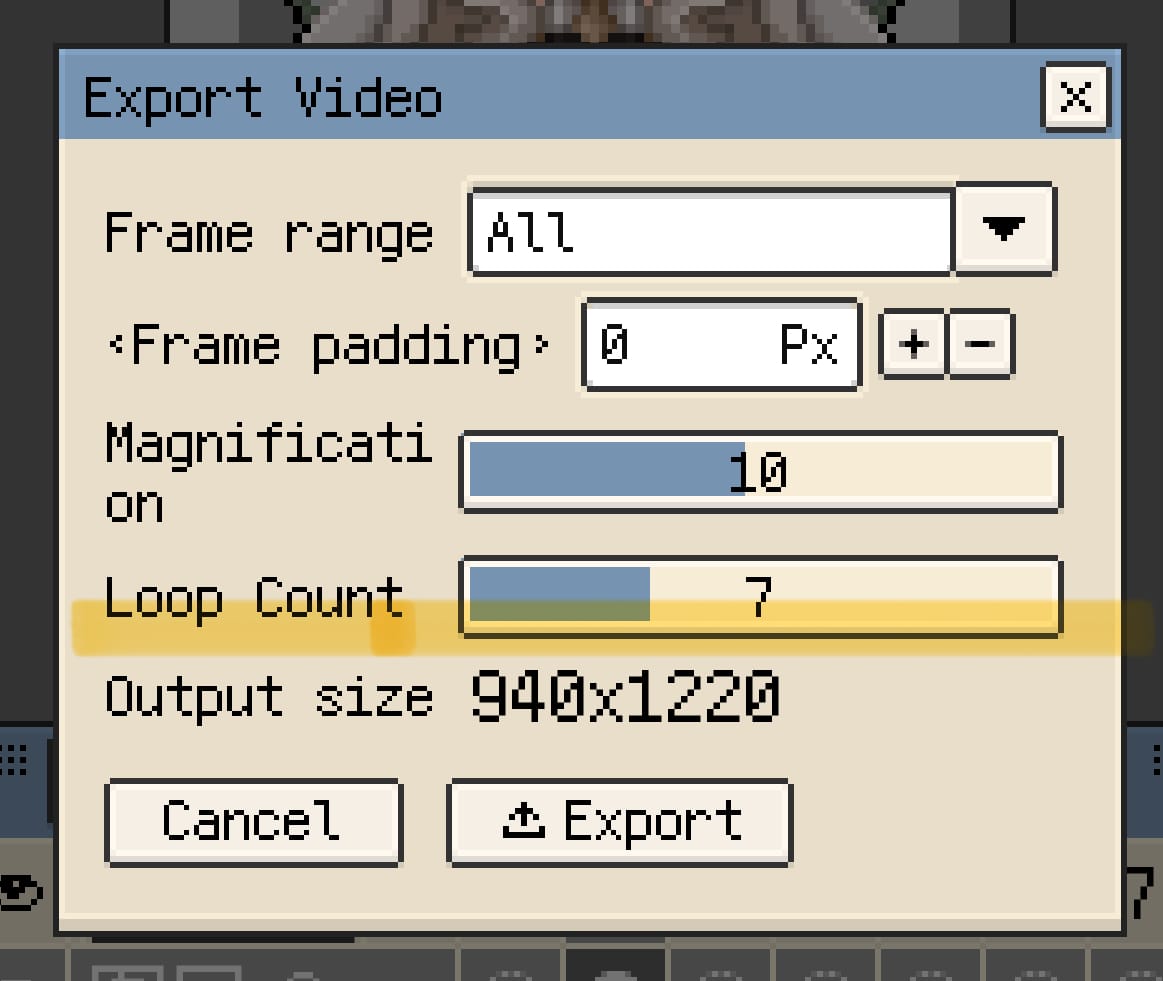
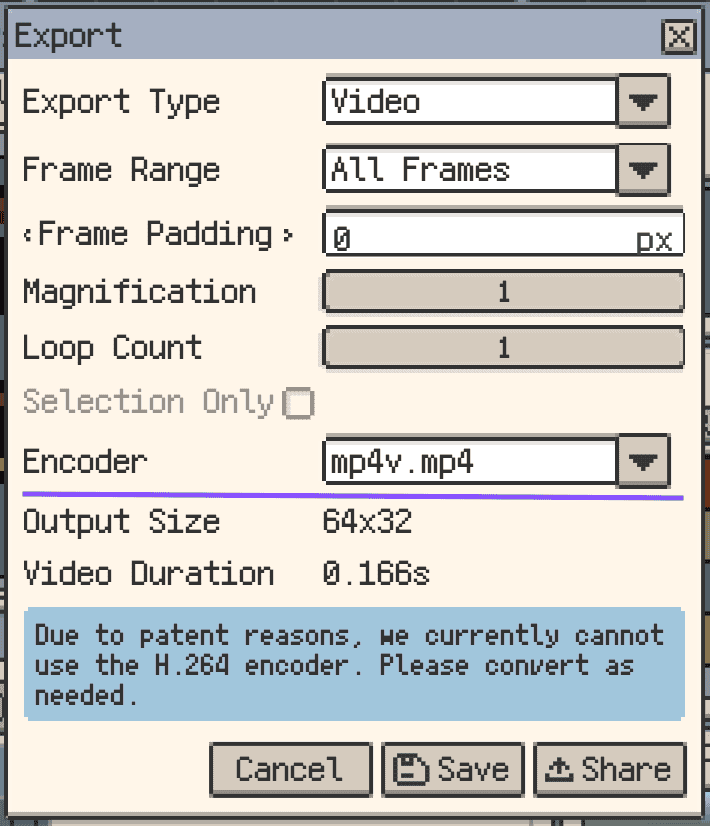
Desktop & Android currently omit H.264 due to licensing constraints. If you need H.264 playback compatibility, transcode the exported file with a video tool such as CapCut. Support will be added once the patent pool expires.
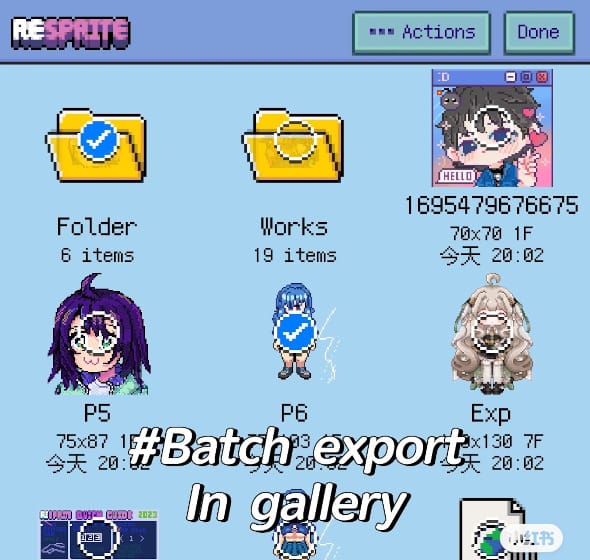
Batch Export from Gallery
- In the gallery, tap Select on the top bar.
- Choose individual sprites or folders.
- Pick an export action and format.
When batch exporting, you can choose whether to pack all files into a ZIP archive for easier sharing.
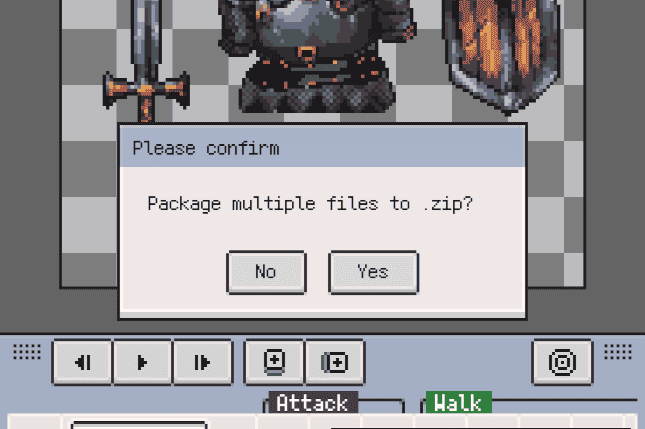
When exporting folders, the resulting archive mirrors your folder hierarchy.
Transfer Projects to Desktop
Moving single files is straightforward, but collections often require packaging.
AirDrop (macOS)
AirDrop is the fastest option between iOS/iPadOS and macOS. Since iOS 17, AirDrop supports mixed file types in a single transfer.
Messaging Apps
Messaging platforms rarely allow folder uploads. Export to the Files app, compress the selection into a ZIP archive, then send the archive through your preferred app.
Cloud Storage
Install the cloud client (for example, Dropbox) on both devices. Export directly into the synced folder to avoid manual transfers.