Create Bead Patterns
A bead pattern turns artwork into a grid with colour codes and usage totals. Load a named bead palette first: Resprite matches the artwork to that palette and uses its swatch names as the codes.
Colour names come from the palette; the exporter does not generate bead codes from pixel colours. The built-in MARD 221 and MARD 291 palettes provide prepared names.
1. Use a MARD Bead Palette
Open Menu ▸ Palette ▸ Load and choose MARD 221, MARD 291, or another named bead palette. Loading a palette does not recolour existing pixels. Drawing with its swatches reduces later differences; for existing artwork, check the matches before export.
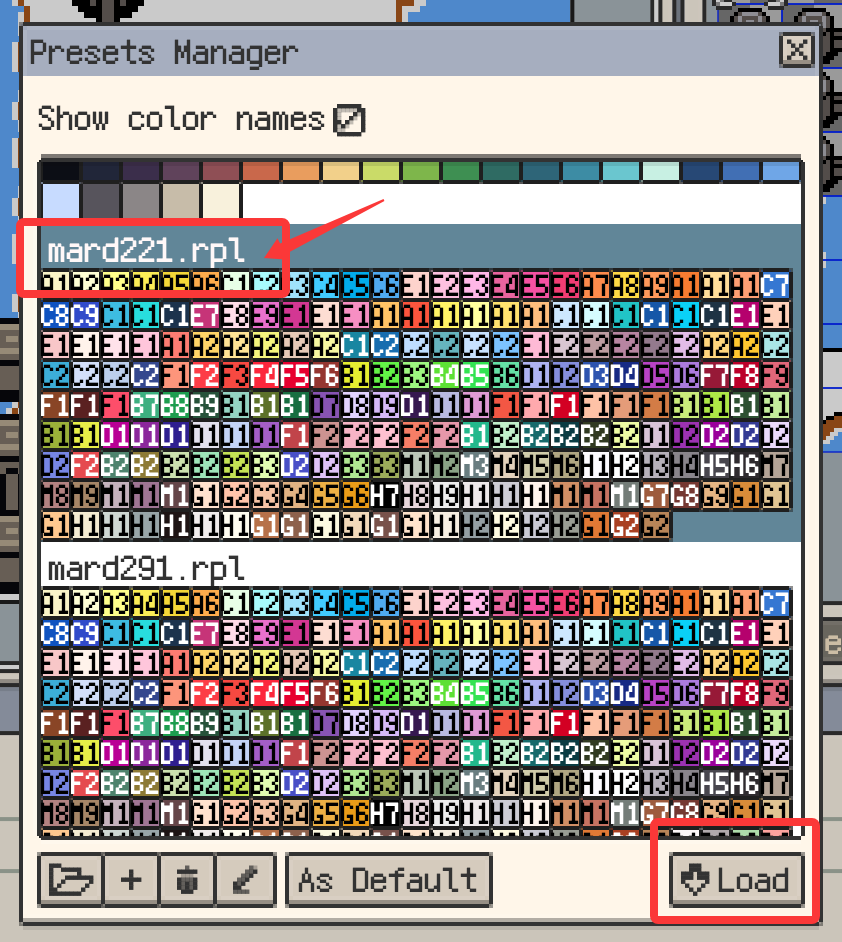
For other prepared palettes, download the .rpl from Palette Resources and import it.
2. Check the Colour Names
Click T in the Palette action bar to show the stored names. Prepared MARD palettes normally need no renaming. To change a name, select a swatch and use the adjacent rename button.
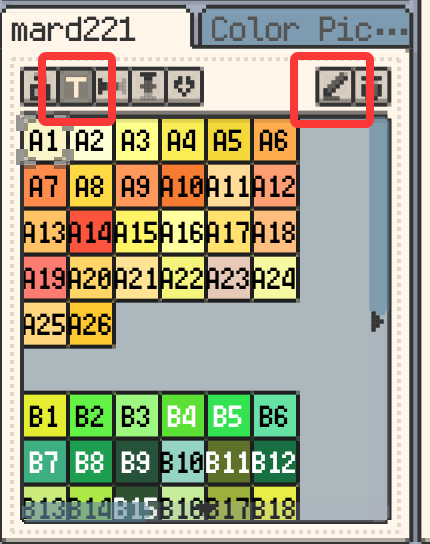
The T button changes name display only; an unnamed palette still needs names before it can supply colour codes.
3. Export the Bead Pattern
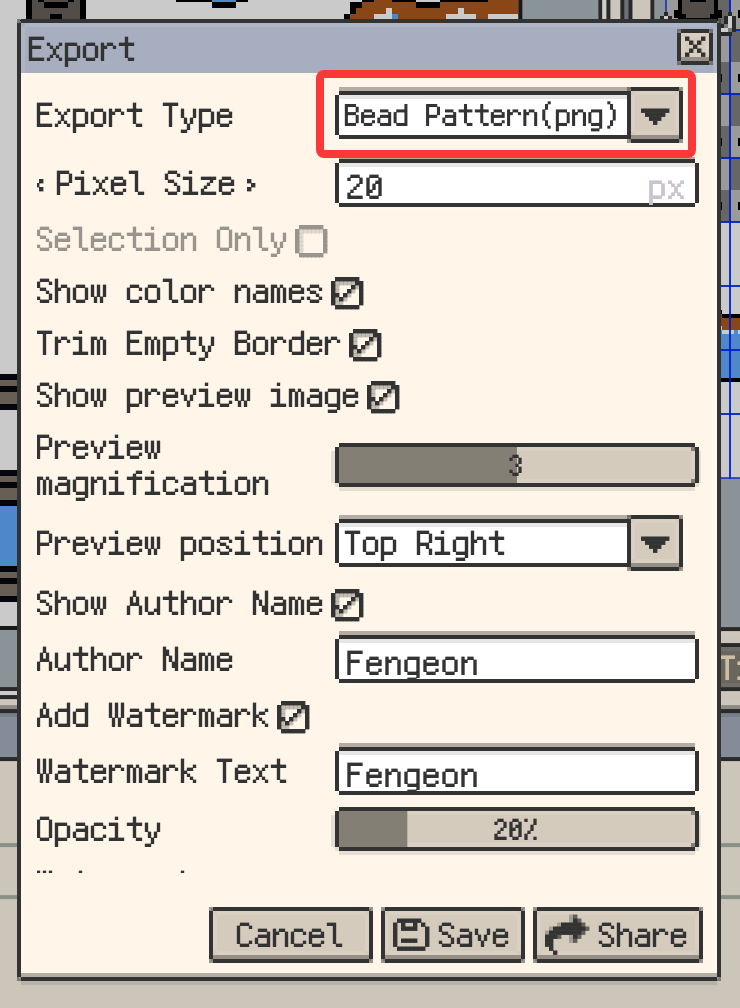
- Choose Bead Pattern (PNG) from the export menu.
- Enable Show color names.
- Set cell size, grid, trimming, and the required frame or layer output.
- Check the estimated size, export the PNG, and open it to review the pattern before printing or sharing.
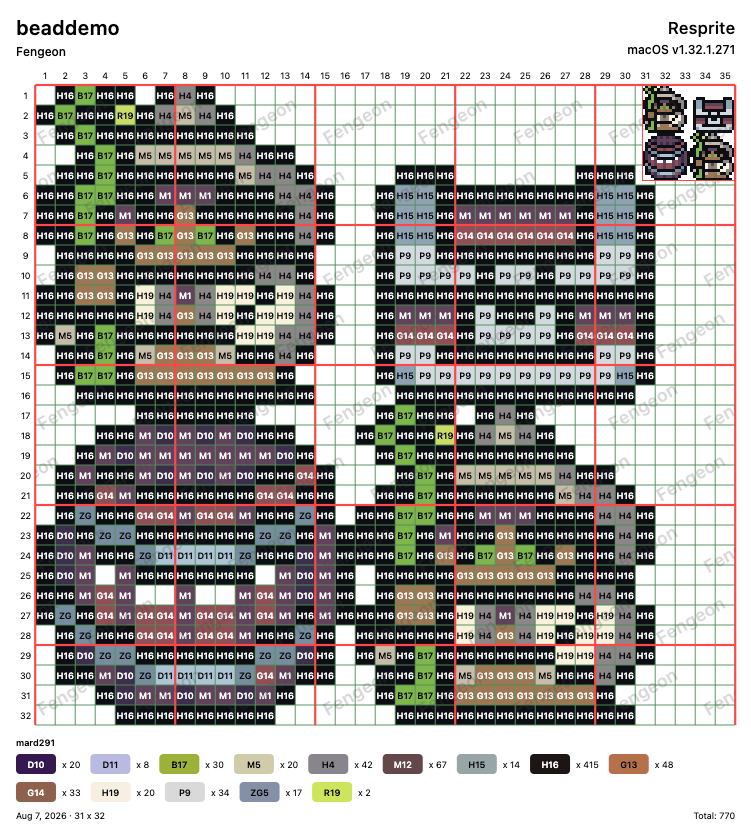
The grid follows the artwork's pixels. Labels and usage totals refer to the matched palette colours, helping you place beads and prepare quantities.
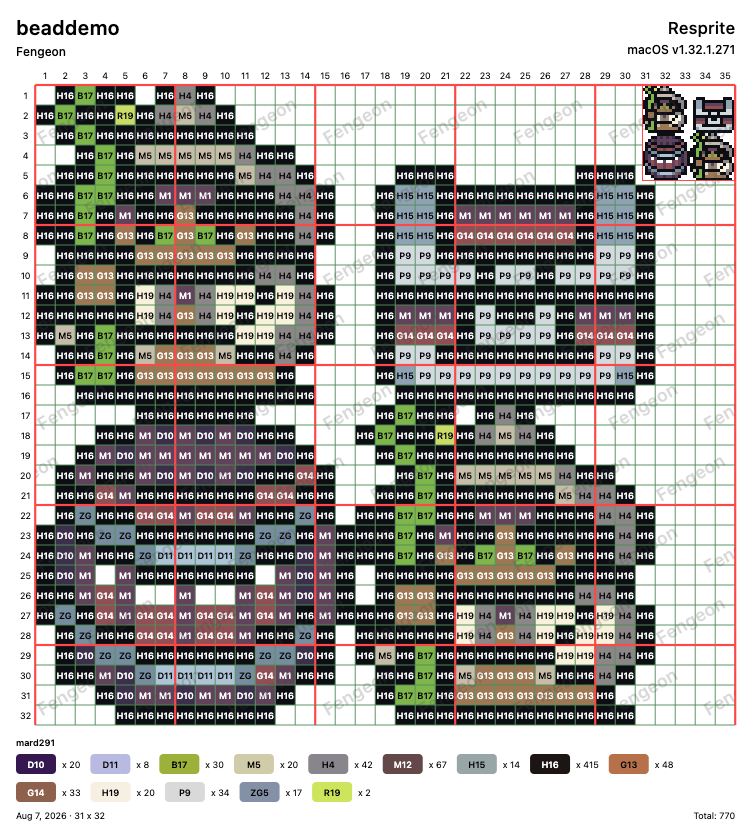
Grid and artwork thumbnail
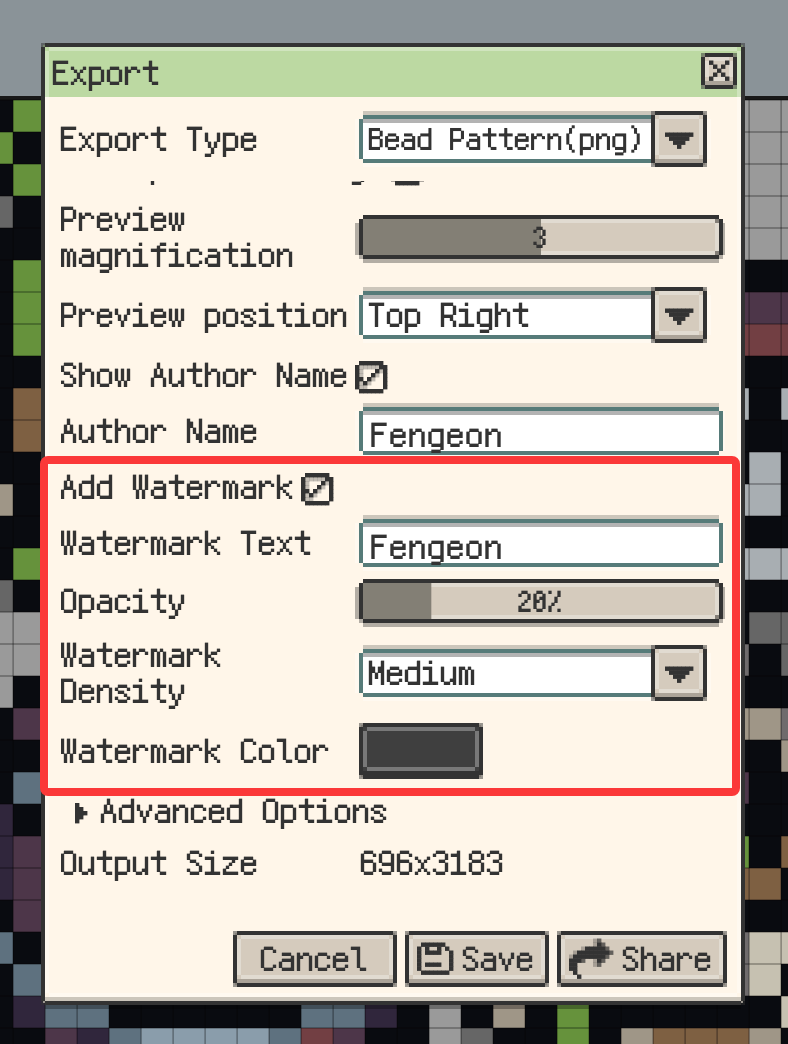
Use the grid options to set minor/major grid colours and line widths. Preview Image adds an artwork thumbnail to the exported pattern; its magnification and position control that thumbnail, rather than opening a live preview window.
Add a Custom Watermark
Enable Watermark to identify the artist, shop, or intended use. Enter the text and set opacity, density, and colour, then export a copy to check readability.
The text repeats diagonally within the bead grid and does not extend into the legend or outside the grid.
Check Colour Differences Before Export
Artwork colours do not always match the available swatches in a bead palette exactly. When Resprite prepares colour codes, the legend, and usage totals, it maps each artwork colour to the closest colour in the current palette. Use the colour-difference check to find matches that may need review before you print or share the pattern.
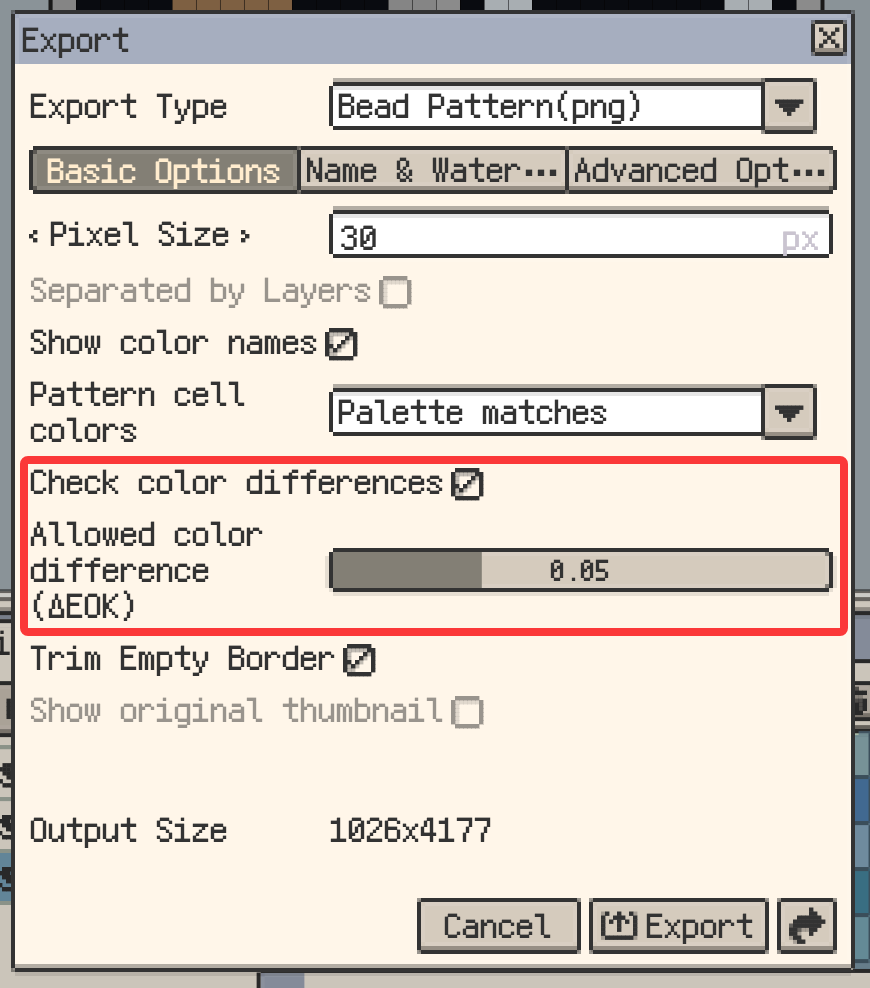
- Select Bead Pattern (PNG) in the Export window.
- Under Basic Options, choose whether Pattern cell colors displays Palette matches or Artwork colors.
- Enable Check color differences.
- Adjust Allowed color difference (ΔEOK). A lower value flags smaller differences; a higher value reports only larger differences.
- Export the pattern.
If Resprite finds cells over the allowed difference, you can cancel, continue with an unmarked final copy, or export a marked review copy. The review copy outlines the affected cells and adds callouts that compare the artwork colour with its palette match and show the ΔE value.
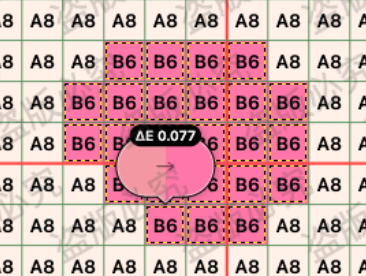
Bead Pattern and Quantize to Palette use standard OKLab colour-distance matching. Regardless of the cell display mode, colour codes, the legend, and usage totals refer to the palette matches, while the original thumbnail keeps the artwork colours.
A flagged difference does not necessarily mean the pattern is unusable. It usually means the current palette does not contain a closer colour. Use the marked copy to decide whether to accept the match, edit the artwork, or choose another palette.
The Exported Pattern Has No Colour Names
If the exported pattern shows grids or colours but no names, check the following:
- Make sure the artwork uses MARD 221, MARD 291, or another palette with named swatches.
- Click the T button in the Palette window and confirm that names appear on the swatches.
- Make sure Show color names is enabled in the export settings.
- If the required MARD palette is missing from your presets, download and import it from Palette Resources.
If the palette swatches do not have names, name them first or switch to a prepared MARD palette, then export the pattern again.