Keyboard Shortcuts (Desktop & Android)
View or customise shortcuts
Navigate to Settings ▸ Keyboard ▸ Configure Keyboard Shortcuts to review or remap the default layout.
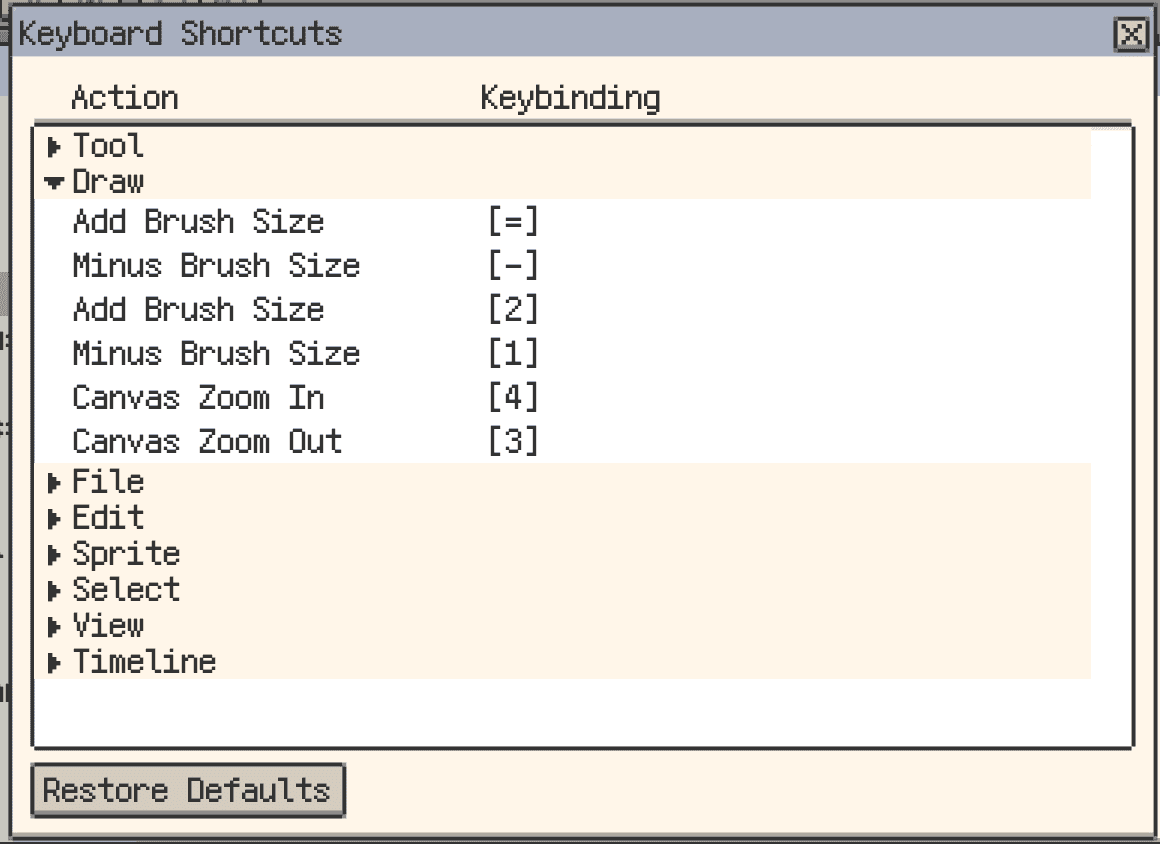
Configuring keyboard shortcuts
Custom key + wheel bindings on desktop (v1.30.1+)
Desktop shortcut settings now support custom key + wheel bindings in addition to plain wheel or modifier-only combinations.
This is useful when you want faster one-hand access to actions such as canvas zoom, brush size, palette navigation, frame/layer navigation, tool cycling, or pen opacity, without consuming more traditional key shortcuts.
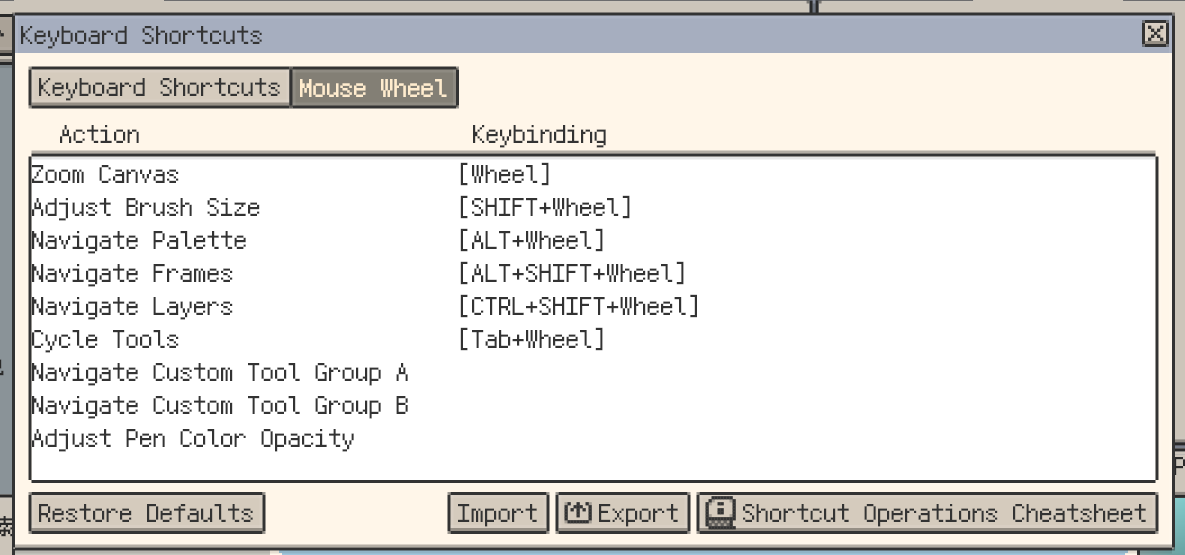
Custom key and wheel shortcut bindings
Import, export, and share shortcut layouts (v1.29.2+)
- Import/Export config (
.reskbd) – back up your setup, sync across devices, or share team presets. - Export cheatsheet – generate a quick-reference sheet from your current bindings.
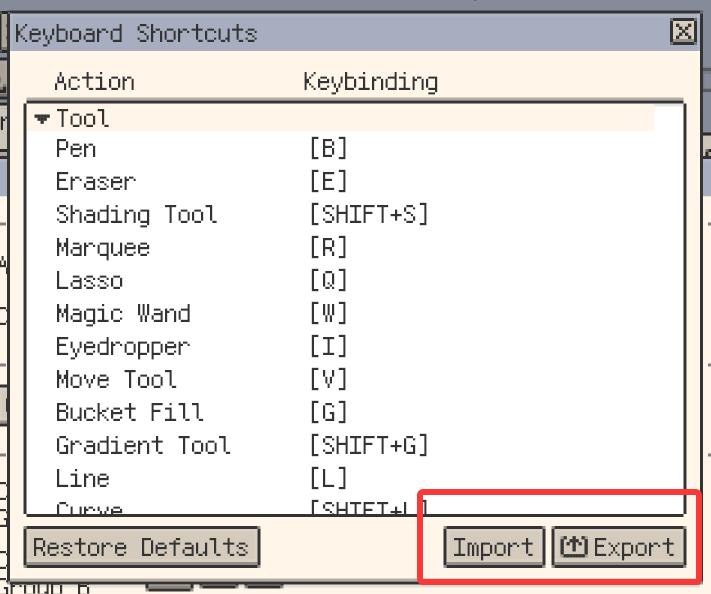
Import or export shortcut configs

Export shortcut cheatsheet
Default shortcut reference
note
On macOS, Cmd replaces Ctrl, and Option replaces Alt.
| Item | Key | Gesture |
|---|---|---|
General | ||
| Undo | Ctrl + Z | Two-finger tap |
| Redo | Ctrl + Shift + Z | Three-finger tap |
| Pan canvas | Hold Space or the middle mouse button, then drag | Two-finger drag |
| Eyedropper | Right mouse button | Long press on canvas |
Brush size | ||
| Increase brush | + / 1 | |
| Decrease brush | - / 2 | |
| Adjust brush continuously | Shift + mouse wheel | |
Canvas zoom | ||
| Zoom out | 3 | |
| Zoom in | 4 | |
| Adjust zoom level | Mouse wheel | Two-finger pinch |
Window | ||
| Toggle Workspace Layout Lock | Ctrl + Shift + L | |
Timeline | ||
| Frame navigation | Left / Right arrow | |
| Layer navigation | Up / Down arrow | |
| New layer | Shift + N | |
| New frame | Alt + N | |
| New empty frame | Alt + B | |
| Toggle play | Enter | |
| Toggle clipping mask | Ctrl + Alt + G | |
| Layer properties | F2 | |
| Frame properties | P | |
| Delete frame | F6 | |
| Toggle layer visibility | Shift + X | |
| Fold / expand layer group | Shift + E | |
| Duplicate layer | Ctrl + J | |
Tools | ||
| Pen | B | |
| Eraser | E | |
| Marquee | M | |
| Lasso | Q | |
| Magic Wand | W | |
| Eyedropper | I | |
| Bucket Fill | G | |
| Gradient | Shift + G | |
| Cell Move | V | |
| Line | L | |
| Rectangle | U | |
| Ellipse | Shift + U | |
| Contour | D | |
| Blur | R | |
| Jumble | Shift + R | |
| Spray | Shift + B | |
File | ||
| New sprite | Ctrl + N | |
| Open | Ctrl + O | |
| Open Settings | Ctrl + K | |
| Save | Ctrl + S | |
| Save all | Ctrl + Alt + S | |
| Save as | Ctrl + Shift + S | |
| Close | Ctrl + W | |
| Close all | Ctrl + Shift + W | |
| Export | Ctrl + E | |
Edit | ||
| Copy | Ctrl + C | |
| Cut | Ctrl + X | |
| Paste | Ctrl + V | |
| Outline | Shift + O | |
| Adjust Colour | Shift + A | |
| Insert Text | Shift + T | |
| Horizontal Flip | Shift + H | |
| Vertical Flip | Shift + V | |
| Flip sprite horizontally | Ctrl + Shift + H | |
| Flip sprite vertically | Ctrl + Shift + V | |
Sprite | ||
| Canvas Size | C | |
Selection | ||
| Select all | Ctrl + A | |
| Invert selection | Ctrl + Shift + I | |
| Exit selection | Ctrl + D |