Create Your First Sprite
In Resprite, each project is stored as a sprite file that bundles the canvas, timeline, palette, and related metadata. When you start a new piece, there are usually only three decisions to make first: create the file, choose a size, and decide whether timelapse recording should be enabled from the beginning.
Start from the Gallery
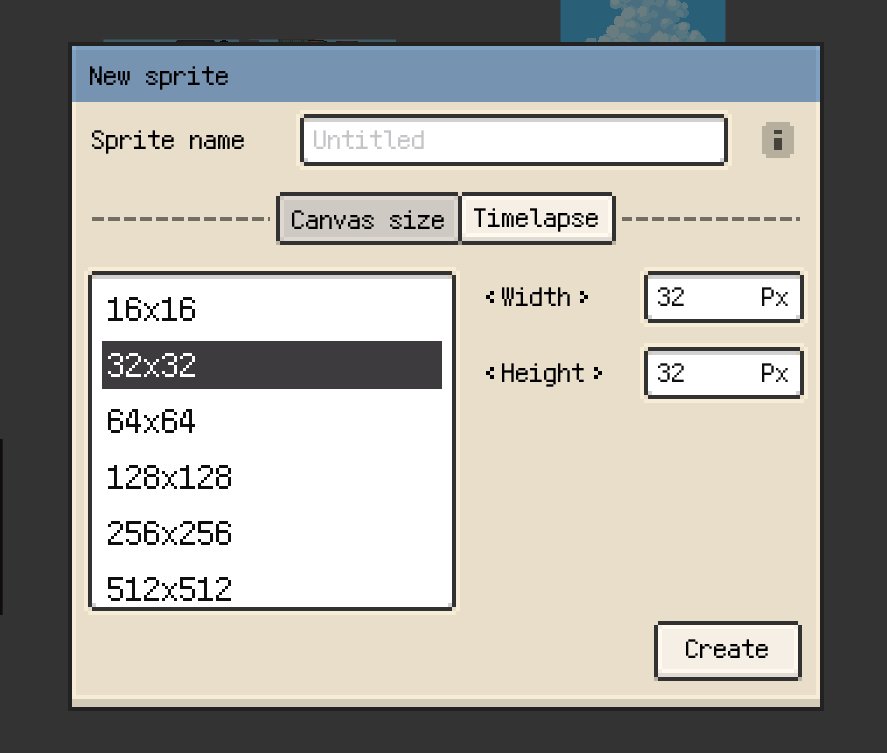
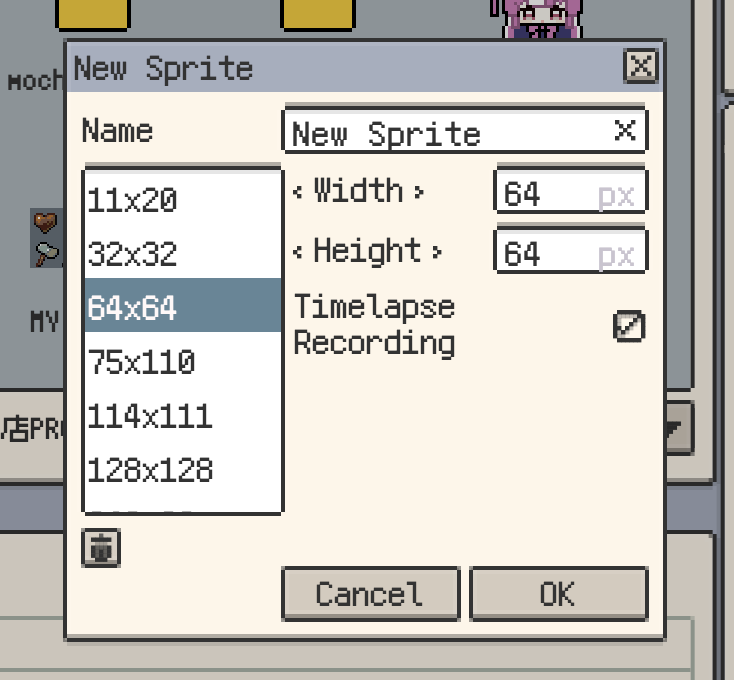
In the Gallery, use New / New Sprite to open the new sprite dialog.
The usual flow is straightforward:
- Enter a file name.
- Pick a preset size, or type in a custom width and height.
- Confirm to create the canvas and start drawing right away.
The layout of the dialog differs between iOS and desktop, but the basic workflow stays the same: name the file, choose a size, and create the project.
Choose a size and reuse common presets
Both versions ship with preset sizes and let you enter dimensions manually.
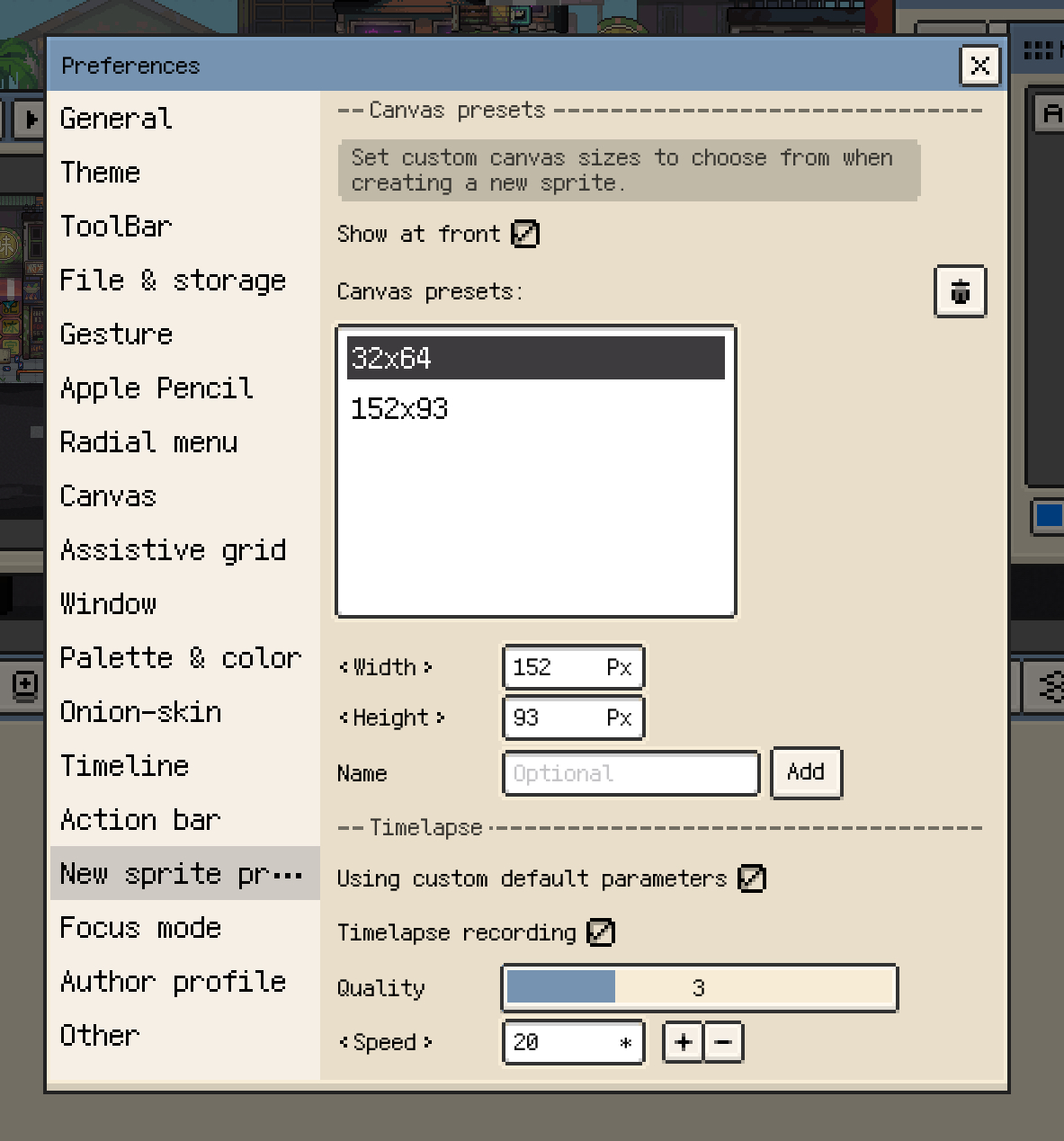
If you work at the same sizes repeatedly, you can treat those values as reusable presets:
- iOS lets you manage custom canvas presets in Preferences and control whether those presets appear near the front of the list.
- Desktop / Android remembers new sizes you have created before, and the dialog can remove the current saved preset directly.
On iOS, the dialog can also add a clipboard-matched size when there is an image ready to paste, which makes it easy to create a canvas at the source resolution first.
Large canvases raise memory use and playback cost quickly. On iOS, Resprite warns once you move beyond 1080p and blocks creation past a 4K-equivalent pixel area. On desktop and Android, it is still a good idea to size projects conservatively if you also expect many layers, long timelines, or heavy timelapse captures.
You can also set up timelapse when creating the file
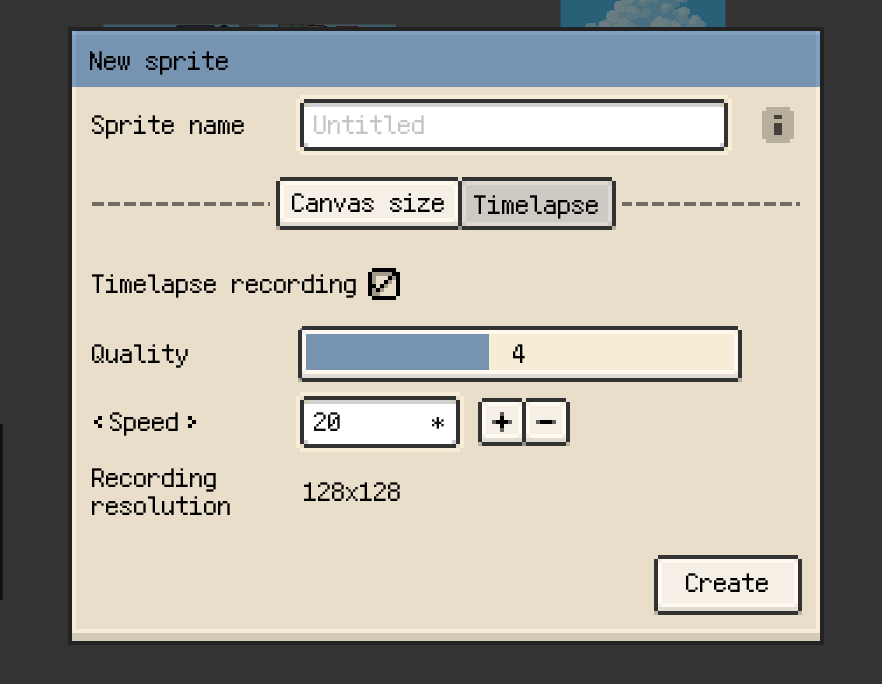
If you want the drawing process recorded from the start, timelapse can be configured while the sprite is being created.
- On iOS, timelapse lives in its own
Timelapsetab in the new sprite dialog, with controls for recording, quality, and speed. - On desktop / Android,
timelapse recordingis exposed directly inside the same dialog as a checkbox.
If you would rather begin drawing first, you can leave it off for now and adjust timelapse properties later from the sprite settings.
What you can still change after creation
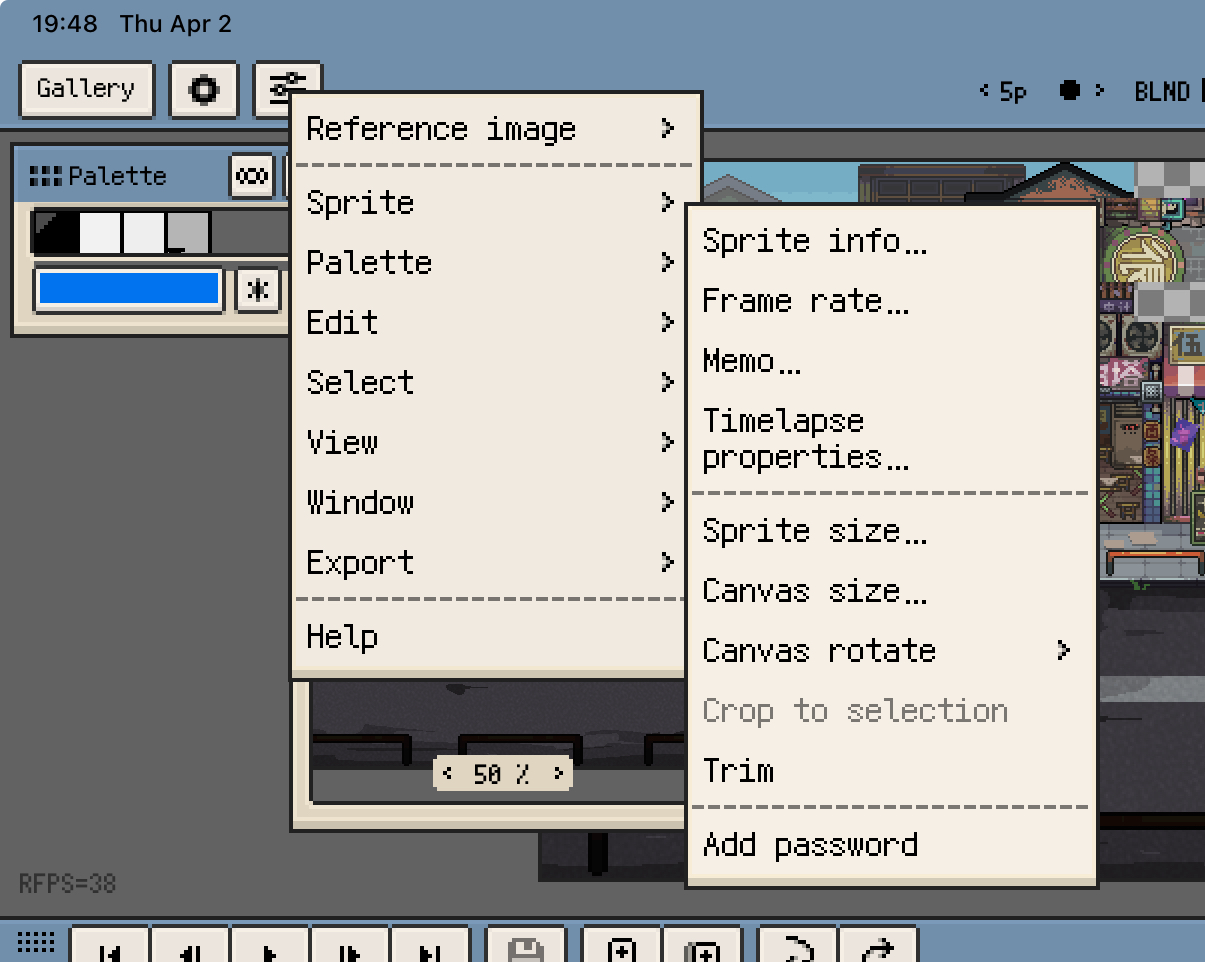
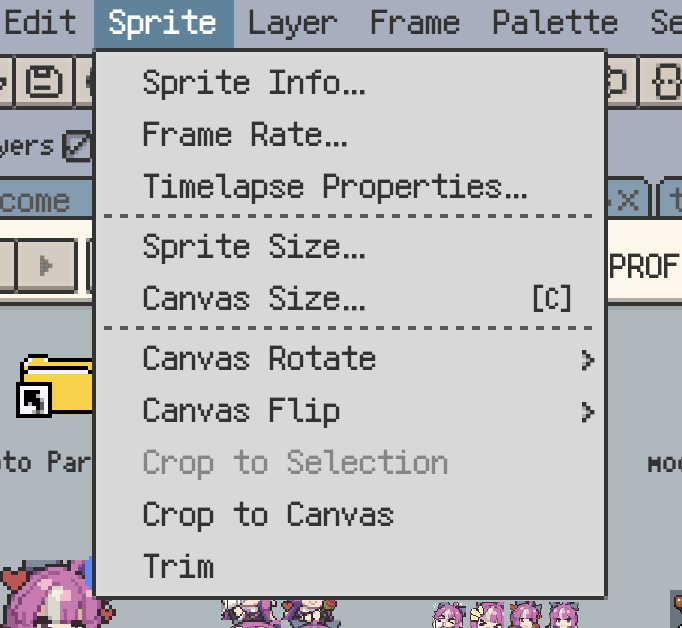
After the sprite has been created, open Menu ▸ Sprite for project-level settings.
The most useful cross-platform items here are:
- Frame rate for preview and export playback speed
- Sprite size for scaling the existing artwork
- Canvas size for extending or cropping the bounds without scaling current pixels
- Rotate / Flip for changing orientation across every frame
- Crop to selection for trimming the canvas to the active selection
- Trim for removing empty space around the artwork
- Timelapse properties for changing recording-related settings
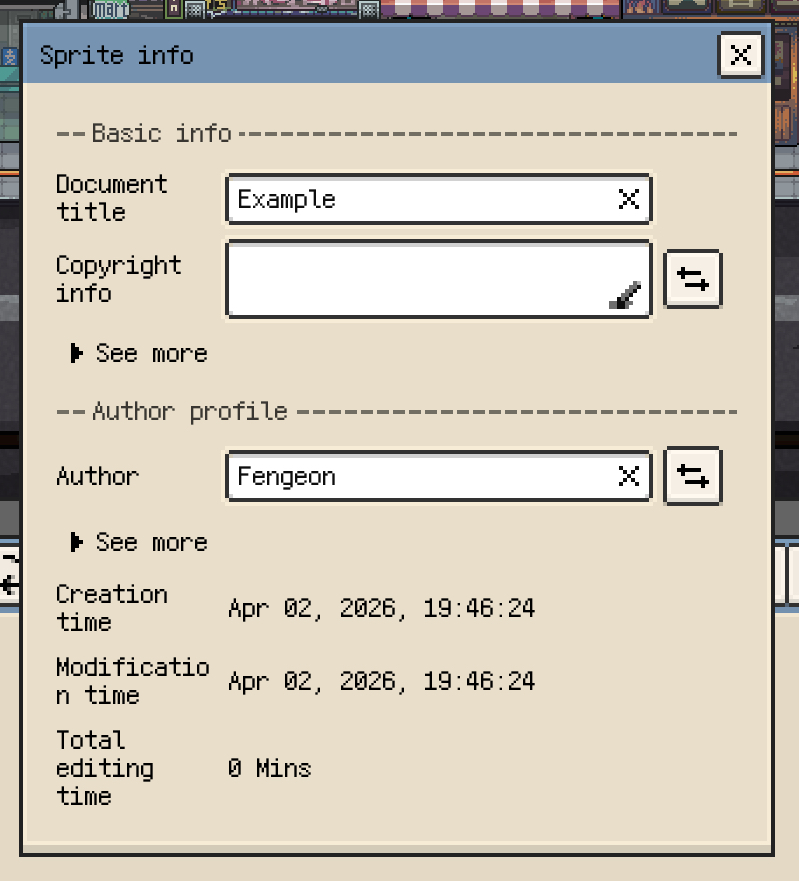
- Sprite Info for author details, statistics, and other metadata
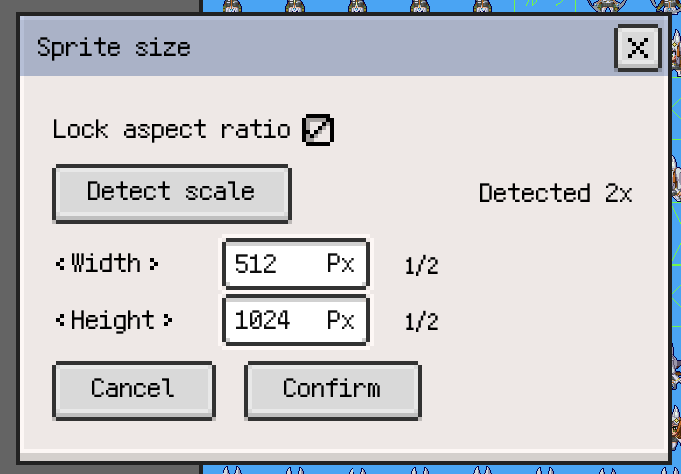
Detect Scale in Sprite Size (iOS R55+, Desktop / Android v1.30.1+)
On iOS R55+, Sprite Size also includes Detect Scale, bringing the same workflow already available on desktop and Android.
When artwork looks like an integer-upscaled version of pixel art, Resprite can inspect the current frame and suggest a closer base size automatically, which is especially helpful after importing enlarged source material from outside the app.
Two platform-specific differences are still worth knowing:
- iOS also includes Memo, which lets you attach text notes to the sprite file.
- Desktop also includes Crop to Canvas, which clears away pixels sitting outside the canvas bounds.
If you want to check author details, statistics, or other document-level metadata, continue into Sprite Info.
Next
Once your first sprite is ready, these are the most useful follow-up pages: