Resprite Update Roundup: Native Linux, Pressure-Controlled Brushes & Android Canvas Rotation (1.32.2–1.32.6)
Since 1.32.1, Resprite has introduced a native Linux version, pressure-controlled brush size, and two-finger canvas rotation on Android, giving you more flexibility when drawing across devices.
This roundup covers 1.32.2–1.32.6 for desktop and Android, with a closer look at the main additions and improvements to color picking, the interface, animation, and exports.
A Native Linux Version
1.32.4 introduced a native Linux version for x86_64 systems, bringing Resprite's pixel art and animation tools to Linux. The Linux version is available on Steam.
1.32.6 also fixes a launch issue affecting some Steam environments. If you previously ran into this issue, please update and try again.
More Control over Brushes and Erasing
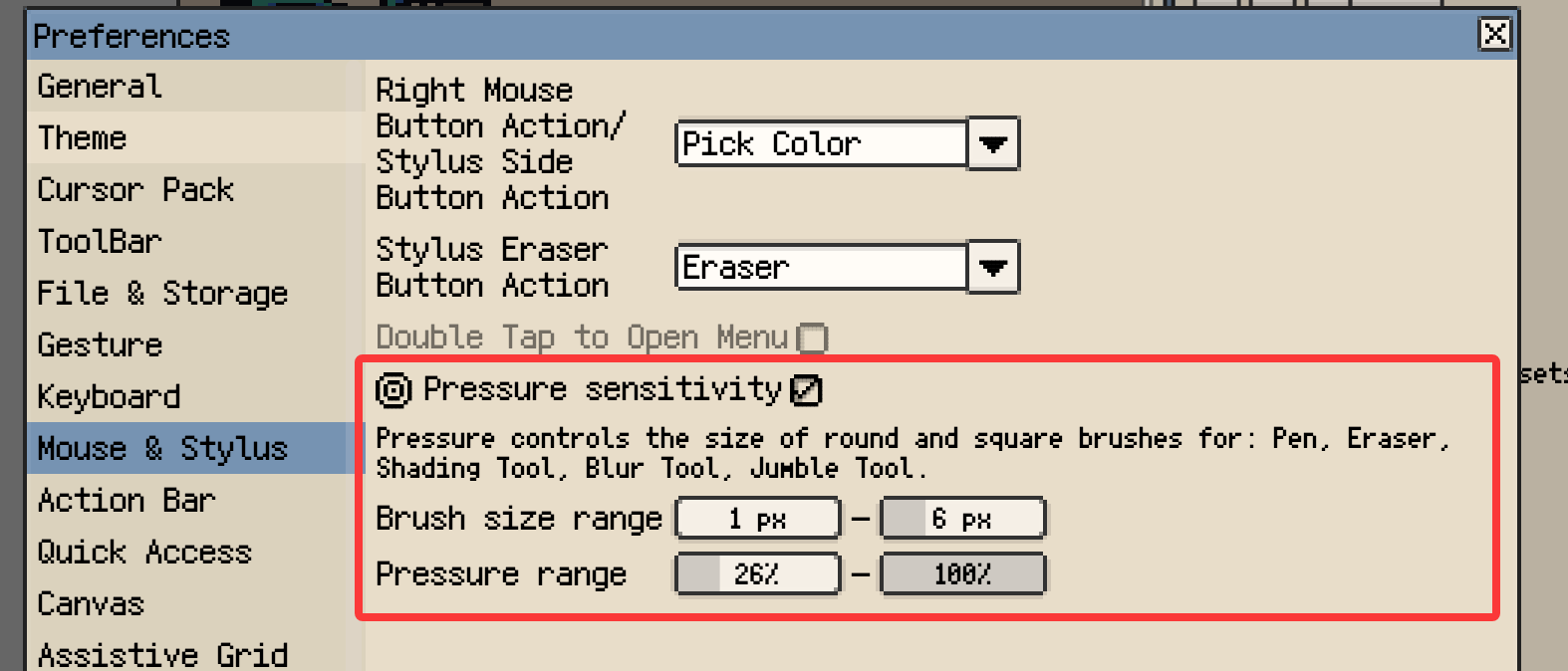
1.32.6 adds pressure-controlled brush size. With a stylus that provides valid pressure data, brush size can respond to how firmly you press, reducing the need to change sizes manually while drawing.
This works with round and square brushes in the Pen, Eraser, Shading, Blur, and Jumble tools. Pressure sensitivity is off by default. Enable it in Preferences → Mouse & Stylus, then adjust the brush size and pressure ranges to suit your drawing style.
Eraser opacity is now adjustable, too. The pixel Eraser supports opacity from 1% to 100%, so you can gradually fade content with a lower setting. Overlapping passes within the same stroke do not accumulate; lifting the stylus and making another stroke reduces opacity further. Double-click the opacity label or percentage to reset it to 100%.
Easier Canvas Navigation
1.32.6 adds new ways to work with the canvas on Android and desktop.
Android: Two-Finger Canvas Rotation
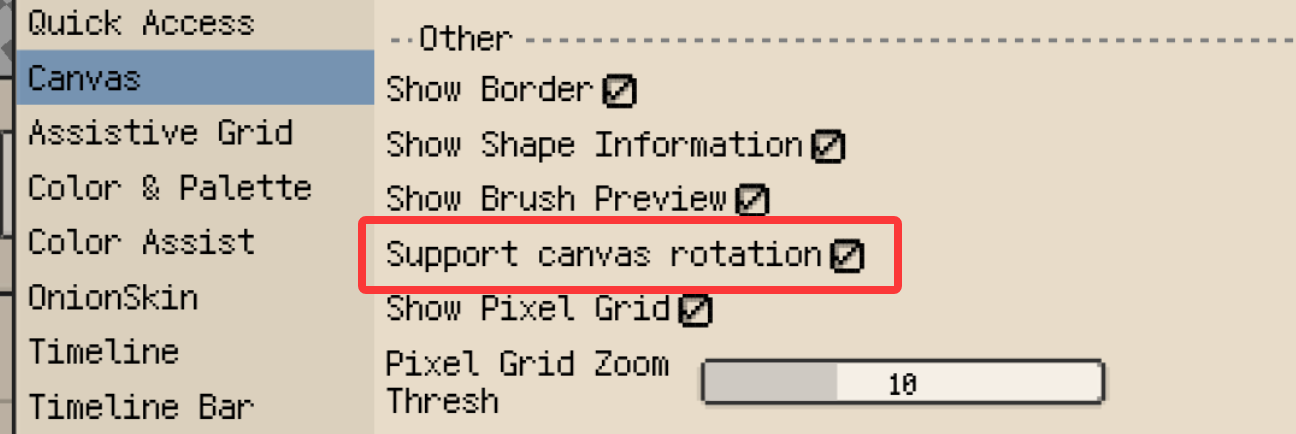
Enable Support Canvas Rotation in Preferences → Canvas to rotate, zoom, and pan with two fingers at the same time. You can position the canvas at a comfortable drawing angle, and it snaps upright when released close to its original orientation. You can also press and hold the angle in the status bar to reset it.
Rotation only changes the viewing angle; it does not alter the artwork's pixels or exported results. This option is off by default.
Desktop: Edge Auto-Scroll While Drawing
When drawing long lines or making large selections on a zoomed-in canvas, you can now keep scrolling as the pointer reaches the edge of the editor. This reduces the need to interrupt the operation and pan manually.
Enable this option in Canvas preferences; it is off by default. It supports Pen, Eraser, shape drawing, and selection drawing. Moving existing selection content and Tilemap operations do not trigger auto-scroll.
More Direct Color Picking
In 1.32.6, Replace Color can pick the source color directly from the canvas. Click the color-pick button beside Source Color to temporarily hide the dialog and locate the color in your artwork. Release to fill the picked color back into the Replace Color dialog.
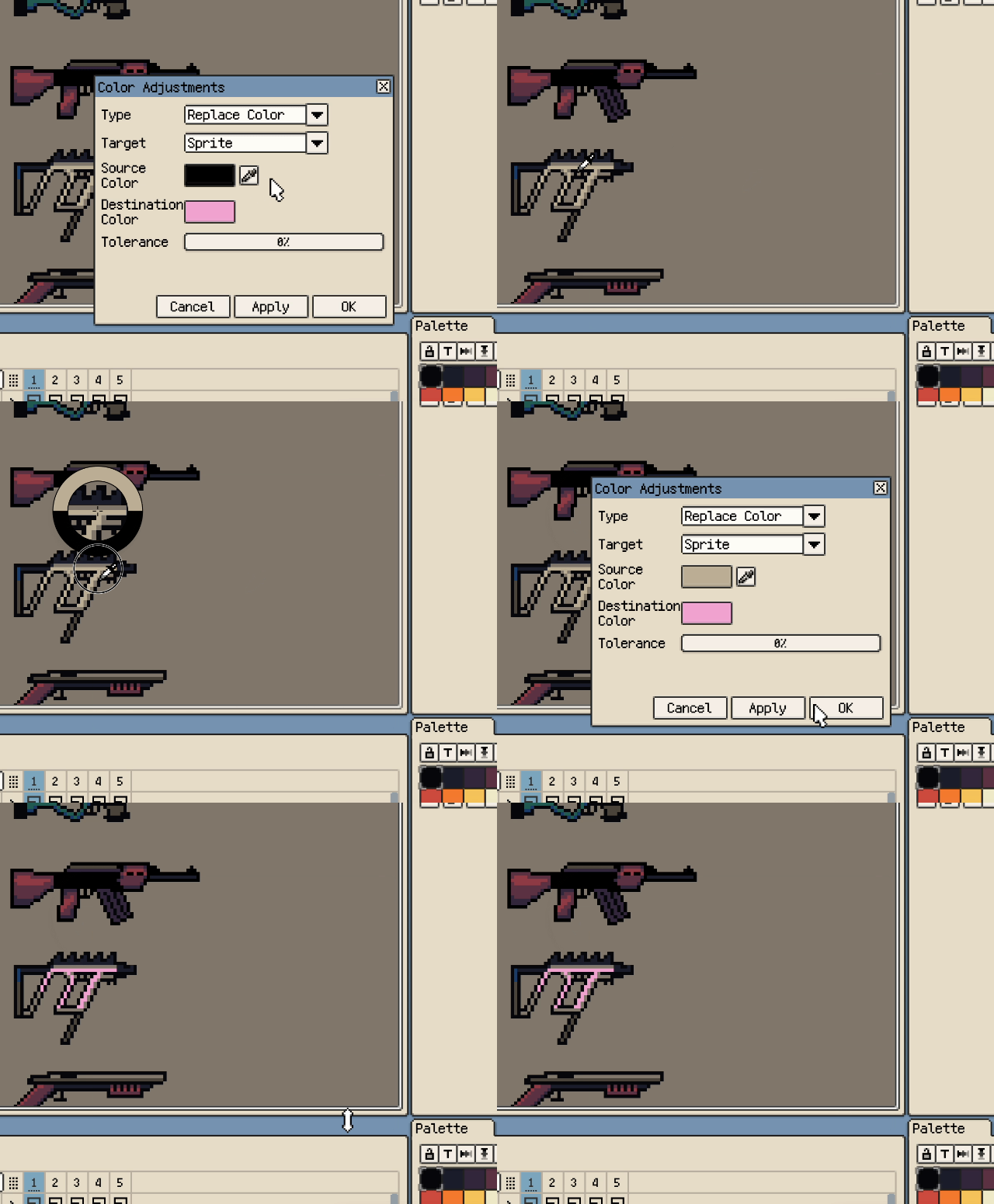
Screen color picking on macOS and Windows now uses the same circular loupe as in-app color picking. Press and drag to preview, then release to confirm. With a stylus, lifting the pen confirms the color at its last contact position, so subsequent hover movement does not affect the result.
Adjust the Interface to Suit Your Workflow
1.32.3 adds independent button size controls for the Tool Bar, Action Bar, and panel action bars. Adjust button sizes to suit touch or mouse input. Panel action bars can also move actions into an overflow menu when space is limited.
Horizontal scrolling has been restored for the top-docked Action Bar and Tool Options Bar on narrow phone screens, making options outside the visible area easier to reach.
Other Improvements
The following improvements are all part of 1.32.6:
- More flexible frame duration input: Use fractional multipliers or milliseconds to fine-tune how long each animation frame stays on screen.
- Direct Tiled Map export: On desktop, export TMX, TSX, and PNG files directly to a folder, with no archive to extract first.
- Flexible Sprite Sheet naming: Omit the base name when exporting split Sprite Sheets.
- Named size presets: Use the + button in New Sprite to save frequently used sizes manually. Temporary sizes are no longer added automatically.
- Straight-line previews: When holding Shift to connect a line with Pen, preview the actual result using the current color and brush settings.
- Zoom while panning: Use the mouse wheel to zoom while holding Space or dragging with the Pan Canvas Tool.
- Drag to scroll the timeline: Scroll by dragging with the Pan Canvas Tool, while holding Space, or with the middle mouse button.
- Easier access to Color Wheel edges: Pick colors in the gap inside the ring to reach the edges and corners of the central square more easily.
- Font saving on Android: Save as Font (
.resfont) is now supported. - Copy paths on desktop: Copy file and folder paths from the Gallery.
- GPL export compatibility: Exported palettes accommodate Aseprite's additional color-name requirement.
Fixes and Reliability Improvements
Alongside the Linux Steam launch fix mentioned above, 1.32.2–1.32.6 includes these fixes:
- Improved reliability when opening timelapse projects with external storage on Android.
- Fixed Wacom pen side-button right-click issues with Windows Ink. The enhancement setting is no longer needed.
- Fixed small gaps between brush previews and canvas pixels on Windows.
- Fixed mismatched pixels between mirrored selections after transforms.
- Fixed an issue preventing some timelapse and video exports on Windows.
- Fixed selection content disappearing during two-finger canvas gestures.
- Fixed the loupe not appearing or lagging when picking screen colors with a Wacom pen on Windows.
- Fixed floating toolbars becoming immovable after switching workspace layouts and grouped toolbars shifting on startup.
Changes to Defaults
1.32.6 changes the following defaults:
- New documents use 10 FPS, or 100 ms per frame. Existing documents retain their saved frame rate and playback timing.
- Fresh installs use Alt/Option for temporary color picking. Hold the key to pick a color, then release to return to the previous tool. Saved key settings are preserved when upgrading, and you can change the action in Preferences → Keyboard.
For the complete list of changes and release dates, see the v1.32 release notes.
Thank you for your support and feedback. If you encounter an issue or have a suggestion, please reach us through our support page.