Toolbar & Tools
Select a tool in the toolbar, then adjust its brush, selection, or effect settings in the tool options. This page covers the shared drawing tools and the layout or input differences that affect how you use them.
Toolbar and display options
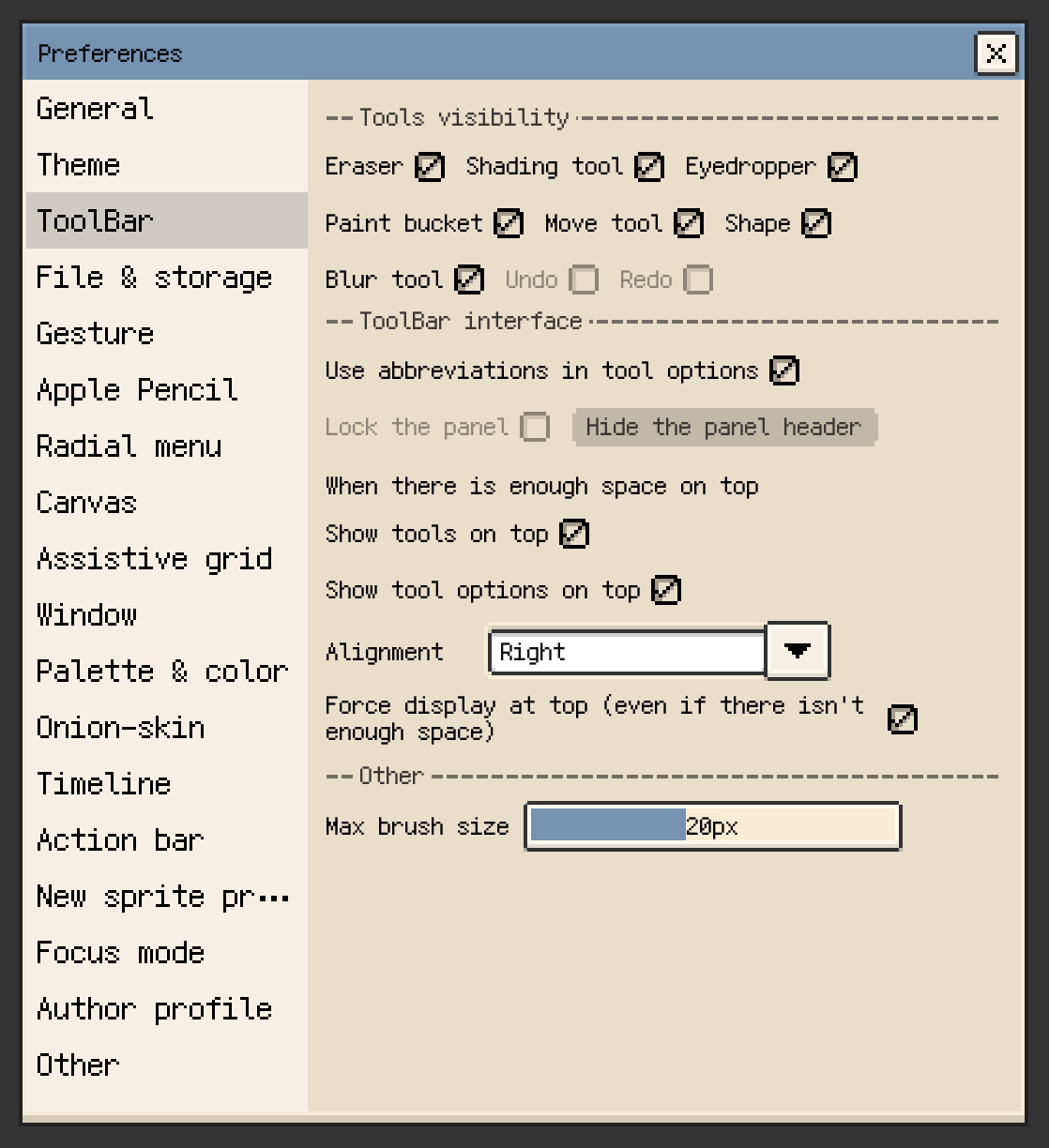
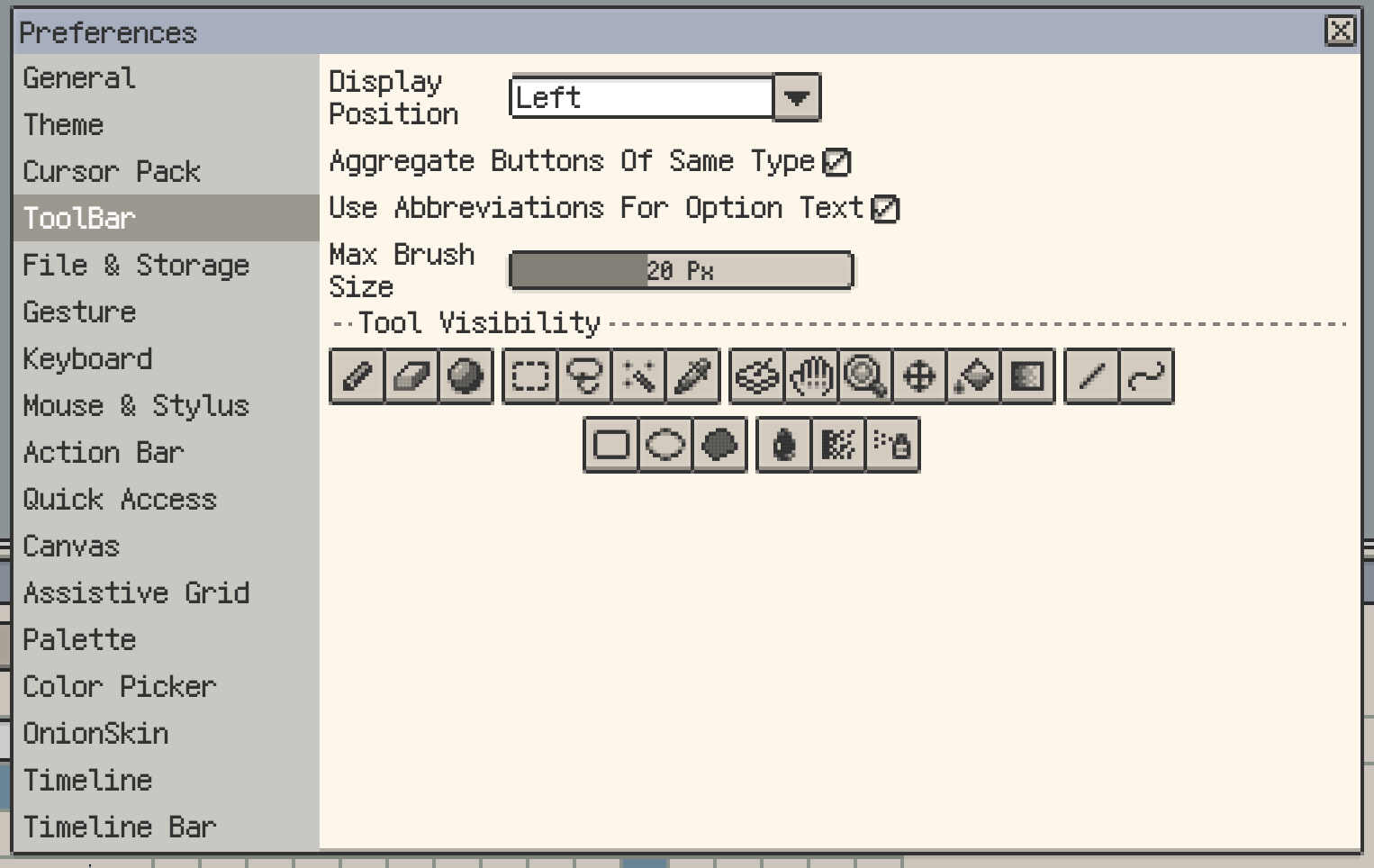
Use Preferences ▸ Toolbar to choose the toolbar layout and hide tools you rarely use. Tool options change with the selected tool.
iOS
Choose whether the tool list and tool options appear at the top. Their placement depends on the available screen space.

Desktop and Android
Place the main toolbar on the left, right, or top. Aggregate Buttons groups related selection, fill, shape, filter, and helper tools into compact entries. The active tool's settings appear in the tool option bar.
For floating toolbar arrangements, see Floating Windows.
Action bar shortcuts
The action bar provides quick access to frequently used commands, such as exporting or resetting the symmetry center. Keep the actions you use most within reach while drawing.
Core drawing tools
Pencil
The pencil is the main drawing tool and covers most pixel-art workflows on its own.
Key options:
- Brush shape: switch between square and round tips.
- Brush size: drag the brush size control horizontally or vertically to resize the brush.
- Double-click / double-tap on the size control: on iOS, this toggles between
1 pxand your previous size; on desktop and Android, it resets directly to1 px. - Pressure sensitivity: a compatible pen can vary brush size with pressure. See Pressure and brush size.
- Blending: blends semi-transparent strokes with existing pixels underneath.
- Pixel Perfect: helps avoid unwanted diagonal corner artifacts at line joints.
- Alpha Lock: limits painting to pixels that already exist.
- Dithering: lets you paint with a pattern instead of a flat color.
See Dithering for pattern-specific workflows.
Custom Brush
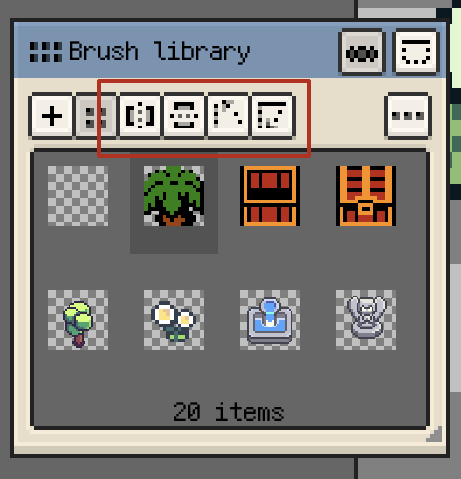
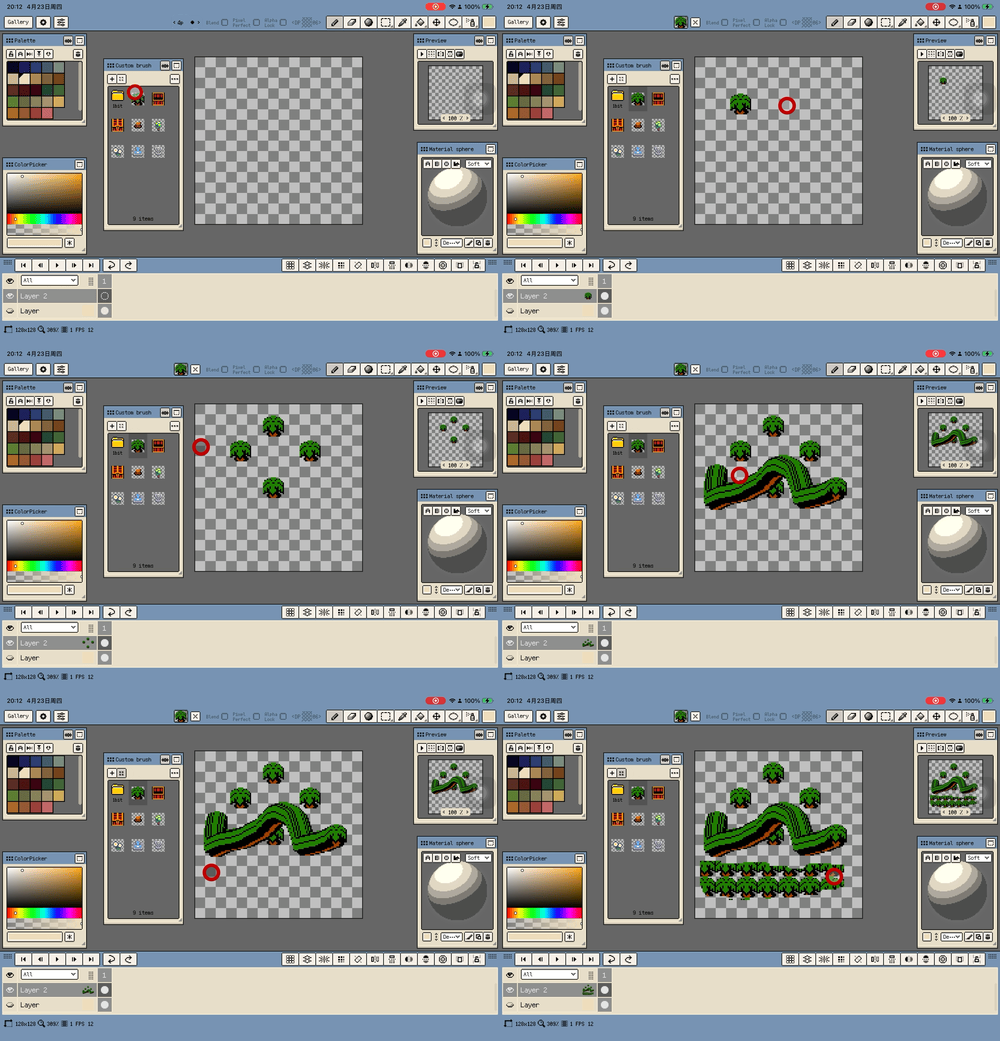
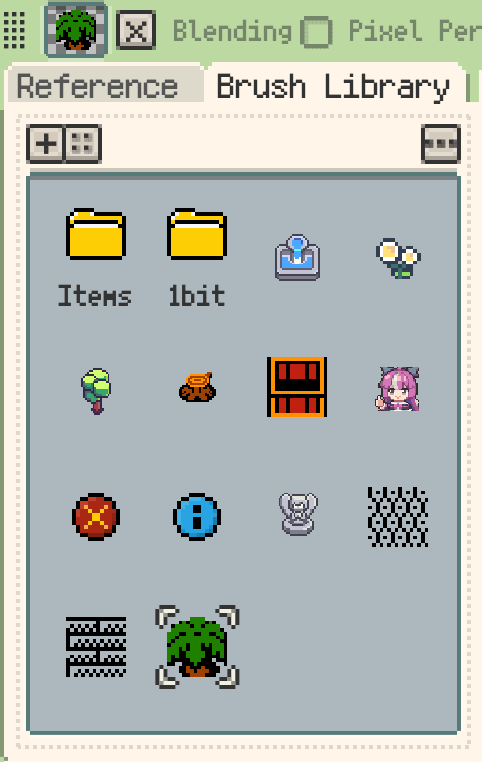
Create a reusable brush from a selection or an imported image when you need a repeated motif, texture, or stamp. Use the Brush Library to select brushes, organise folders, and configure tiling. Its window can be included in a saved workspace layout.
- The brush can draw with the current pen colour. For tiled brushes, choose global or stroke-start alignment.
- Temporarily flip the active brush horizontally or vertically, or rotate it 90° left or right. The library thumbnail, brush tip, canvas preview, and drawing result follow the transform; the original image file is kept unchanged.
- On desktop, image files and image folders can also be dragged into the library.
Eraser
Use the eraser to remove pixels, with brush shape, size, dithering, and Pixel Perfect options. With a keyboard, hold Shift to continue a straight segment from the previous stroke endpoint.
Shading
The shading tool walks through neighbouring colors in the palette, making it fast to build directional light and shadow.
- Direction: switch between horizontal and vertical directions, or drag to choose from all four directions.
- Color range: uses the current swatch plus neighbouring colors in palette order.
- Full Palette: shades across the whole palette instead of staying near the current swatch.
- Dithering: applies a pattern while shading.
- Shift straight lines: hold Shift to continue a straight segment from the previous stroke endpoint.
Selection tools
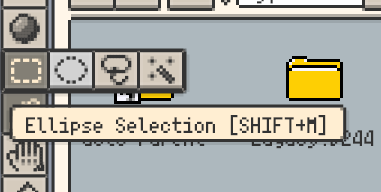
Use rectangle, ellipse, lasso, or magic wand selections to choose the pixels to edit. Replace, Add, and Subtract determine how a new selection combines with the current one.
- With the Rectangular Selection tool in Replace mode, click outside the selection without dragging to deselect.
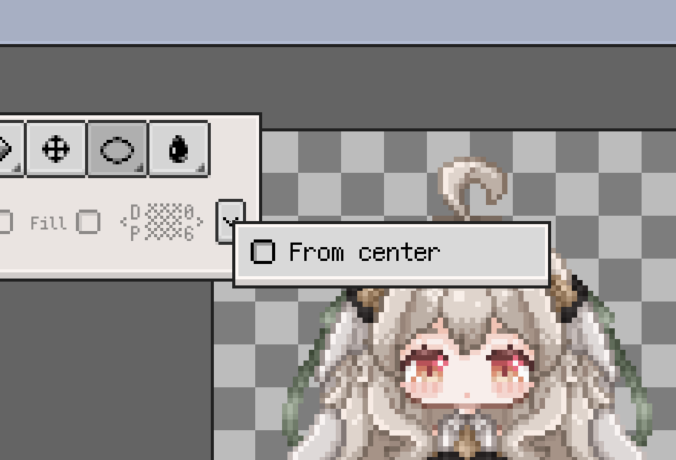
- Rectangle and ellipse selections support drawing from the center, with square or circle constraints for regular shapes.
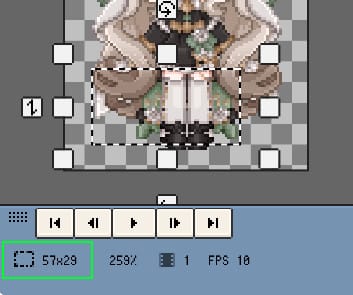
- The status bar shows selection width and height. You can dismiss a selection from the tool options even after changing tools.
With a keyboard on desktop and Android:
- Hold Shift when starting a new rectangle or ellipse to constrain it to a square or circle. With an existing selection, Shift temporarily switches to Add mode.
- Hold Ctrl (Cmd on macOS) before dragging inside the selection to move a copy while retaining the original pixels.
- With a grid configured,
Shift + Arrow keysmoves the selection by grid units.
For moving, scaling, rotating, or skewing the selected pixels, see Transform.
Eyedropper
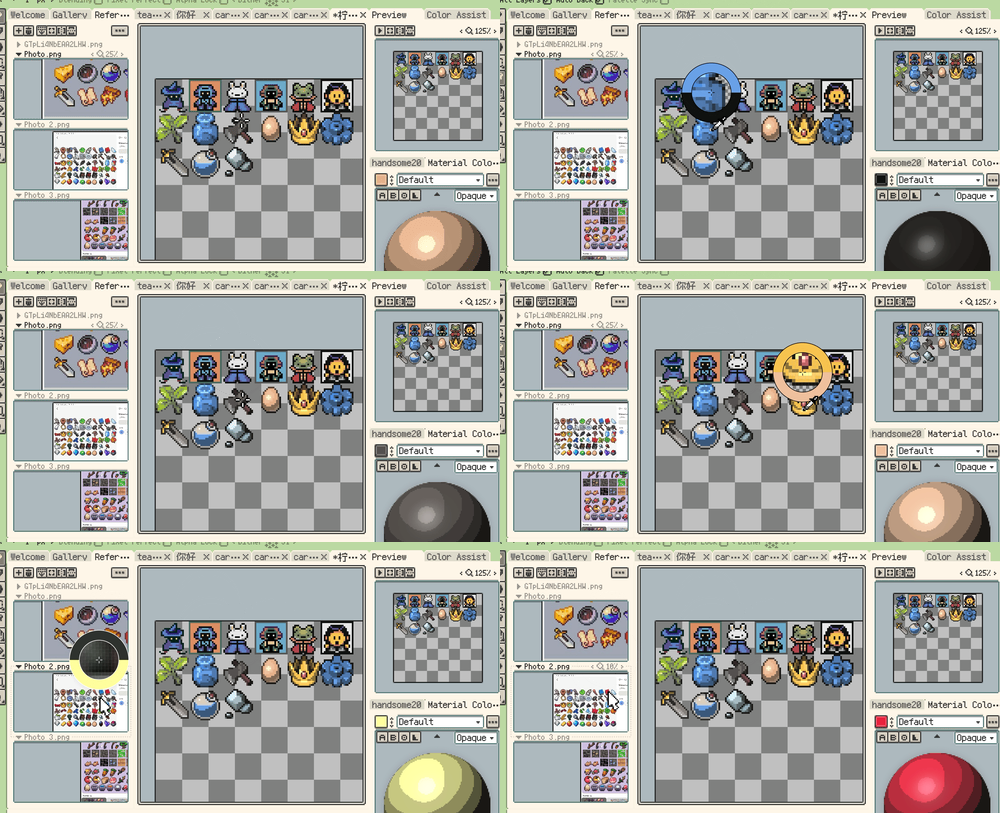
Sample a colour from the canvas with the Eyedropper:
- All Layers: sample the visible composite; turn it off to sample only the current layer.
- Auto Back: return to the previous drawing tool after sampling.
- Palette Sync: select a matching swatch if the sampled colour is already in the palette.
Canvas long press defaults to temporary colour picking. Change this assignment in Gestures & Input. You can also pick from reference images.
The eyedropper loupe shows enlarged pixels, a crosshair, and the previous/new colour comparison before you release. It is enabled by default on desktop and Android and can be disabled in settings.
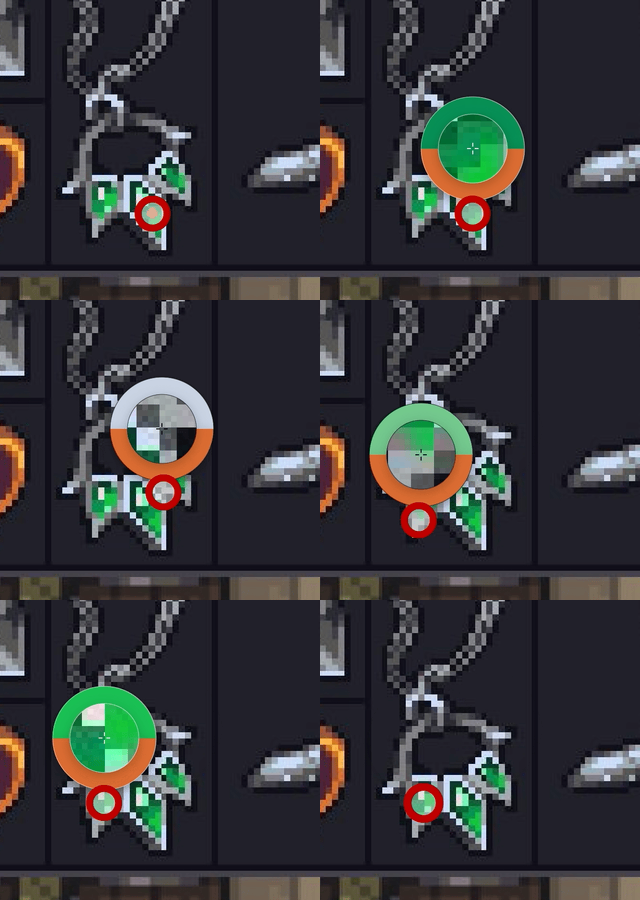
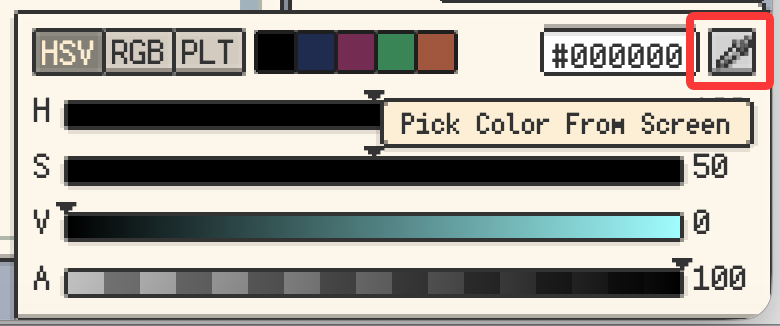
On macOS and Windows, Screen Pick in the pen-colour row or colour-detail panel can sample outside Resprite. The result becomes the current pen colour. A shortcut can be assigned in the Palette category of keyboard settings.
Bucket Fill
The fill tool can fill with the active color, a palette color, or a dithering pattern.
- Continuous: limits the fill to connected pixels.
- Tolerance: includes nearby colors within the threshold.
- Ignore Color: fills the allowed area without matching the original pixel colours.
- Pattern: applies dithering while filling.
- Tiled Mode: fills using tile-aware behaviour and prioritises the active selection when enabled.
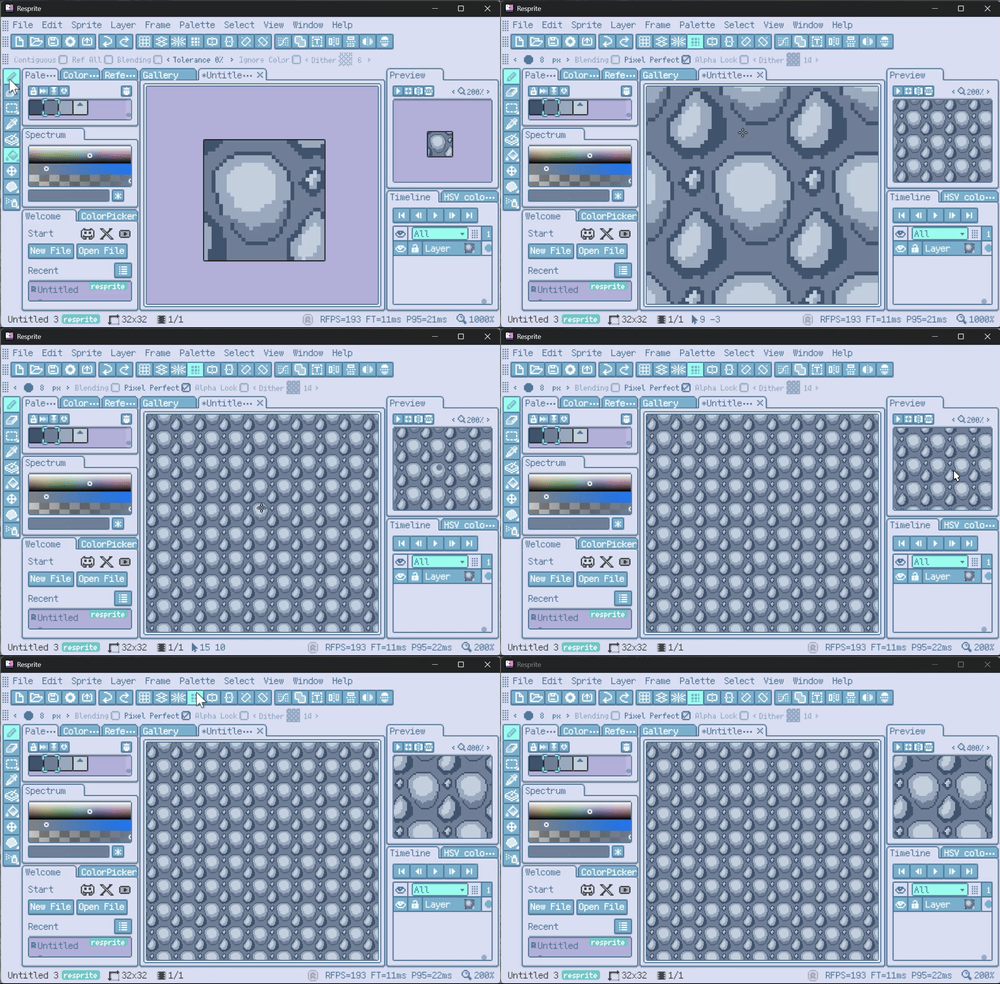
Disable Continuous if you want to replace the target color across the entire layer.
Shape and effect tools
Move Tool
The move tool shifts content inside the current cel, or across multiple frames and layers.
- All Frames: applies the move to every frame in the timeline.
- All Layers: applies the move to every layer. If the current layer is a group, its children move with it.
Gradient Tool
The gradient tool creates linear or radial gradients, with optional dithered steps for pixel-art-friendly transitions.
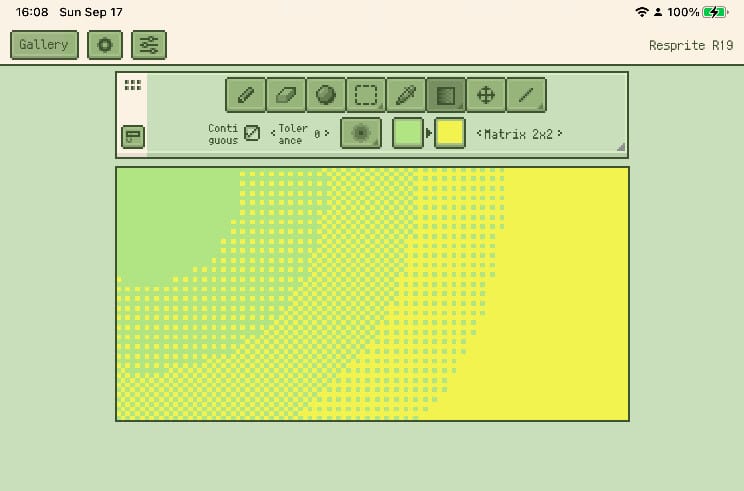
- Connected Only: matches the fill tool's continuous-area logic.
- Tolerance: expands the gradient to include similar colors.
- Gradient Type: switch between linear and radial.
- Start / End Colors: set the two endpoint colors and swap them directly.
- Dither Mode: supports
2×2,4×4, and8×8dither steps; when disabled, the tool outputs an RGB gradient.

Shape Tools
Shape tools include line, curve, rectangle, ellipse, and contour variants.
Shared options:
- Brush Shape & Size: controls outline thickness.
- Fill: fills closed shapes such as rectangles and ellipses.
- Dither Mode: adds pattern fills or patterned outlines.
- Draw from Center: draws rectangles and circles outward from the center.
- Angle Snapping: hold Shift to constrain straight lines to fixed angles.
- ISO Snap: provides angle presets designed for isometric pixel art, including different stair-step patterns.
Blur, Spray, and Jumble
- Blur: replaces pixels under the brush with the average of the surrounding
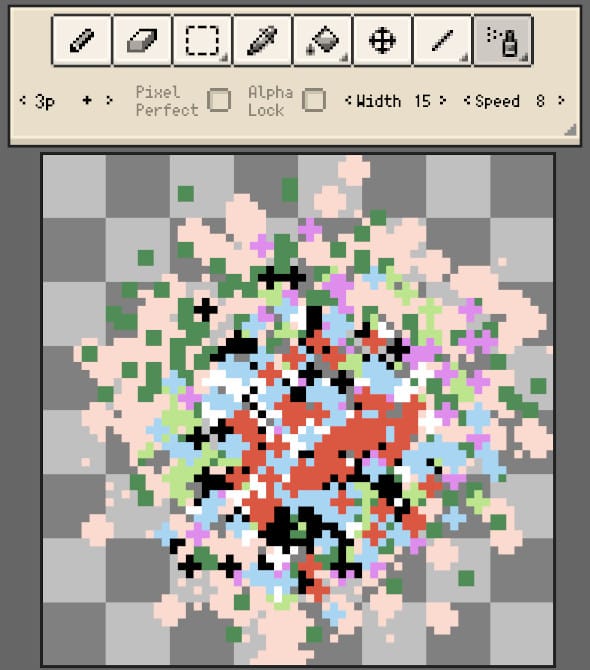
3 × 3neighbourhood. Alpha Lock helps stop blur from spilling into transparency. - Spray: scatters pixels inside the brush radius, which is useful for soft texture, grain, and airbrush-like effects.
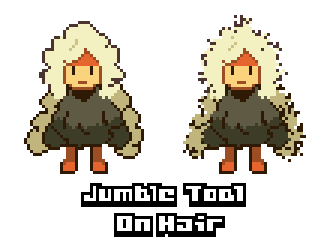
- Jumble: randomly shifts pixels under the brush, making it useful for breaking up repeated textures or roughening edges.
All three are useful for texturing and local effects, and all three support drawing straight segments from the previous stroke endpoint.
Desktop / Android helper tools DA version only
Desktop and Android builds also include a small group of helper tools focused on navigation and layer targeting:
- Select Layer Tool: click content on the canvas to jump to the corresponding layer in the timeline.
- Hand Tool: drag the canvas directly. On desktop, many people also use the space bar for temporary panning.
- Zoom Tool: gives you a more direct way to control canvas zoom, which is especially useful in pen-tablet and mouse workflows.
iOS does not expose separate toolbar icons for Hand, Zoom, or Select Layer, although parts of that behaviour can still be reached through gestures and input settings.
