Free Transform Selections
Free Transform moves, scales, rotates, flips, or skews selected pixels on a normal drawing layer. Select the intended layer and frame before starting. Tilemap layers use grid-based operations described in Tilemaps and Tilesets.
Enter Free Transform
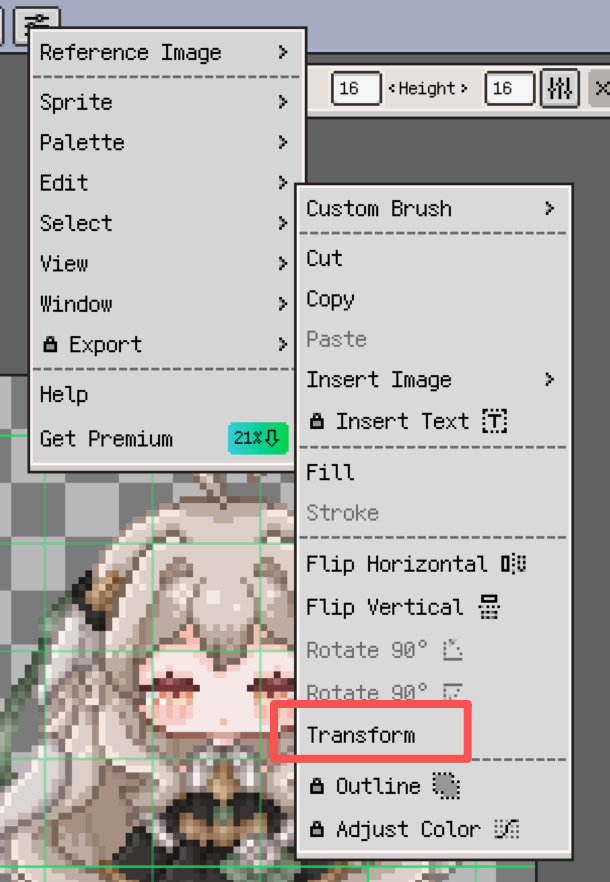
Make a selection, then open Edit ▸ Transform or begin dragging inside the selected area. Replace and Add selection modes allow this drag; Subtract continues removing areas from the selection.
If there is no selection, Edit ▸ Transform frames the current cell's content. When the transform handles appear, adjust the content and confirm the transform to finish.
Move and Nudge
Drag inside the selection to move its pixels. Dragging a handle changes its scale, angle, or skew instead.
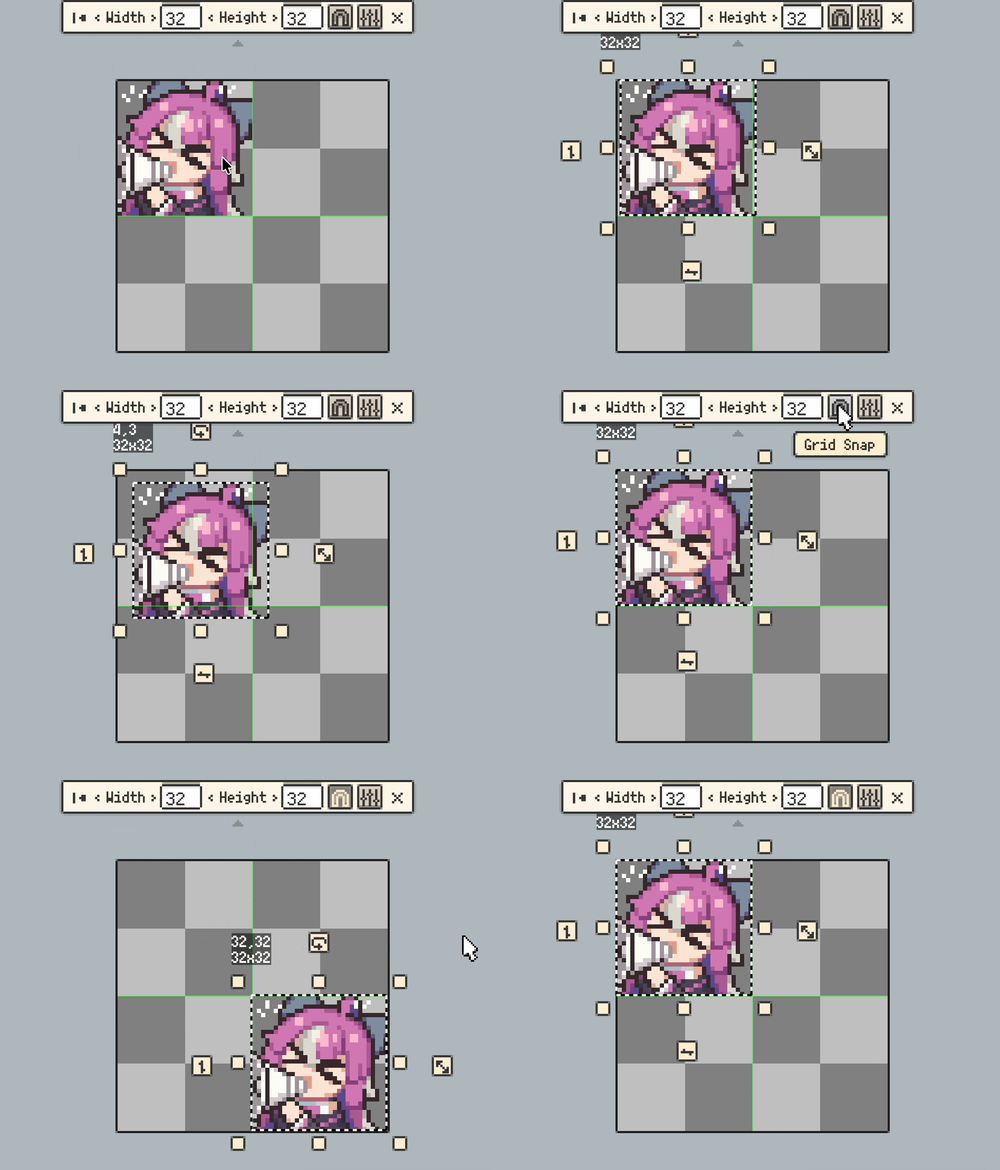
Use the directional buttons  for precise movement. With a keyboard, arrow keys also nudge the selection. Movement is one pixel at a time when grid snapping is off, or follows the current grid step when grid snapping is on. This also works with isometric grids.
On desktop, Shift+Arrow uses grid steps even when grid snapping is off.
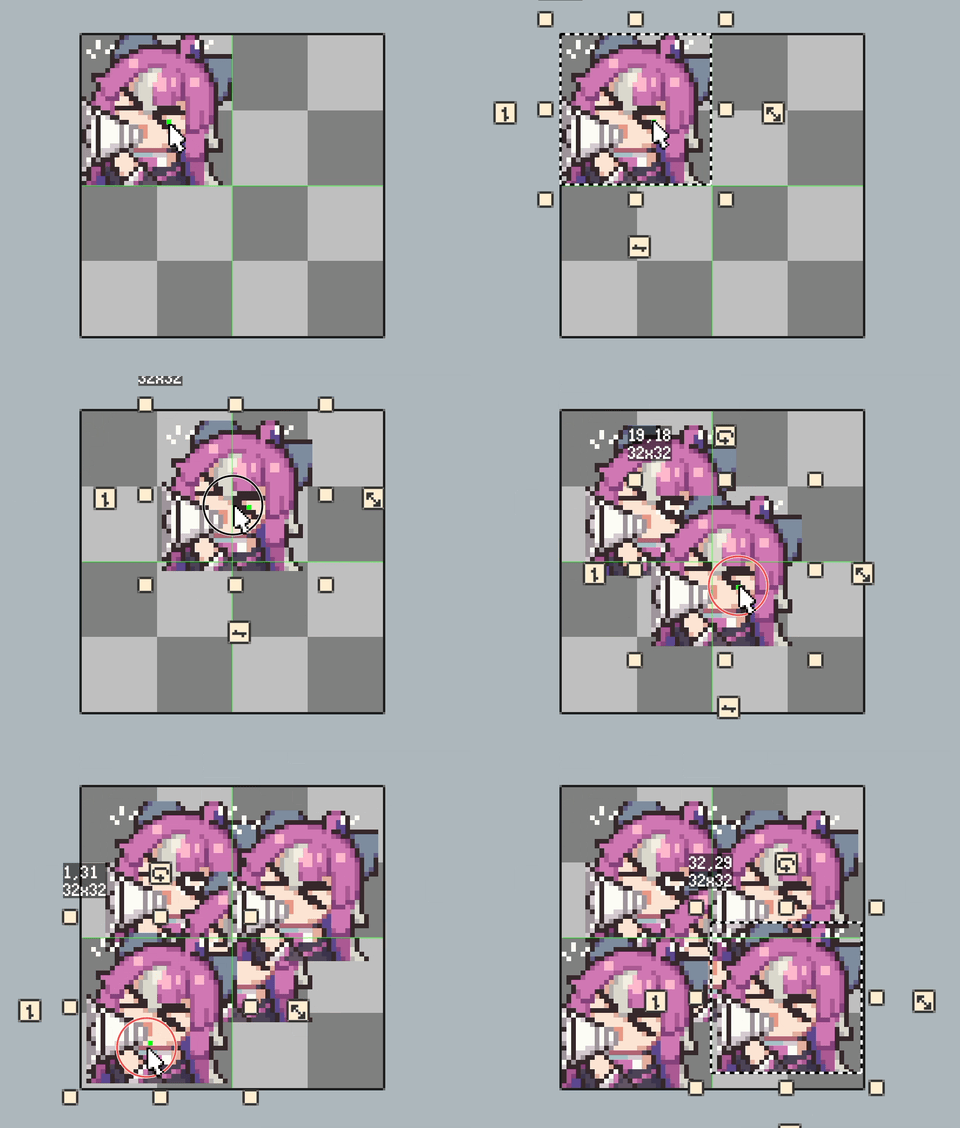
On desktop, hold Ctrl on Windows or Cmd on macOS before dragging inside the selection to move a copy and keep the source pixels.
Scale with Aspect Ratio Control
Drag an edge or corner handle to resize the selection. The opposite side or corner acts as the anchor. On desktop, hold Shift while dragging a corner to preserve the original aspect ratio.
Enable Scale Snapping in Canvas settings to snap near whole-number sizes such as 2× or 3×. Turn it off when you need free resizing.
Rotate, Flip, and Rotate by 90°
Drag the rotation handle  to rotate the artwork. Use the displayed angle to align it with guides or nearby content.
The transform actions also include Flip Horizontal, Flip Vertical, Rotate 90° Clockwise, and Rotate 90° Counterclockwise.

These operations change the selected pixels. To rotate only the canvas view while drawing, see Canvas.
Skew
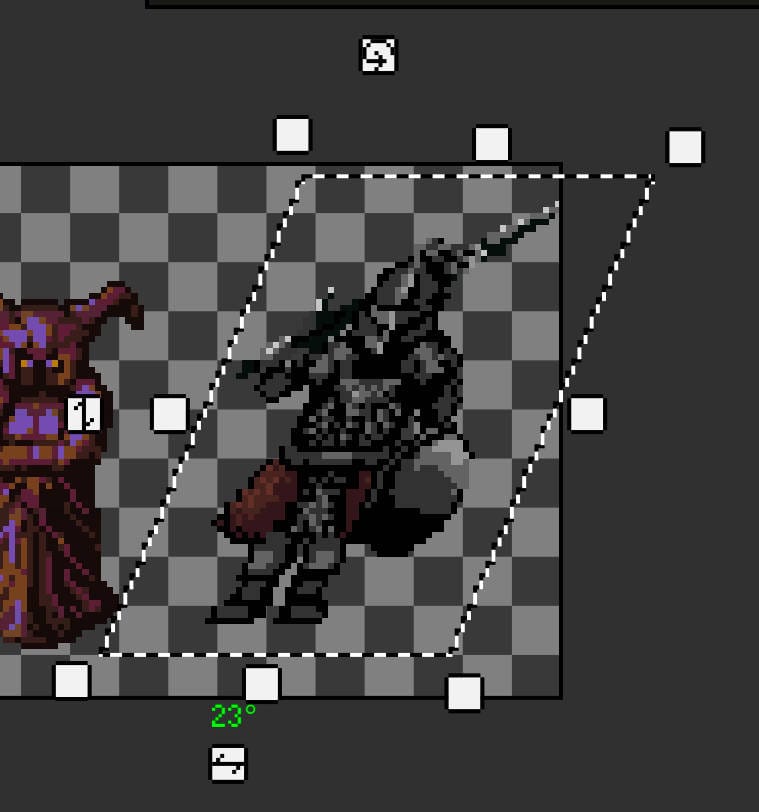
Drag a skew handle  to shear the selection horizontally or vertically, for example when shaping a sloping wall or an isometric structure.
Check the angle readout against your guides and inspect the resulting pixel edges before confirming.
Handle Size and Snapping Preferences
In Settings / Preferences ▸ Canvas, you can enable larger transform handles and integer-scale snapping. Larger handles make touch input easier; integer-scale snapping helps land on whole-number enlargements.
Grid snapping controls movement by grid steps and is separate from integer-scale snapping. See Canvas for grid controls.