Reference Images
Use reference images to compare shapes, proportions, and colours while drawing. A project can hold several references. View them in the Reference panel or place them over the canvas; to insert an image as editable artwork instead, see Editing.
Import and manage reference images
Open the add/import entry in the Reference panel and choose an image source. Mobile devices offer Files, Photos, and the clipboard; desktop can import local files or paste an image. Deleting a reference removes it from the current project.
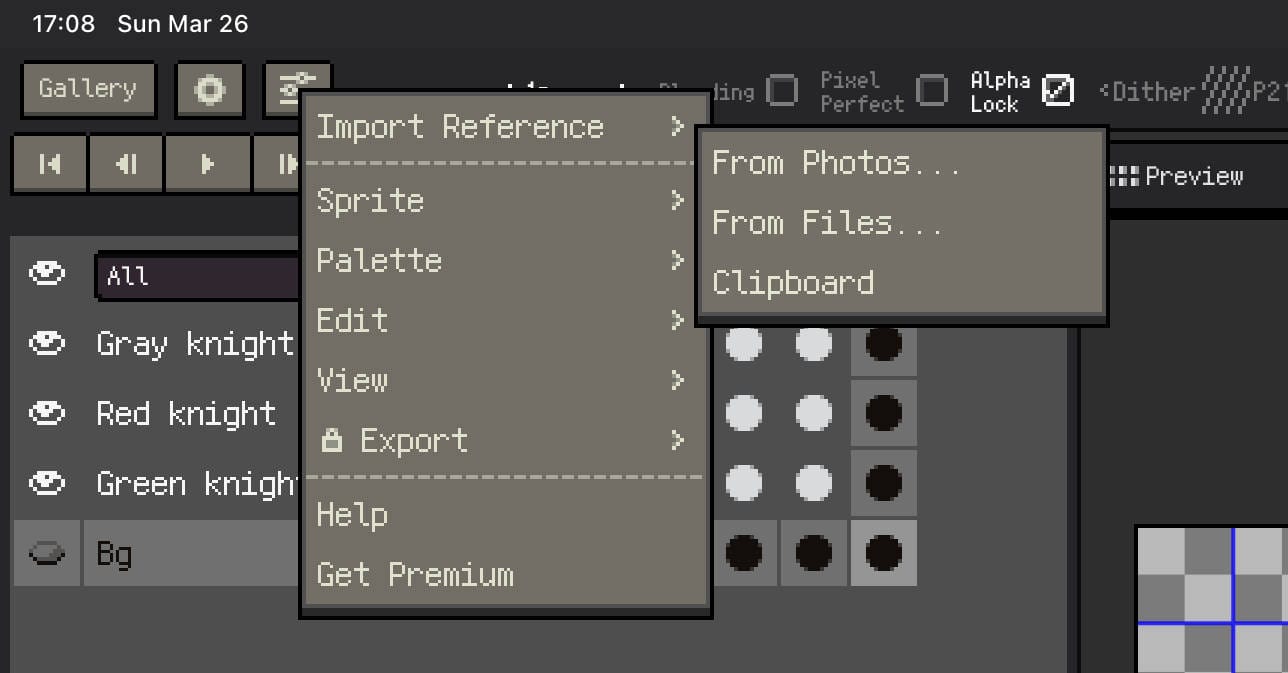
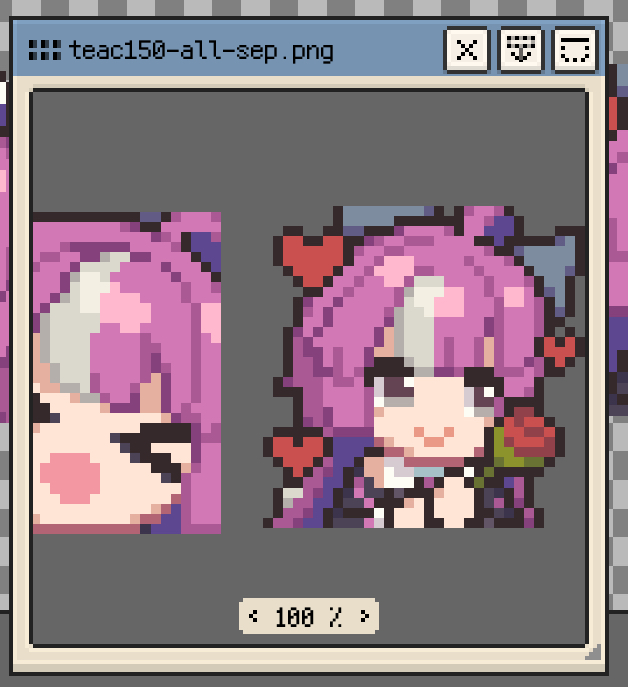
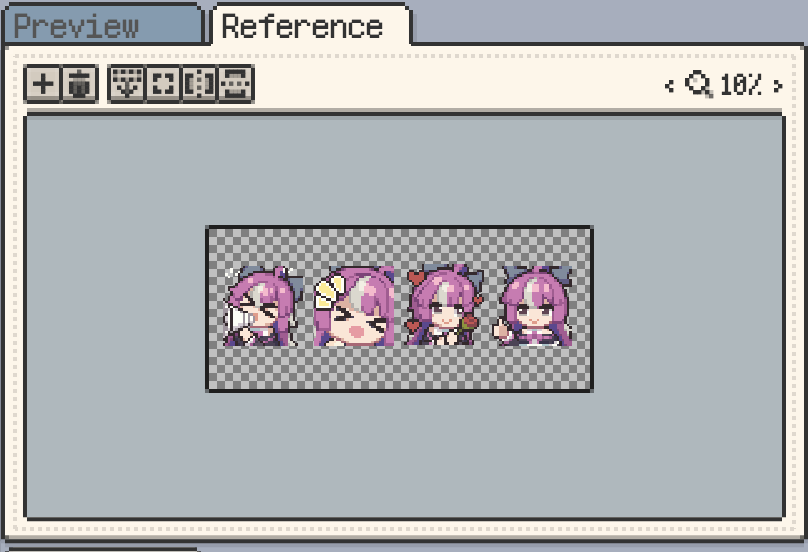
On desktop, you can also drag an image directly into the Reference panel.

Paste from the clipboard
Copy the image itself in another app, then choose the Reference panel's clipboard source to add it to the current project. With Apple Handoff configured, an image copied on a Mac can also be pasted into Resprite on iPhone or iPad.
Copy Reference Images Across Files (macOS / Windows)
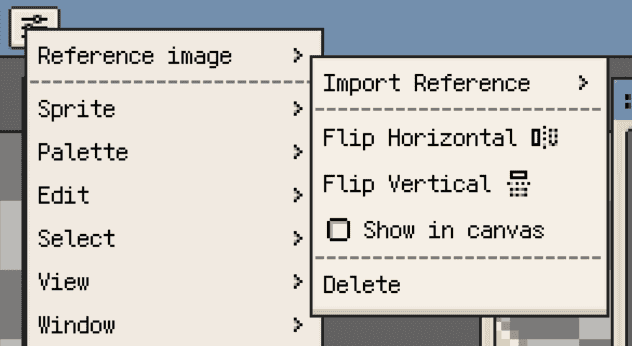
Select a reference image and copy it through a shortcut, the Edit menu, or a Reference menu. Paste it into another Resprite file, onto a canvas, or into another app. The clipboard contains the image itself; adding it again as a reference uses the default display settings.
Viewing references in the panel
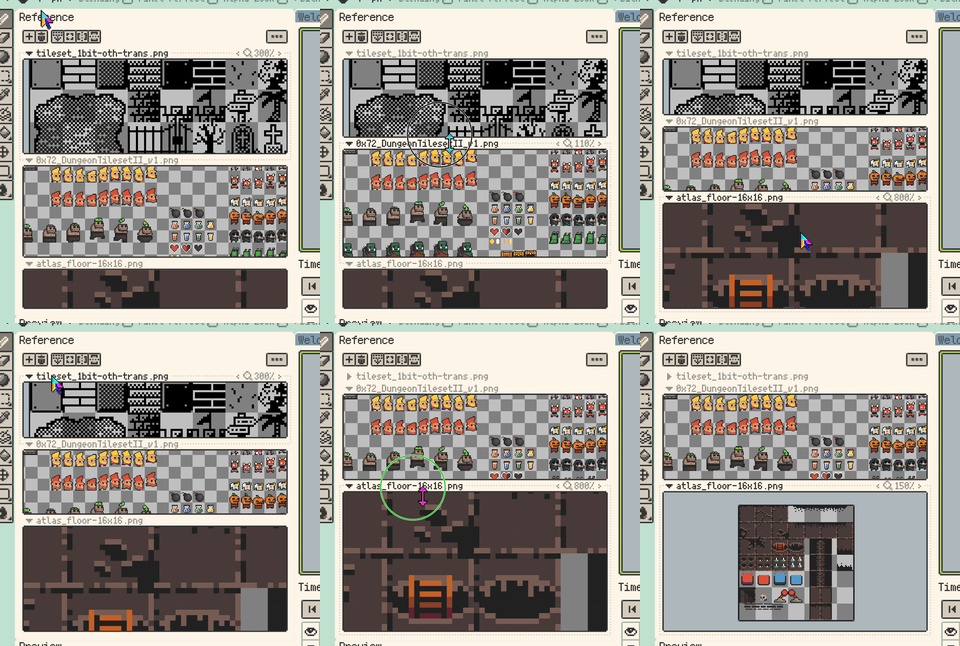
Drag the image to move the view, and use horizontal or vertical flip to check its proportions from another orientation. Panning and zooming keep part of the reference visible so it is easier to find again.
Zoom and centering controls differ by platform:
- iOS: use the zoom slider, or double-tap to cycle through preset zoom levels. The image recenters when the cycle returns to its starting level.
- Desktop and Android: use the window's zoom controls and Fit to View. A mouse wheel or pinch gesture also adjusts the zoom.
See zooming and centering references or previews for the detailed steps.
On desktop and Android, use vertical or horizontal split view to compare several references at once. Drag a divider to adjust the proportions. No Split, Vertical Split, and Horizontal Split are saved as a global preference and remain selected when switching documents or restarting the app.
Show in Canvas
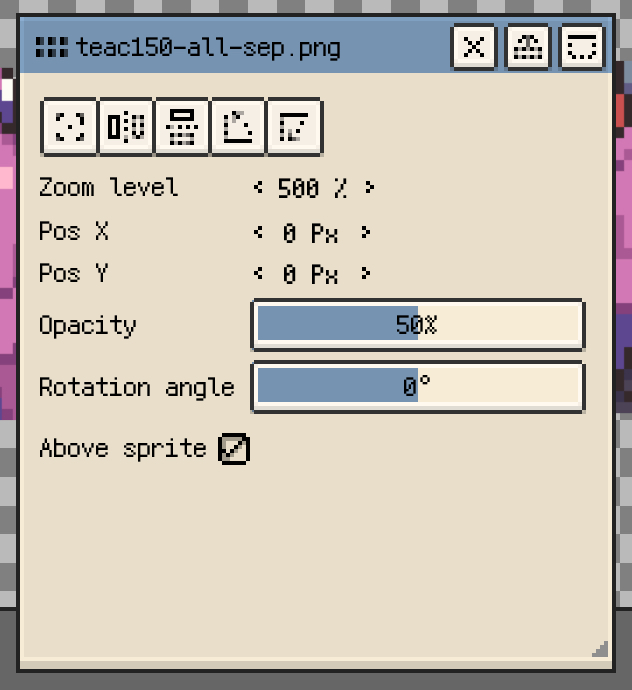
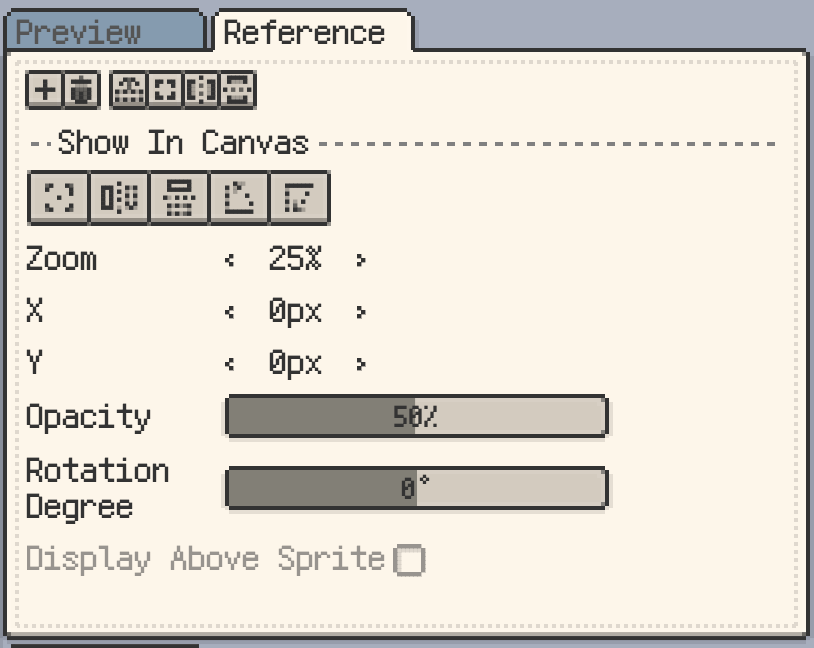
Enable Show In Canvas when the reference should sit alongside or over the artwork for tracing, alignment, or close comparison. Use its placement controls to:
- Fit Center: return to a placement aligned with the current canvas.
- Zoom and position: adjust its size and
X / Ycoordinates. - Flip and rotate: change its orientation.
- Opacity: reduce its strength while drawing over it.
- Display Above Sprite: place it in front of the artwork.
These controls position the reference; they do not transform the sprite's pixels.
Picking colours from a reference
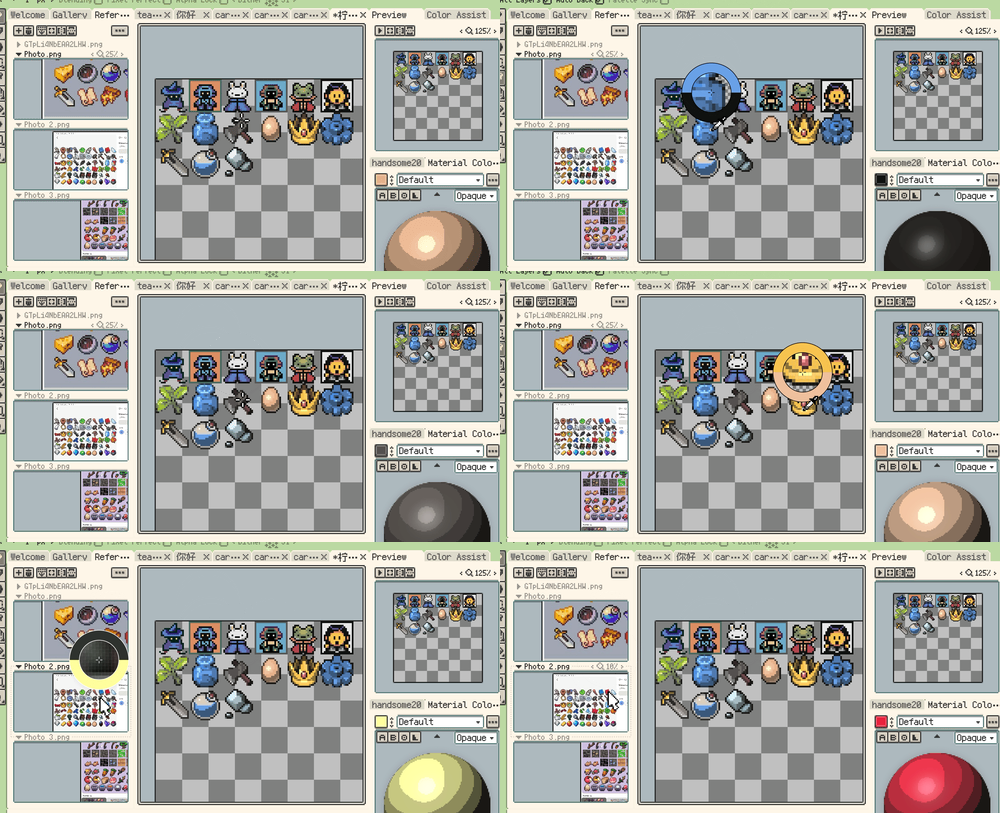
Select the Eyedropper and drag over the reference to sample colours. During picking, the drag samples rather than panning the image.
- On mobile, long press also provides quick colour picking. On iOS, its reference-image switch is configured separately in gesture settings.
- On desktop, the right mouse button can also be used for picking.
The eyedropper loupe helps confirm individual pixels before you release. For picking options, see Eyedropper; for input assignments, see Gestures & Input.
Saved with the project
Save the artwork as a .resprite project to keep its reference images and display settings together. Reopening the project restores their placement and display state. Share or back up the project when you need to keep the references with the editable artwork.
Continue with: