Create Your First Sprite
A sprite is your Resprite project: its canvas, layers, animation frames, palette, and related information. Choose a canvas size, check recording options, and create the project before drawing.
Start from the Gallery
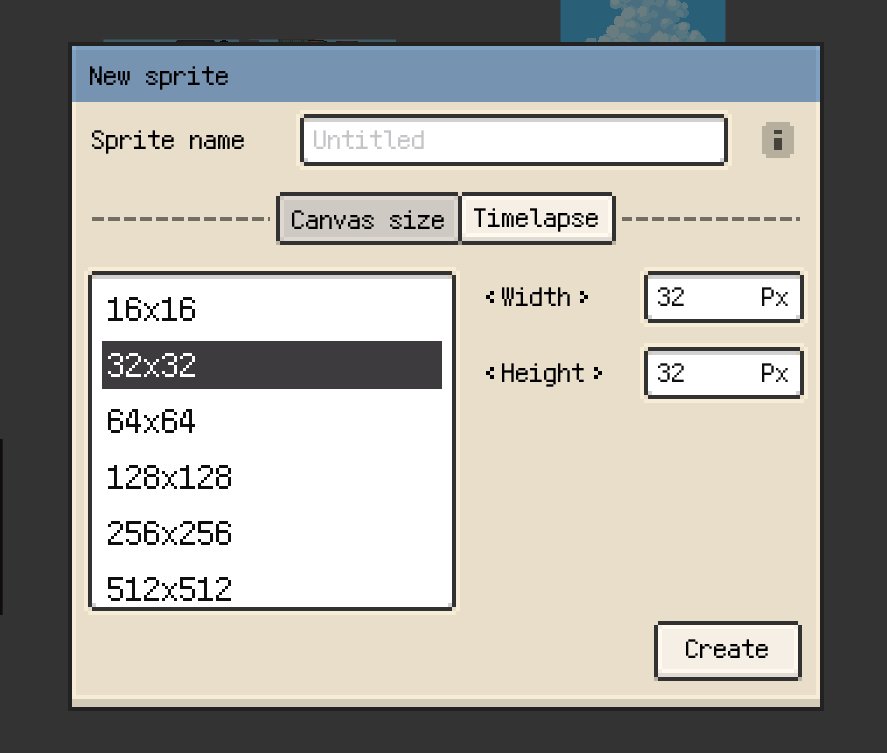
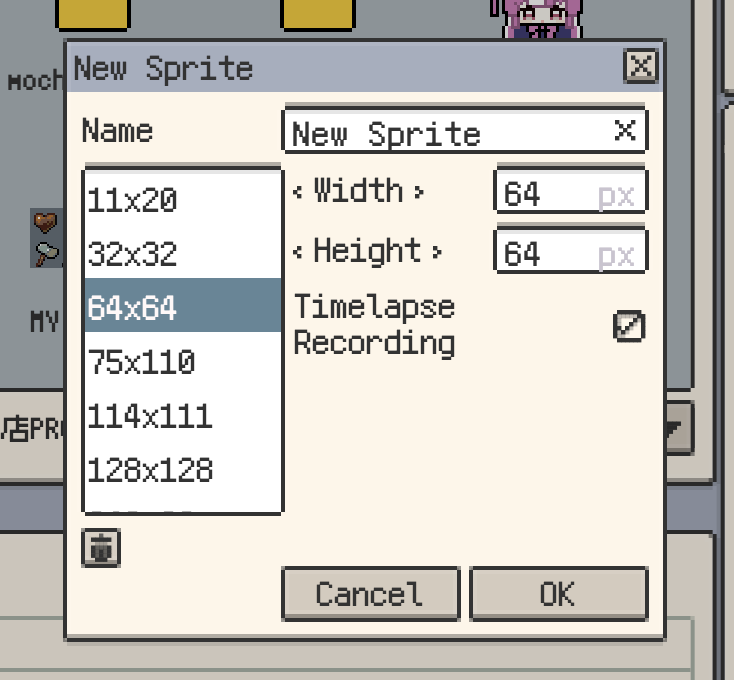
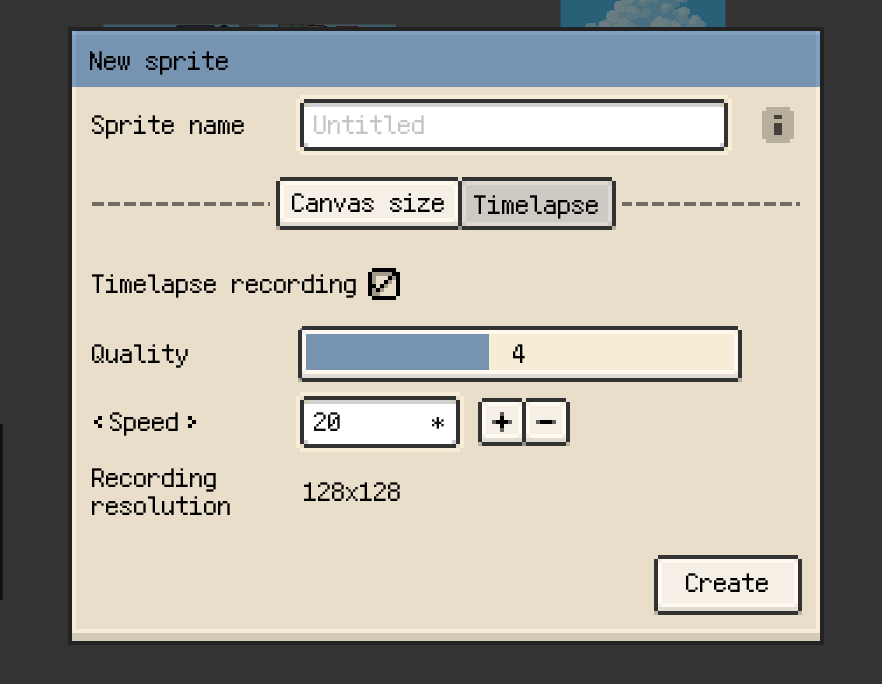
Open New Sprite in the Gallery, then:
- Enter a project name.
- Select a preset or enter a width and height in pixels.
- Check whether timelapse recording should be enabled.
- Confirm to create the project and open its canvas.
Choose a size and reuse common presets
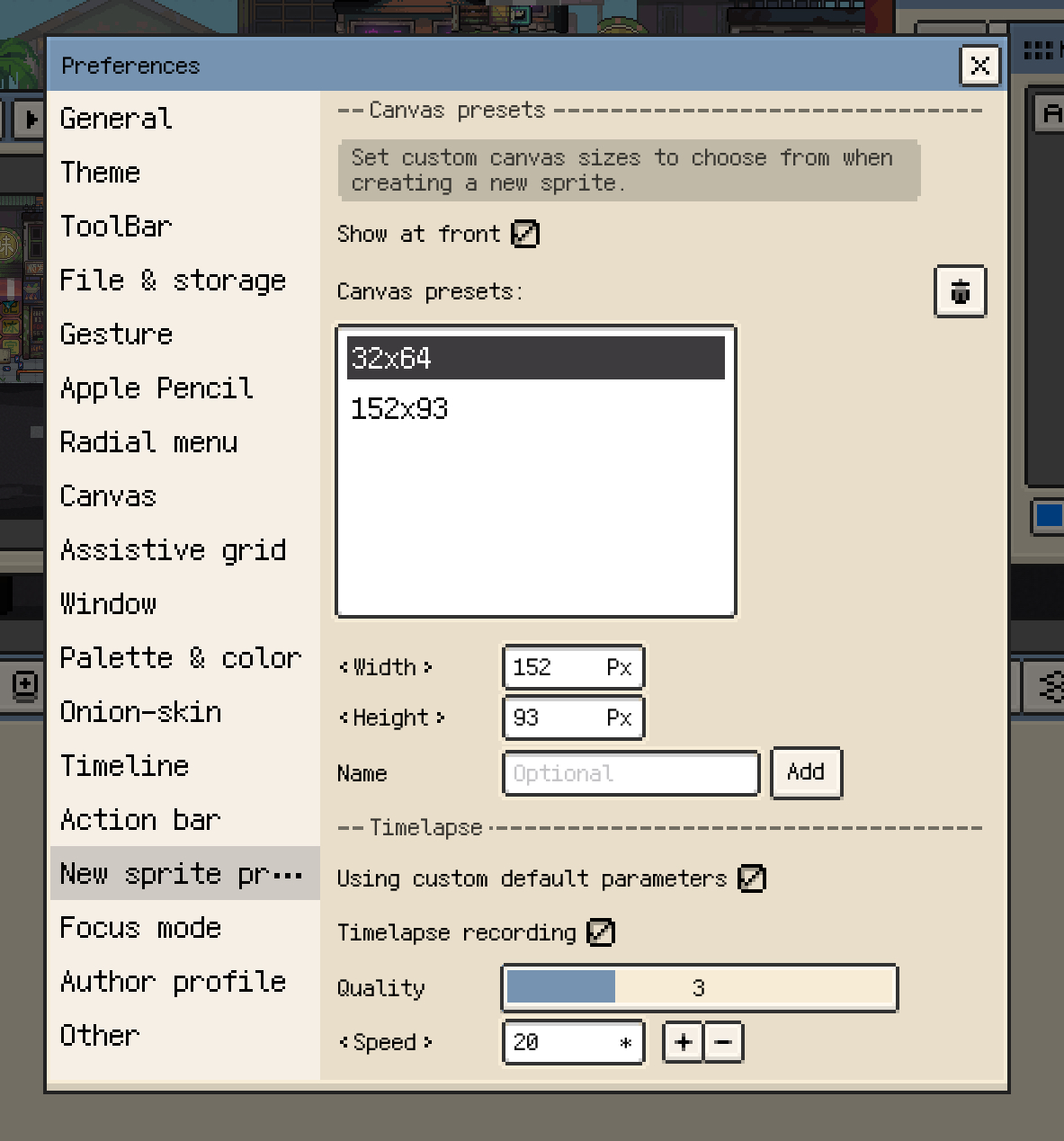
Enter the size required by the artwork, or choose a preset. Use the preset controls to add the entered dimensions, rename a saved custom preset, or delete one you no longer need. Creating a project at a new size does not automatically save that size as a preset.
On iOS, custom presets are also managed in Preferences ▸ New Sprite Presets, including whether they appear before the built-in sizes.
When image content is available on the clipboard, the size list can offer a matching Clipboard entry. This sets the canvas dimensions; paste the image after creating the project. Desktop can also obtain this size from an image on the system clipboard.
Canvas area, layers, frames, and timelapse data all contribute to project cost. On iOS, canvas areas above 1920 × 1080 pixels show a warning, and areas above 3840 × 2160 pixels cannot be created. These limits are based on total pixel area, not a required width-to-height ratio. Choose a size suited to the artwork and device.
You can also set up timelapse when creating the file
Enable recording before you start if you want the drawing process captured from the beginning.
- iOS: open the Timelapse tab to set recording, quality, and speed.
- Desktop / Android: use the Timelapse Recording checkbox in the new sprite dialog.
Recording can be changed later in Sprite ▸ Timelapse Properties. Enabling it later records subsequent work; it cannot reconstruct earlier drawing steps. See Timelapse for recording data and video export.
What you can still change after creation
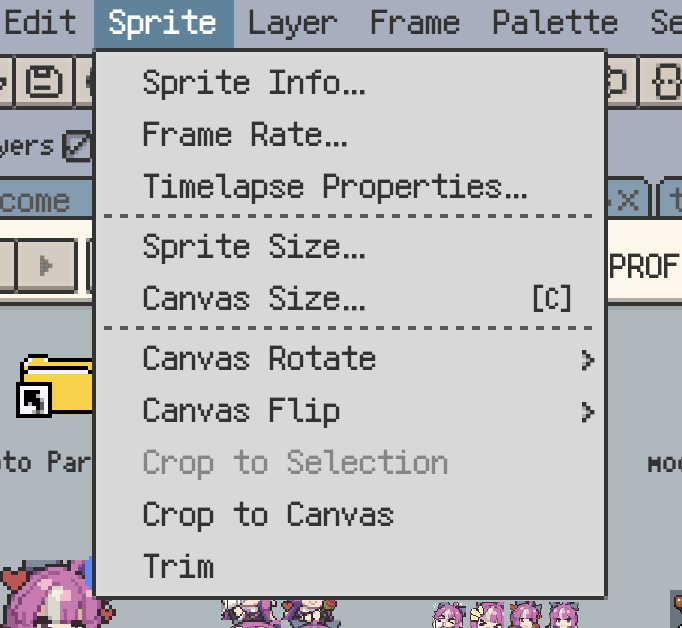
Open the Sprite menu for document-level controls:
| Control | Effect |
|---|---|
| Frame Rate | Set the animation's base playback rate; see Frames for individual frame durations |
| Sprite Size | Scale the artwork and its dimensions |
| Canvas Size | Extend or reduce the canvas bounds without scaling pixels |
| Rotate / Flip | Change the artwork's orientation across the sprite |
| Crop to Selection | Set the canvas bounds from the active selection |
| Crop to Canvas | Remove pixels outside the existing canvas bounds |
| Trim | Remove empty margins around the artwork |
| Timelapse Properties | Adjust recording settings |
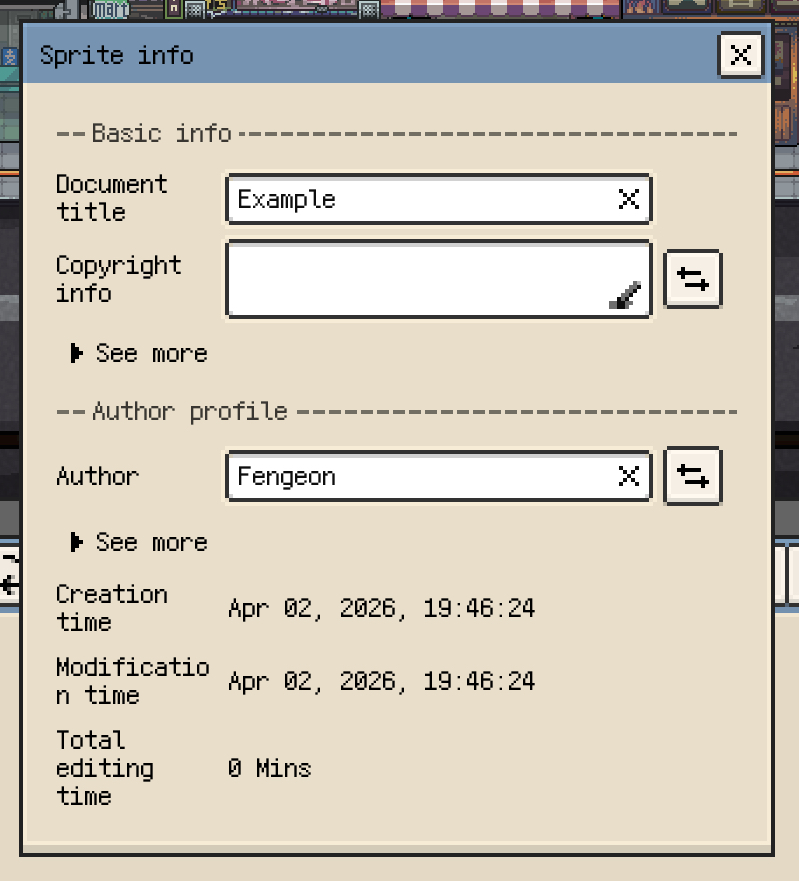
| Sprite Info | View document information, author details, and statistics |
These operations affect the project. For changing selected pixels, see Free Transform; for rotating only the drawing view, see Canvas. Tilemap-specific editing is covered in Tilemaps and Tilesets.
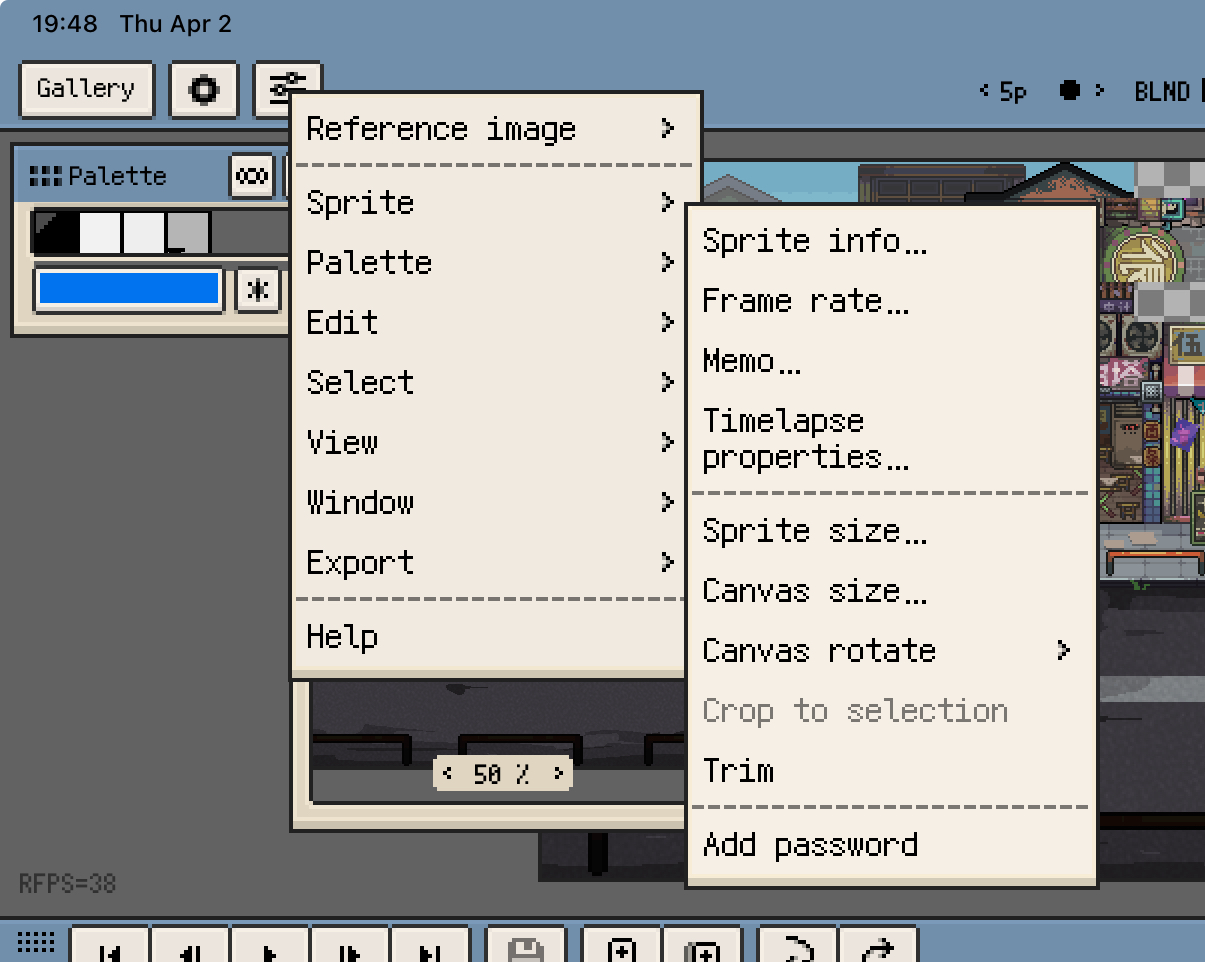
Use Sprite Info for document metadata. iOS also provides Memo for notes stored with the sprite.
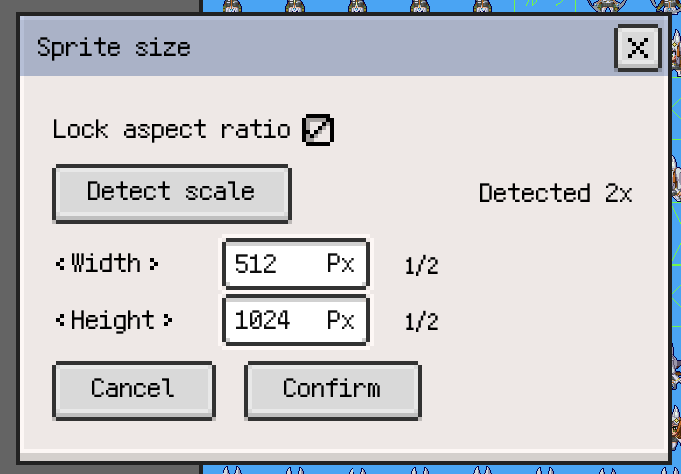
Detect Scale in Sprite Size
If imported pixel art has been enlarged by an integer factor, use Sprite Size ▸ Detect Scale to analyse the current frame and suggest a base size. Check the proposed width and height, then confirm the resize if they suit the artwork.
Detection updates the proposed dimensions; it does not immediately resize the project. The confirmed Sprite Size operation affects the whole sprite.