Editing
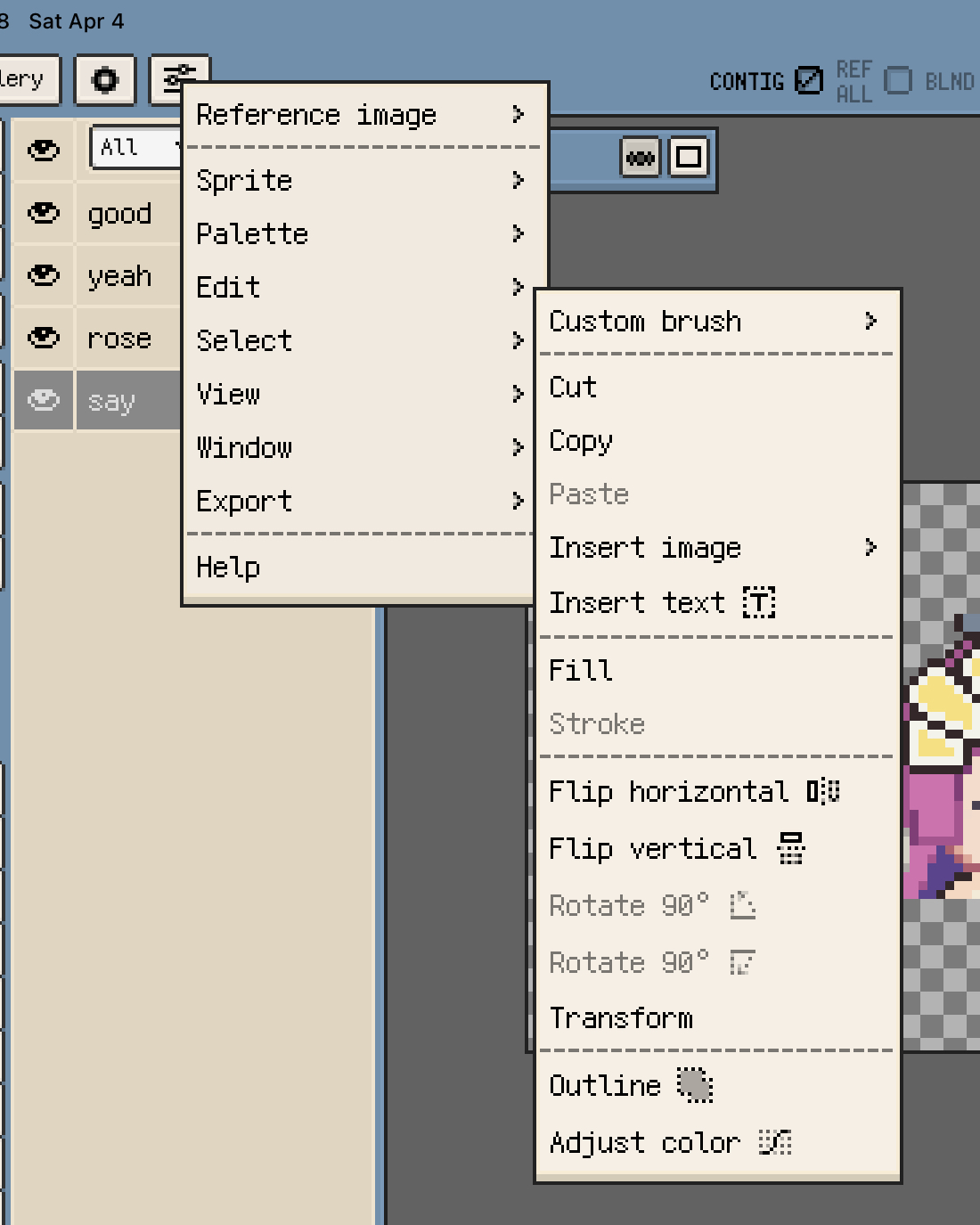
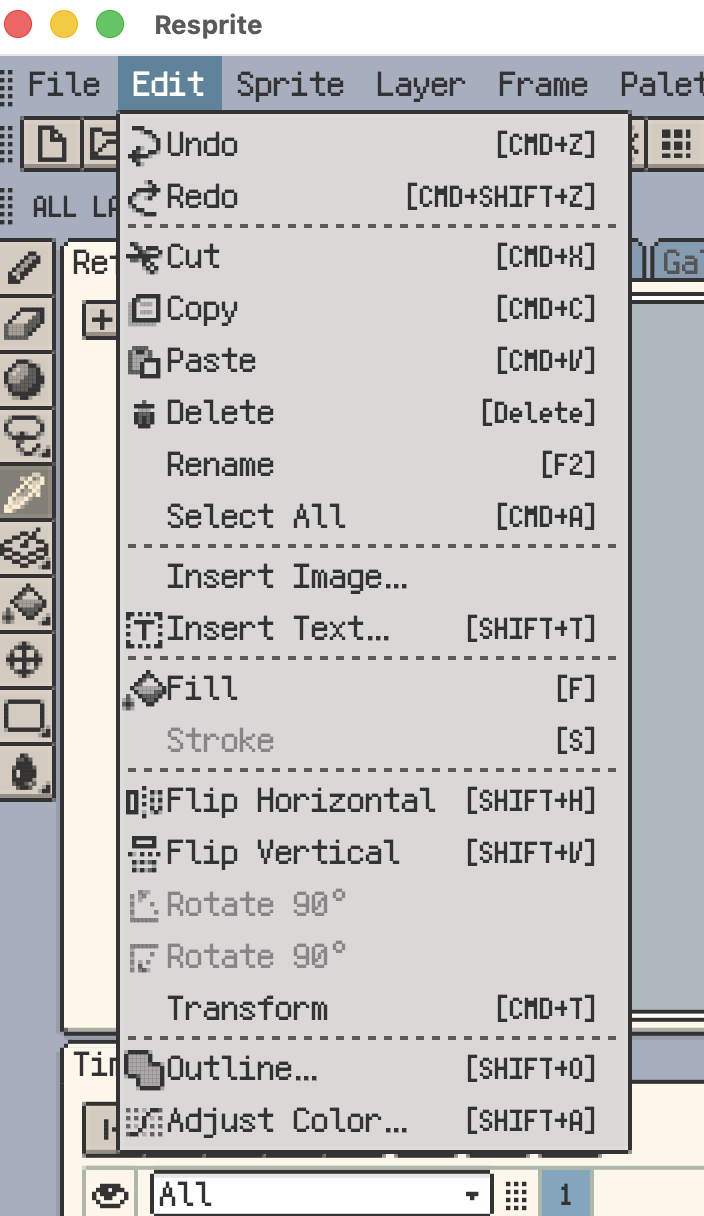
Use the Edit menu to copy pixels, fill a selection, transform artwork, add outlines, or adjust colors. Before editing, select the intended layer and frame. This page covers pixel content on normal drawing layers; see Tilemaps and Tilesets for tile-grid operations.
Clipboard and other general commands can also act on the focused panel, such as the timeline or palette. Return focus to the canvas when you want to edit pixels. For resizing, cropping, or transforming the entire document, see Sprite.
Cut, Copy, and Paste
To copy pixels from one cell, select only that cell in the timeline and focus the canvas. Edit ▸ Cut / Copy uses the selected pixels, or the current cell's content if there is no selection. Cut removes the source pixels; Copy leaves them in place. Paste brings the copied content into the destination document so you can position it before confirming.
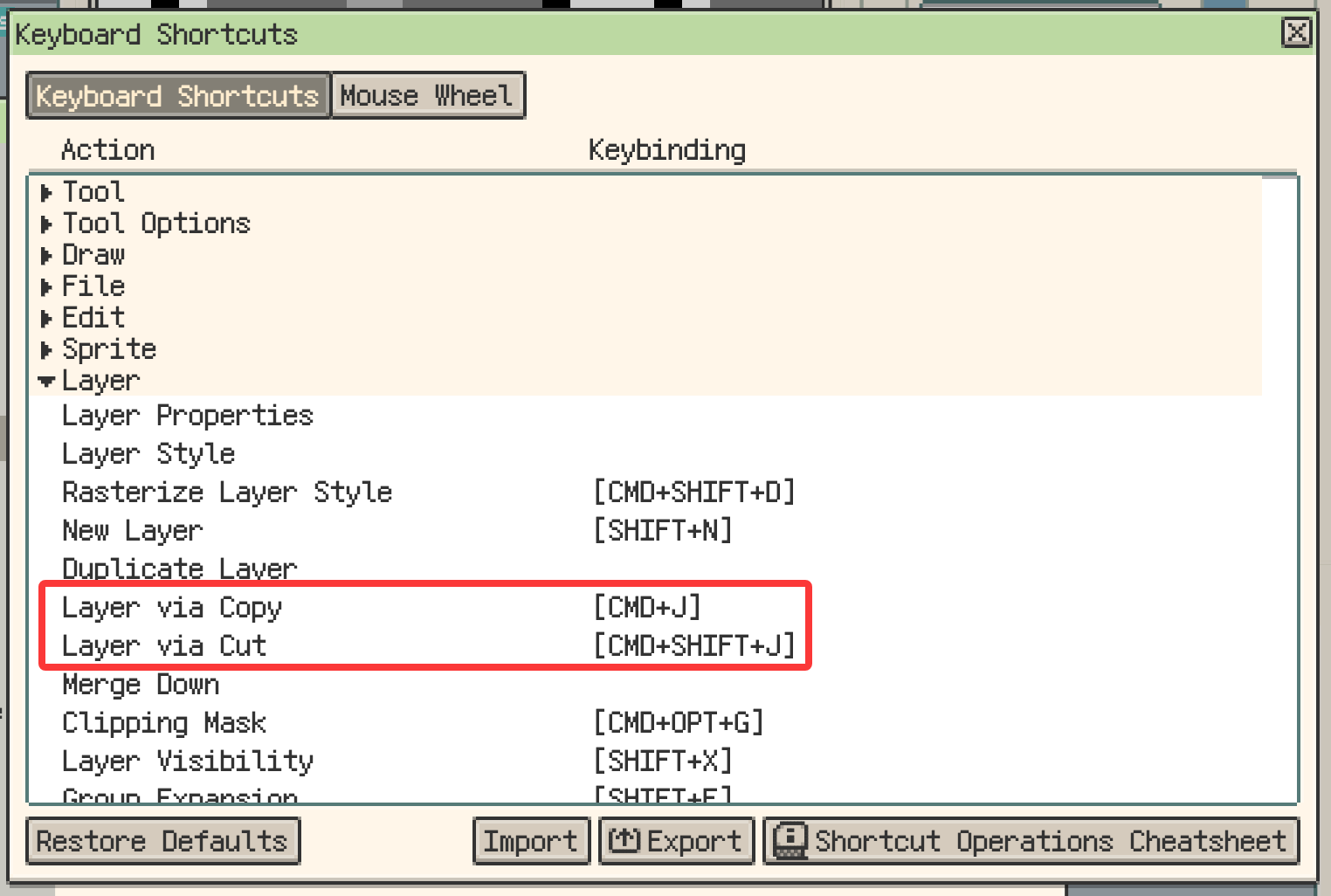
On desktop and Android, Layer via Copy and Layer via Cut create a new layer from a selection. Copy keeps the source pixels; Cut removes them. The default shortcuts are Cmd/Ctrl+J and Shift+Cmd/Ctrl+J.
To copy frames, layers, or multiple timeline cells, follow the Timeline guide rather than the single-cell pixel workflow above.
Fill, Stroke, and Inserted Content
Fill and Stroke
Both commands use the current drawing color and affect the current cell.
| Command | With a selection | Without a selection |
|---|---|---|
| Fill | Fill the selected area | Fill the current cell |
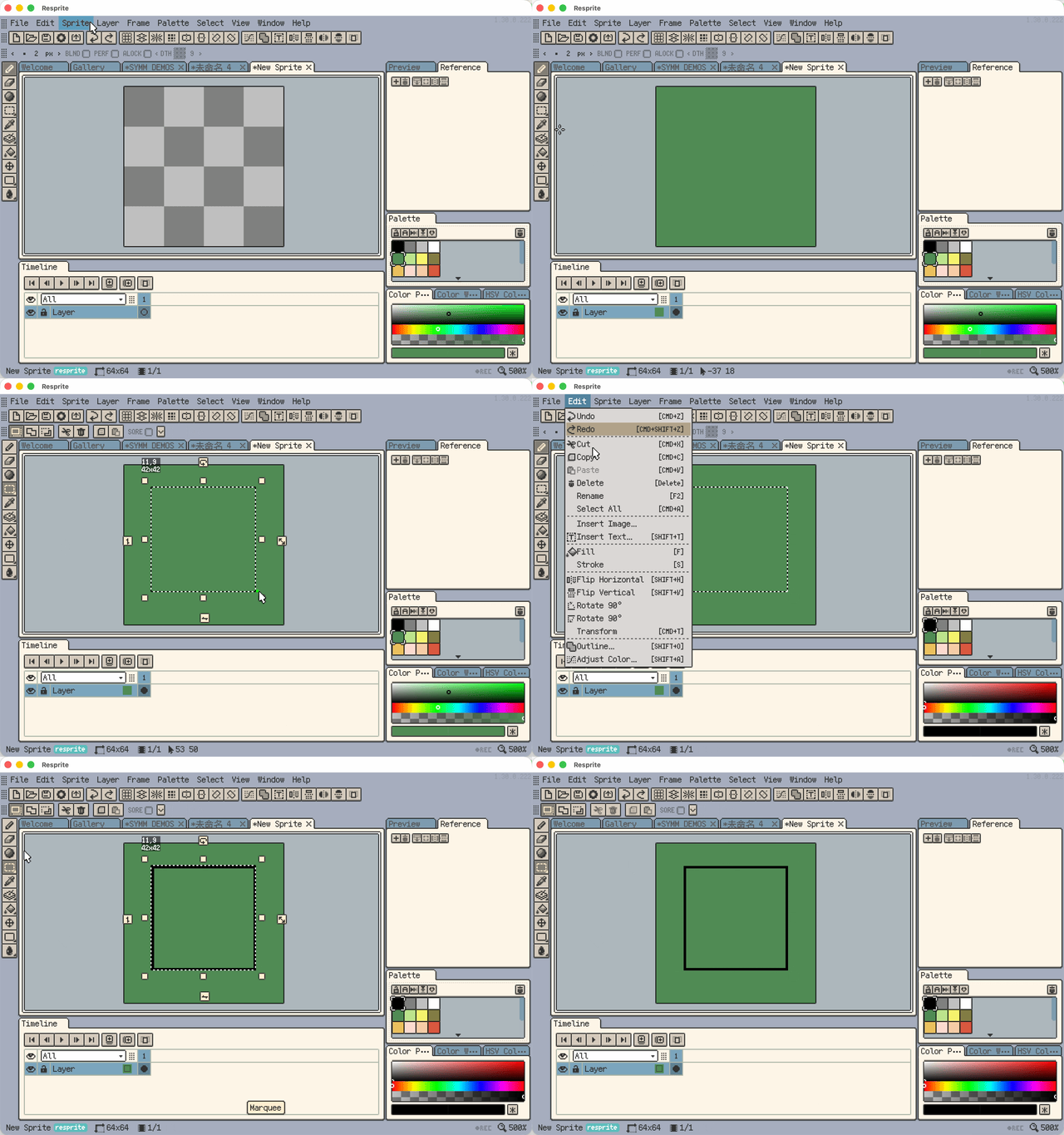
| Stroke | Draw a 1-pixel border inside the selection boundary | Create a selection first |
Stroke follows the selection boundary. To generate an outline around existing artwork with adjustable thickness and corners, use Advanced Outline.
Insert Image and Insert Text
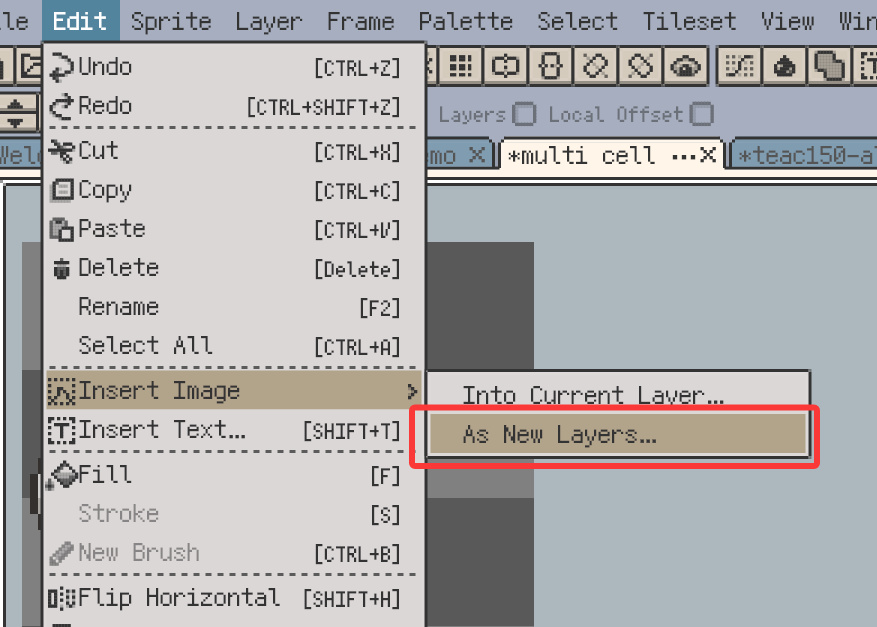
Open Edit ▸ Insert Image, choose whether to insert into the current layer or As New Layers, then select the source images. On desktop, select local files. On iOS, the source menu includes Photos, Files, and the clipboard; on Android, use the available image source options.
As New Layers accepts multiple images. If the entire batch forms filename sequences, each sequence becomes a layer with its images arranged as frames. Otherwise, each image becomes a separate layer.
On desktop, you can also drop images onto the timeline to insert them as new layers.
For text insertion, font selection, and layout settings, see Insert Text and Fonts.
Flip, Rotate, and Transform
For a local edit, select the pixels first, then use Flip Horizontal / Vertical, Rotate 90°, or Transform. Free Transform also lets you move, scale, rotate, and skew using handles.
Without a selection, Transform frames the current cell's content. Flip commands can also act on the current cell or selected timeline cells; check the timeline selection before applying them. The 90° rotation commands require a transformable selection.
These operations change artwork. To rotate only your view while drawing, see Canvas; to transform the entire document, see Sprite.
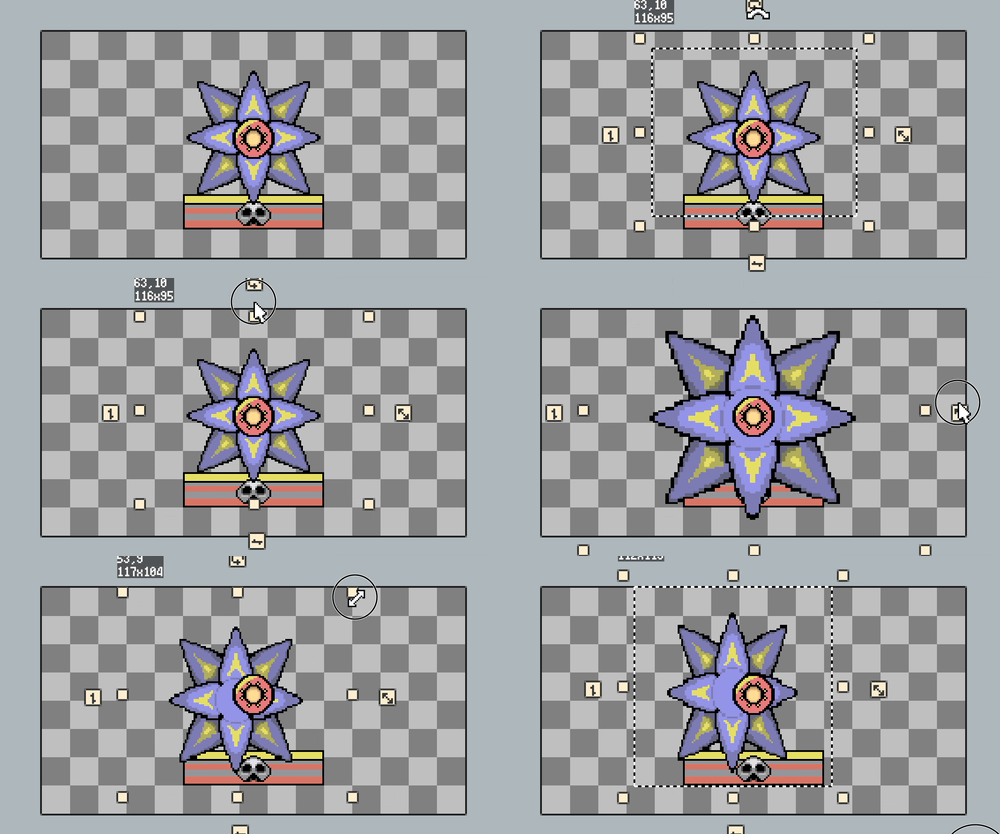
See Free Transform for handle controls, precise movement, and snapping.
Advanced Outline
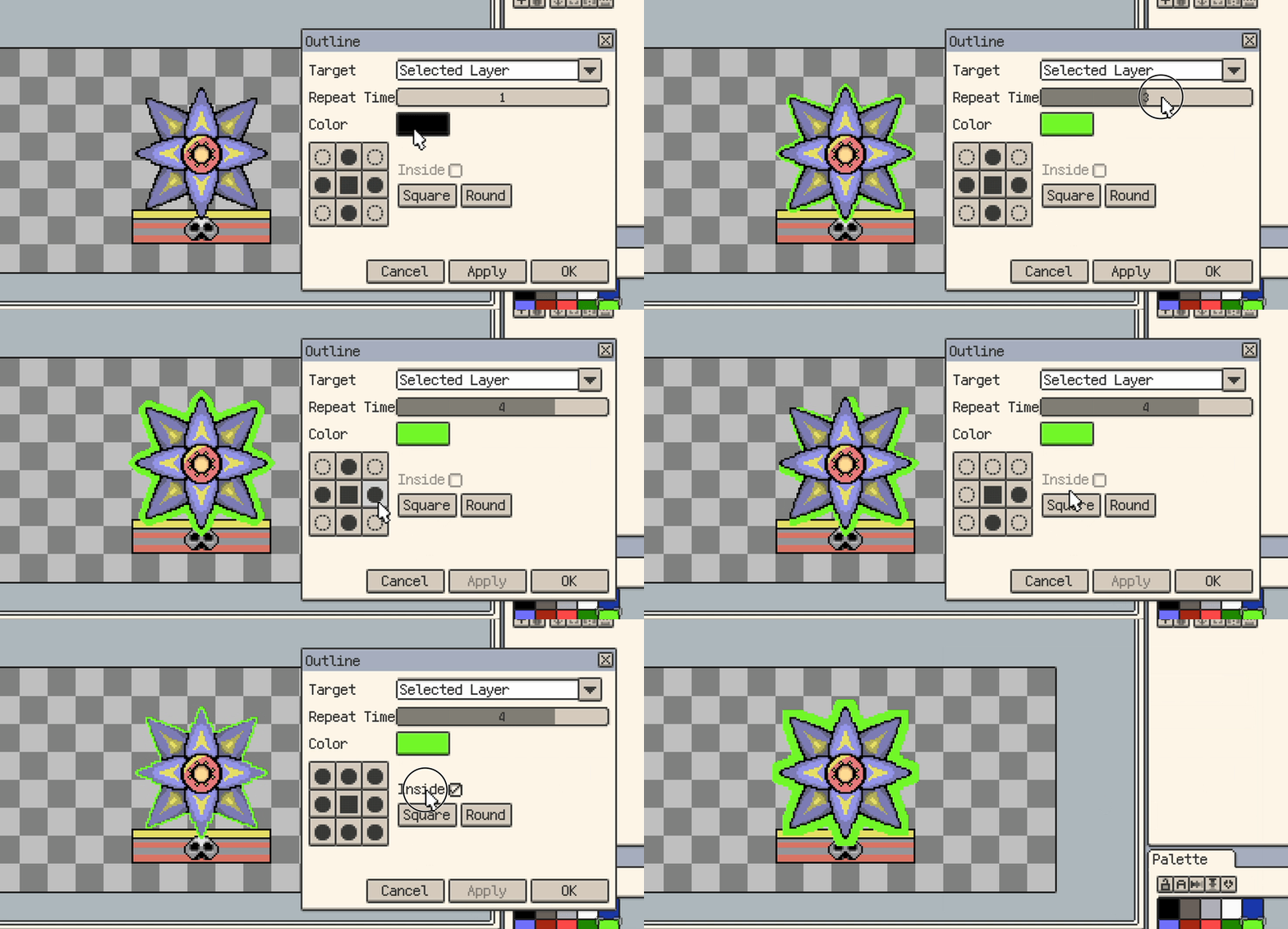
Use the outline dialog to trace the edges of existing artwork. Choose the current cell, current frame, current layer, or whole sprite as the target, then set:
- Color for the outline.
- Repeat Time for repeated passes and a thicker outline.
- Inside Outline for an inward outline instead of an outward one.
- Rounded / Squared for the corner style.
Use Apply to preview, Confirm to keep the result, or Cancel to discard the dialog's preview. Changing settings and applying again replaces the previous preview.
Filters
Open Edit ▸ Filters to choose Blur, Sharpen, or Noise. Each filter supports the current cell, current frame, current layer, or whole sprite. Enable Selection Only when you want to restrict the effect to an active selection.
| Filter | Purpose |
|---|---|
| Blur | Soften edges and local transitions |
| Sharpen | Increase edge contrast with adjustable strength |
| Noise | Add brightness noise, color noise, or custom color dots |
For Noise, adjust density, strength, and the options for the chosen mode. Brightness and color noise preserve existing pixel transparency; custom color dots can also add pixels in transparent areas within the target canvas and selection.
Use Apply to inspect the effect, then Confirm to keep it or Cancel to discard it. In Noise, applying again generates another distribution; confirming keeps the previewed distribution.
Adjust Color
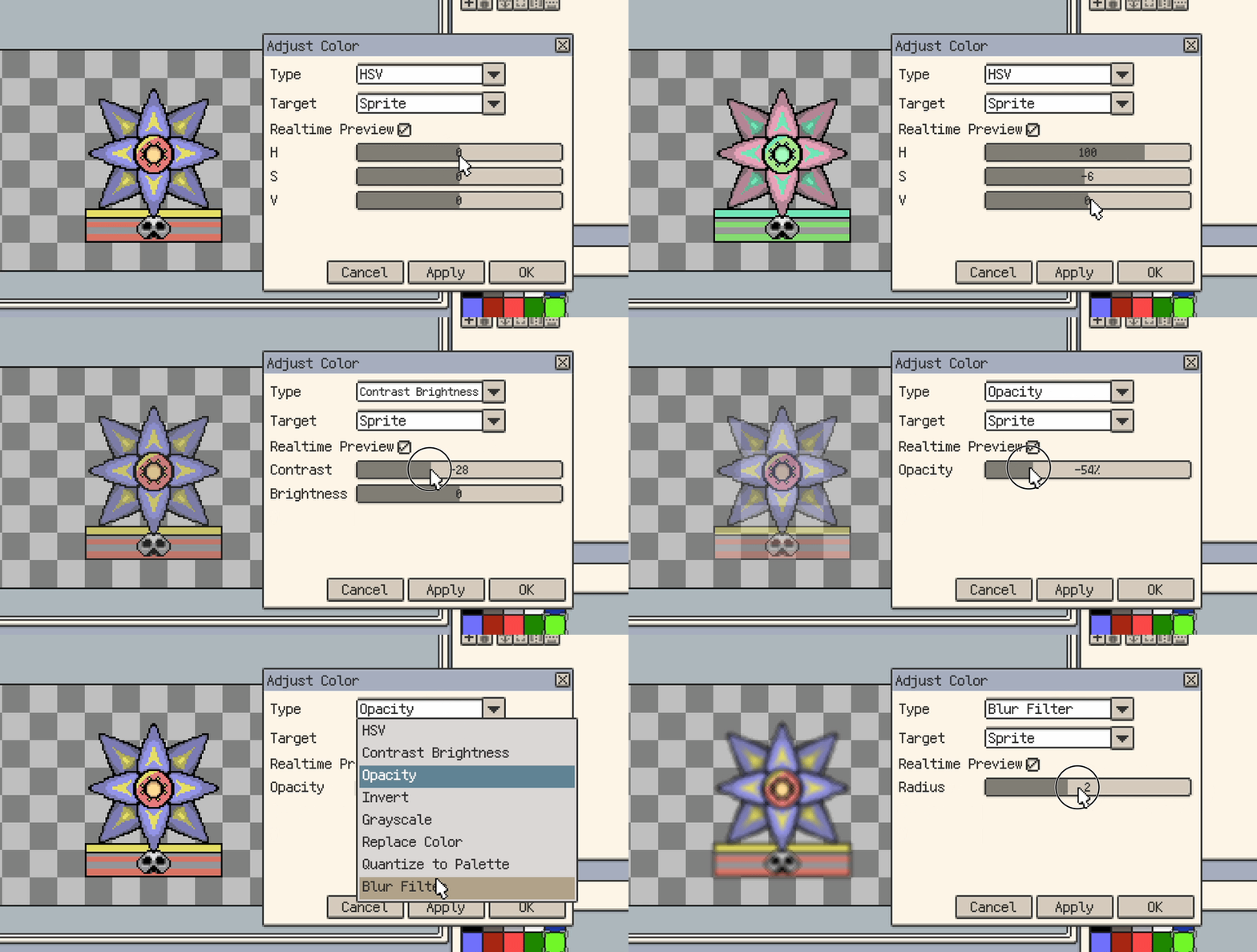
Open Edit ▸ Color Adjustments, choose a Type and Target, then adjust its parameters. For pixel targets, Selection Only limits the operation to an active selection.
Common types
| Type | Purpose |
|---|---|
| Contrast/Brightness | Adjust overall lightness and the contrast between light and dark areas |
| HSV | Adjust hue, saturation, and value |
| Levels | Adjust input and output levels and midtones for RGB together or an individual color channel |
| Opacity | Adjust pixel transparency |
| Invert | Invert colors |
| Grayscale | Convert colors to gray values |
| Replace Color | Replace one color with another, with optional tolerance |
| Quantize to Palette | Map artwork colors to the current palette |
Brightness and Contrast
Use Contrast/Brightness for overall light and dark balance. Use Levels when you need separate control over black points, white points, and midtones.
Target ranges
Pixel adjustments can target the current cell, current frame, current layer, or whole sprite. A selection can restrict the affected area within that target.
HSV, Contrast/Brightness, Opacity, Invert, Grayscale, and Replace Color can also target the palette, changing palette colors rather than artwork pixels. Levels and Quantize to Palette operate on pixels and do not offer a palette target.
A few practical notes
- HSV, Contrast/Brightness, Levels, and Opacity support real-time preview while you change parameters.
- Use Apply to inspect a preview when needed, then Confirm to keep it. Reapplying replaces the earlier preview rather than stacking adjustments.
- Use Cancel to discard the dialog's preview. Check the target before confirming, especially when working across a whole layer or sprite.