Timeline Overview
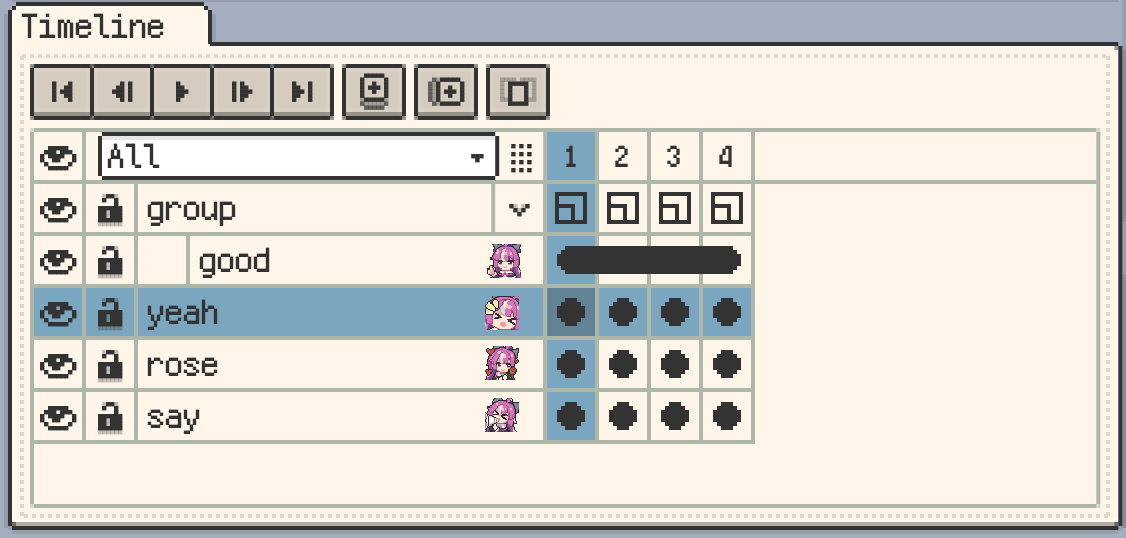
The timeline organises artwork by layer and frame. Use it to select what you are editing, set animation timing, and arrange named clips for playback.
Understanding the Main Areas
- Layer headers: select layers and manage their names, visibility, locking, and groups. See Layers.
- Frame headers: select frames and inspect duration indicators and colour tags. See Frames.
- Cells: each intersection holds one layer's content at one frame. See Cells.
- Clip strip: select and adjust named animation ranges. See Animation clips.
Selecting content and opening menus
Click or tap a layer header, frame header, or cell to select it. Open its context menu to act on that timeline object:
| Input | Open the menu |
|---|---|
| Touch on iOS or Android | Double-tap the header or cell. |
| Desktop mouse | Right-click the header or cell. Double-click opens its properties unless Double Tap to Open Menu is enabled. |
Multi-selection identifies a continuous range of layers or frames, or a rectangular range of cells. On mobile, choose Select in the object's menu, then tap the other end of the range. On desktop, drag to select or use Shift to extend the range; press Esc to leave multi-selection. Check the highlighted range before a batch operation.
Timeline Layout and Panel Size
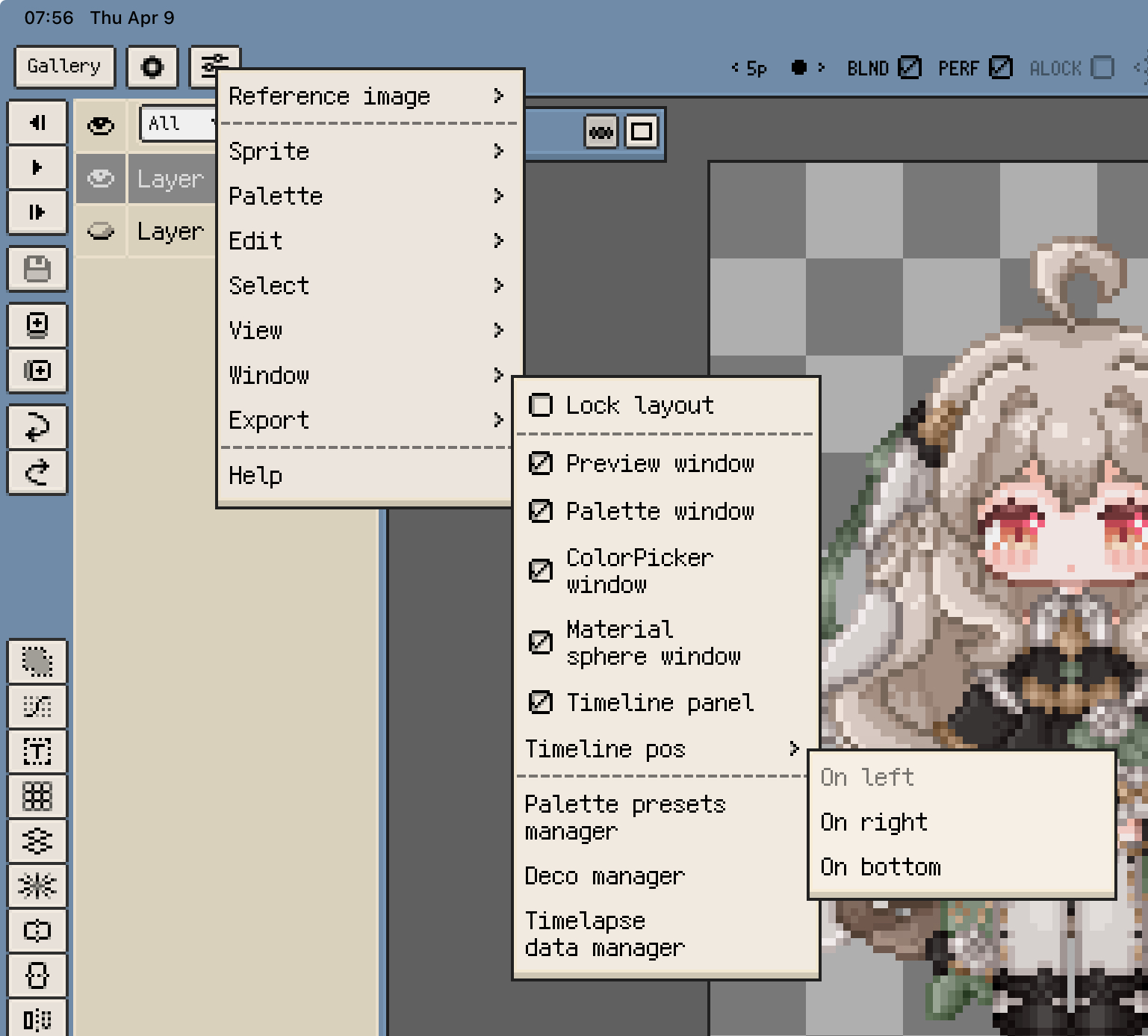
- iOS: use Menu ▸ View ▸ Timeline Position to place the panel on the left, right, or bottom.
- Desktop and Android: move and resize the timeline window as part of the workspace layout.
Adjust the Layer Header Width
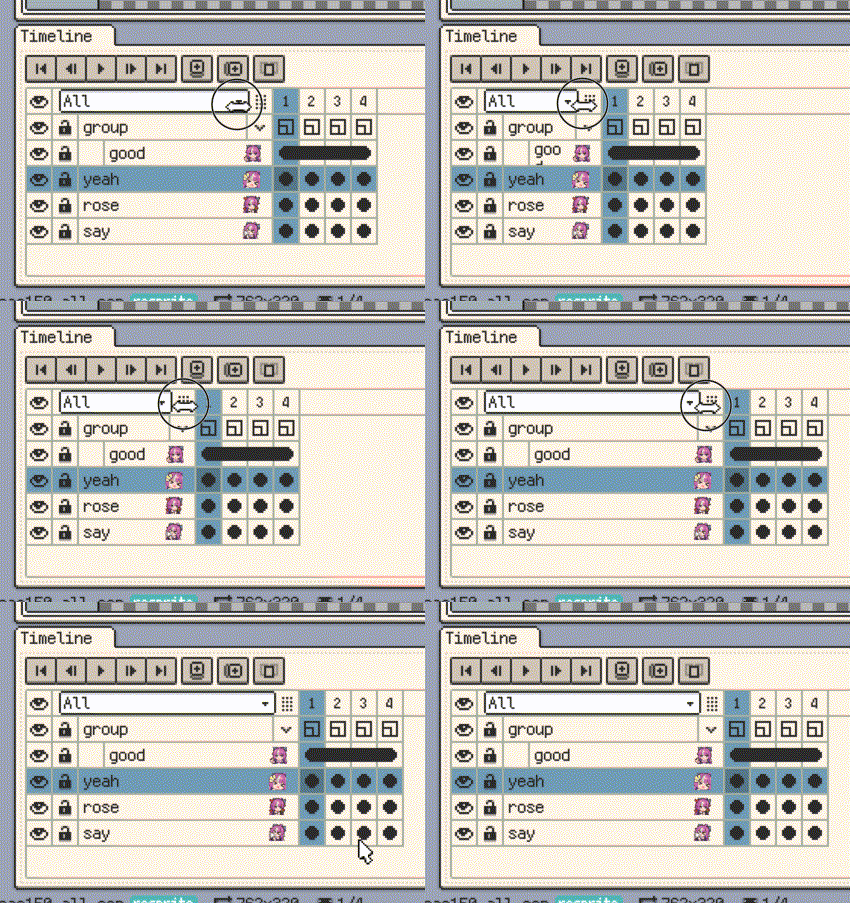
Drag the divider to the right of the layer-name area to widen or narrow the column. Make room for names and thumbnails without enlarging the whole timeline.
Layer thumbnails
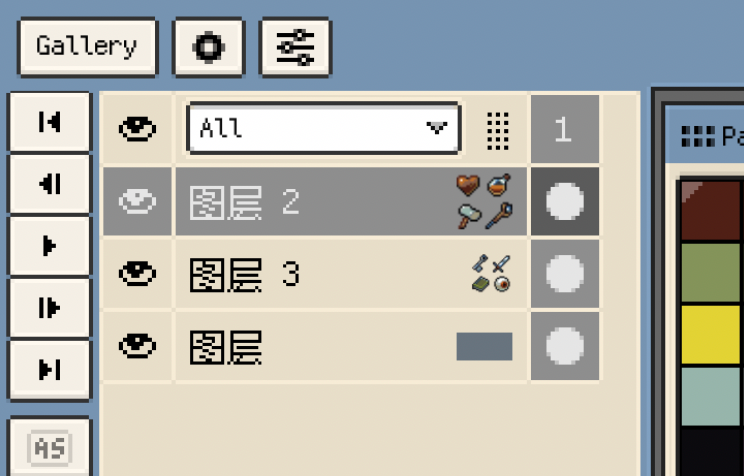
Enable Show Layer Thumbnail in Preferences ▸ Timeline to identify layer content visually. On iOS, the View menu also provides a thumbnail toggle.
Timeline Action Bar
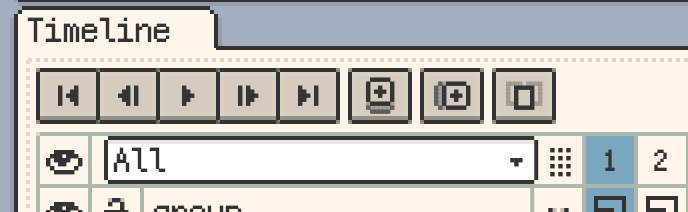
Use the action bar for playback, frame navigation, New Layer, New Frame, and Onion Skin. Choose which optional buttons to show in the timeline action-bar settings.
On iOS, you can also hide the whole action bar. On desktop and Android, the bar may disappear when the timeline window is too short; increase the window height to show it again.
Batch Editing Multiple Cells
A timeline selection chooses which cells participate; a selection on the canvas chooses which pixels to edit in those cells.
- Batch transform: explicitly select multiple timeline cells, then move, rotate, scale, or flip their canvas selection content with the same relative parameters. Undo and Redo apply to the operation as a whole.
- Batch paste: paste the same canvas clipboard content into several selected editable cells, then position, rotate, or scale it together. This differs from copying a range of timeline cells, which retains the range's frame/layer arrangement; see Cells.
When a batch edit explicitly targets layers, frames, or cells, unlocked hidden content in that range also participates. Locked content remains protected.
Playback Behavior
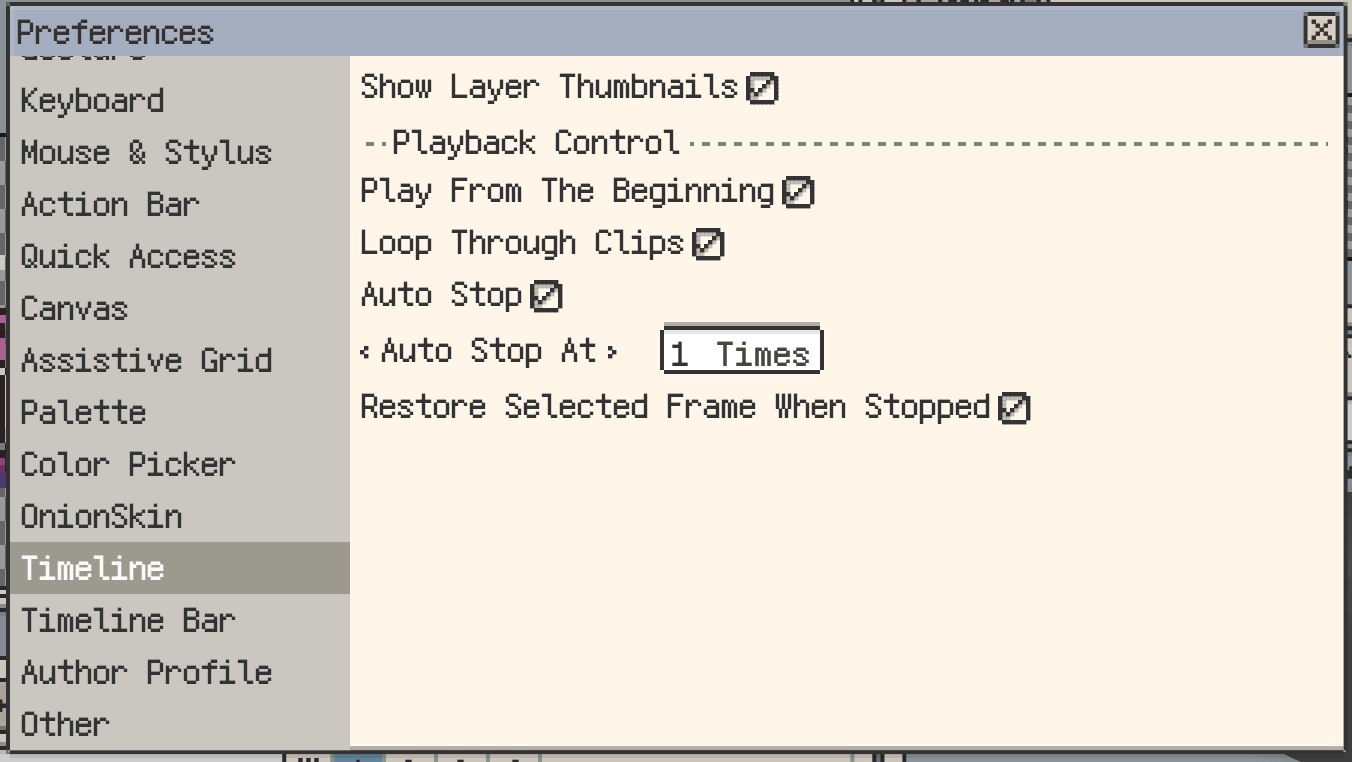
Set playback behaviour in Preferences ▸ Timeline:
- Play from Start: begin at the start of the playback range.
- Play Through Clips: continue across clip boundaries.
- Auto Stop: stop after the configured number of loops.
- Return to the original frame on stop: return to the frame selected before playback so you can continue editing there.
Clip direction and frame duration are set separately in Frames. You can also check playback in the Preview window.
Mobile Frame-Navigation Gestures
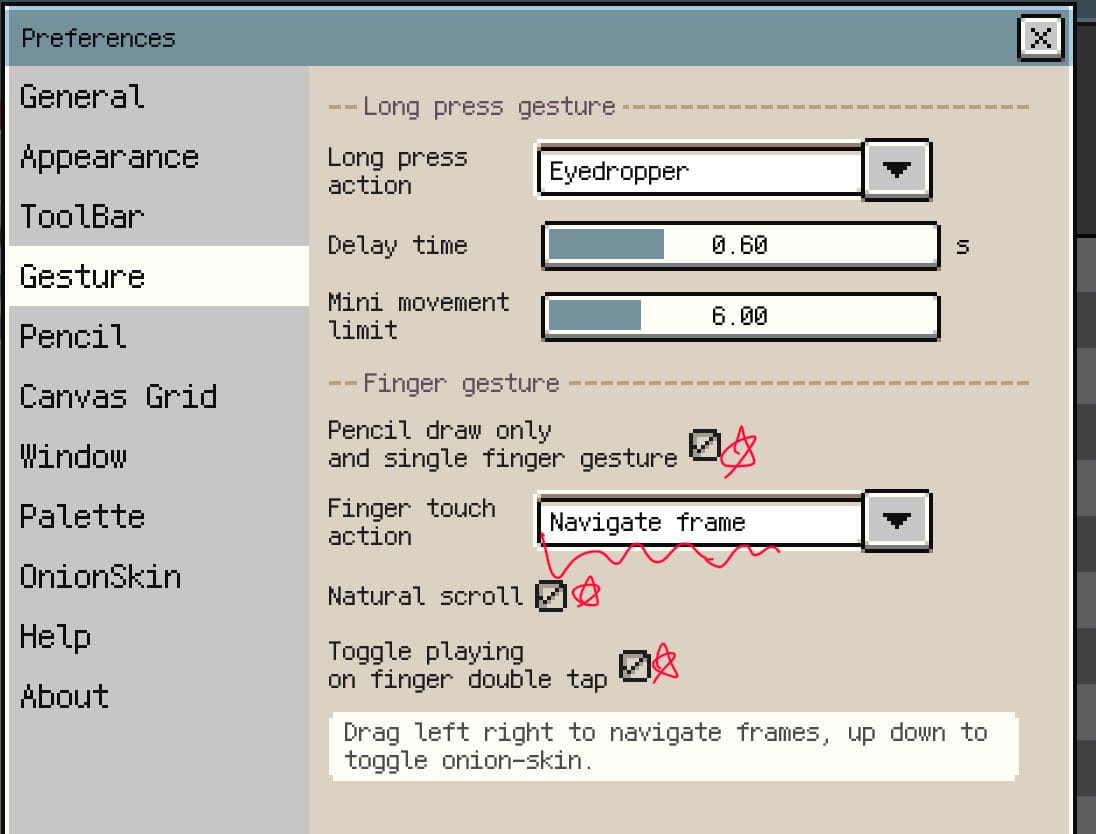
On iPad and Android devices used with a stylus, enable Pencil Draw Only in gesture settings and assign frame navigation to single-finger dragging:
- Drag horizontally to move between frames; natural scrolling determines the direction.
- Swipe vertically to toggle Onion Skin.
- Enable double-tap playback if you want to play or stop without returning to the timeline.
These one-finger settings are not shown on iPhone. iOS also allows frame navigation with a three-finger drag. See Gestures & Input for setup.
Continue reading: