Getting to Know the Gallery
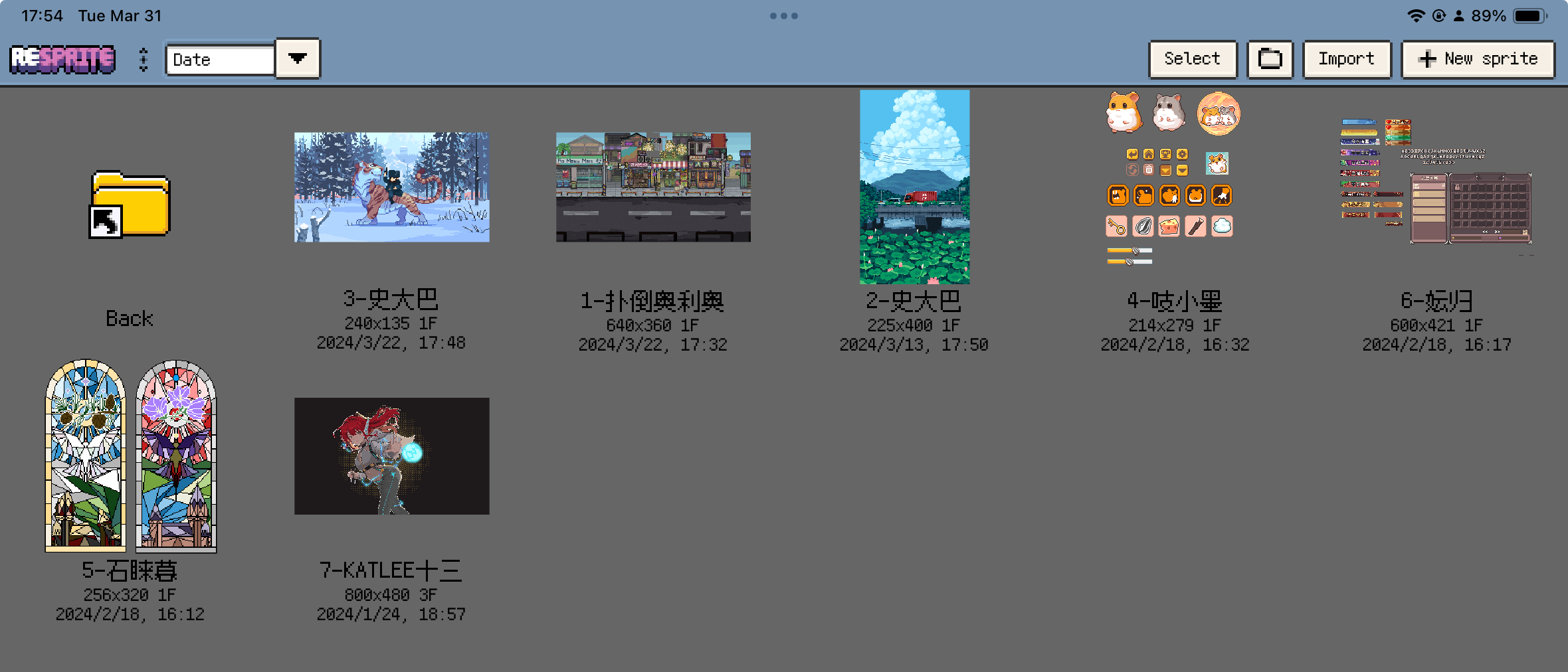
The Gallery is where you browse project files and folders, create a sprite, and import artwork. File actions apply to the folder you are viewing, so check the location before creating or moving a project.
Start with the main entry points
| Control | Purpose |
|---|---|
| New Sprite | Create a project with a chosen canvas size |
| Import | Bring in a project, image, or animation |
| New Folder | Group related projects |
| Sort | Order the items in the current folder |
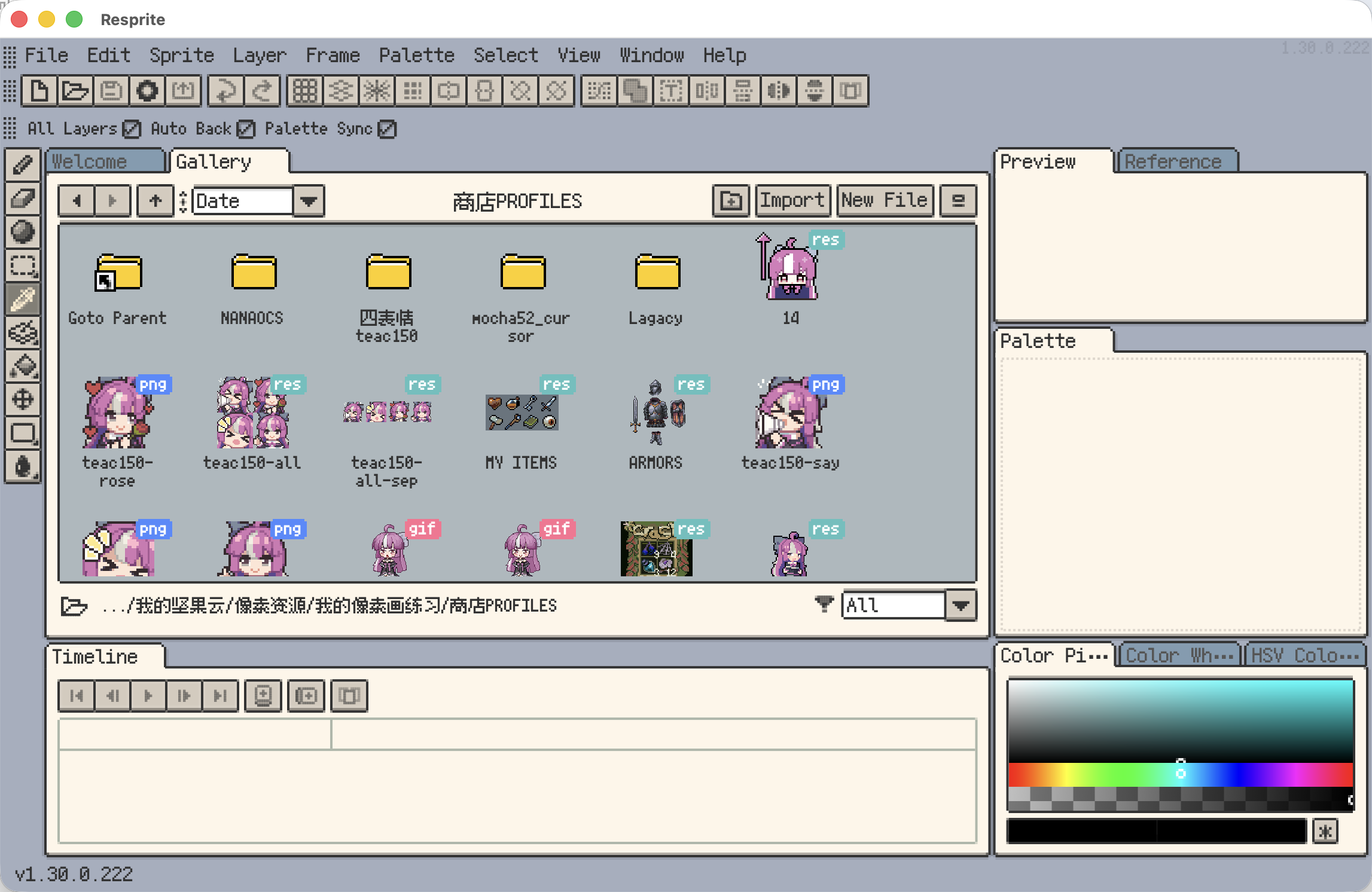
On iOS, these controls are in the top navigation area. On desktop and Android, use the Gallery action bar; some commands move into its overflow menu when space is limited. Desktop also has a bottom bar for the folder location and file type filter.
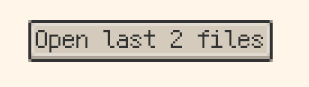
Reopen files from the last session (Desktop)
On desktop, use Open last N files on the Welcome screen to reopen saved files that were still open when you quit and are available again. It is a manual action; unsaved new documents are not part of this list.
Creating, importing, and making folders
Open the destination folder first, then use New Sprite or Import. For a new set of characters or scenes, create a folder and keep the related files together.
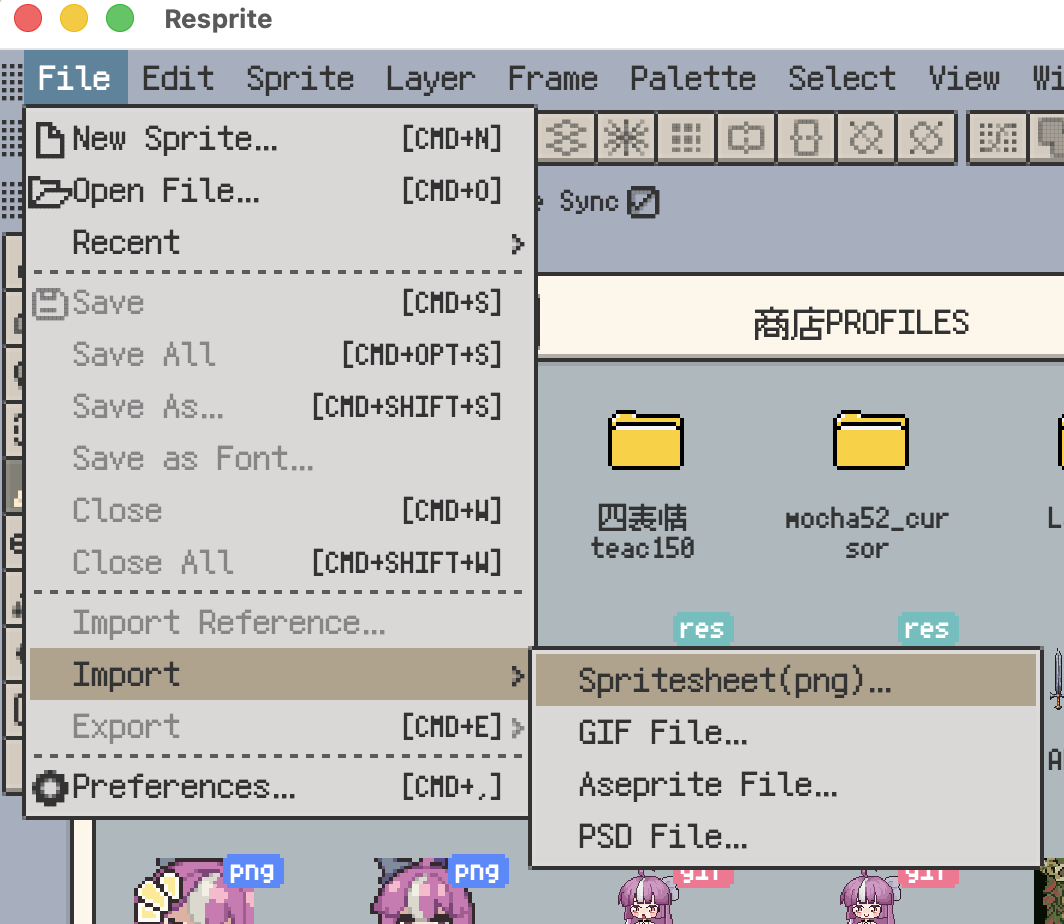
Import supports projects and artwork such as .resprite, GIF, APNG, sprite sheets, PSD, and Aseprite files. The Import guide explains format choices and how they become editable projects. Check imported layers, frames, and colours before continuing.
On desktop, you can also open a local folder in the Gallery from the bottom bar. This lets you browse projects in an existing directory.
For canvas dimensions and recording options, continue with Create Your First Sprite.
Sorting and finding projects faster
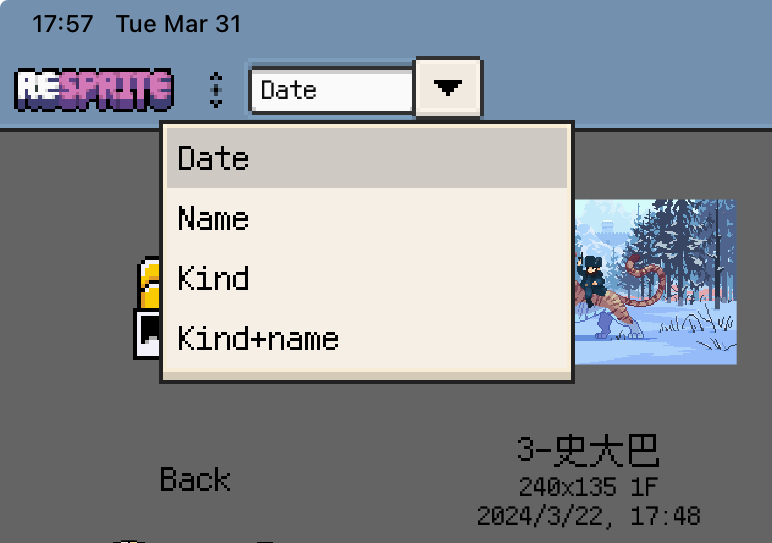
Choose a sort mode for the current folder:
- Modified time: find recently edited files.
- Name: locate projects by title.
- Kind: group folders and file types, then order by name.
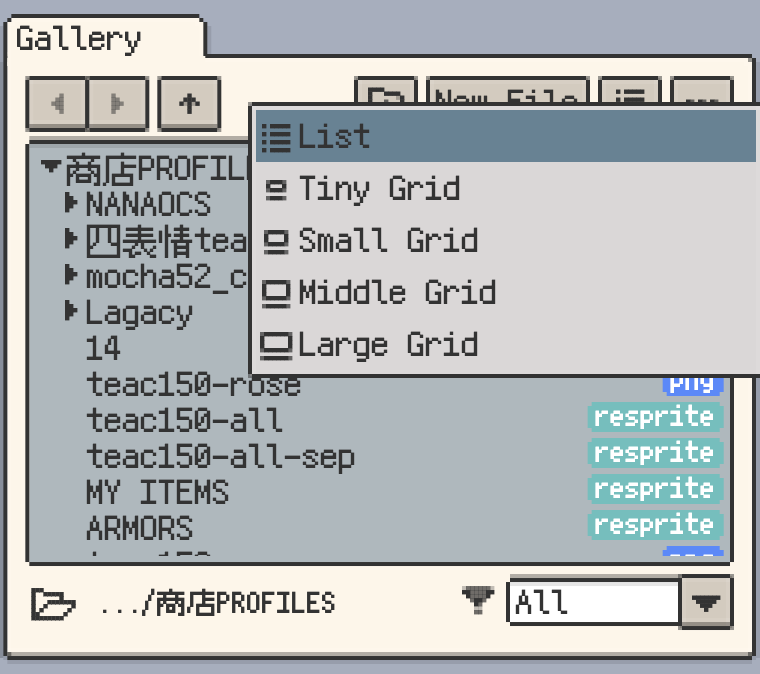
On iOS, Kind and Modified Time is also available. On desktop and Android, choose a list or grid layout, including Tiny Grid for a denser view.
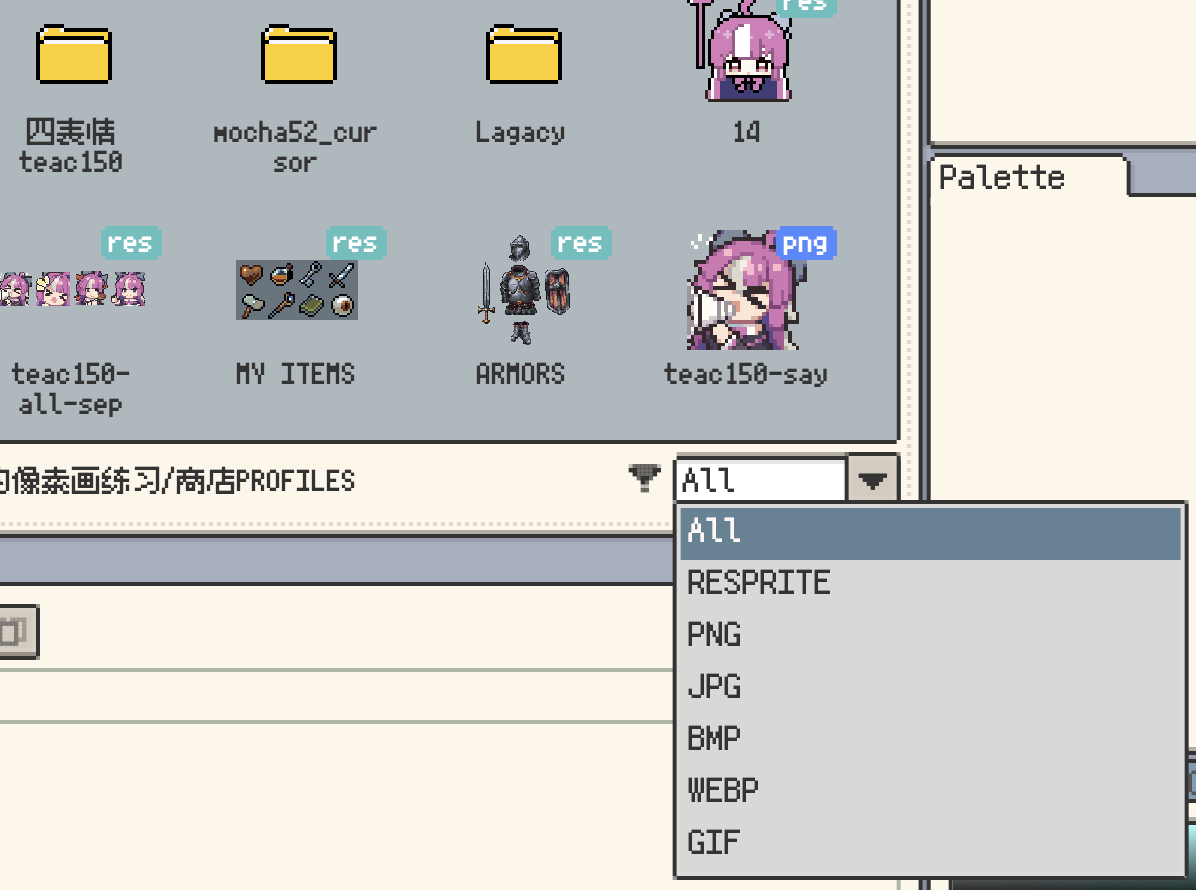
Desktop additionally provides file type badges and a bottom file type filter. If an expected file is missing, check the filter and switch it to All before looking elsewhere.
Opening projects and using the context menu
Tap or click a project to open it, or a folder to browse its contents. In multi-selection mode, tapping selects items instead; leave selection mode to resume opening files.
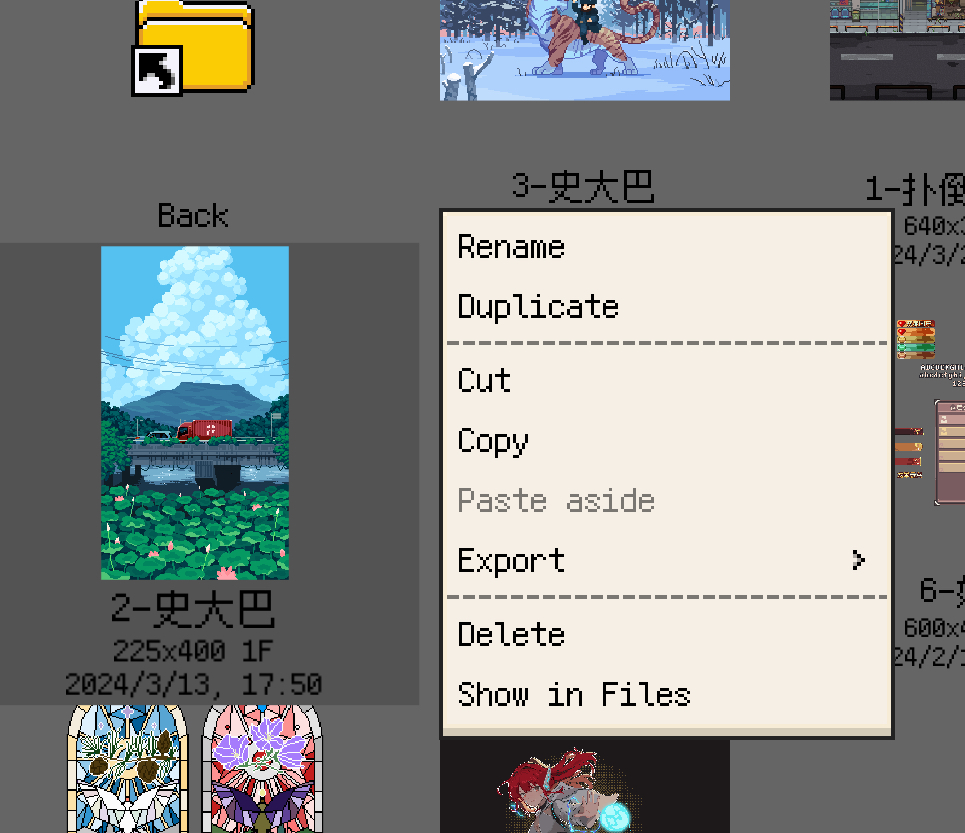
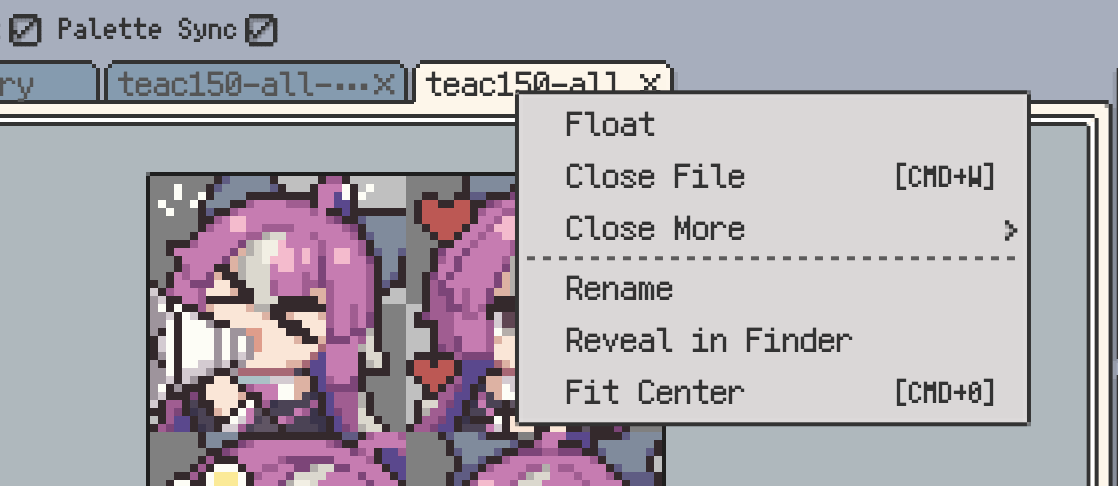
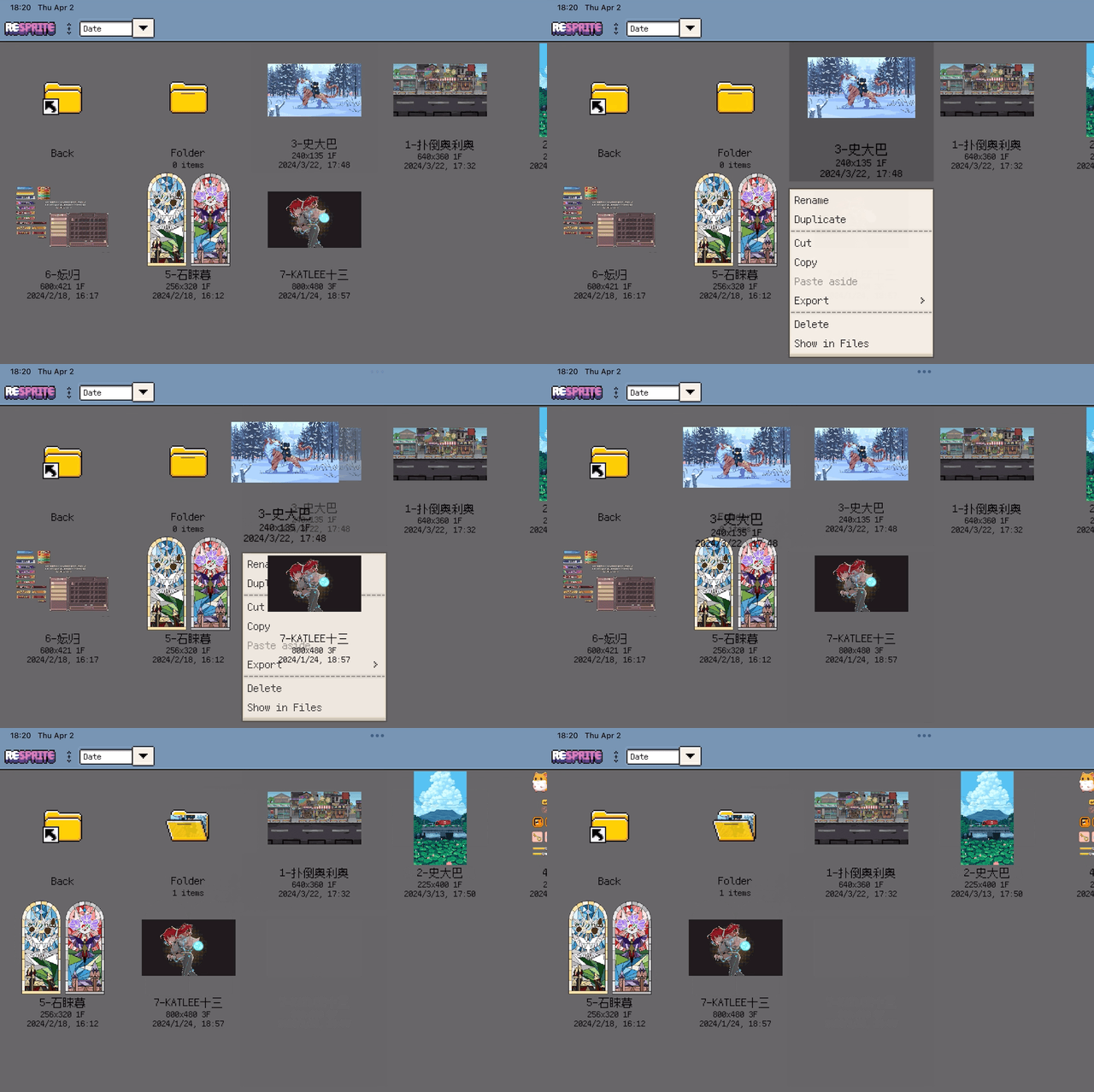
For file operations, long-press on mobile or right-click on desktop. Common commands include:
- Rename: change the file or folder name.
- Duplicate: make a separate copy for another variation.
- Cut / Copy / Paste: move or copy items between Gallery folders.
- Delete: remove the file or folder.
These are file operations, separate from editing pixels or layers inside a sprite. On iOS, Show in Files locates the item in the Files app; desktop offers Reveal in Finder / Show in Explorer.
Organising your work
Use folders for related characters, scenes, or animation sets. To move a project, drag it onto its destination folder, or use Cut and Paste from the item and destination menus. Choose Copy when you want to keep the source file as well.
On iOS, pin frequently used folders from their context menu to keep them near the top of the list.
For backup and recovery, follow the project backup FAQ.
Continue from the Gallery
- Create Your First Sprite for a new canvas.
- Quick Start for drawing and layer basics.
- Import Artwork for existing files.
- Export Artwork for sharing and batch export.