Palettes and Colour Picking
Use the palette to select drawing colours, arrange colour ramps, and reuse colour sets. Generate swatches from artwork or import a palette file, then choose the colour-picker layout that fits the task.
Core Actions
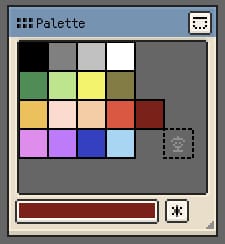
- Click a swatch to make it the current pen colour.
- Double-click or double-tap a swatch or empty slot to write the current pen colour there.
- Drag a swatch to rearrange the palette.
- Delete a swatch: drag it outside the palette on iOS, or select it and use Delete on desktop and Android.
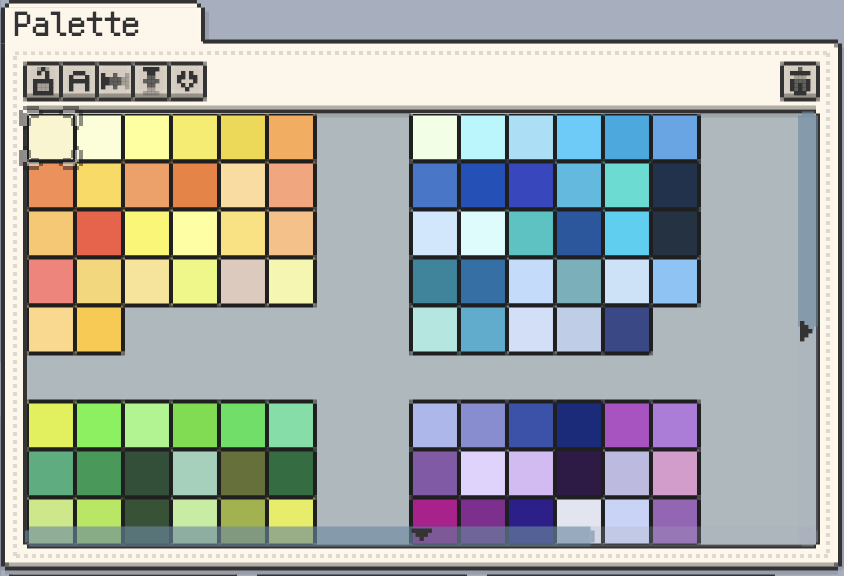
- Scroll to reach colours outside the visible area.

Generating and Organising Colours
Names, titles, and quick actions
- Lock Palette: protect swatches from editing, deleting, and reordering.
- Show Color Name: display swatch names and rename the current colour.
- Show Palette Name: show the document's saved palette name in the window title.
The palette action bar provides shortcuts for locking, name display, horizontal/vertical interpolation, preset loading, and deleting the current swatch.
Batch selection and shortcuts
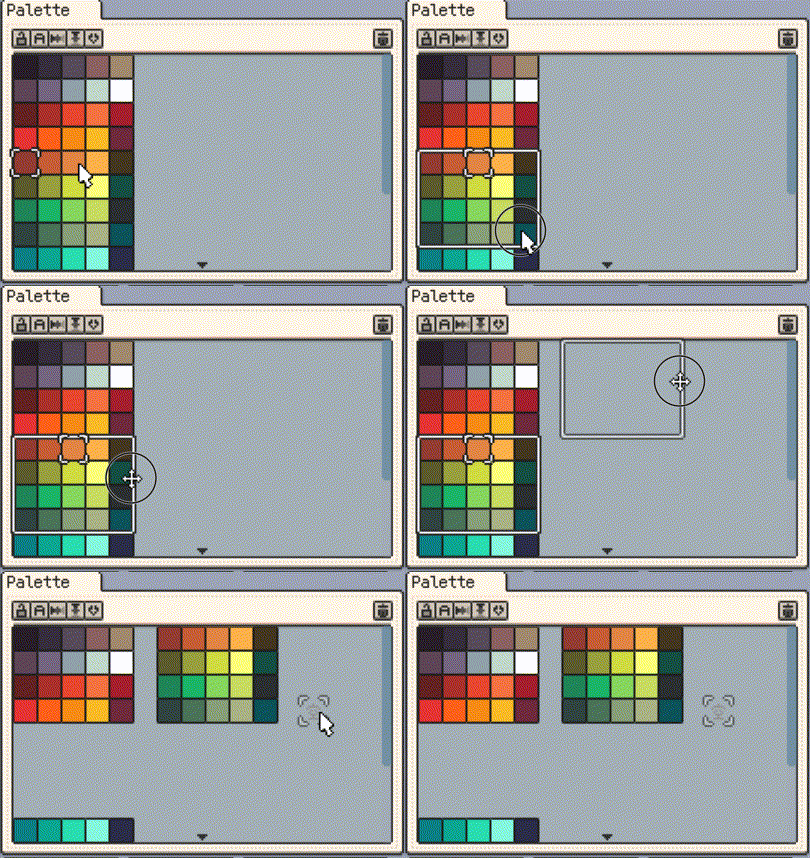
On desktop and Android, select several swatches to move, copy, cut, or delete them together. Use Shift to extend a selection, or Alt/Option + mouse wheel to navigate palette colours while drawing.
Colour entry controls support HEX copy and paste, including colour edit buttons, Pen Color, palette slots, and the Material Color Sphere base colour. Copying a single palette swatch also places its HEX value on the system clipboard.
Reorder and Sort palettes
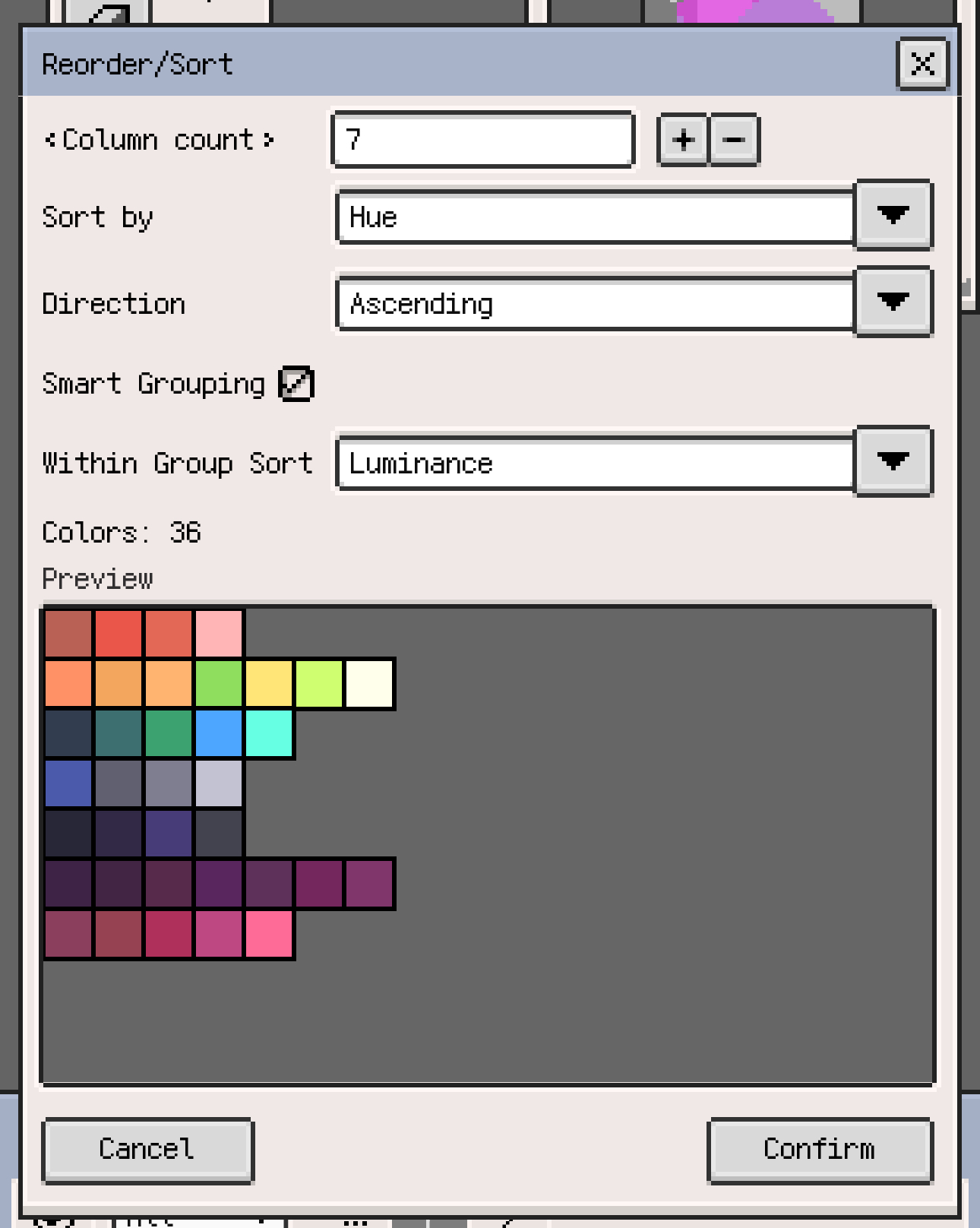
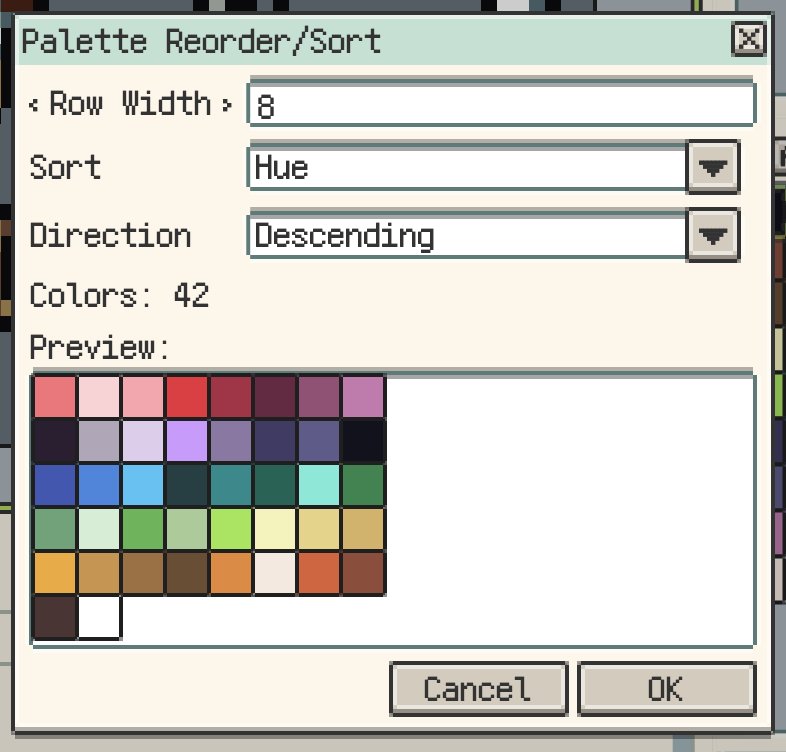
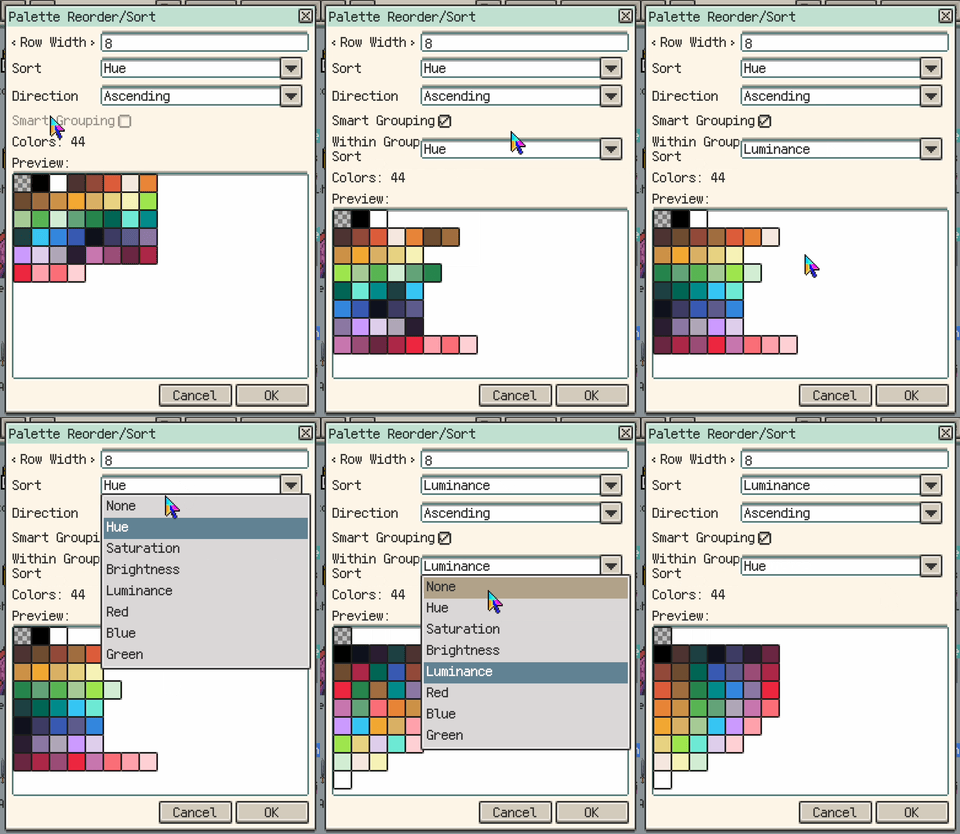
Open Reorder/Sort to reorganise swatches by hue, saturation, brightness, luminance, or RGB channels. Choose ascending or descending order and inspect the preview before applying it. Smart Grouping arranges sorted colours into rows to keep hue groups and ramps readable.
On desktop and Android, you can sort only the selected colours. On iOS, the GPL import preview also provides these sorting controls before replacing or appending the imported palette.
Colour interpolation
Place two anchor swatches with gaps between them, then use horizontal or vertical interpolation from the palette action bar or menu to generate intermediate colours.
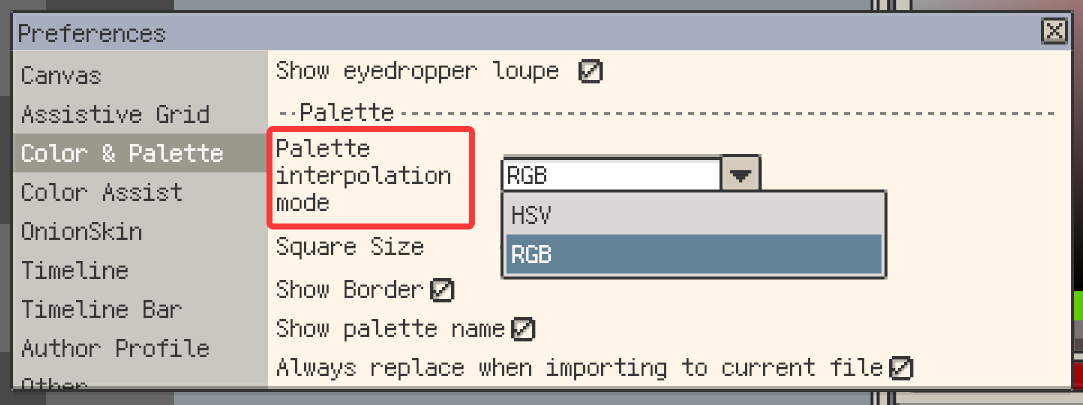
- HSV: interpolates hue, saturation, and value.
- RGB: interpolates red, green, and blue channels independently.
Choose the colour space for the transition you want; Resprite remembers the interpolation mode.

Generate from canvas, reference images, or pictures
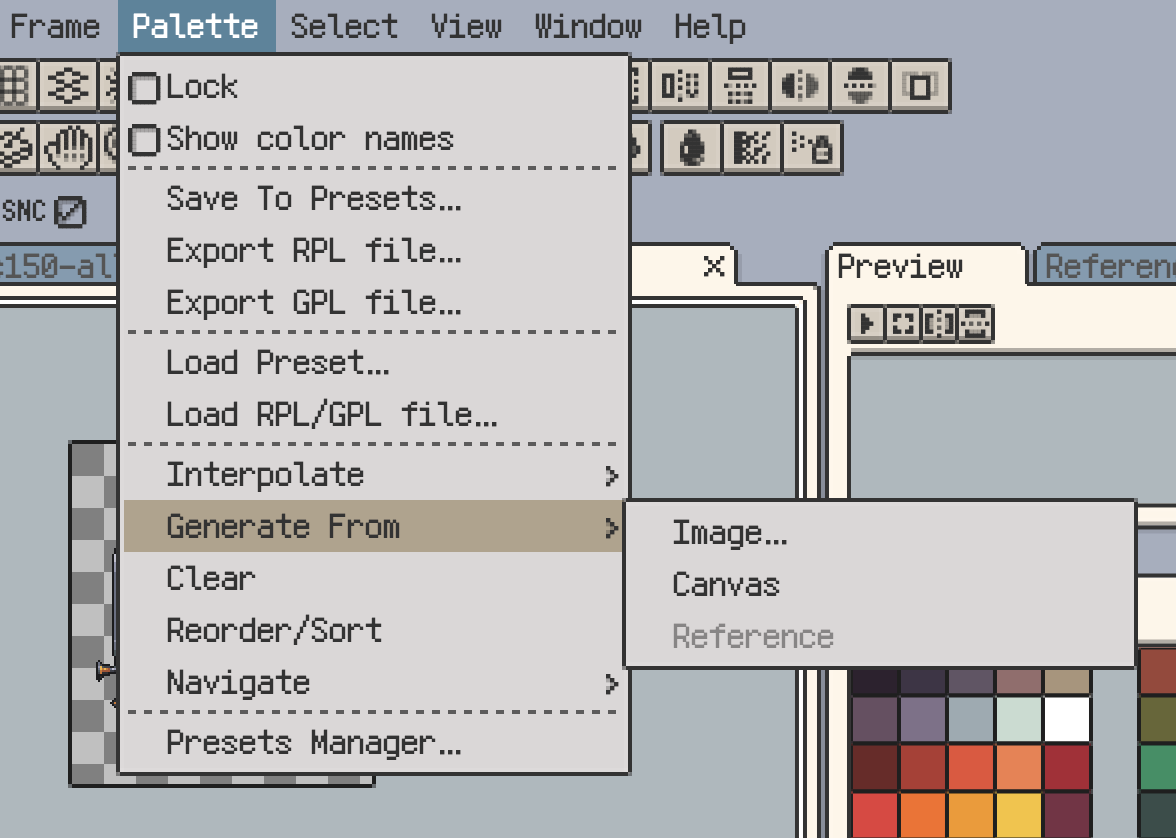
Use Menu ▸ Palette ▸ Generate From to choose a source:
- Image opens a file picker directly on Windows and macOS. On iOS and Android, choose the image source first.
- Canvas samples the pixels in regular drawing layers across the artwork's frames, rather than only the currently displayed composite frame.
- Reference image uses the topmost reference image on iOS, or the selected reference image on desktop and Android.
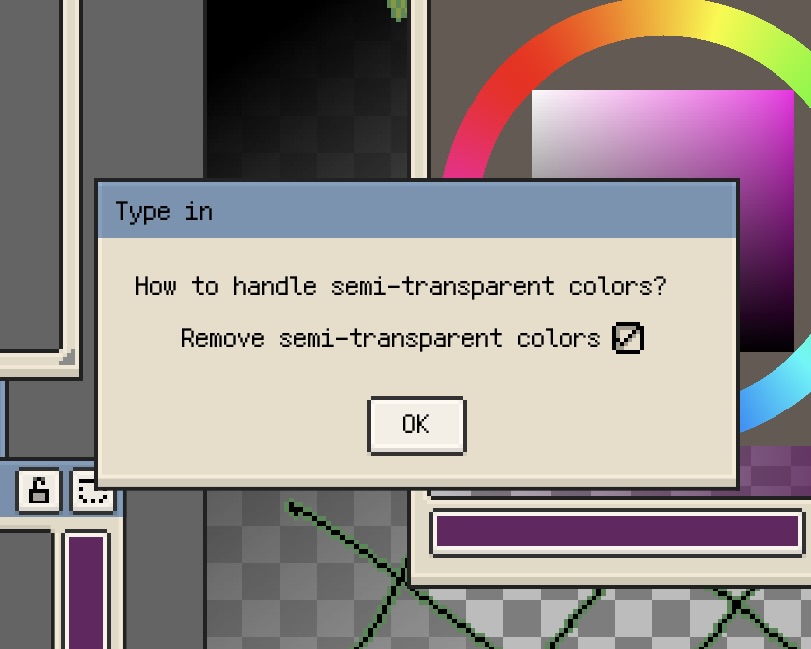
Set the maximum colour count when prompted. If there are many semi-transparent colours, you can choose whether to filter them out. Follow the remaining prompts to set the number of colours per row and choose Replace or Append; their order differs by platform. Replace replaces the current swatches, while Append keeps them and adds the generated colours below. Neither recolours existing pixels.
For the complete image workflow, see extracting a palette from an image.
- Prefer PNG when you want to avoid the small colour differences introduced by JPEG compression.
- Keep semi-transparent colours if you need them in the resulting palette.
- Sampling filters and reduces colours to fit the maximum count; it does not guarantee every source colour or the original swatch order. Desktop and Android may use approximate sampling for large external images. For a ready-made colour set, import its GPL or RPL file.
The menu below shows the available sampling sources.
Presets, Import, and Export
From Menu ▸ Palette, you can save, load, import, export, clear, and reorganise palette data. The most common flows are:
- Save to presets so a palette can be reused across future projects
- Export as file in either
RPLorGPL - Load from file into the current document
- Clear or reorder when you want to rebuild the palette structure
Supported formats:
- RPL (
.rpl) is Resprite’s own format and preserves swatch positions in the grid. - GPL (
.gpl) is a broader interchange format that works well across other tools.
Ready-to-use palettes for special materials and workflows are available from Palette Resources.
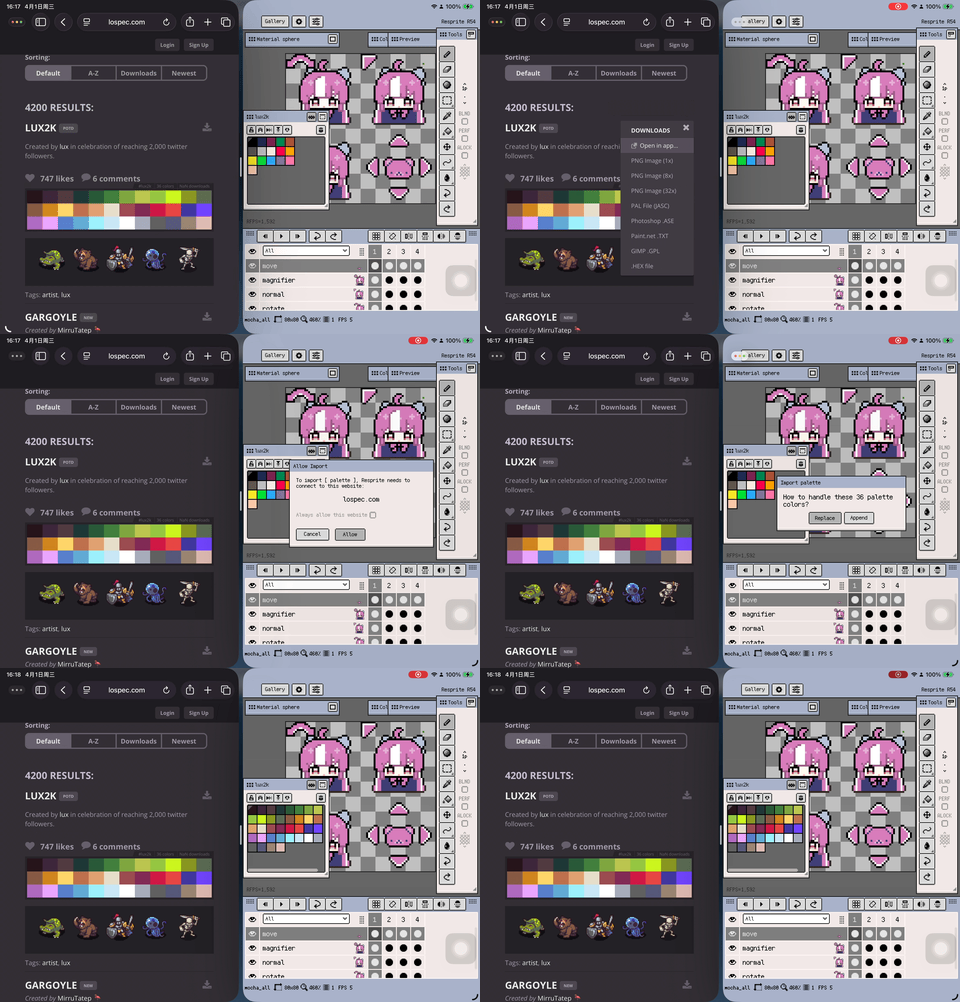
To import into an open artwork, choose Load RPL/GPL file on iOS or Import RPL/GPL file on desktop and Android. GPL imports include a layout preview and a colours-per-row setting; RPL preserves the saved layout. Replace replaces the current palette and Append adds the imported colours below it. Importing a palette does not remap the artwork's pixels, even with iOS Auto replace enabled. See GPL/RPL import and Lospec troubleshooting.
Always replace without asking lets external palette imports skip the Replace/Append question. You can turn off Always replace when importing to current file in the palette settings. This preference does not apply to palettes generated by sampling: they still ask whether to replace or append.
Palette Presets Manager
Open the preset manager through Menu ▸ Palette ▸ Load. On iOS, it is also available in Preferences ▸ Palette & color.
It is best used for:
- saving custom palettes for repeated use
- renaming or deleting user presets to keep the library tidy
- setting a default palette for new sprites
- loading a chosen preset directly into the current file
- opening the palette preset folder directly on desktop when you want to organise files manually
Import palettes from links
Open a supported palette link to preview its colours and colour count, then import into the current file or save it as a preset. Compatible links from PixelArtPalettes, Lospec, and MoonPX can open directly in Resprite without a separate palette-file download.
On iOS, Trusted Websites lets you review sites whose import permission has been remembered.
iOS-only Palette Option
Auto replace
On iOS, enable Menu ▸ Palette ▸ Auto replace, select an existing swatch, adjust the pen colour, and double-tap the same swatch to write the new colour back. Changing only the pen colour does not recolour the artwork.
When the old swatch is not fully transparent, this replaces exactly matching pixels across all frames of regular drawing layers, regardless of the current frame, layer, or selection. Similar colours are not included. This is not a colour replacement operation for tilemap layers.
Resprite edits full-colour pixels and can convert indexed-colour Aseprite content on import, but it does not preserve pixel-to-palette index links. Loading a whole palette also does not trigger Auto replace. See indexed colour mode and palette-based recolouring for these distinctions and the iOS steps.
For colour replacement without editing palette swatches, use Adjust Color and choose Replace Color.
Picker Layouts and Display Preferences
Adjust the palette display and colour-picker layout to match your screen space and input method.
Palette-related preferences
In Preferences, open Palette & color on iOS or Color & Palette on desktop and Android.
- Swatch size: set the size of palette colour blocks.
- Show border: toggle swatch borders on desktop and Android.
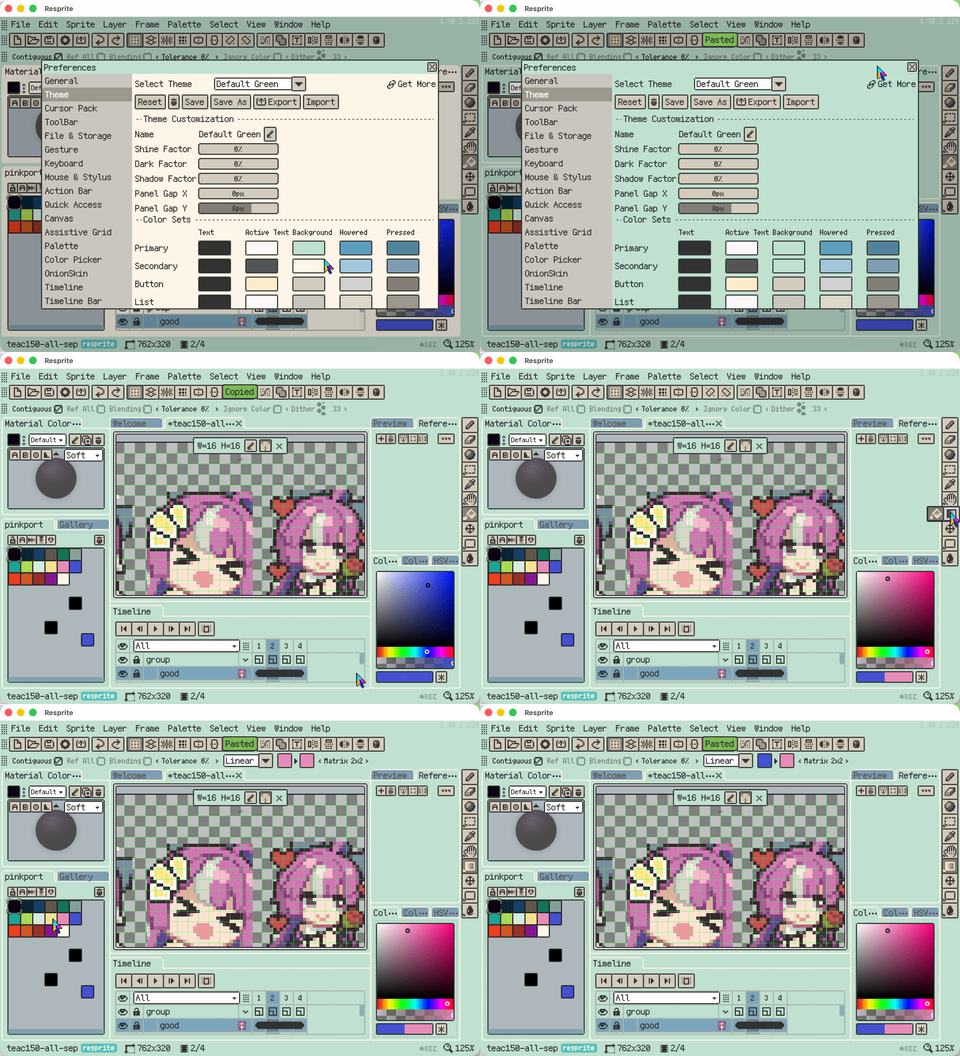
- Pen colour placement: on iOS, choose whether the current colour appears in the palette and whether to show it in the top bar.
Palette-name display and import behaviour are described above.
Picker layouts
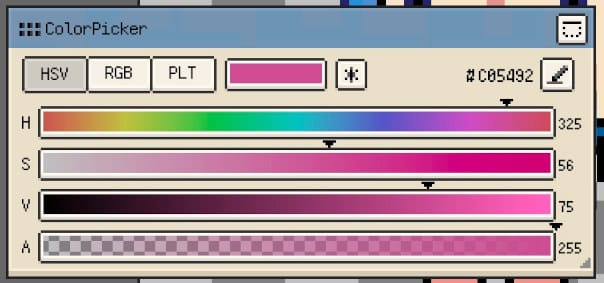
Resprite offers several picker layouts for different ways of choosing colours.
Material Color Sphere
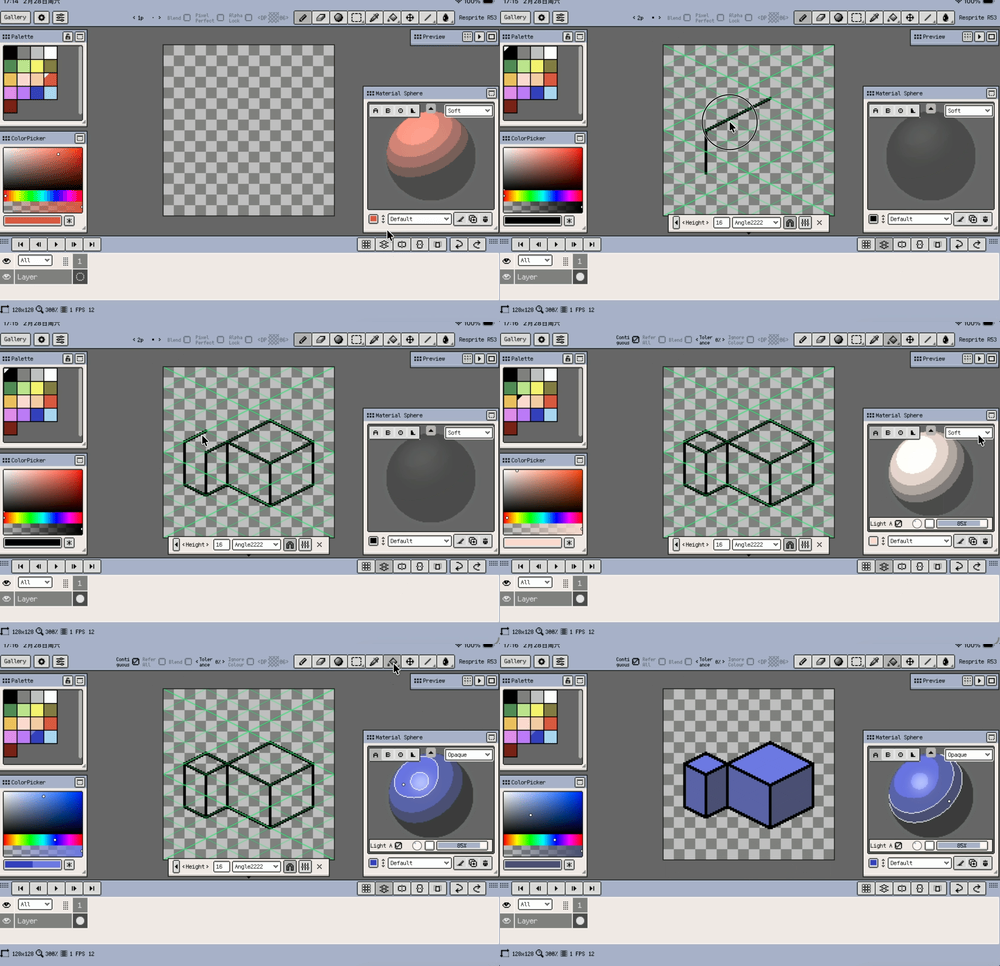
Use Material Color Sphere to build highlights, midtones, and shadows around a base colour. Its profile menu contains two controls for reusing the resulting colours:
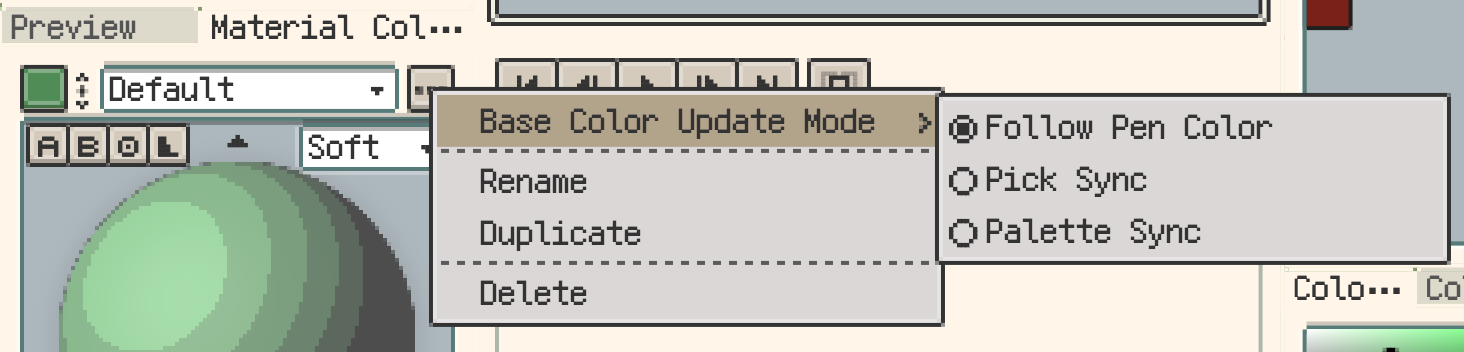
- Base Color Update Mode: choose whether the base follows the current pen colour, picked colours, or the selected palette swatch.
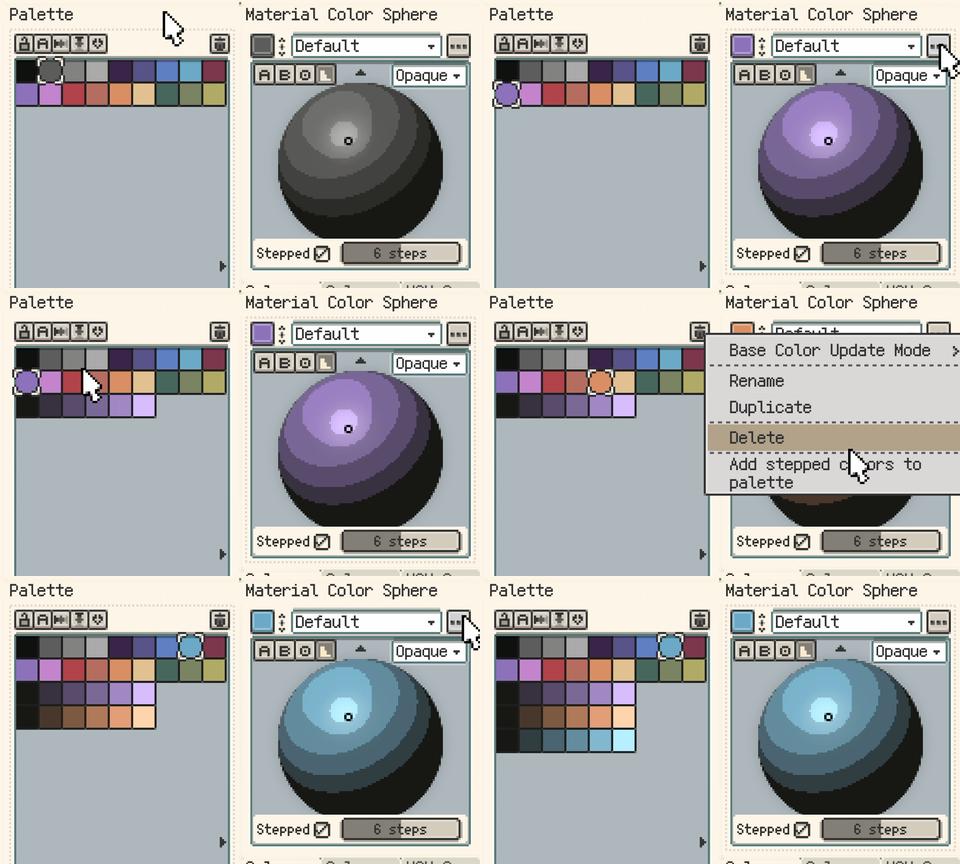
- Add stepped colours to the palette: enable stepped mode, then add the sphere's representative colours to a new palette row, ordered from dark to light.
HSL Spectrum
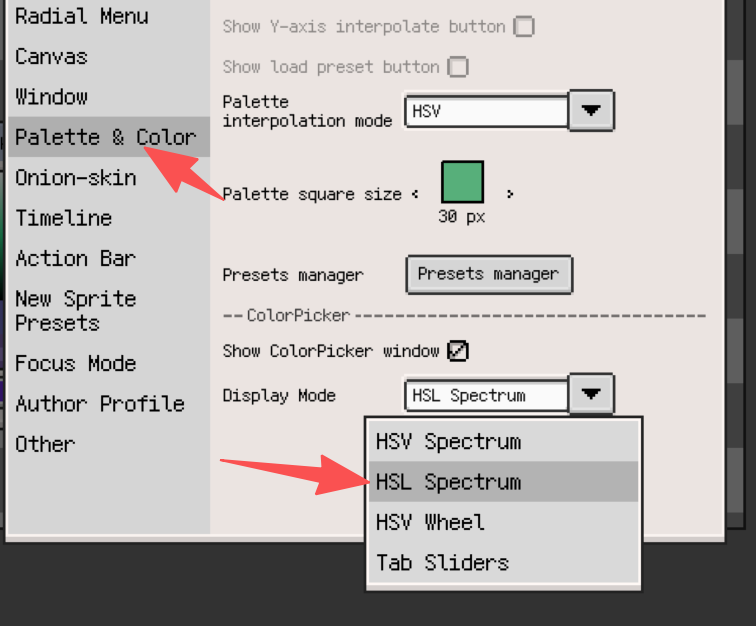
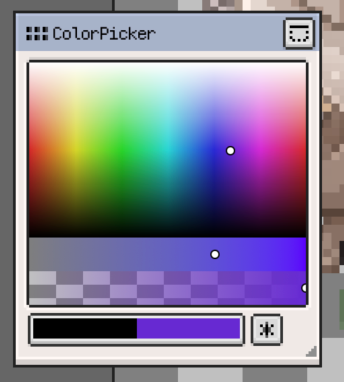
Choose colours by hue, saturation, and lightness in the HSL spectrum layout.
Wheel and radial layouts
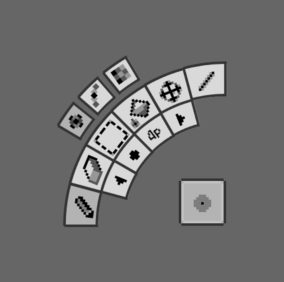
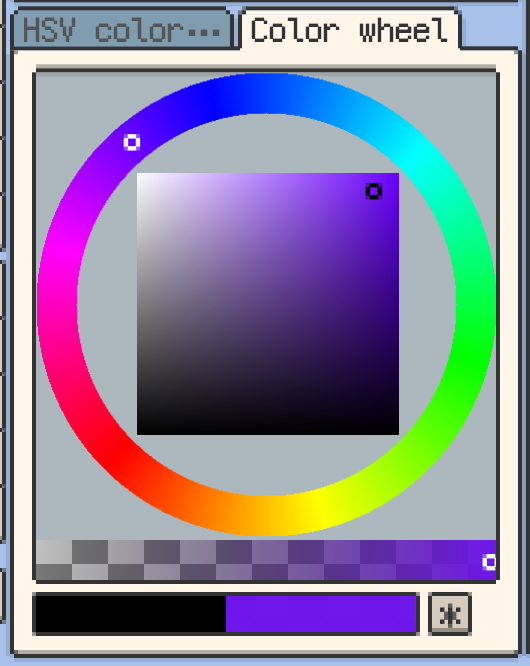
Use the colour wheel to choose hues around a ring. The radial layout also places brush controls alongside colour selection.
For a compact workspace, keep the palette visible and close the separate colour-picker window.