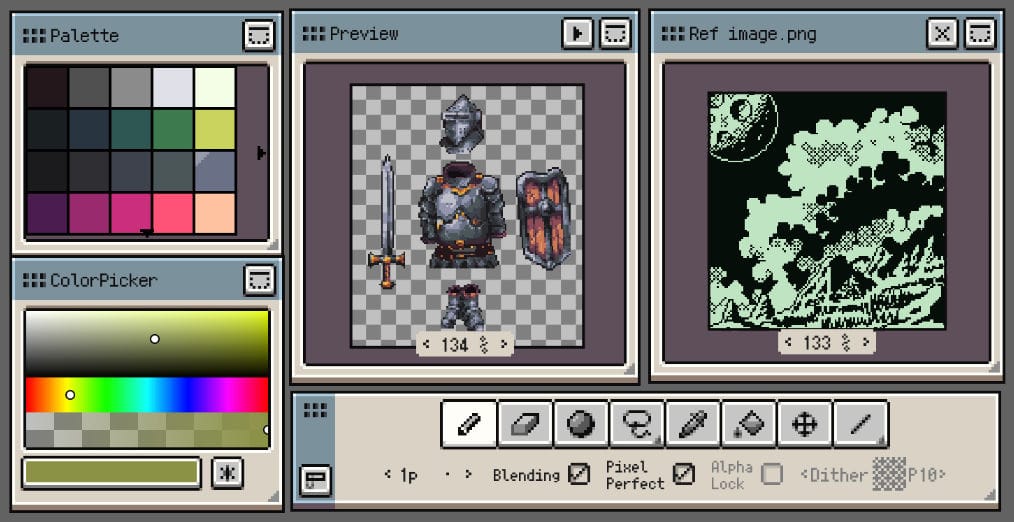
Floating Windows
Arrange panels around the canvas so the tools you use most stay within reach. Save separate workspace layouts for drawing, animation, or palette work, then switch between them as needed.
Arrange floating windows
- Move: drag a floating window by its title bar. On desktop and Android, dragging a docked panel's tab also lets you change its placement.
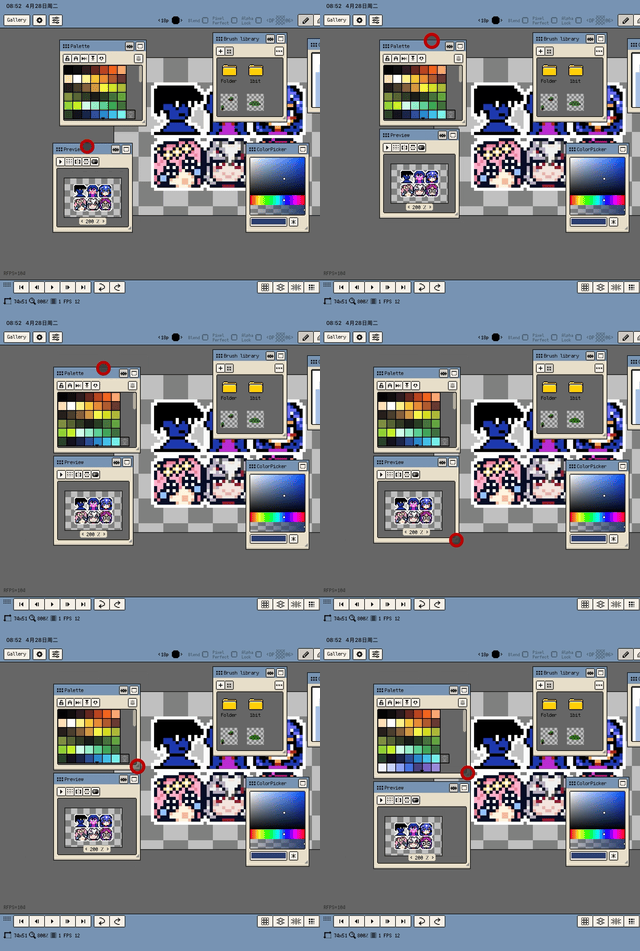
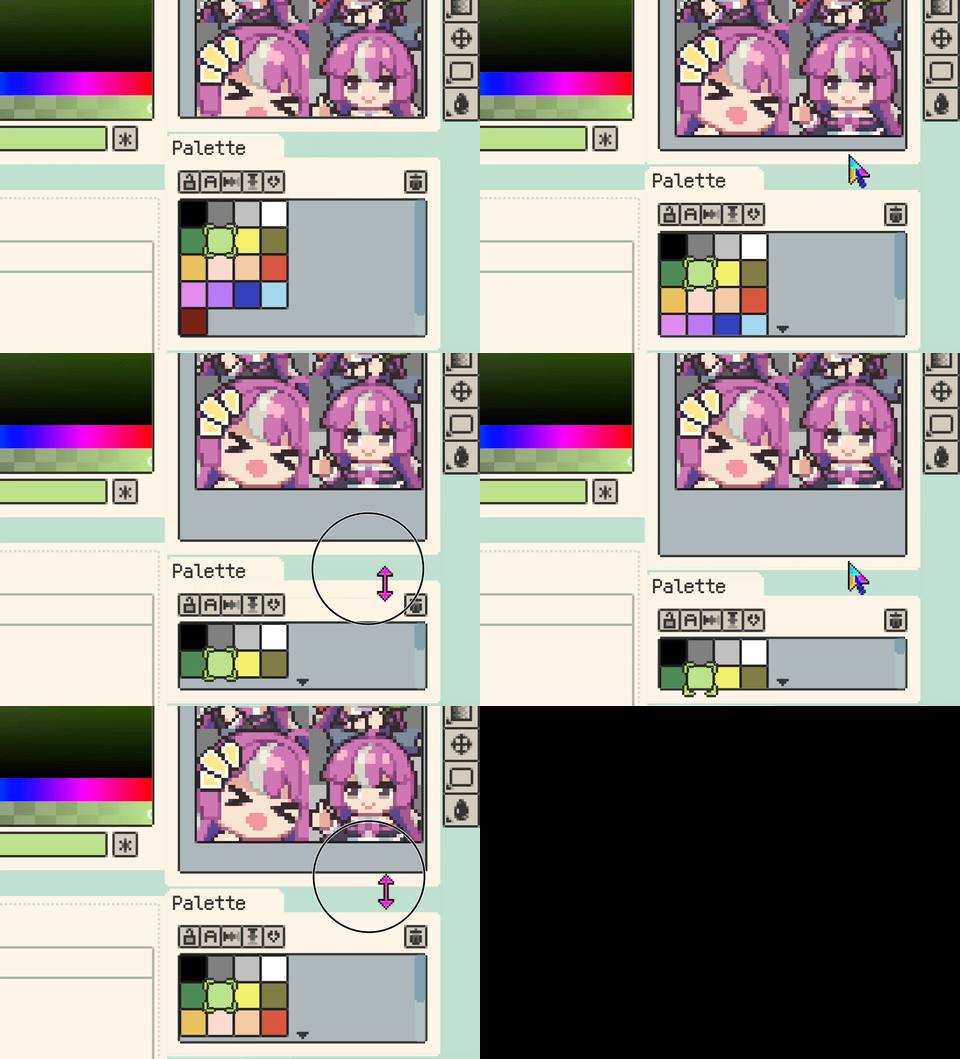
- Resize: drag the resize handle
 . On iOS, the handle can move to the bottom-left corner when the window is near the right edge, making it easier to resize inward.
 - Collapse: use the minimise or fold button
 to temporarily reduce a window to its header.
 - Close: use the window's close button or turn off its entry in the Window menu. You can reopen the panel from that menu.
Floating Top Bars (Desktop & Android)
The Action Bar, Tool Bar, and Tool Options Bar can float independently of the panel layout. Drag them away from their fixed positions and place them near the canvas.
Switch a bar between horizontal and vertical orientation to fit the available space. Nearby bars snap together to form a compact group. Small-screen phones use fixed top bars to leave more room for the canvas.
Snapping and alignment
Snapping helps keep the workspace tidy while you move or resize panels:
- iOS: floating windows can snap to screen corners or to each other. Attached windows can move together, and their snapping relationships are saved with the workspace layout.
- Desktop and Android: split-layout dividers snap to nearby gaps as you drag, helping neighbouring panels line up.
Window Menu Controls
Use Menu ▸ Window to show or hide panels such as the timeline, palette, colour picker, and preview. Keep the panels needed for the current task open and hide the others to make more room for the canvas.
On iOS, panel visibility can also be adjusted in Preferences ▸ Window.
Workspace Layouts
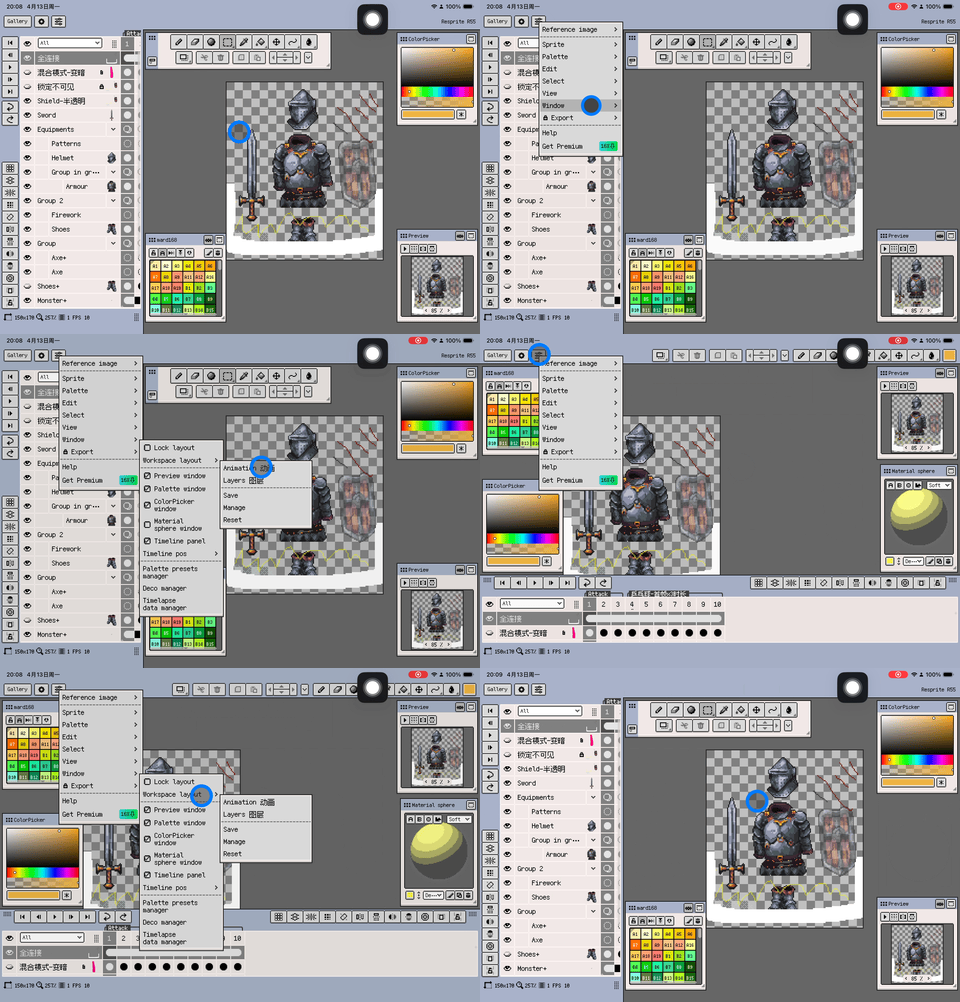
Use Menu ▸ Window ▸ Workspace Layout to save and switch arrangements:
- Arrange the panels for the task.
- Choose Save and give the layout a name.
- To use a saved layout, select its name in the same menu.
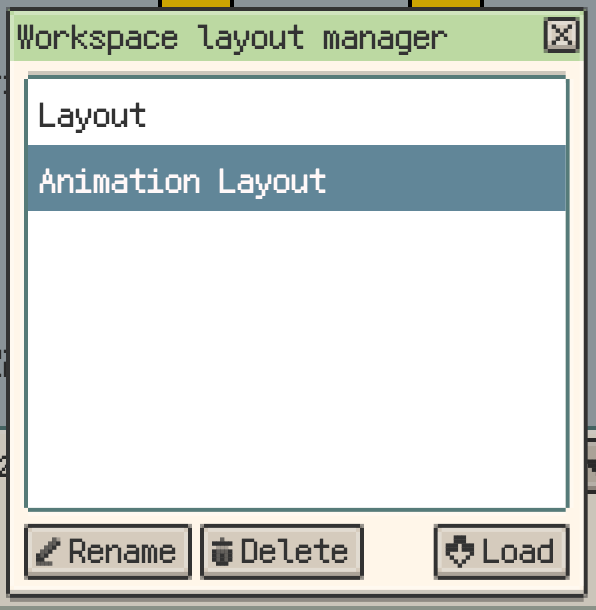
- Choose Manage to load, rename, or delete saved layouts.
Choose Reset from the Workspace Layout menu to restore the current workspace to its default arrangement.
Lock the layout
After arranging the workspace, enable Window ▸ Lock Layout to prevent accidental panel movement. Unlock it when you want to rearrange the panels.
On desktop and Android, Preferences ▸ General ▸ Prevent Panel Resize After Layout Lock also prevents split-panel resizing while the layout is locked. This option is off by default. Layout lock can also be assigned a keyboard shortcut.
Manage Open Files from Canvas Tabs
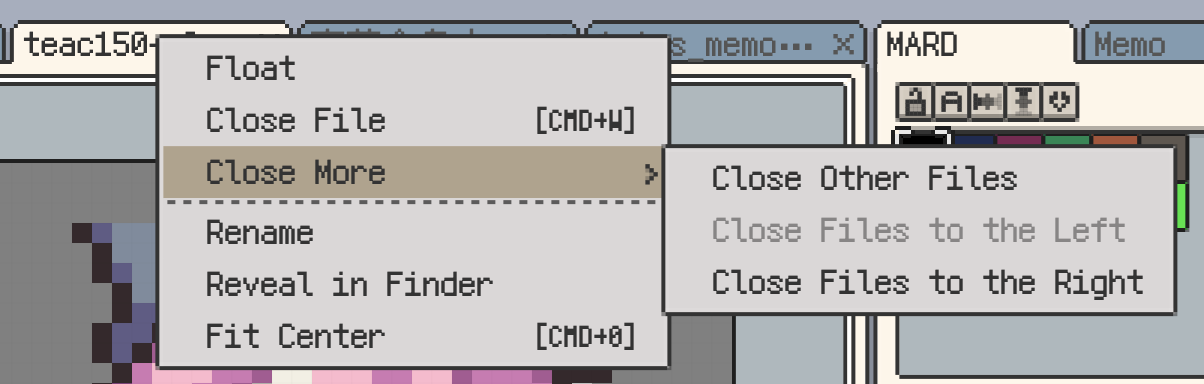
On desktop, right-click a canvas tab and open Close More to close several files at once:
- Close Others
- Close Left
- Close Right
If a file has unsaved changes, follow the save prompt before closing it.