Canvas
Adjust the canvas view to work on individual pixels or review the whole composition. Use grayscale and tiled previews to check the result, and grids or perspective guides to help place strokes and align shapes.
Viewing and zooming the canvas
Pan and zoom with touch gestures, a mouse, or a trackpad. Desktop and Android also provide a Zoom Tool.
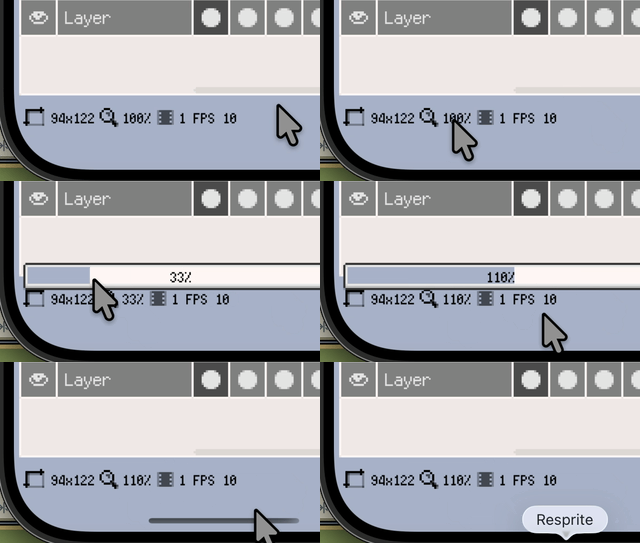
The zoom percentage in the bottom status bar provides two useful controls:
- Click or tap it to open the zoom slider.
- Long-press it to fit the canvas into the visible area and center it.
These controls change the view scale while keeping the artwork's pixel dimensions unchanged. For touch navigation, see Gestures & Input.
Canvas rotation (iOS & Android)
Rotate the view to draw from a comfortable angle. This touch gesture is available on iOS and Android and is off by default.
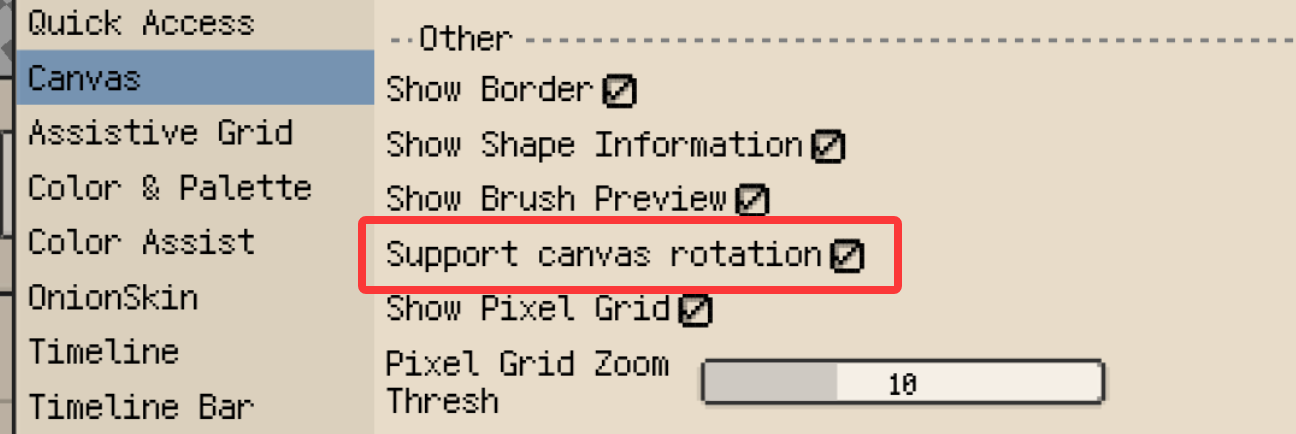
- Open Preferences ▸ Canvas and enable Support canvas rotation.
- Rotate two fingers on the canvas. The same gesture can also pan and zoom the view.
- To return to 0°, long-press the angle beside the zoom percentage in the bottom status bar.
View rotation keeps the sprite's pixels and exported orientation unchanged. To rotate the artwork itself across all frames and layers, use Sprite ▸ Canvas Rotate; see Create and Configure Sprites.
Grayscale Preview
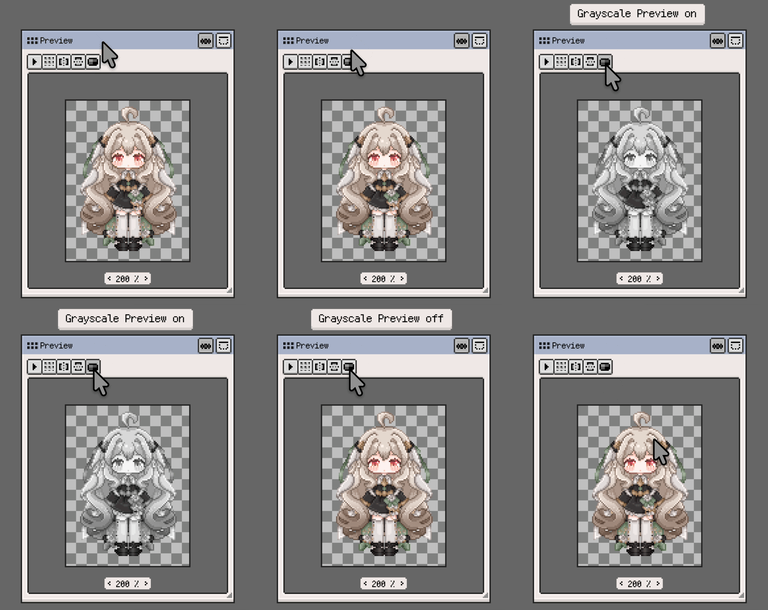
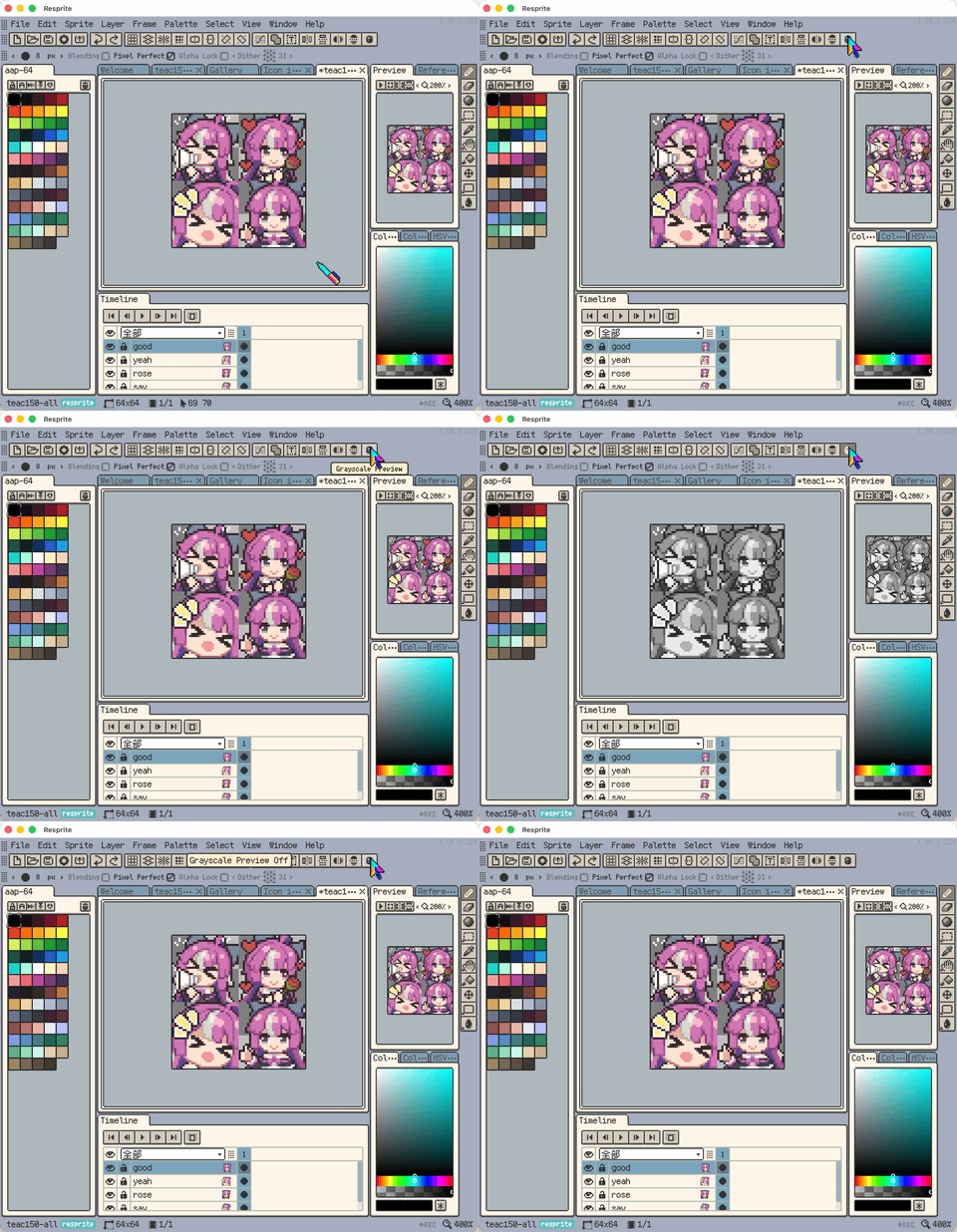
Grayscale Preview shows the main canvas and Preview window in grayscale together. Use it to inspect silhouettes, value contrast, and shading while preserving the sprite's colours and exported image.
For the controls on each platform, see Grayscale Preview in the Preview window.
Tiled Mode Preview
Tiled Mode repeats the artwork while you draw, making it easier to check seams in textures, terrain, and repeating backgrounds. The document's Tile Profile determines the repeat shape and direction.
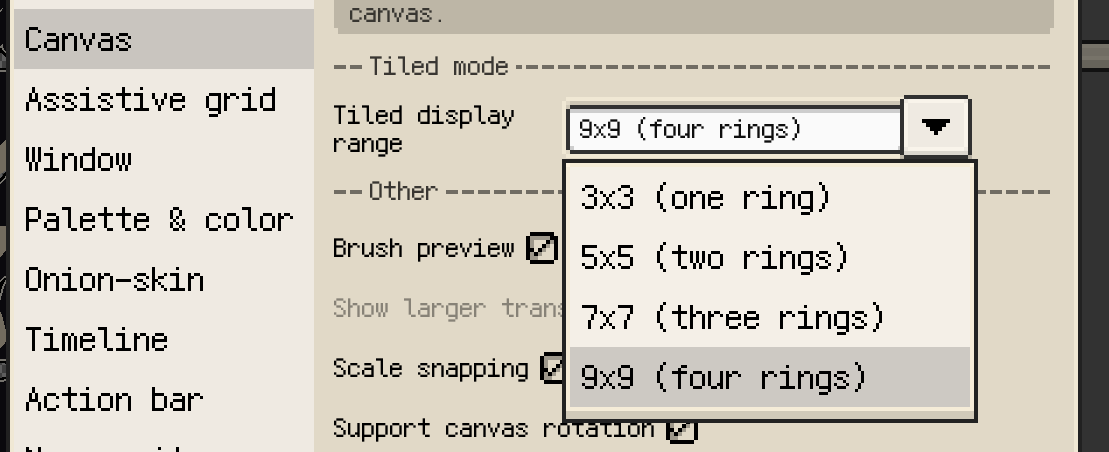
Set Tiled Mode display range in Preferences ▸ Canvas to choose how many copies surround the original tile. The main canvas, Preview window, and brush preview share this range:
3x3: one ring of copies5x5: two rings; the default7x7: three rings9x9: four rings
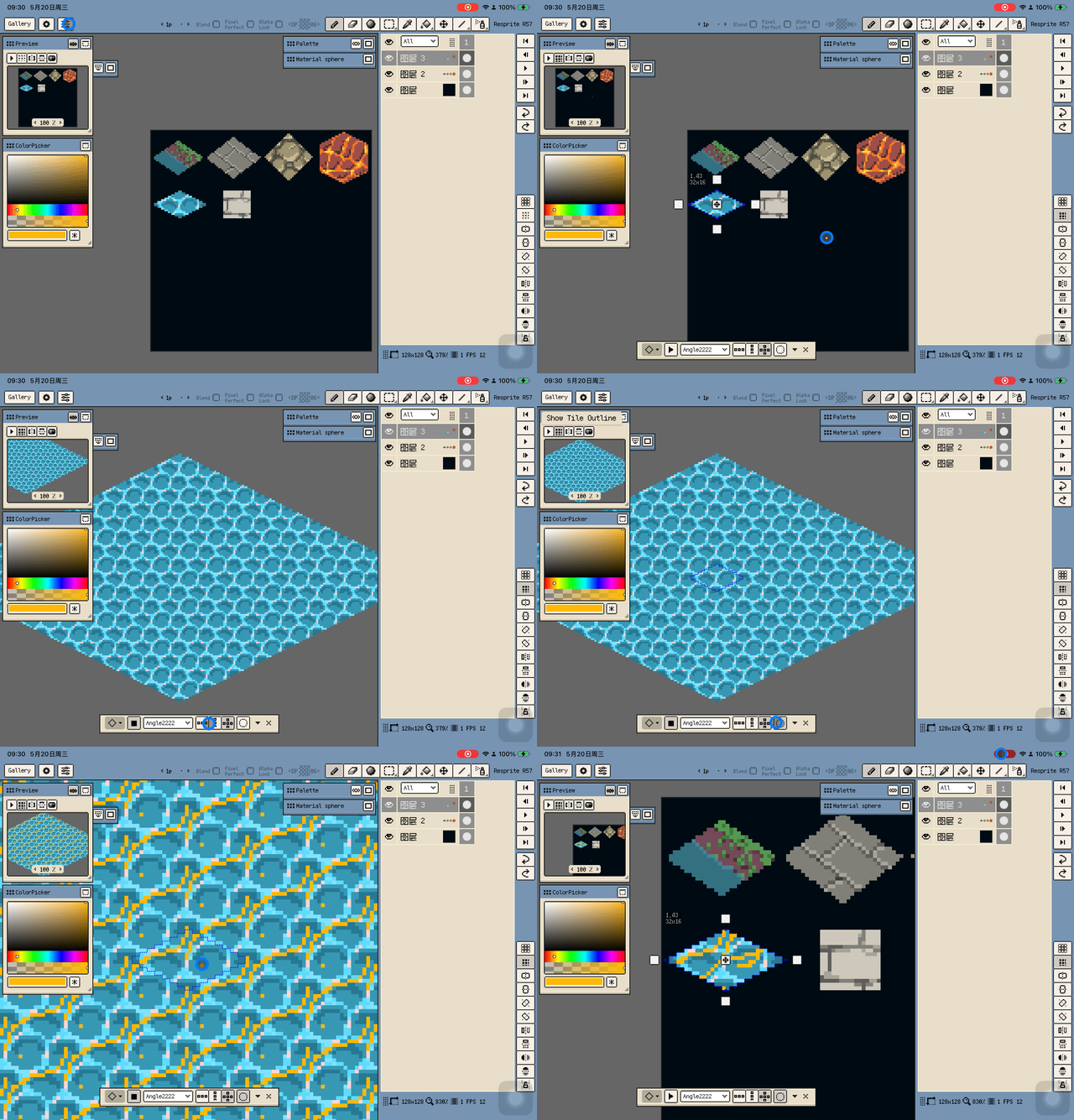
Isometric diamond and hexagonal Tile Profiles let you inspect non-rectangular repeats. Use Toggle Isometric Axis in the profile controls to switch between wide and tall orientations.

For a map built from placed tiles, continue with Tilesets and Tilemaps.
Grid lines and pixel grid
Use a regular grid to align shapes or divide the artwork into cells. Toggle it from the view controls, then set its width, height, and offset in the canvas-side grid panel. In compact layouts, these values are grouped in a parameter dialog.
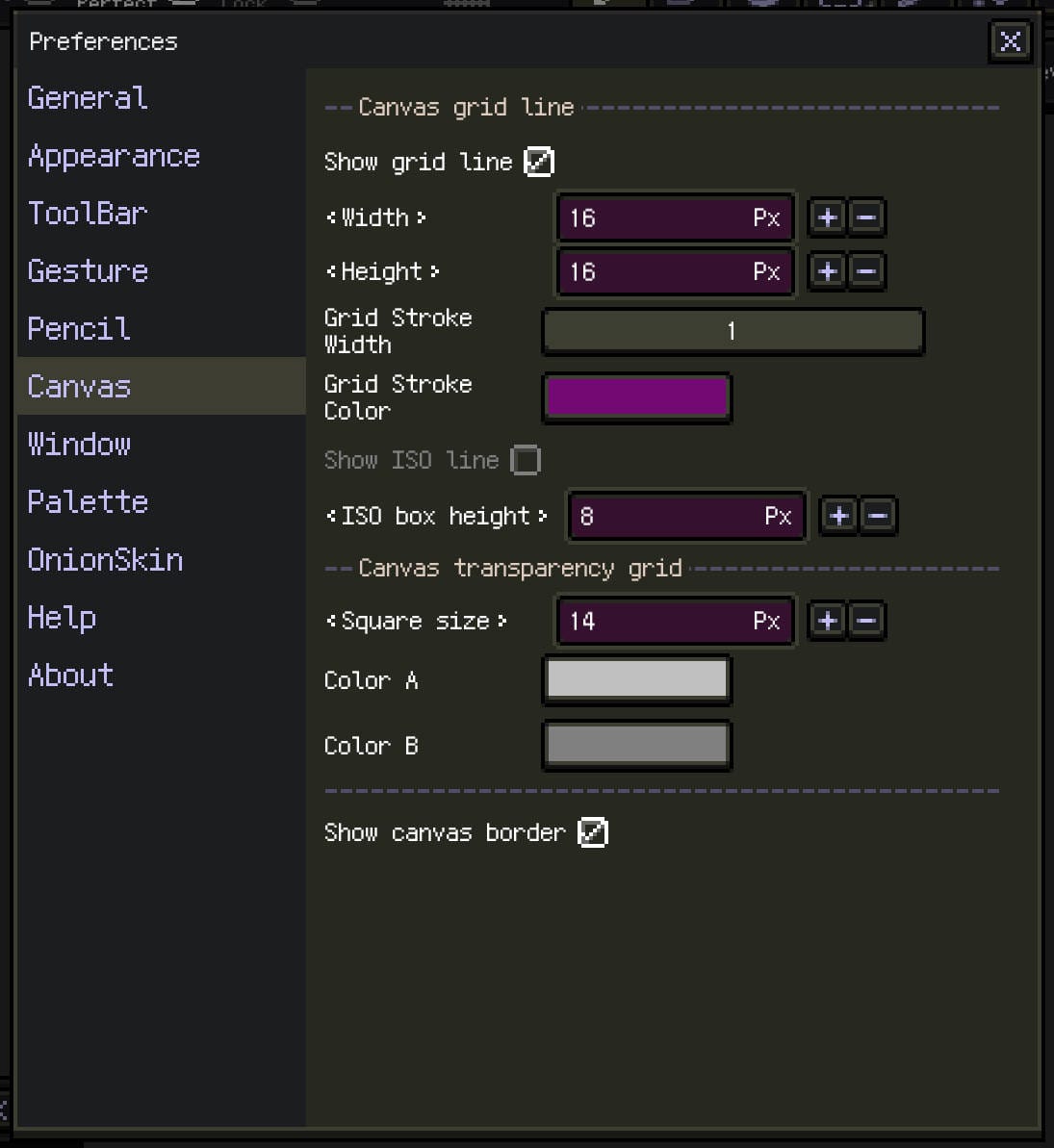
Show Pixel Grid outlines individual pixels once the zoom reaches the threshold set in Preferences ▸ Canvas. Use it for single-pixel alignment and edge cleanup.
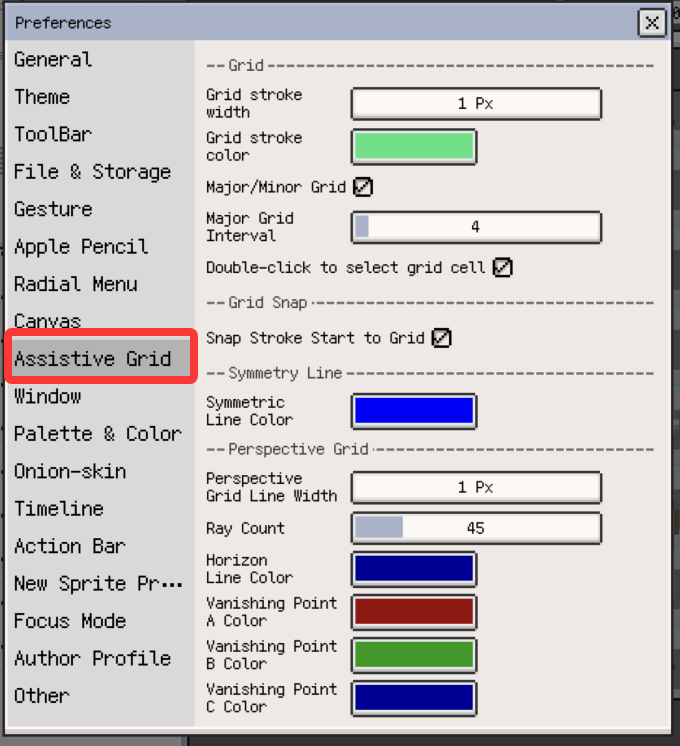
Grid dimensions and offsets belong to the current sprite. Line appearance and interaction options are configured in Preferences ▸ Assistant grids.
Grid snapping & grid controls
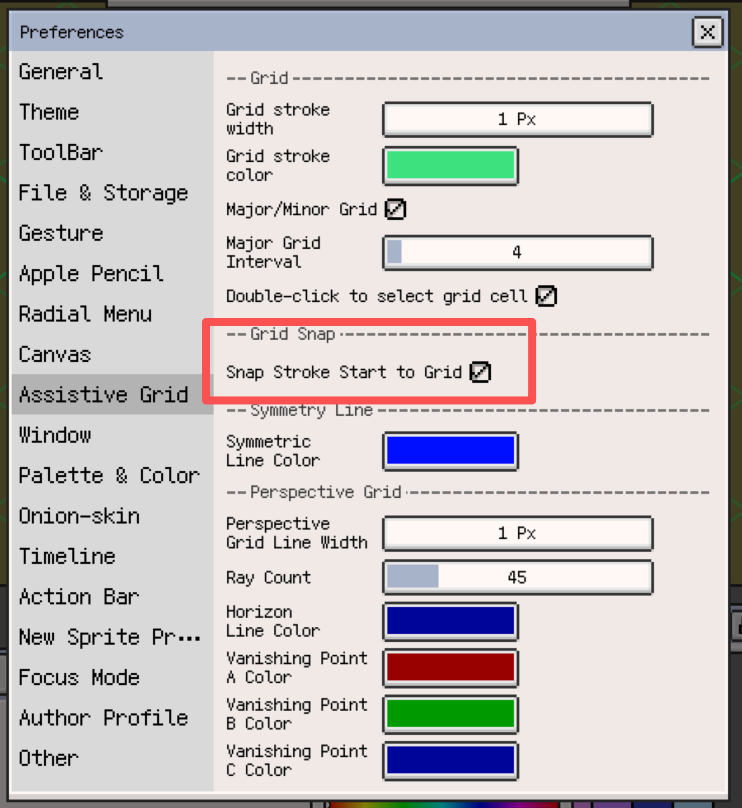
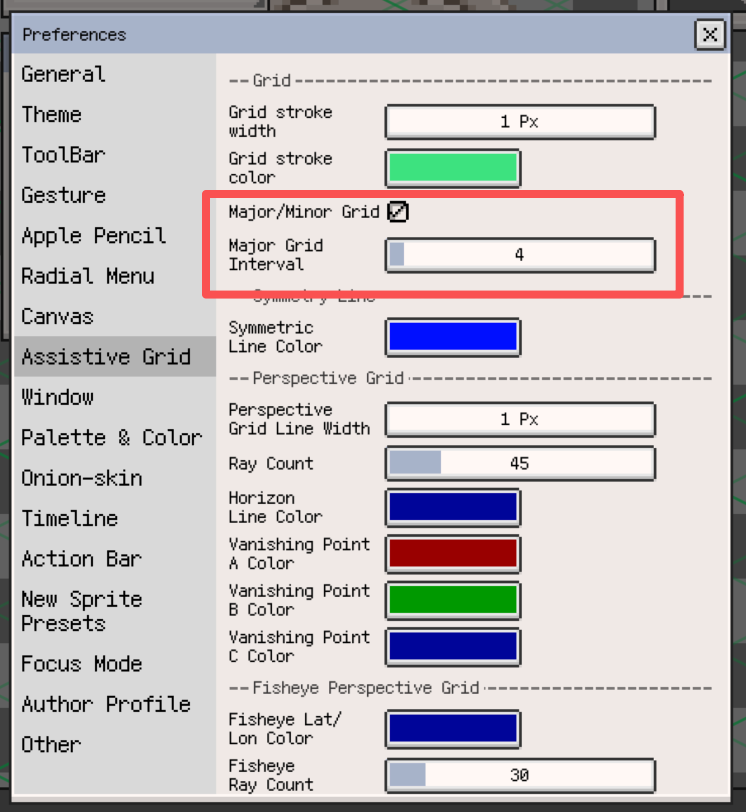
Enable grid snapping to align drawing positions with the grid. In Preferences ▸ Assistant grids, adjust start-point snapping and related behaviour to suit the way you draw.
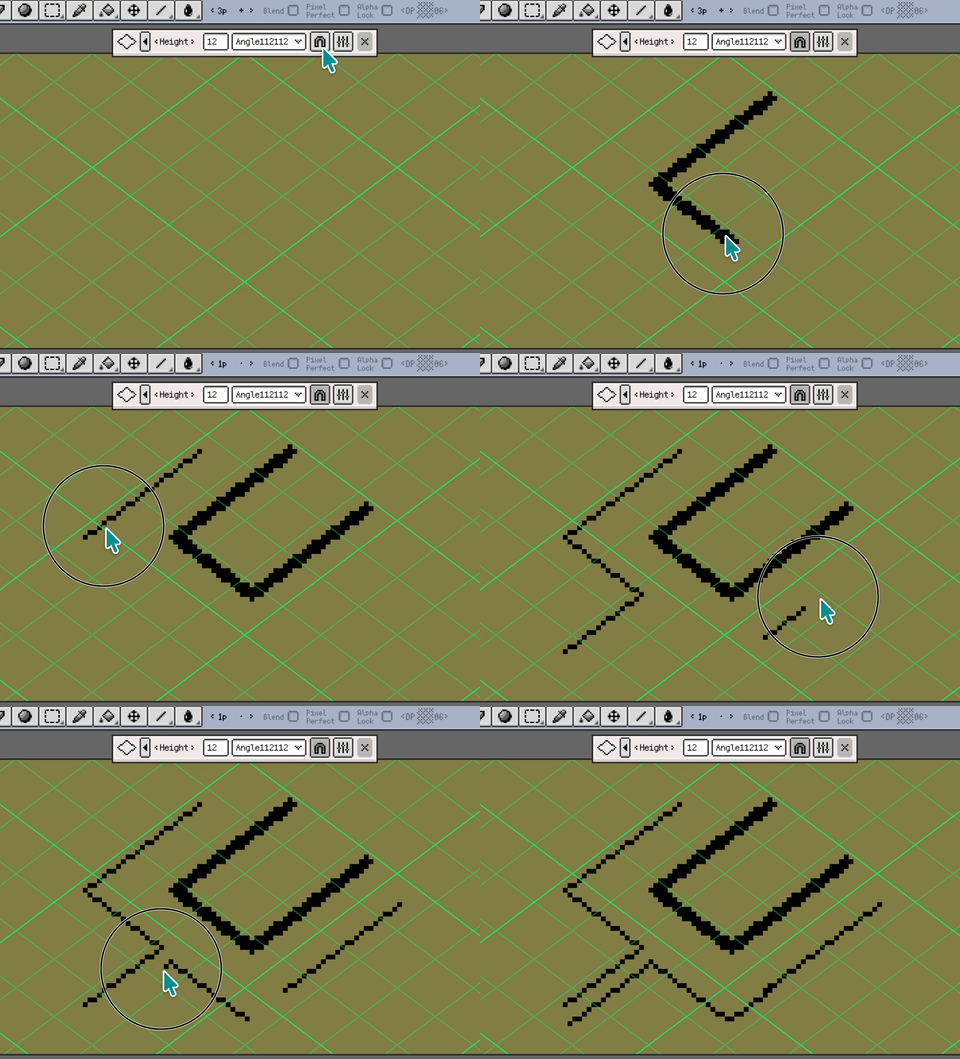
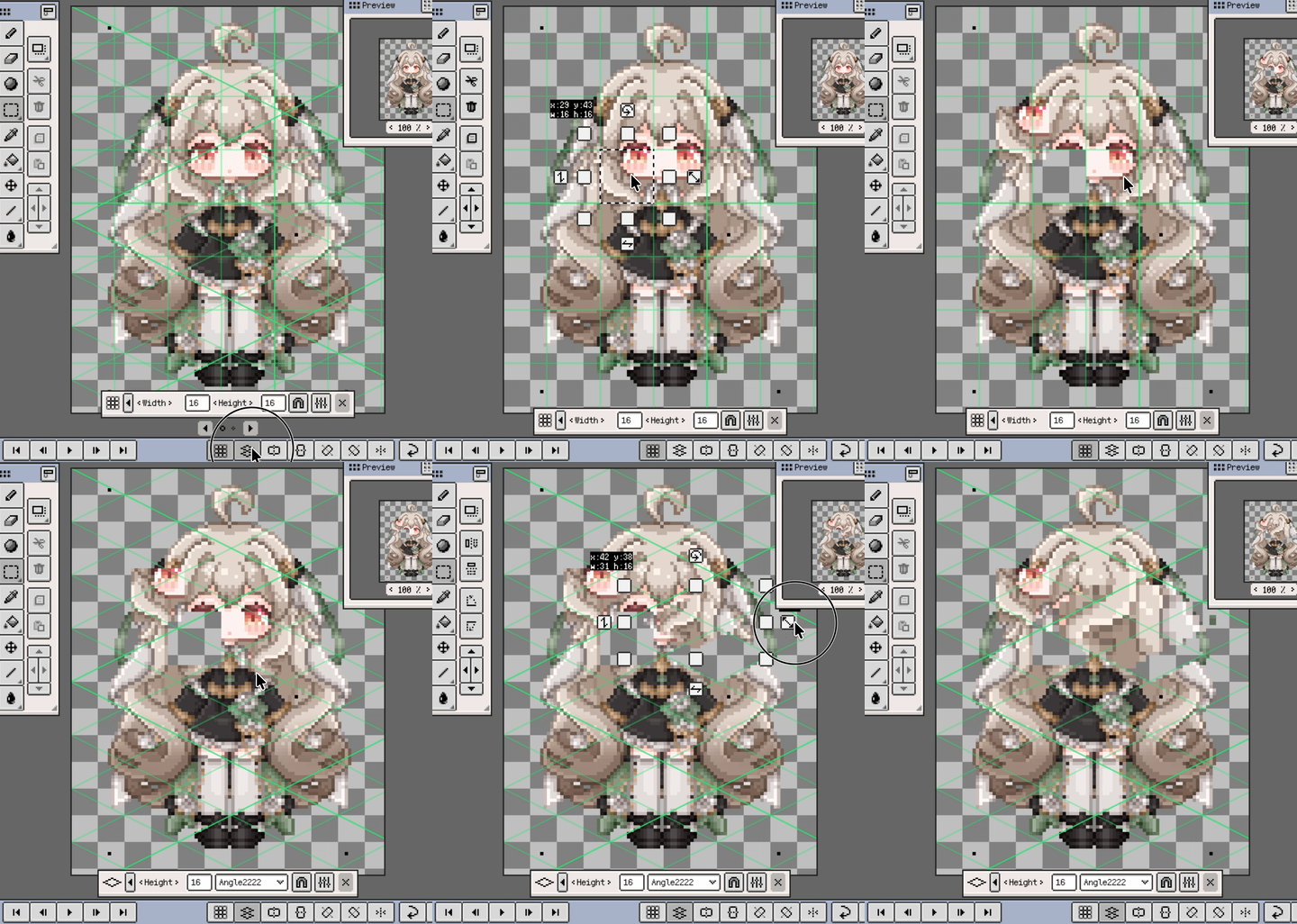
When a grid is visible and Double-click to select a grid cell is enabled, double-click or double-tap a cell to select its area.
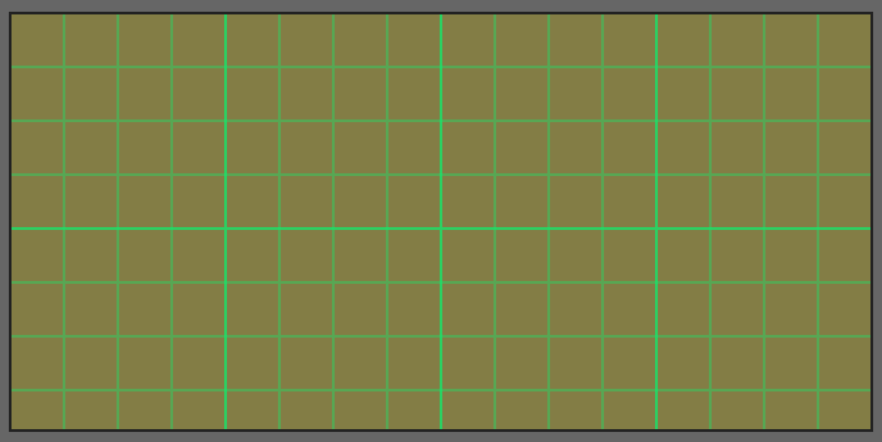
Major/minor grid display makes larger divisions easier to distinguish. Use grid offsets to align the cells with the artwork's origin.

Isometric guides
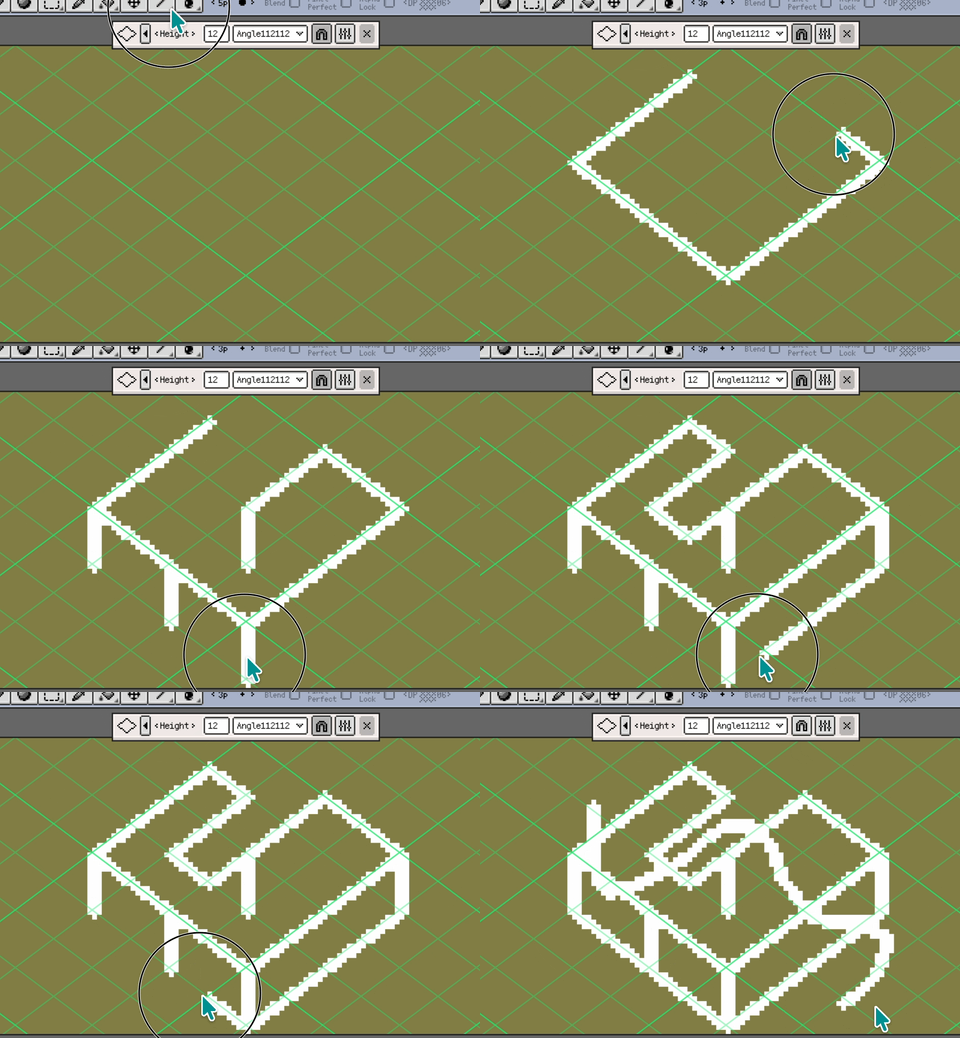
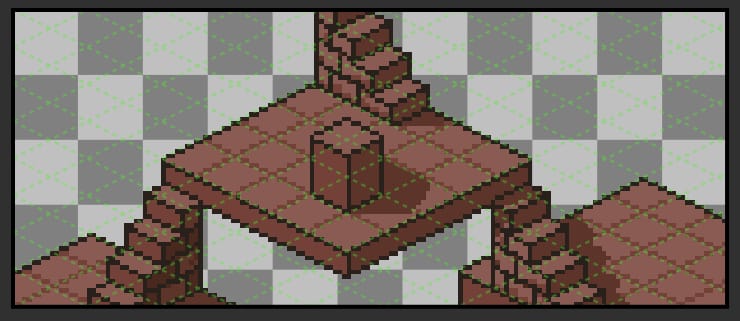
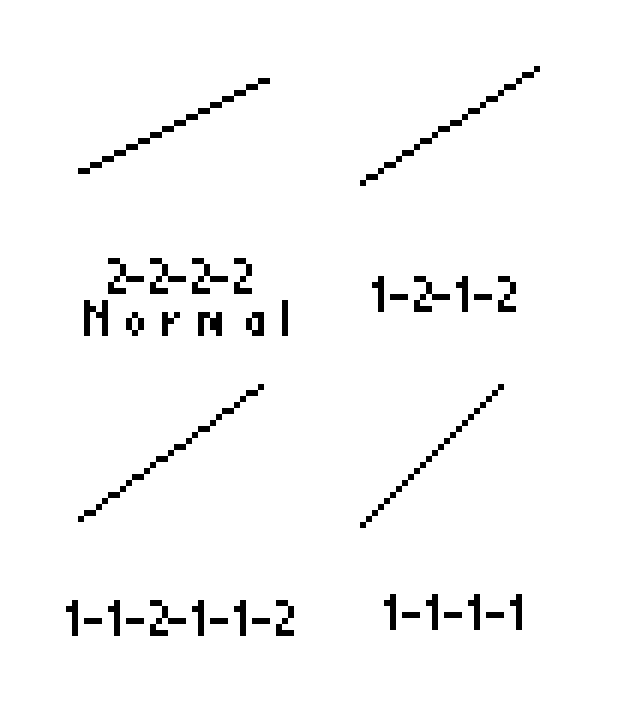
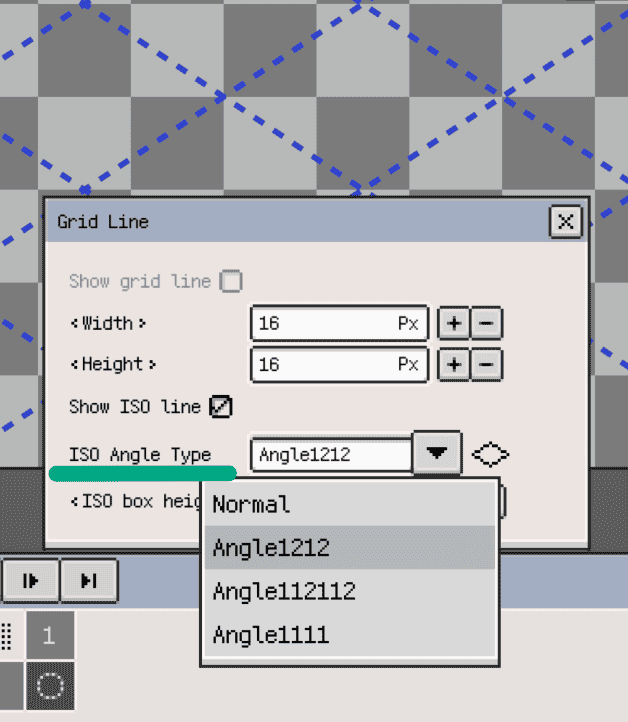
Enable isometric guides from the view controls when drawing isometric scenes or tiles. Set the height, offset, and ISO angle type in the isometric grid panel or its parameter dialog to match the artwork's proportions.
Assistant grids
Use perspective grids to establish depth and align buildings, streets, or interiors. Choose one-point, two-point, three-point, or fisheye perspective from the canvas-side perspective panel, then position the guides for the scene.
The guide line count, weight, and colours are configured in Preferences ▸ Assistant grids. You can combine perspective guides with regular or isometric grids. Moving perspective guides or the symmetry tool is undoable.

Canvas preferences
Use the following locations for display preferences and sprite-specific grid values:
| What to adjust | Where to adjust it |
|---|---|
| Transparency checkerboard colours and square size; pixel grid visibility and zoom threshold; tiled display range | Preferences ▸ Canvas |
| Grid line weight and colour; major/minor grid display; grid-cell selection and snapping; perspective guide appearance | Preferences ▸ Assistant grids |
| Grid width, height, and offset; isometric height and angle; the current perspective grid | The relevant panel on the canvas or its parameter dialog |
Change canvas size
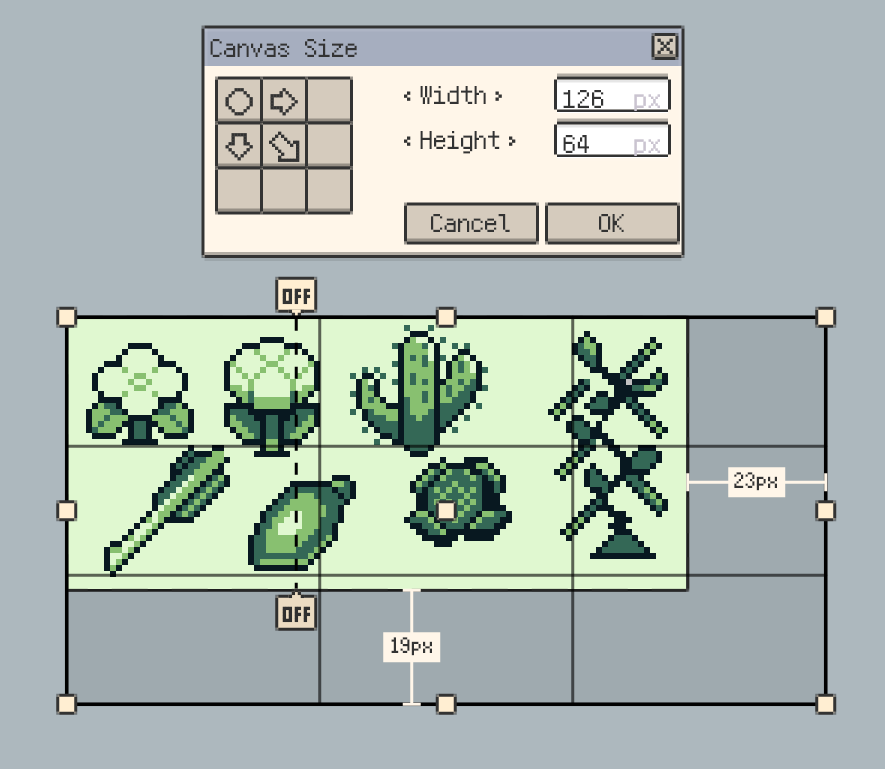
Choose Menu ▸ Sprite ▸ Canvas size to add margin, extend an edge, or crop the bounds while keeping existing pixels at their current scale. Use the size and alignment controls, or drag the canvas bounds during interactive resizing.
To scale the artwork itself, use Sprite size. For sprite-wide rotation, flipping, and trimming, see Create and Configure Sprites. For adjustments to selected pixels, see Editing.
Further reading
- Gestures & Input: touch and stylus navigation
- Preview: animation and display controls
- Create and Configure Sprites: artwork size and global operations
- Editing: selection-based edits