Export Artwork
Save a .resprite original for continued editing, then export the format your recipient needs. On iOS, open Menu ▸ Export; on desktop and Android, use Menu ▸ File ▸ Export. Palette files use the separate palette workflow.
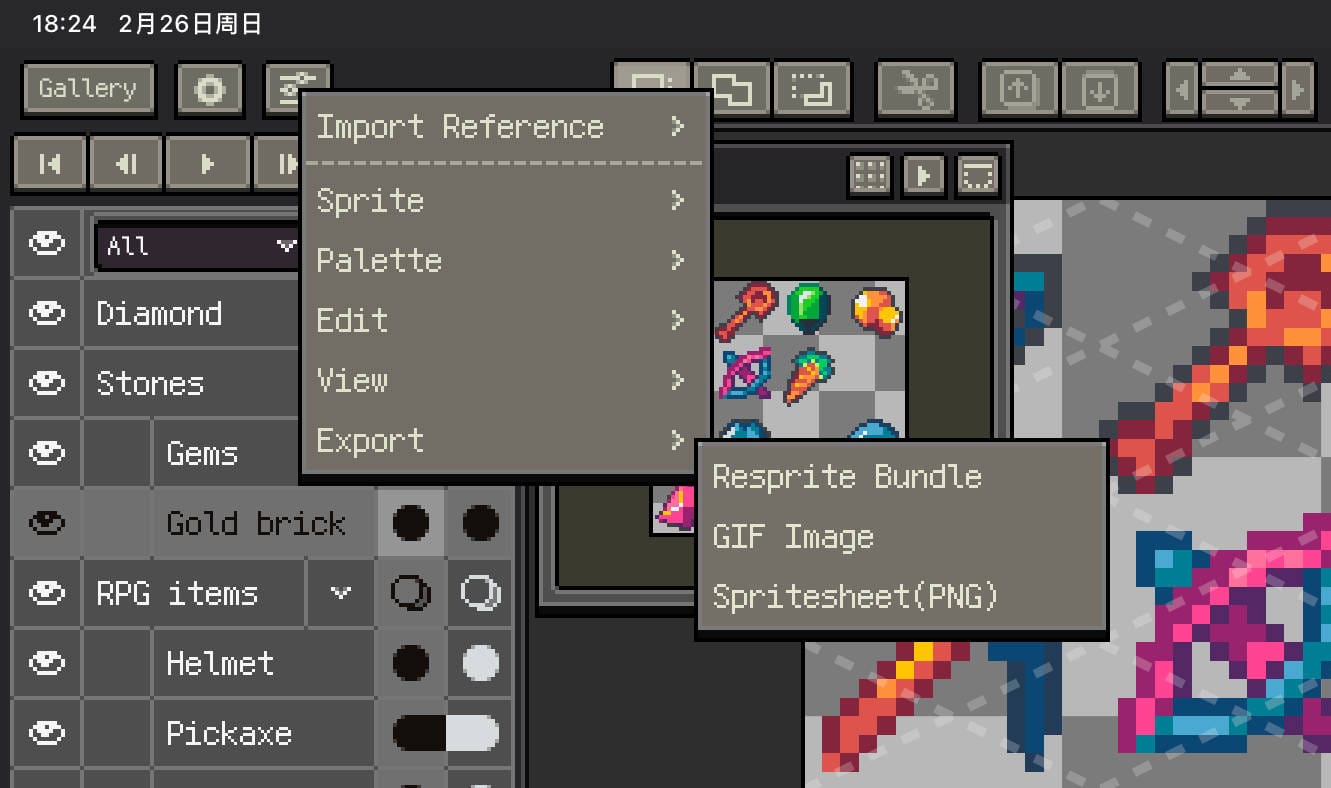
Choose an output
| Goal | Format or workflow |
|---|---|
| Keep editable project data | .resprite |
| Deliver a still image, frame sequence, or sheet for a game | Sprite Sheet (PNG), with the current frame or a frame range selected |
| Preview animation | GIF, APNG, or video; desktop and Android also offer WebP |
| Exchange layered artwork | PSD for one frame, or Aseprite for supported timeline data |
| Exchange maps or tilesets | Tiled map, .tsx, or .restile |
| Print or share a beading reference | Bead Pattern |
For image exports, check the frame range, magnification, padding, and displayed output size. Larger dimensions and longer frame ranges increase encoding time and memory use.
Resprite Bundle (.resprite)
Export a Resprite Bundle to keep layers, frames, clips, palettes, reference images, and project settings together. Use it for continued editing, backups, or sharing an editable project. Timelapse data is stored separately and is not part of the bundle.
GIF Animation / APNG Animation
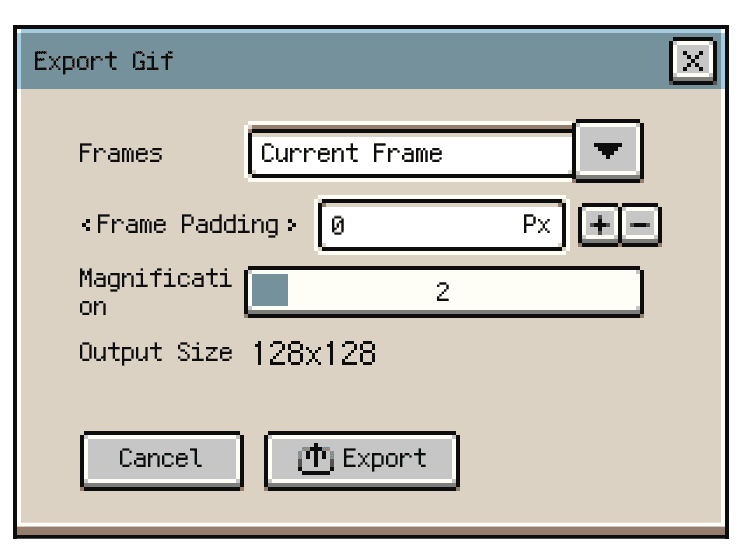
Choose GIF or APNG for a playable animation. Select all frames, the current frame, or a clip, then set padding and magnification. APNG supports full colour and alpha transparency; GIF uses a limited palette. Check playback and transparency in the app where the result will be used.
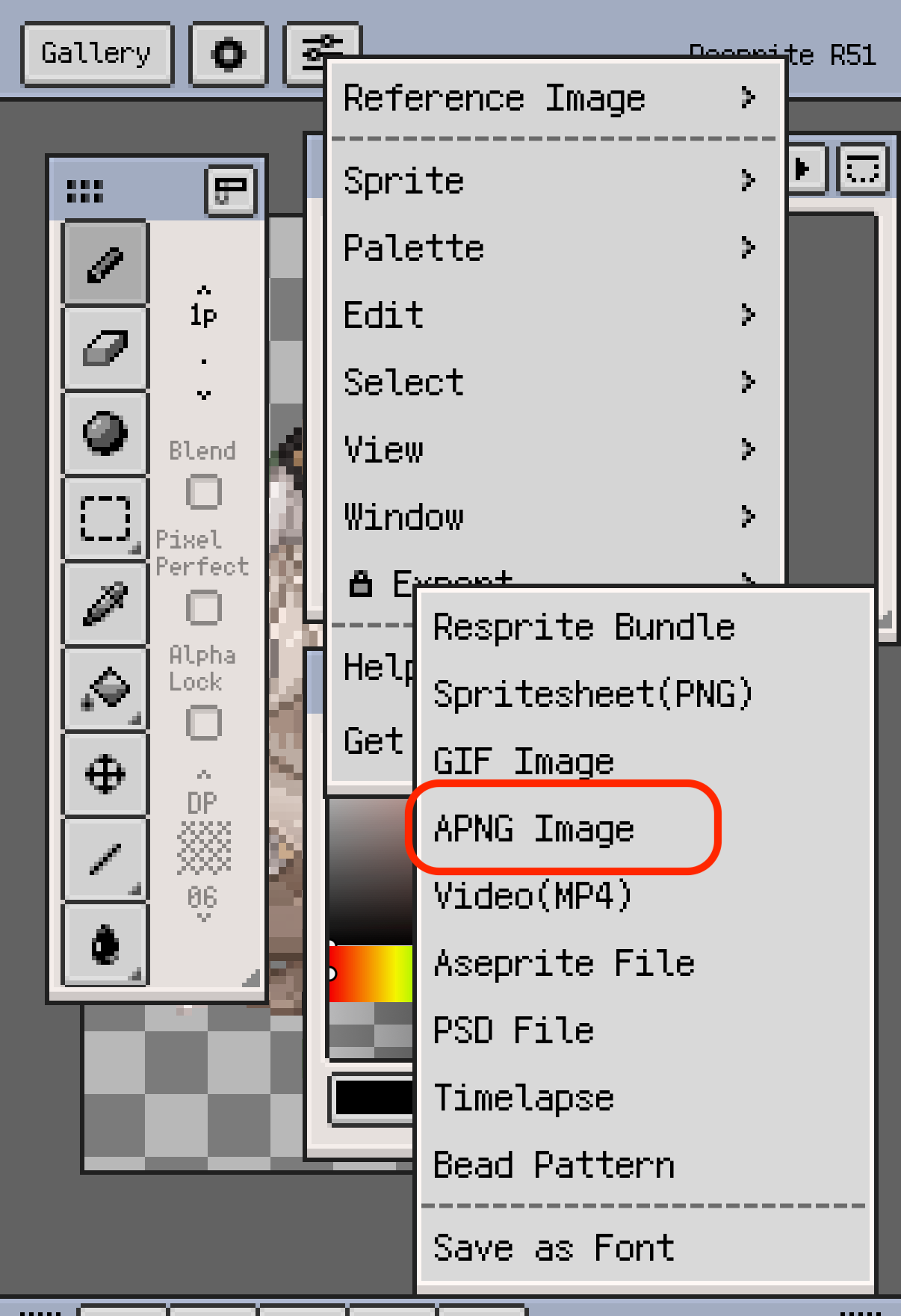
On desktop and Android, WebP export supports still images and animation, with lossless or lossy output options.
Sprite Sheet (PNG)
Arrange frames into a PNG grid for game engines or other tools. Select the frame range, layout, column count, padding, and magnification. Select only the current frame when you need one PNG image.
Use Repeat Frames by Duration when holds should appear as repeated frames, and apply clip playback direction when the sheet should follow that order. See frame duration for timing.
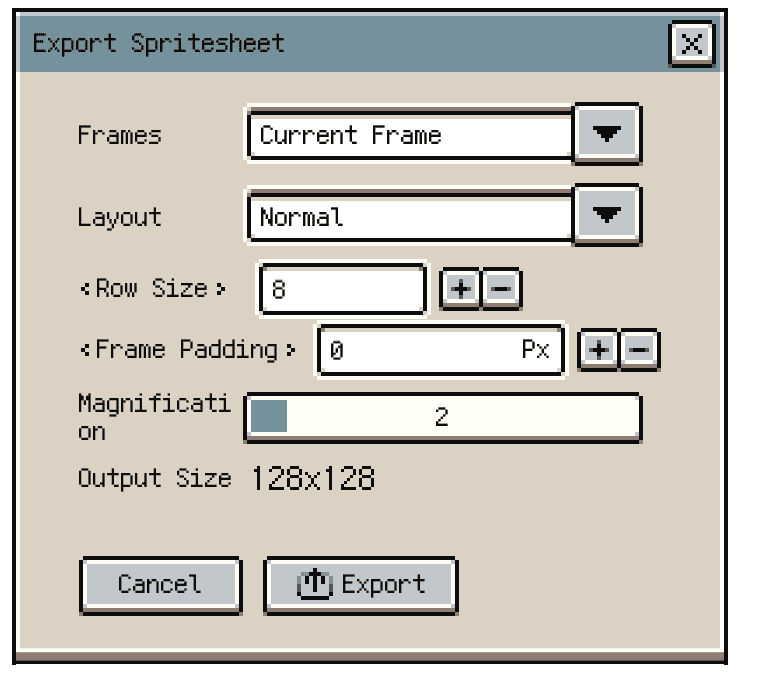
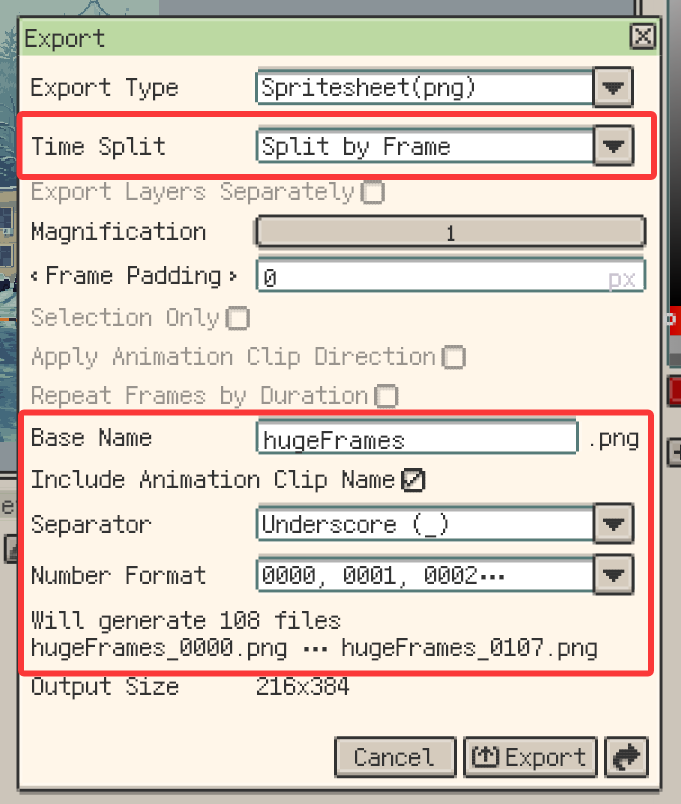
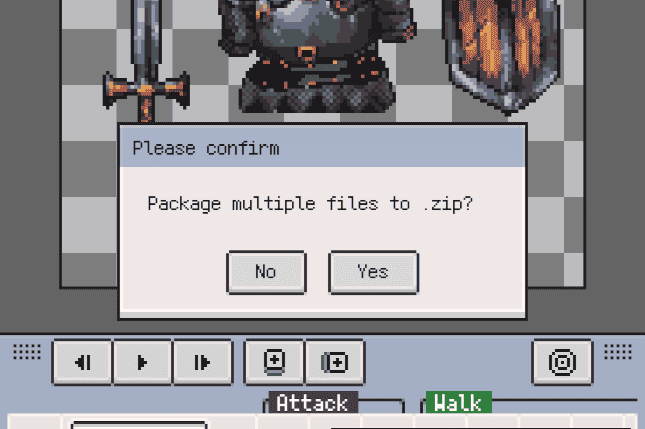
To generate several files, split by frame or animation clip, and optionally split by layer as well. Configure the base name, clip name, layer label, and frame numbering to match the destination's naming rules. iOS can package the results as ZIP; desktop can write them to a selected folder.
Export Layers
Use the layer split option to export separate layer images. In Sprite Sheet naming options, choose a layer name, number and name, or number-only label. For formats with an Add layer number option, turn it off when only the layer name is needed. Check the output names before sharing a multi-file result.
Faster Repeat Exports on Desktop
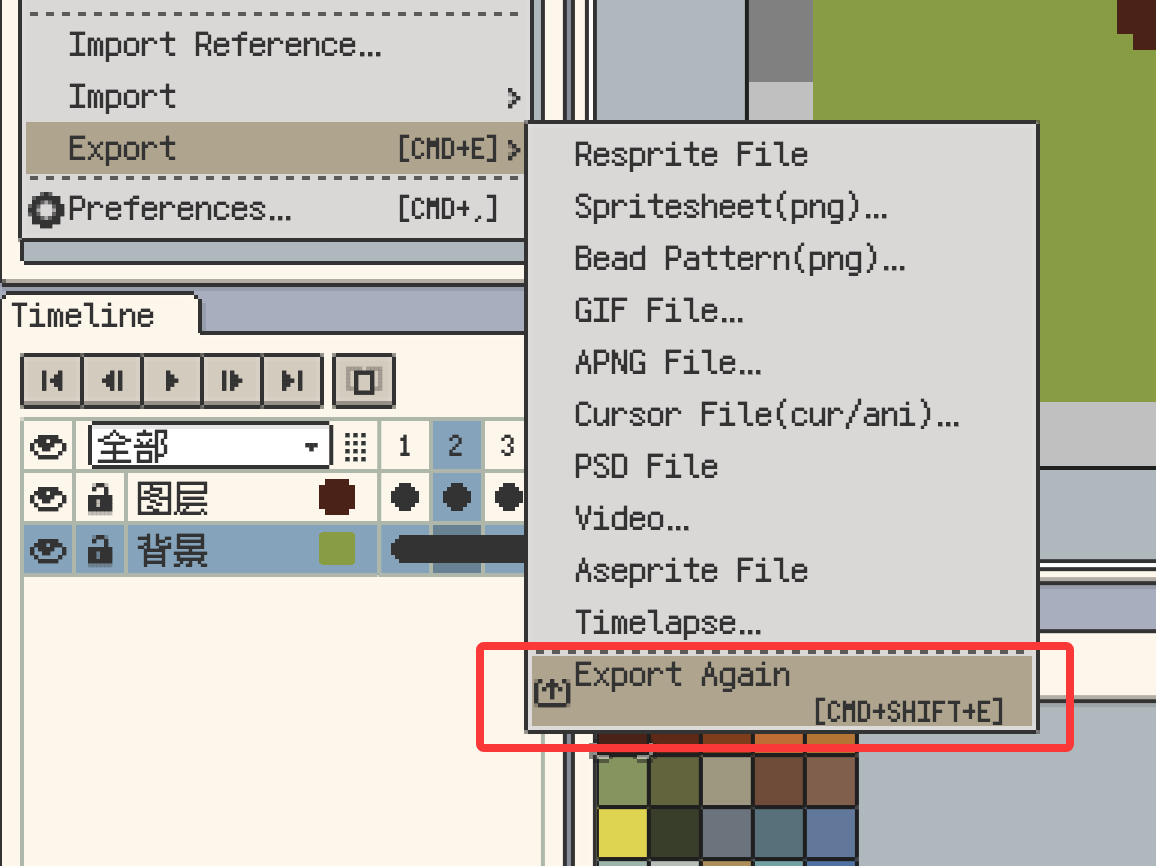
Export Again repeats the last export for the current saved project, using its recorded destination and settings. If there is no usable export record, perform a normal export first. Review the target when prompted before replacing existing output files.
Sharing exported files
Use the system share sheet or save the output to Files or a chosen folder, then send it to the destination app. Add captions in that app's composer if needed.
Tiled Maps and Tilesets
Export a document containing tilemap layers as a Tiled map package with .tmx, .tsx, and PNG resources. Different map configurations can produce several .tmx files. For a single reusable tileset, choose .tsx for Tiled or .restile for Resprite. See Tiled Map Compatibility.
Aseprite (.aseprite)
Export an Aseprite copy for supported layers and timeline content. Live layer styles and native tilemap structures are not retained as editable features; other conversion limits also apply. Review Aseprite compatibility before handing off a complex project.
Photoshop PSD (.psd)
Select the frame to deliver, then export PSD. The file contains layered content for that frame, including supported groups, blend modes, opacity, visibility, and image-layer clipping masks. It does not contain the timeline animation. See PSD Import and Export for styles, group clipping, and other conversion limits.
Cursor Files (.cur, .ani)
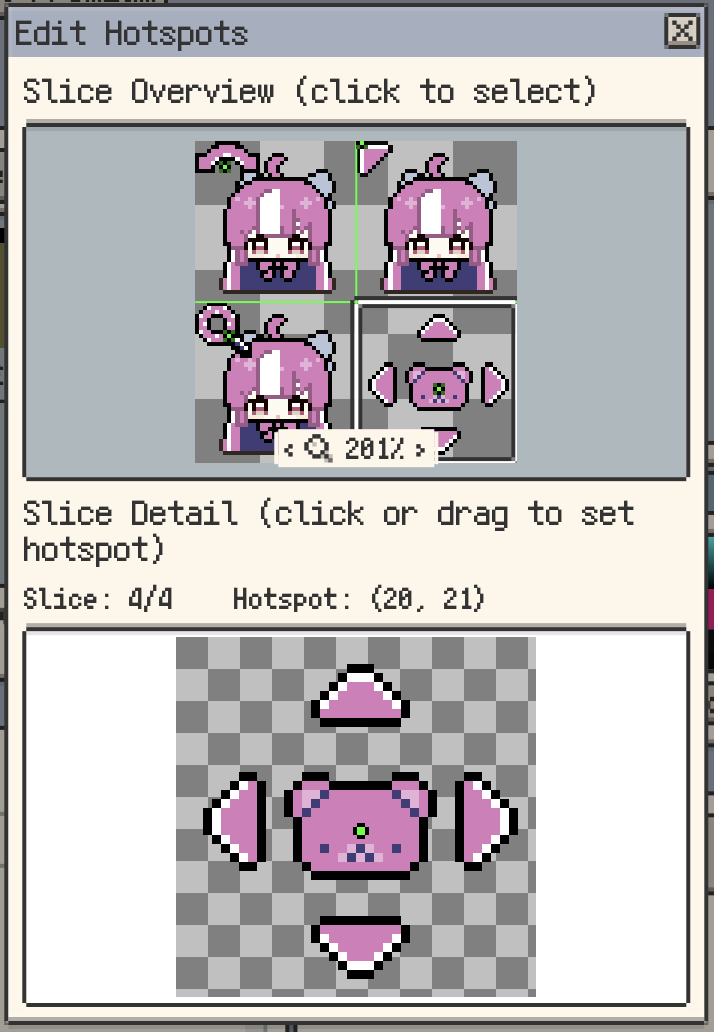
Create static or animated Windows cursor files. Configure the slice size and offsets when the artwork contains several cursor images. The main preview is for inspection; use the dedicated hotspot editor to set each cursor's active point before exporting.
Bead Pattern
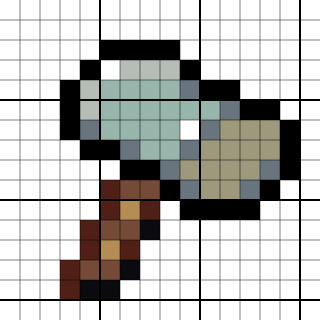
Choose Bead Pattern (PNG) to turn artwork into a gridded reference with palette-based colour names and usage counts. Configure the grid and labels, check colour differences, and add a watermark when needed. The complete workflow is in Create Bead Patterns.
PNG DPI Option
On desktop, Preferences ▸ File & Storage ▸ Enable PNG High DPI controls DPI metadata for PNG output. DPI affects how compatible layout or printing tools interpret physical size; it does not add pixels. Set the required pixel dimensions with magnification or the relevant size controls.
Video
Export the finished animation as H.264 video in an MP4 container. Set the frame range, loop count, and output resolution, then check the displayed duration. Desktop and Android also offer bitrate settings. The platform's video facilities handle encoding.
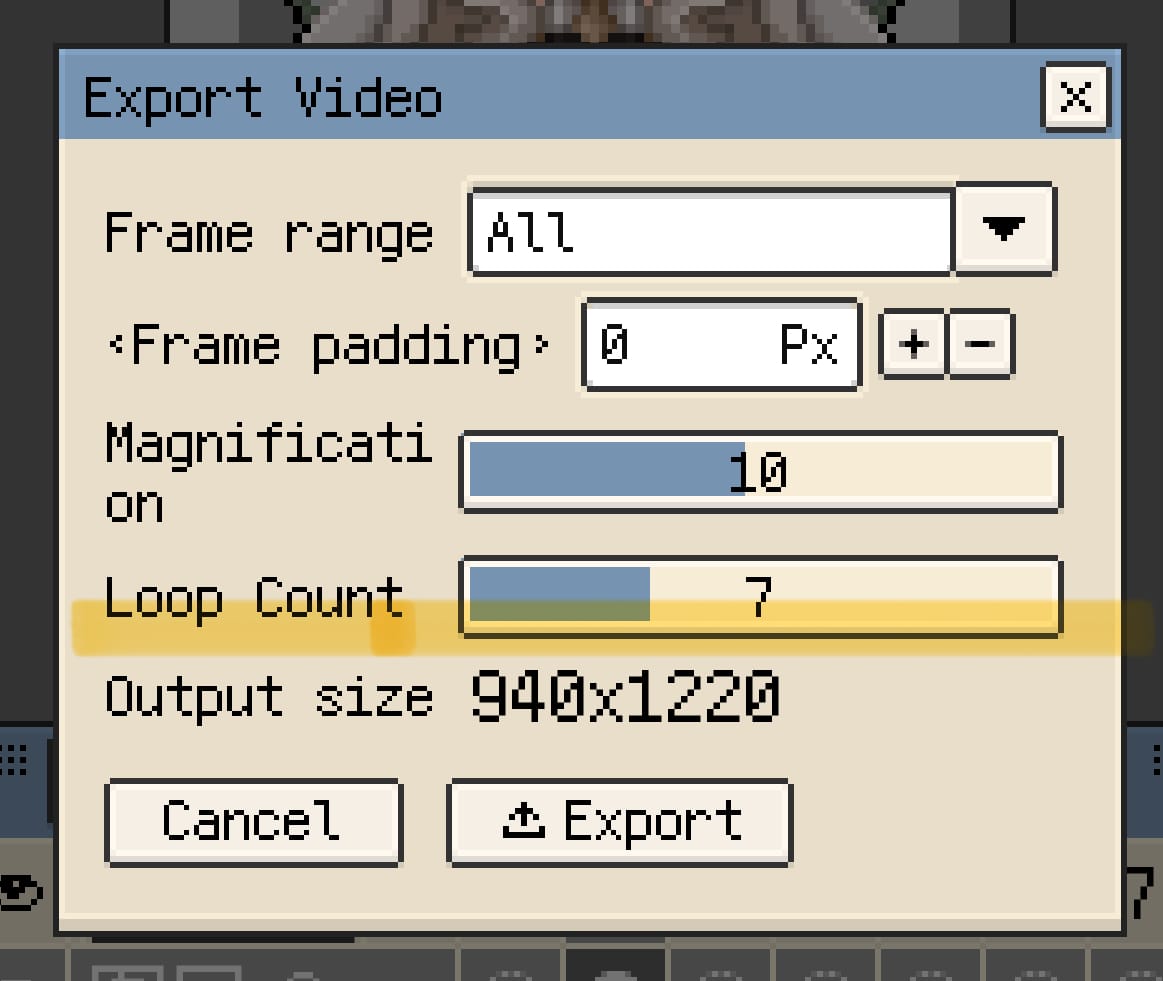
To show how the artwork was drawn, use Timelapse instead.
Batch Export from Gallery
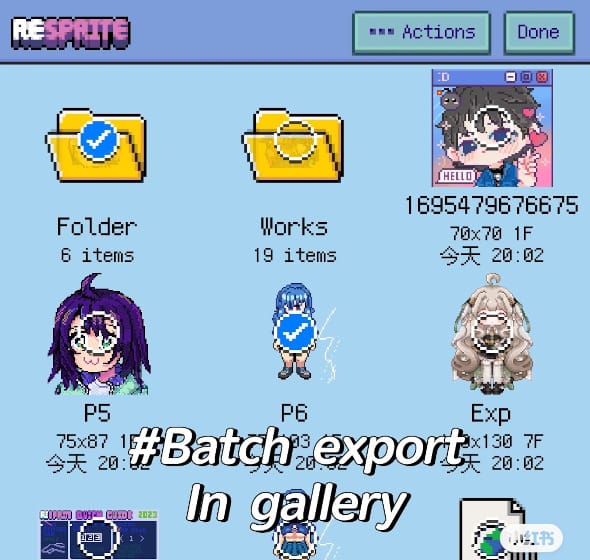
- Enter Select in the Gallery and choose projects or folders.
- Open Export and choose an available format.
- Configure the output, then save or share it. Use ZIP packaging when you want one archive for the result.
Batch options depend on the selected format. Folder exports retain their directory structure.
Transfer Projects to Desktop
Choose .resprite when the recipient needs to keep editing the project. For several outputs, package the files as ZIP so their names and directory structure stay together.
AirDrop (macOS)
Use AirDrop to transfer exported files between iPhone or iPad and a Mac. Open the received .resprite file in Resprite to continue editing.
Messaging Apps
Save the exported files first. If the app cannot send a folder, compress it into a ZIP and attach that archive.
Cloud Storage
Save the export into a folder managed by your configured cloud-storage service. Wait for the upload to finish before opening the files on another device.
Command-Line Exports on Desktop
For repeatable builds, the experimental Resprite CLI exports saved .resprite projects as a single PNG, frame sequences, or regular sprite sheets with animation JSON. It also supports project inspection, JSON configuration, dry runs, and batch jobs. CLI options and limits are separate from the GUI export settings.