Resprite for iPhone
Overview
Resprite on iPhone and iPad is the same iOS app, with drawing, layers, animation, palettes, and file workflows adapted to each screen size.
An iOS Premium purchase can be used on both devices with the same purchasing Apple Account. A subscription must remain active. If access is missing on the other device, use Restore Purchase on the Premium screen; see sharing Premium between iPad and iPhone.
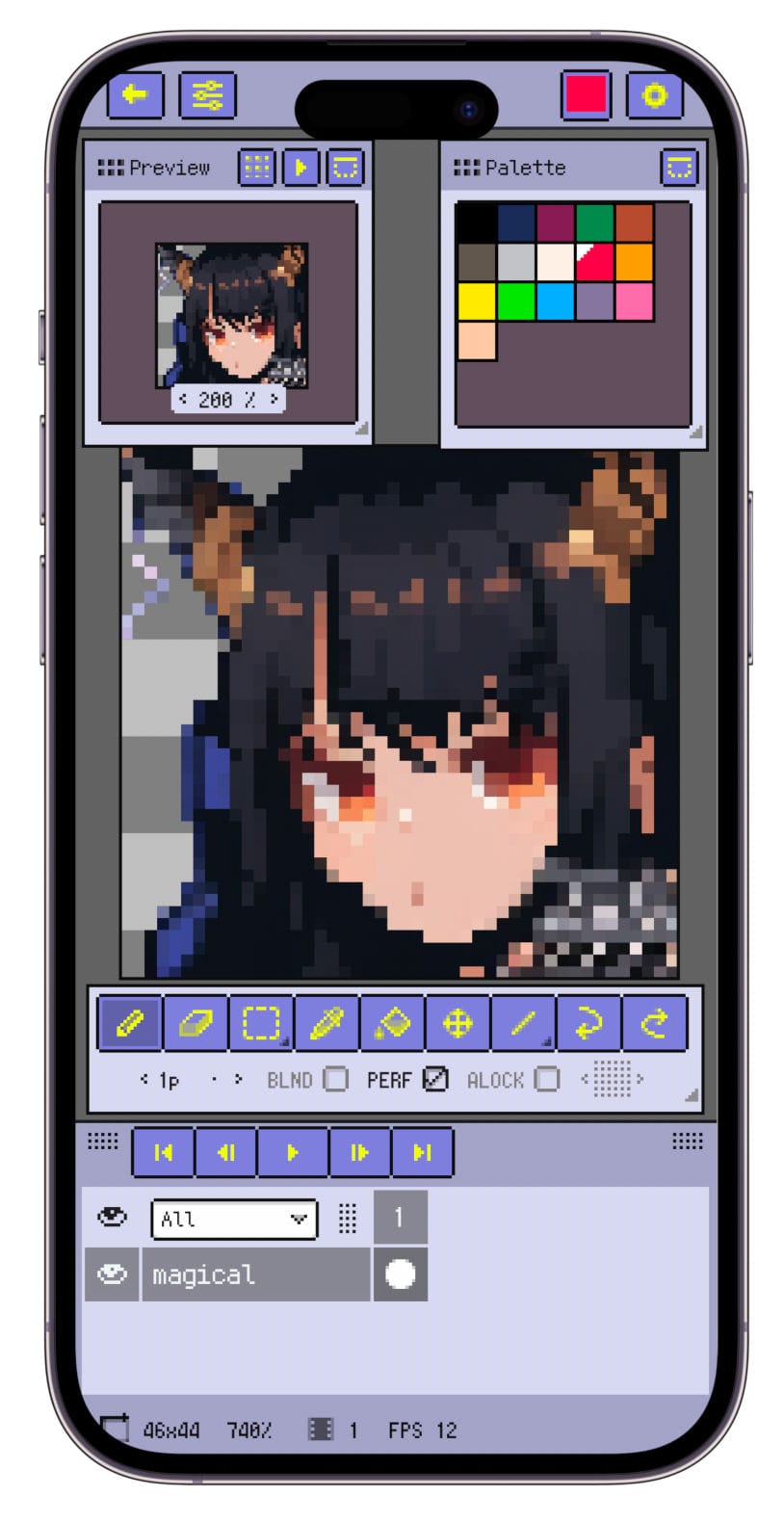
Resprite for iPhone
Differences from the iPad edition
- Layout: the smaller screen leaves less room for panels. Font lists and other controls can rearrange to fit the available width.
- Pen input: iPhone does not support Apple Pencil. Pencil pressure, tilt, double tap, and squeeze depend on a compatible iPad and pencil.
- Gesture settings: iPad's pen-only drawing and single-finger frame-navigation settings are not shown on iPhone. Two-finger Undo and three-finger Redo remain available through the gesture settings.
Expand the available canvas space
- In Preferences ▸ General, enable Extend to Full Screen to hide the system status bar and make more of the screen available for work.
- Hide the timeline action bar in the timeline settings when you do not need its playback buttons.
- Collapse or hide the timeline while drawing, then reopen it when you need to change layers or frames. See Timeline for its controls.
- Configure Focus Mode to hide selected panels temporarily. Assign Toggle Focus Mode to three-finger dragging in gesture settings, and choose which panels stay visible.
For panel placement and layout controls, see Floating Windows. For a first drawing, follow Quick Start.