Resprite iOS R63: Curves and Levels, Gallery Search, and Godot Scene Export
In Resprite iOS R63, you can shape the contrast of your pixel art by dragging a curve, or set the black and white points directly with Levels. If you build tilemaps, you can now take the current frame into Godot with its tilesets and terrain rules.
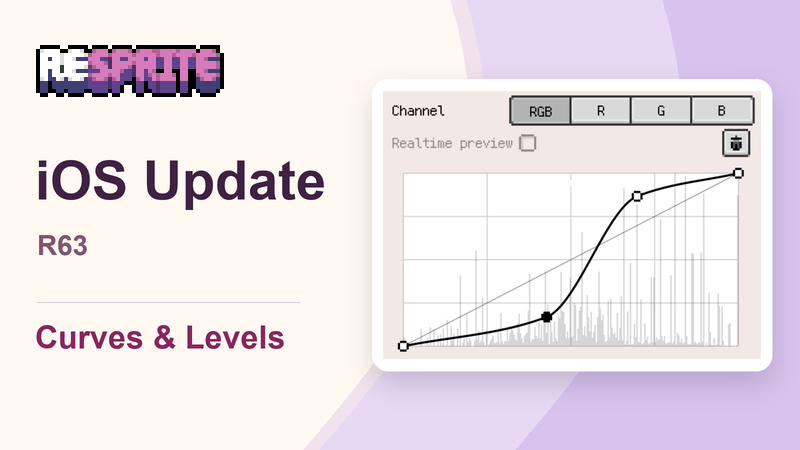
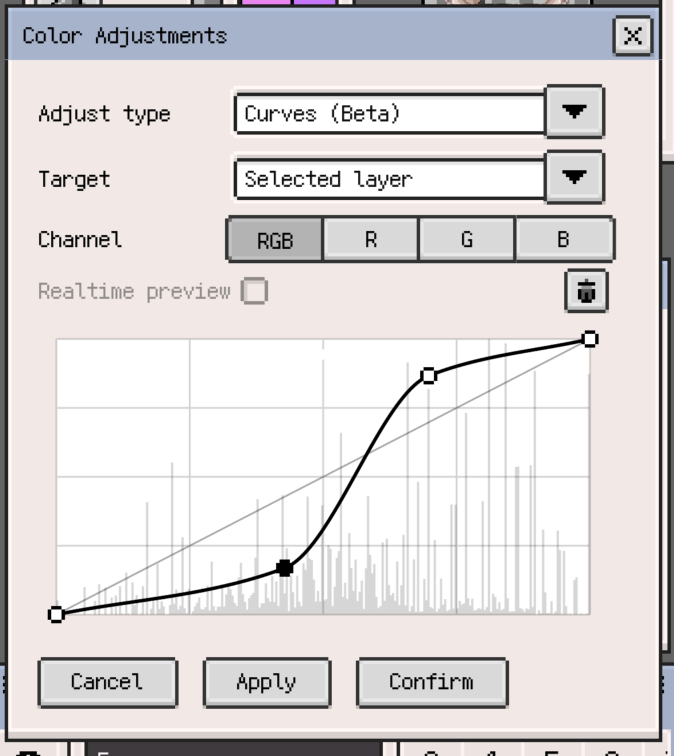
Adjust contrast and add texture
Open Color Adjustments → Curves and tap the curve to add a control point. Drag it while watching the live preview. Use RGB to adjust the channels together, or select red, green, or blue to work on a single channel.
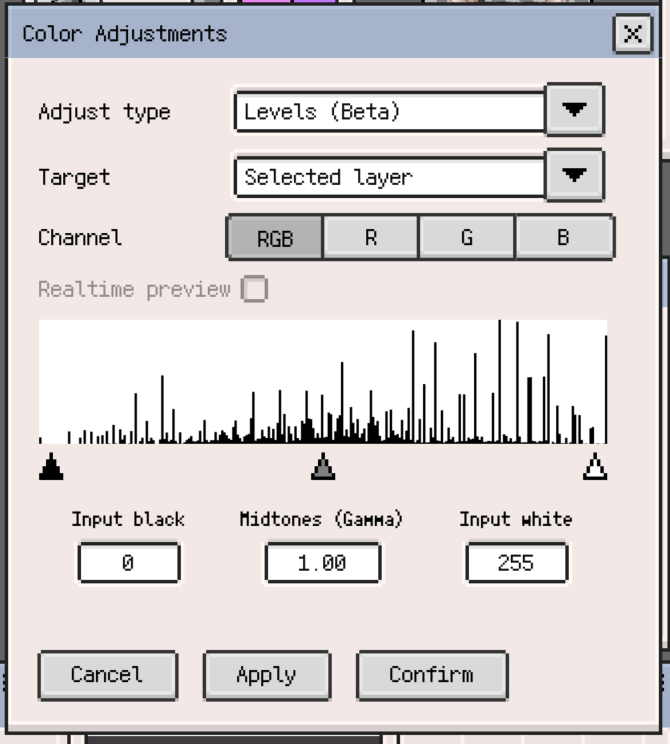
Levels shows the original histogram for the area you’re adjusting. Drag the black and white points to set the tonal range, then adjust gamma to change the midtones. You can also enter exact values.
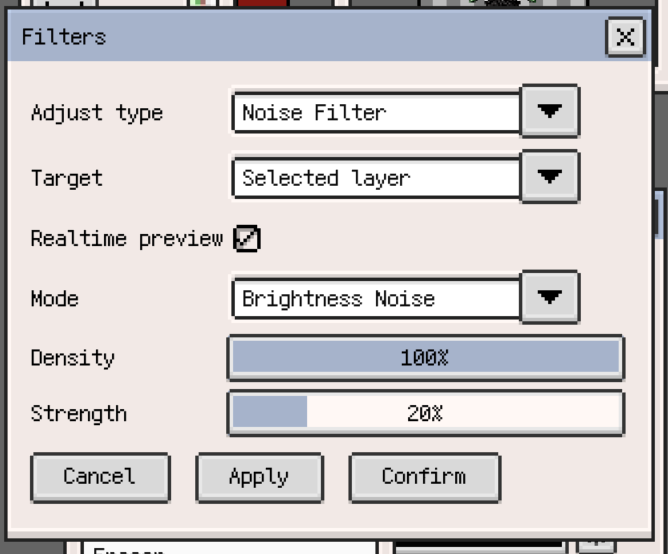
Under Edit → Filters, the new noise filter can add brightness noise, color noise, or dots of a color you choose. In Custom Color Dots mode, turn off Preserve Transparency to scatter dots on an empty layer. Adjust the density to change how many dots appear.
Find an artwork or return to an earlier edit
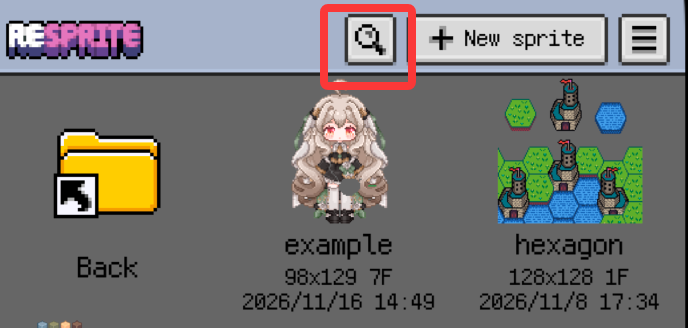
Tap the search button in the Gallery. Leave the field empty to see your 20 most recently opened artworks, or enter part of a name or path to find an artwork or folder. You can search the entire Gallery or just the current folder and its subfolders. When sorting by name, the Gallery and other lists now put numbered items in natural order, such as 1, 2, 10.
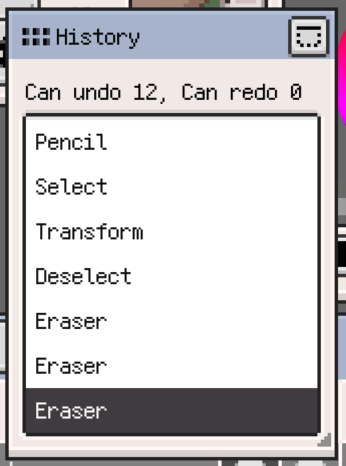
Open Window → History to see the edits made since you opened the document. Tap an entry to undo or redo several steps at once. If you go back and start drawing again, the new edits replace the steps you had undone.
Export a tilemap to Godot
Export the current frame’s tilemap as a native scene for Godot 4.5 or later. The scene keeps layer groups, visibility, and tiles outside the canvas. Its tilesets include terrain rules for rectangular and isometric grids. The ZIP includes a compatibility report and instructions for using the scene. Raster layers are excluded from this export.
Import animation and export clips
Import → Image now recognizes animated APNG and WebP files and preserves their frame durations. To slice a sprite sheet into frames, use the separate sprite sheet import entry.
When exporting a sprite sheet, Rows of Clips now exports only frames that belong to clips. Choose Rows of Clips (Include Unassigned Frames) to give each consecutive run of unassigned frames its own row in timeline order.
Themes, controls, and fixes
- Preview, install, apply, and remove themes in the online theme library. You can set separate colors for menus, lists, text fields, and borders. The shared
.resthmformat works across platforms, and older themes still import. - Resprite now supports iPhone Duo. The custom font keyboard has larger tap targets and fits characters to the available space.
- Start dragging on the hue ring and you can keep adjusting the hue even when your finger moves inside or outside the ring.
- R63 fixes stray preview lines in grid-snapped elliptical selections, a crash that could occur when returning to the Gallery before lifting Apple Pencil, and missing timelapse clips after jumping between History entries.
Thanks for reading. Browse the full R63 changelog.