Keyboard Shortcuts (Desktop & Android)
Configure keyboard and mouse wheel bindings in Preferences. Android requires an attached keyboard or mouse for those inputs; touch gestures are described in Gestures.
View or customise shortcuts
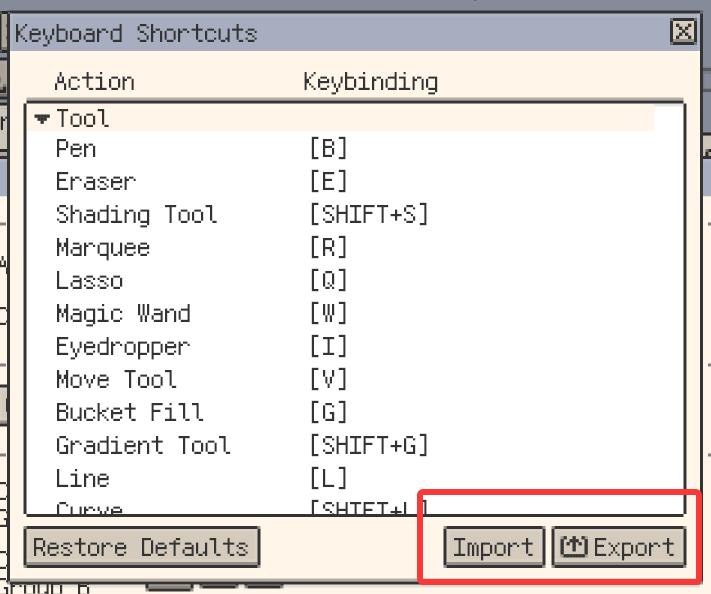
Open Preferences ▸ Keyboard ▸ Configure Keyboard Shortcuts. Select an action to set its binding. This page lists common defaults; your configured bindings and the exported cheatsheet reflect your own layout.
Configure mouse wheel bindings
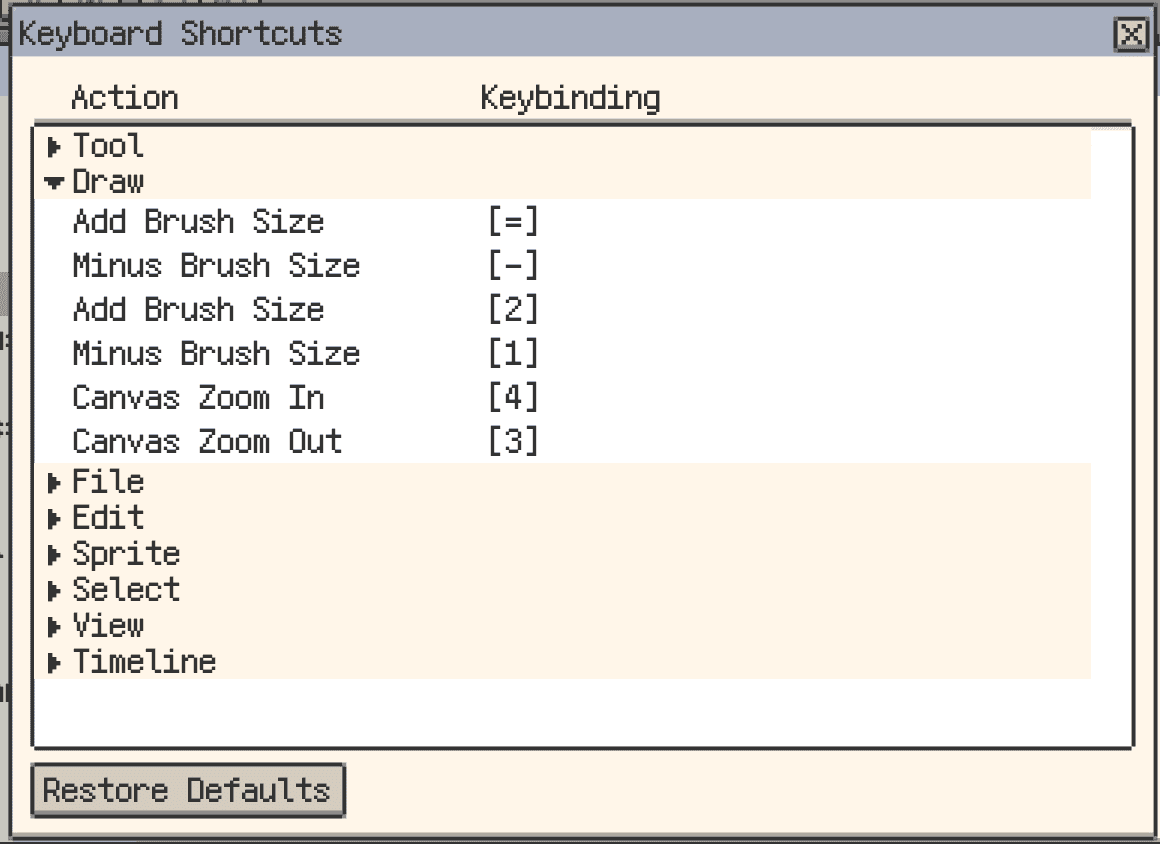
In the shortcut configuration window, open the Mouse wheel page. Bind an action to the wheel alone, modifiers plus the wheel, or one ordinary key with optional modifiers plus the wheel.
The defaults are wheel for canvas zoom, Shift + wheel for brush size, and Alt + wheel for palette navigation. Other choices include frame or layer navigation, tool cycling, custom tool groups, and pen colour opacity. Hold the configured keys while scrolling over the canvas.
Import, export, and share shortcut layouts
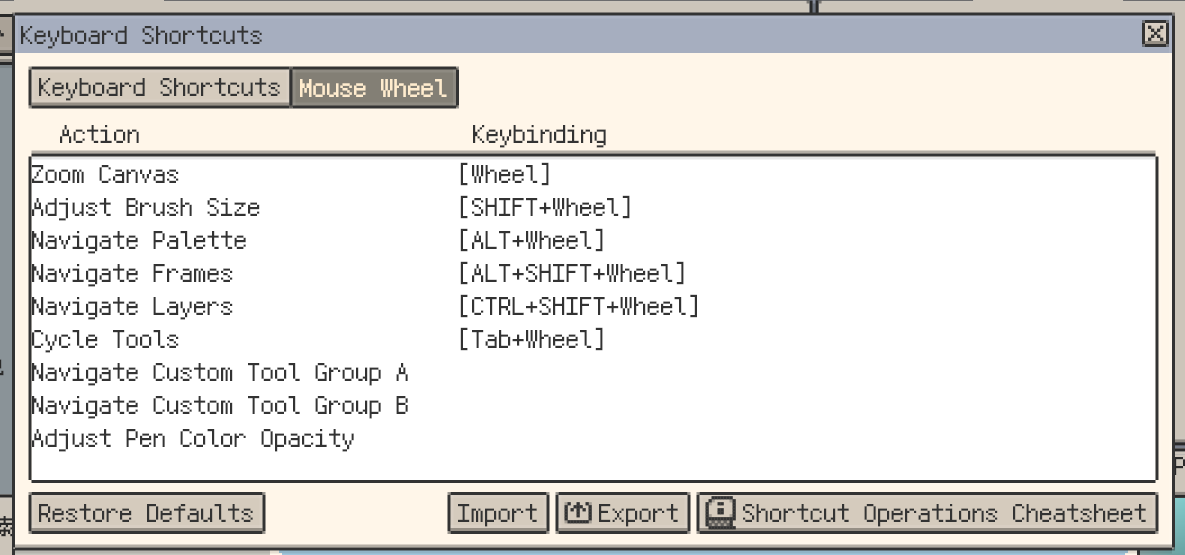
- Export config (
.reskbd): save a copy of your bindings for backup or sharing. - Import config: load a saved layout, replacing the current shortcut configuration after confirmation. Export the current layout first if you want to keep it.
- Export cheatsheet: create a reference image for your current bindings. This image is for reading; use
.reskbdto restore a layout.
Transfer the configuration file and import it on the other device to reuse a layout.

Default shortcut reference
In the table, use Cmd instead of Ctrl, and Option instead of Alt, on macOS. Opening Preferences is the exception: its macOS default is Cmd + ,.
Some actions depend on the active area. Copy, cut, paste, and F2 act on the current context; F2 can open layer properties from the canvas or properties/rename for another active item. Arrow keys move an editable canvas selection first, and the Cell Move tool also changes their behaviour. Ctrl + J creates a layer through copy; an active selection affects the copied content.
| Action | Default key |
|---|---|
General and canvas | |
| Undo | Ctrl + Z |
| Redo | Ctrl + Shift + Z |
| Increase brush size | = / 2 |
| Decrease brush size | - / 1 |
| Zoom out | 3 |
| Zoom in | 4 |
| Fit and centre canvas | Ctrl + 0 |
| Toggle workspace layout lock | Ctrl + Shift + L |
Timeline | |
| Frame navigation | Left / Right arrow |
| Layer navigation | Up / Down arrow |
| New layer | Shift + N |
| New frame | Alt + N |
| New empty frame | Alt + B |
| Play / pause | Enter |
| Toggle clipping mask | Ctrl + Alt + G |
| Context properties / rename | F2 |
| Frame properties | P |
| Delete frame | F6 |
| Toggle layer visibility | Shift + X |
| Fold / expand group | Shift + E |
| Layer via copy | Ctrl + J |
Tools | |
| Pen | B |
| Eraser | E |
| Rectangular marquee | M |
| Elliptical marquee | Shift + M |
| Lasso | Q |
| Magic Wand | W |
| Eyedropper | I |
| Bucket Fill | G |
| Gradient | Shift + G |
| Cell Move | V |
| Line | L |
| Curve | Shift + L |
| Rectangle | U |
| Ellipse | Shift + U |
| Contour | D |
| Blur | R |
| Jumble | Shift + R |
| Spray | Shift + B |
| Shading | Shift + S |
| Select Layer | Y |
| Pan tool | Shift + Y |
| Zoom tool | Z |
File | |
| New sprite | Ctrl + N |
| Open | Ctrl + O |
| Open Preferences | Ctrl + K; macOS: Cmd + , |
| Save | Ctrl + S |
| Save all | Ctrl + Alt + S |
| Save as | Ctrl + Shift + S |
| Close | Ctrl + W |
| Close all | Ctrl + Shift + W |
| Export | Ctrl + E |
Edit | |
| Copy | Ctrl + C |
| Cut | Ctrl + X |
| Paste | Ctrl + V |
| Outline | Shift + O |
| Adjust Colour | Shift + A |
| Insert Text | Shift + T |
| Horizontal flip | Shift + H |
| Vertical flip | Shift + V |
| Flip sprite horizontally | Ctrl + Shift + H |
| Flip sprite vertically | Ctrl + Shift + V |
Sprite and selection | |
| Canvas Size | C |
| Select all | Ctrl + A |
| Invert selection | Ctrl + Shift + I |
| Deselect | Ctrl + D |
To pan with a mouse, hold Space or the middle mouse button and drag. For Android touch navigation and optional canvas rotation, see Canvas. For the different iOS key mappings, see iOS shortcuts.