General Preferences
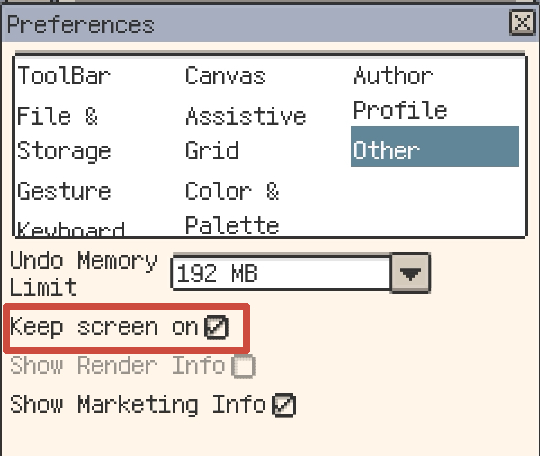
Use Preferences ▸ General to choose the interface language and where short notification messages appear. The screen-on option for mobile devices is under Other.
Switch the interface language
Choose Language in General preferences. Select System to follow the device language, or choose a language explicitly.
Available languages are English, Simplified Chinese, Traditional Chinese, Japanese, Korean, German, Spanish, French, Italian, Portuguese, Russian, Turkish, Polish, Ukrainian, Czech, Indonesian, Dutch, and Thai.
Position toast notifications
Choose one of six canvas positions in General preferences: left, centre, or right along the top or bottom edge. Changing the selection displays a sample message so you can check the placement.
iOS also offers Footer, which places messages in the footer of the bottom-docked timeline when it is open and visible. Otherwise, messages appear at the bottom centre of the canvas.
Keep the mobile screen on
On iOS and Android, enable Preferences ▸ Other ▸ Keep screen on to prevent automatic screen sleep while Resprite is in use. This is useful when following a bead pattern or keeping artwork visible as a reference.
Turn the option off when you want the device's normal automatic sleep behaviour again.